Sepasoft MES Module Suite
Automatic Multipoint Sample Entry
SPC Tag Collectors collect one measurement per sample. Collection on sample measurements can vary greatly. For example, is a measurement reading the same tag as other measurements or a different tag, does it read consecutive values or delay between each measurement, etc.
Below is an example on how to automatically create samples with multiple measurements and attributes.
This example has an existing Location and a Sample Definition. Use the Measurement sample definition for the Sample Location.
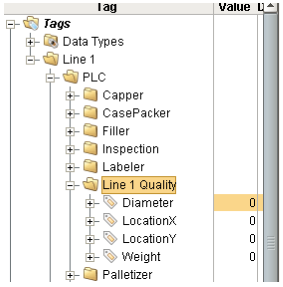
First, create the tags that are read in when entering the sample. In the Ignition designer, add 3 memory tags that will be the values for LocationX, LocationY, and Diameter.
Add the 3 memory tags to the Line 1 Quality folder in the Line 1 > PLC folder in the tag browser.
Set the names to the attribute names (LocationX, LocationY, Diameter) and set the datatypes to Float4. You should end up with the following:
Get the script in place that will enter in the sample data. For that we need to select the MES Scripts in the configuration project for the gateway. By default, this is in the MESGateway project. Under "Sample Due" create a new script, defined below.
Python |
sample = event.getSample() location = "Enterprise\Site 1\OEE Area\Sample Location" sampleDef = sample.getSampleDefinition().getName() if sampleDef == "Measurement": locationX = system.tag.read("[default]Line 1/PLC/Line 1 Quality/ LocationX").value locationY = system.tag.read("[default]Line 1/PLC/Line 1 Quality/ LocationY").value diameter = system.tag.read("[default]Line 1/PLC/Line 1 Quality/ Diameter").value sample.setSampleData(1, "LocationX", str(locationX)) sample.setSampleData(1, "LocationY", str(locationY)) sample.setSampleData(1, "Diameter", str(diameter)) sample.setApproved(1) system.quality.sample.data.updateSample("QualityDemo", location, sample, 1) |
After configuring the script, and saving the project, load the Equipment Manager on a screen or view. Select the location and Sample Events under the SPC configuration area in the component.
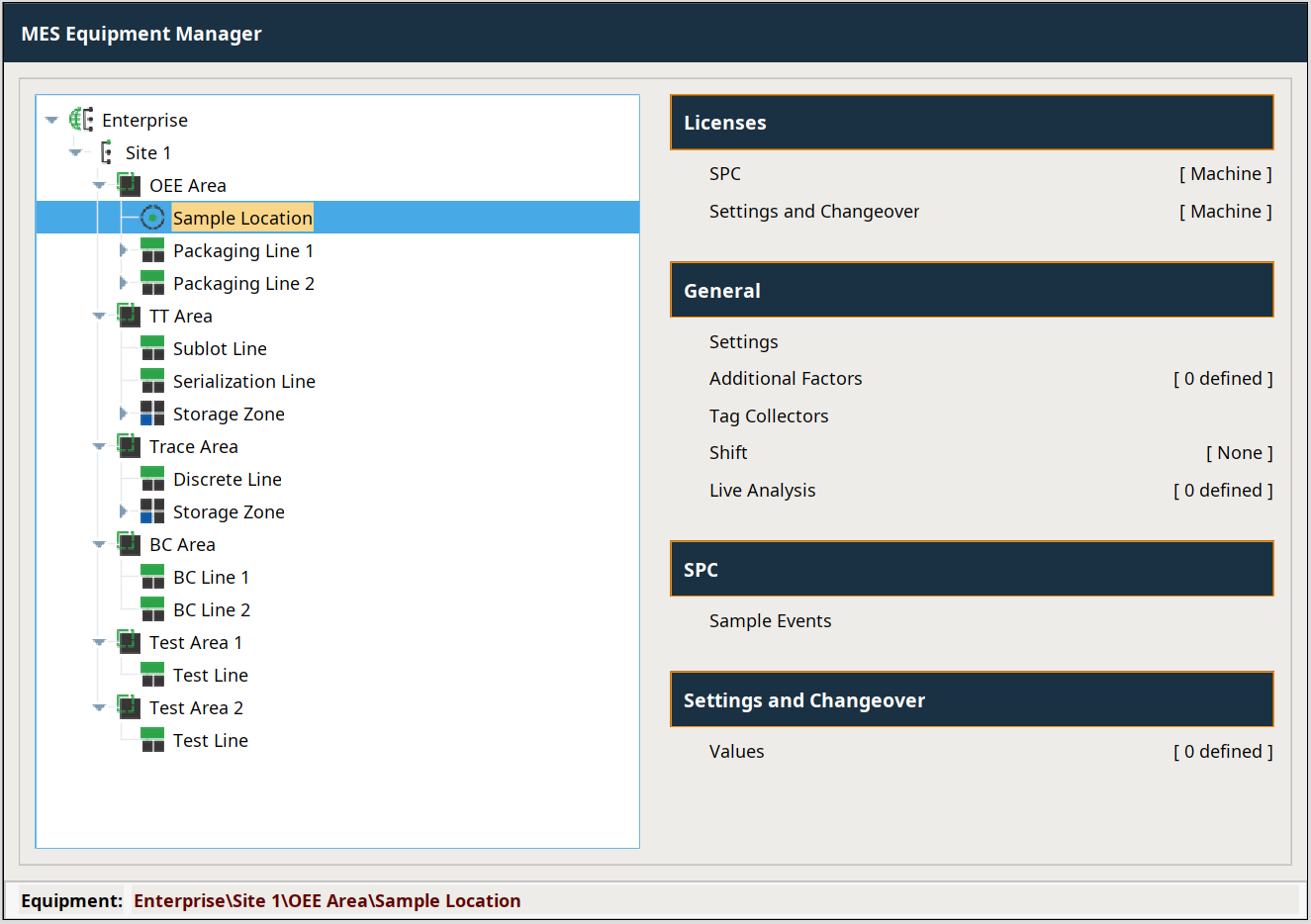
For the Sample Due event, select from the drop-down selector the name of your script configured under MES Scripts\Sample Due. Then select save.
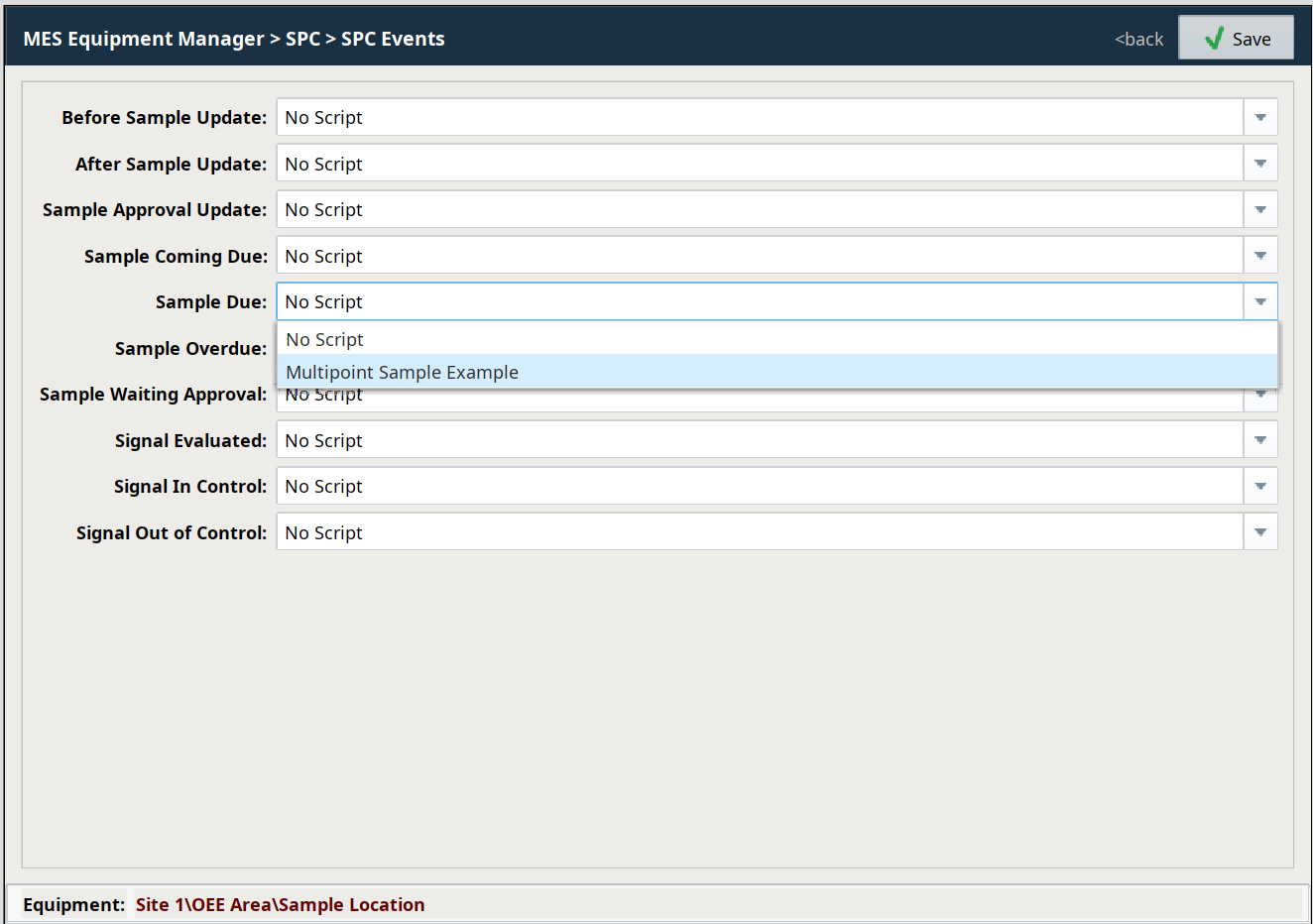
The script makes sure that the definition is Measurement before messing with it. That is because we have more than one definition for this location. You can see the script gets the values from the tags we created.
- Save your changes in the designer.
- Now that the script is in place we need to schedule the sample to be taken. We will use the scheduling settings on the location for the Measurement sample definition.
- Navigate to the Definition Management window in the quality project runtime.
- Select the Measurement sample definition. Right click on the Line 1 Quality location and select edit.
- Set the interval type to Timed Interval (Minutes). Now the Interval setting applies. In this case it will specify how many minutes. Set the interval to 15 to schedule a sample every 15 minutes.
- Set the duration to 1, coming due to 5, and overdue to 5.
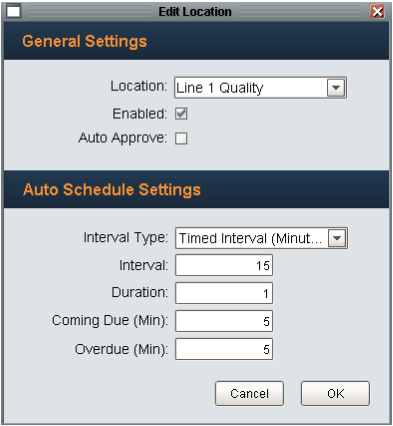
- Press OK to save. Again press Save on the definition management screen to lock in the changes.
You will see samples entered in every 15 minutes in a control chart.
Sepasoft MES Module Suite