Sepasoft MES Module Suite
Using Batch List
The Batch List component is a primary interface within the Ignition Perspective environment for managing queued batches. It provides operators with a centralized view to monitor, add, and perform actions on single or multiple selections of batches scheduled for production. A key aspect of managing this process effectively involves controlling which actions an operator can perform at any given time in the Batch List Component properties..
Use Batch List to manage queued batches:
- View active and pending queued batches in a table form
- View batches that have been scheduled
- Add new batches (Remote or Local servers - see viewMode property) and add to queue.
- Multi-select batches and perform actions
- View batches waiting on shared equipment and transfers.
 |
You must have at least one Process Cell in the Production Equipment Model to add batches. See Batch Procedure Framework. |
Batch Procedure Components in Ignition Designer
See Batch List Component for properties.
In the Ignition Designer, find the components in the Perspective Component palette.
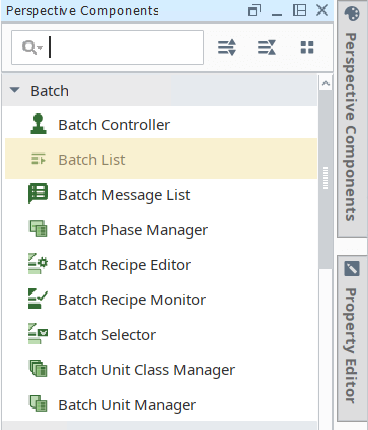
Using Batch List to Manage Batches
Once the component is added to a Perspective view, you can launch a Perspective session to start using the component.
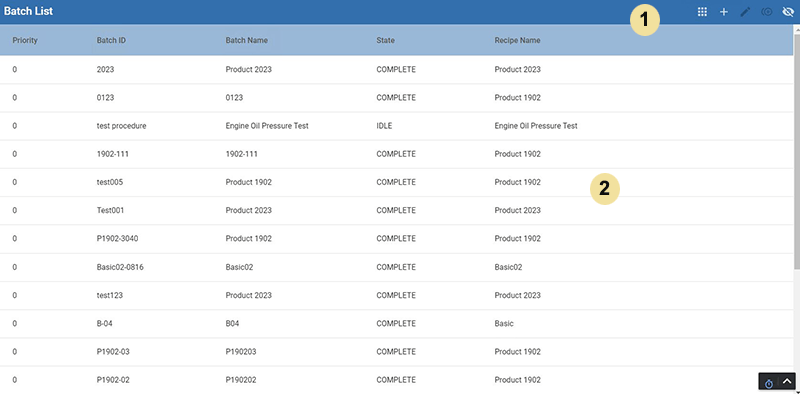
Batch List provides two main areas:
|
|
Tool Bar: Batch Command Palette You can multi-select batches in the Batch List and perform actions.
Batches can be duplicated. The Duplicate Batch icon: Duplicating batches includes the batch parameters and unit designation. Eye icon: Use to toggle the visibility of the list columns: Name , Description , Base Phase Type and Exposed .
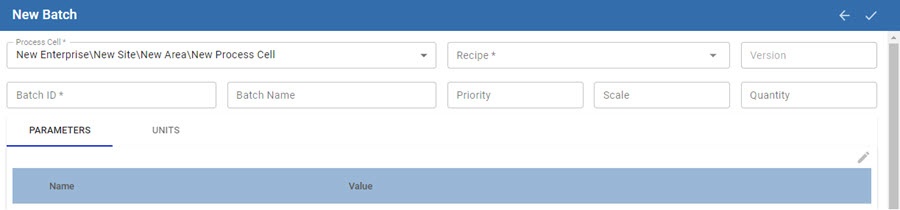
Process Cell:Required. The two fields for Process Cell and Recipe work together. If you select a Process Cell, the valid recipes are filtered in the Recipe field. If you select a Recipe first, then the valid the Process Cells diplay. Recipe: Required. Only validated recipes display in the Recipe dropdown list. BatchID: Required Batch Name: 'Friendly' name for a batch. Priority: Works with shared Units. Scale: To implement scaling within the recipe, you can refer to the scale parameter with /{}.Batch_Scale and refer to the batch quantity with /{}.Batch_Quantity The Units tab provides the available equipment by unit path defined in the Equipment Manager and functionality defined by unit classes of phases. |
|
|
Batch List:
Batch List displays batches in these states: Idle, Running, Stopped, Held, Paused, Completed and Aborted . You are provided with 5 columns of information: Priority, BatchID, Batch Name, State and Recipe Name. Click the column name to sort in ascending or descending order. Search by priority, batchID, batch name, state and recipe name. Priority: A priority is set when you create a batch. Entries with a lower priority value appear higher in the list by default. State: Idle, Running, Stopped, Held, Paused, Completed and Aborted When a batch is created, it goes into the Idle state. |

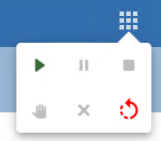
 Plus icon: Use to add a batch.

These UI-level controls are designed to work in concert with more comprehensive backend and detailed-view tools available within the Ignition platform.
Overall batch execution and monitoring can also be managed through several other methods:
Backend Scripting: For programmatic or automated control, the system.mes.batch.queue scripting functions allow for adding, manipulating, and controlling batches from server-side scripts, completely independent of the user interface.
Detailed Control Interfaces: For fine-grained control and visibility into a specific recipe's execution, operators and supervisors can use the Batch Controller and Batch Monitor components. These tools provide the ability to view and control individual recipe steps and transitions, offering a much deeper level of interaction than the high-level commands on the Batch List.
Sepasoft MES Module Suite