Sepasoft MES Module Suite
Open Component Scripting Dialog
The MES Vision Equipment Manager component contains numerous views and controls. To accommodate the many environments in which this component could be used, an extensive array of settings has been exposed to allow the look and feel to be fully customized.
To access the settings, right-click the component and select Scripting, or use the keyboard shortcut Ctrl-J.
You may then enter Preview Mode (F5) so that any customizations made can be seen in real time.
Select getUISettings() on the left and then click the Enabled checkbox above the script area.
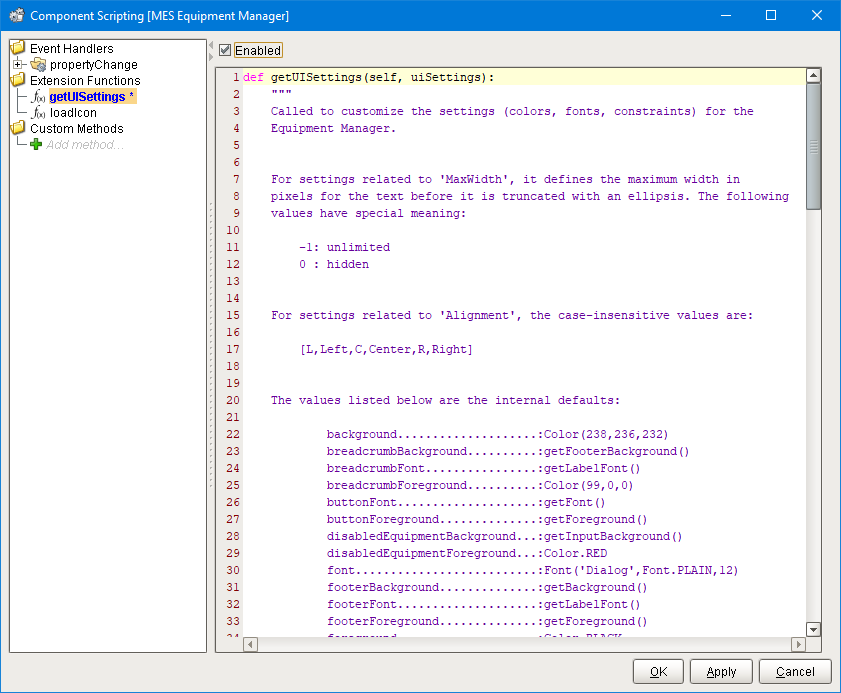
Extension Function
Each extension function documents all of its available settings. Below this is example code that, when enabled, will define the same internal default values of each of the settings.
It is not necessary to uncomment every line, but a few are required. The first two lines and the very last line must be uncommented or the function will either fail or fail to return a value, in which case the internal default values are used. The following lines must be uncommented, if this extension function is to be used:
Lines to Uncomment
Code |
from java.awt import Color from java.awt import Font #... return uiSettings |
With those lines in place, any (or all) of the remaining lines can be used to change the look and feel of the MES Equipment Manager component. The internal default value of every setting is listed within the documentation of the function. In some cases, a value may reference another setting to get its default value. In the example code however, the actual value used has already been populated to make configuring it as simple as possible.
After writing code to change some of the settings, click the Apply button to see the changes in real-time. A few settings are only applicable from within the edit views (by clicking a menu option). If you do not see your change on the main view of the component, try opening an edit view. It is important to note that a great deal of internal calculation is performed each time the Apply or Save button is clicked. For this reason, the component must fully recreate itself (on-screen) and will always return to the main view. If one of the edit views is visible when clicking the Apply or OK buttons, it is normal behavior that the component will revert back to the main view.
UI / Settings Map
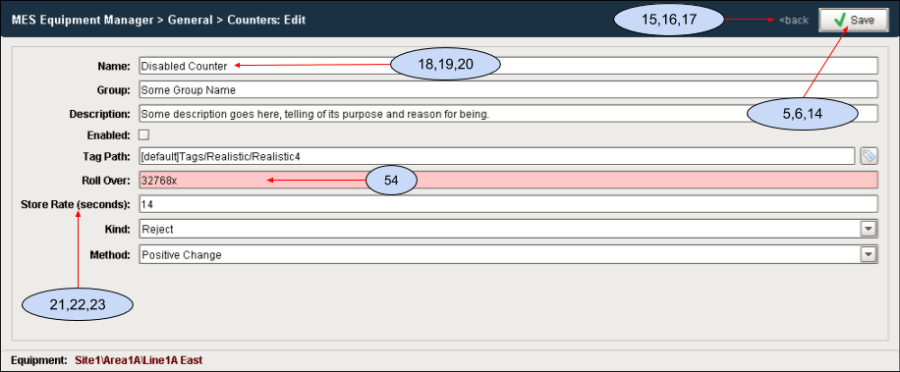
To assist with customization, refer to the mapping below along with the associated screenshots that contain the reference numbers that identifies which elements will be affected by any value changes.
Ref. | Setting Name | Ref. | Setting Name |
| 1 | background | 28 | menuHeaderDetailBackground |
| 2 | breadcrumbBackground | 29 | menuHeaderDetailFont |
| 3 | breadcrumbFont | 30 | menuHeaderDetailForeground |
| 4 | breadcrumbForeground | 31 | menuHeaderTitleBackground |
| 5 | buttonFont | 32 | menuHeaderTitleFont |
| 6 | buttonForeground | 33 | menuHeaderTitleForeground |
| 7 | disabledEquipmentBackground | 34 | menuItemBackground |
| 8 | disabledEquipmentForeground | 35 | menuItemDetailAlignment |
| 9 | font | 36 | menuItemDetailBackground |
| 10 | footerBackground | 37 | menuItemDetailFont |
| 11 | footerFont | 38 | menuItemDetailForeground |
| 12 | footerForeground | 39 | menuItemDetailMaxWidth |
| 13 | foreground | 40 | menuItemFont |
| 14 | headerButtonSaveText | 41 | menuItemForeground |
| 15 | headerLinkButtonBackText | 42 | menuItemHoverBackground |
| 16 | headerLinkButtonFont | 43 | menuItemHoverForeground |
| 17 | headerLinkButtonForeground | 44 | menuItemIndent |
| 18 | inputBackground | 45 | menuItemMaxWidth |
| 19 | inputFont | 46 | menuItemPadding |
| 20 | inputForeground | 47 | menuSectionGap |
| 21 | labelBackground | 48 | selectionBackground |
| 22 | labelFont | 49 | selectionForeground |
| 23 | labelForeground | 50 | titleBarBackground |
| 24 | lineColor | 51 | titleBarFont |
| 25 | menuHeaderBackground | 52 | titleBarForeground |
| 26 | menuHeaderBorderColor | 53 | titleBarHeight |
| 27 | menuHeaderBorderPadding | 54 | validationFailedBackground |
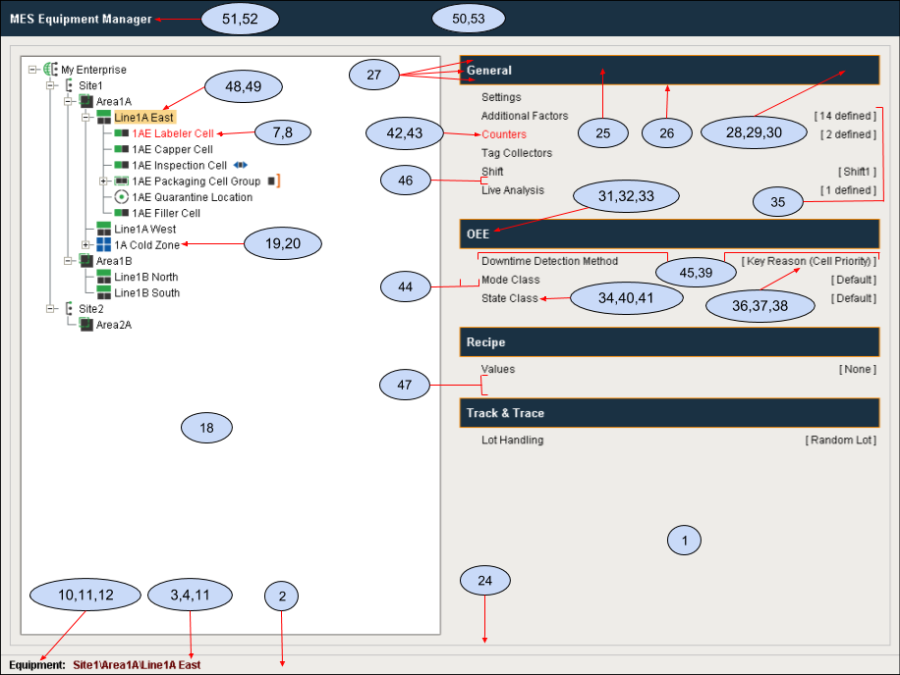
Note: The Recipe module shown above is now called Settings and Changeover.
Sepasoft MES Module Suite