Sepasoft MES Module Suite
Creating a Batch from a Formula

|
Version Specific Available in 3.81.11 RC 1 Batch Procedure Module and later. |

|
The formula and recipe versions must match. If not, sync the formula to the recipe. See Using Batch Procedure Formula Manager - syncing. |
Each formula has a version, state and recipe name. These parameters are used for core functionality of formula management, validation and syncing.
In Batch Formula Manager, formulas are listed in alphabetical order.
- Select a formula and click the Create a Batch icon in the action bar.

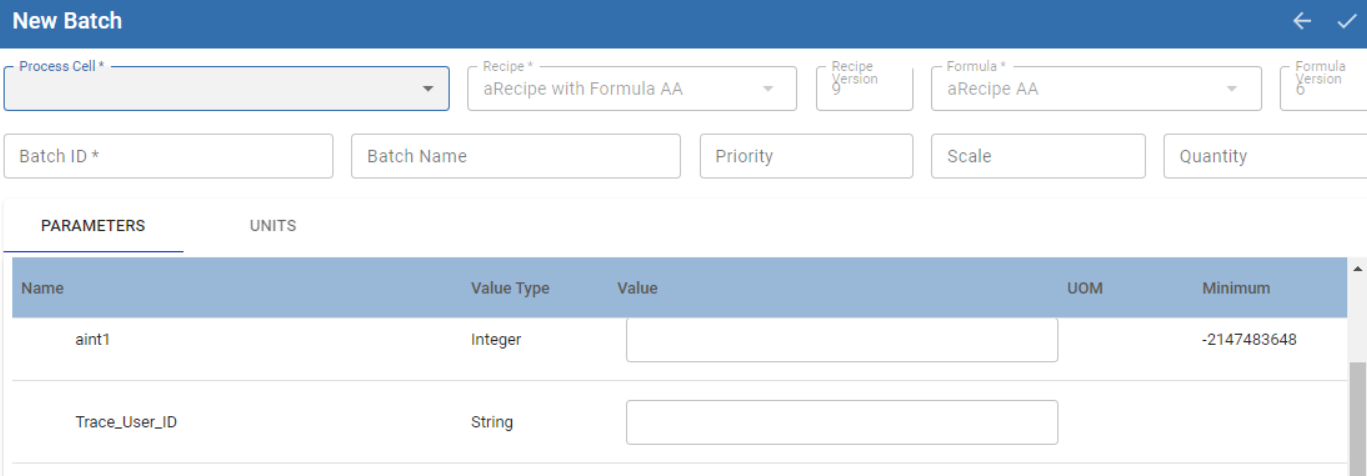
- Select a Process Cell to set where the batch should execute.
- Set the parameter values if different from formula.
- Click the checkmark in the upper right side to add the batch to the batch queue.
The batch goes into the Idle state. You can use Batch List, Batch Controller and scripting functions to issue batch commands.
Create a Batch From Formula via Scripting
…batch.queue.addEntry(.... Object formulaLink or masterRecipeLink) | BatchQueueEntry | Formula must be validated before it can be used. The “formula” parameter can be a formula object or an object link. Pass a MES Object Link for masterRecipeLink or pass a formulaLink. Not both. If both are passed, then an exception is returned. |
Sepasoft MES Module Suite