Sepasoft MES Module Suite
Using Batch Formula Manager
The Batch Formula Manager component is used to create, edit and manage formulas. It's located on the Perspective component palette under Batch Procedure.

|
Version Specific | Available in 3.81.11 RC 1 and later Batch Formula Manager |
|
|
Update | Available in 3.81.11 SP 11 and later Added - Formula_Name member to Batch Details UDT to display the name of the formula being used during batch execution. |
Batch Formula Manager
Batch Formula Manager has two main views: list view and edit view.
Batch Formula List View
List view allows you to select a formula and perform an action such as load a batch based on that formula for batch execution, edit the formula and set parameter values and set individual viewing and editing rights, copy, delete and export. You can also import a formula and set the filter by to only view formula based on a master recipe.
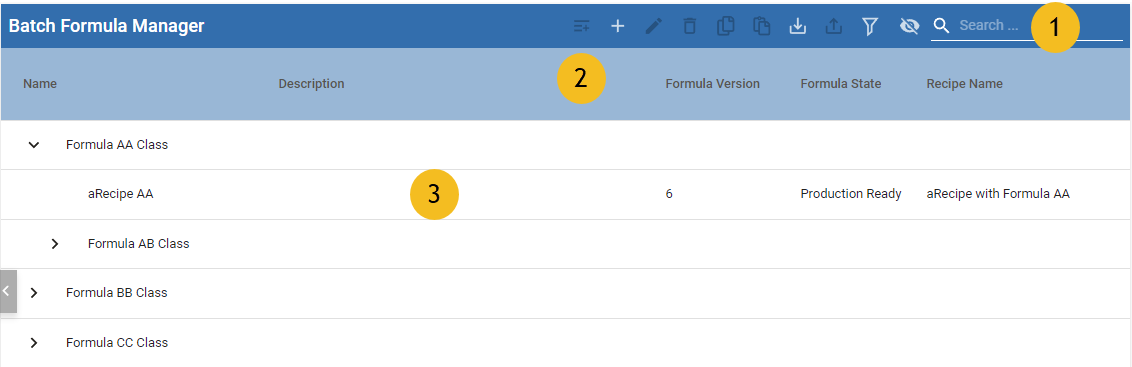
 | Action bar |
(icon descriptions from left to right) Add to Queue: Adds a batch based on the selected formula, one a formula at a time. Add Formula or Formula Class: Adds a new formula or formula class. Edit Formula: Opens a formula in the edit view. Delete Formula: Deletes a formula and cannot be undone. Copy Formula: Copies the selected formula. Paste Formula: Pastes a previously copied formula. Export Formula: Exports a formula in XML. Import Formula: Opens a file browser to select an XML file of a formula. Filter Formula List by Recipe: Filters the formulas that show up in the list for a single recipe. View Formula: Toggle list columns.
Search for Formula: Enter a formula name. Wildcards accepted. |
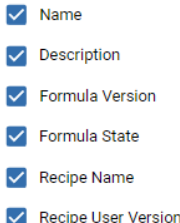
 | Formula list columns: Name, Description, Formula Version, Formula State, Recipe Name, Recipe Version. | |
 | Tree list of formula classes and formulas. |

Batch Formula Edit View
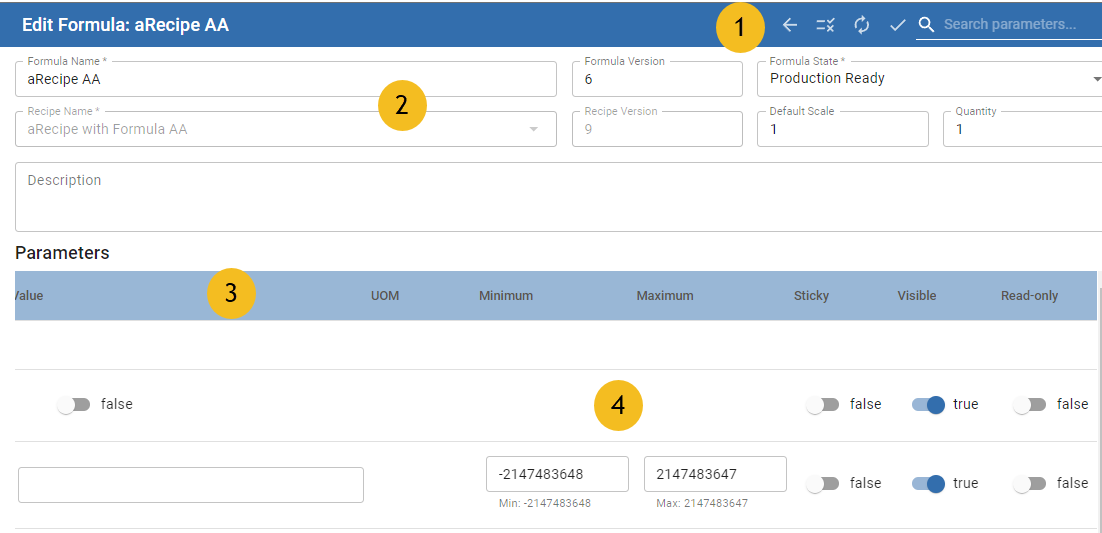
| | Action bar | Back: Goes back to the list view. |
| Header information | Each formula has a version, state and recipe name. These parameters are used for core functionality of formula management, validation and syncing. Formula Name: Editable name field. Formula Version: Read-only field showing the formula version. Each time there is a change to the formula, the version increments. The recipe version and formula version must be the same to add a batch to the queue. Formula State: Selectable list of formula states. The formula must be in the Production Ready state to add a batch to the queue. Recipe Name: Read-only field showing the referenced recipe. Recipe Version: Read-only field showing the version of the referenced recipe. Default Scale: Editable field with the default scale from the recipe displaying. Quantity: Editable field with the quantity from the recipe displaying. |
| Parameter list columns | Sortable columns: Name: parameter name Value Type: data type of parameter Value: Parameter value coming from the recipe. You can add new values here. An arrow appears when changing the value. Click the arrow to revert back to the recipe value. UOM: Unit of measure Minimum: For number value-types, minimum number that can be added. Maximum: For number value-types, maximum number that can be added. Sticky: Setting to copy the value entered by an operator, during batch execution time, back to the formula. Visible: Toggle setting to show the parameter to the operator. Read-only: Toggle setting to show the parameter to the operator as read-only. For permissions on parameters, see: Parameters in Formulas. |
 | Main editing area | Add parameter values and permissions in this area. |
Initial Setup for Batch Formula Manager in Ignition Designer
You can set component properties based on the role: admin, formula creator, operator, examples shown below:
- enableCreateFormula
- enableEditFormula
- enableCreateBatch
For a complete list of properties with descriptions, see the component reference Batch Formula Manager.
| Set component props based on role: | Add and set parameter permissions | Only See Parameters | Only See Some and others can Edit | Only See the Ones that can be Modified (set at runtime) |
|---|---|---|---|---|
| admin | x | |||
| formula creator | x | |||
| floor manager | x | or x | ||
| operator | x |
Admin example property settings
The Default property values of the Batch Procedure Formula Editor component fit the admin user, based on the permissions in the above table.
Along with these settings, you need to add parameter-specific permissions, see Parameters in Formulas for details, to set batch-execution runtime behavior for operators and other users.
For a complete list of properties with descriptions, see the component reference Batch Formula Manager.
Set to this for Admin right - Default Uses the MESAdmin Signature Template. | |
enableCreateBatch | True |
enableCreateFormula | True |
enableEditFormula | True |
enableDeleteFormula | True |
enableCopyPaste | True |
enableImport | True |
enableExport | True |
enableFilterByRecipe | True |
enableColumnEdit | True |
enablePagination | True |
enableEsignatures | False |
mesAdmin | True |
IndentedParameterList | True |
showRecipeVersion | True |
showPriority | True |
showScale | True |
showQuantity | True |
showDescription | True |
showParametersOnBatchCreation | True |
validateFormulaOnSave | True |
includeParameterFilter | Empty |
excludeParameterFilter | Empty |
includeRecipeFilter | Empty |
includeFormulaStateFilter | Empty |
includeFormulaPathFilter | Empty |
filterFormulaBasedOnRecipes | Empty |
Formula Creator example property settings
Along with these settings, you need to add parameter-specific permissions, see Parameters in Formulas for details, to set batch-execution runtime behavior for operators and other users.
For a complete list of properties with descriptions, see the component reference Batch Formula Manager.
enableCreateBatch | False |
enableCreateFormula | True |
enableEditFormula | True |
enableDeleteFormula | True |
enableCopyPaste | True |
enableImport | True |
enableExport | True |
enableFilterByRecipe | True |
enableColumnEdit | True |
enablePagination | True |
enableEsignatures | True |
mesAdmin | False |
IndentedParameterList | True |
showRecipeVersion | True |
showPriority | True |
showScale | True |
showQuantity | True |
showDescription | True |
Operator example property settings
Along with these settings, you need to add parameter-specific permissions, see Parameters in Formulas for details, to set batch-execution runtime behavior for operators and other users.
For a complete list of properties with descriptions, see the component reference Batch Formula Manager.
enableCreateBatch | True |
enableCreateFormula | False |
enableEditFormula | False |
enableDeleteFormula | False |
enableCopyPaste | False |
enableImport | False |
enableExport | False |
enableFilterByRecipe | True |
enableColumnEdit | False |
enablePagination | True |
enableEsignatures | False |
mesAdmin | False |
IndentedParameterList | False |
showRecipeVersion | True |
showPriority | True |
showScale | True |
showQuantity | True |
showDescription | True |
showParametersOnBatchCreation | True |
validateFormulaOnSave | False |
includeParameterFilter | Empty |
excludeParameterFilter | Empty |
includeRecipeFilter | Empty |
includeFormulaStateFilter | Empty |
includeFormulaPathFilter | Empty |
filterFormulaBasedOnRecipes | Empty |
Viewing Parameters in Formula Editor | Set to Indented View or Flat View
The Batch Formula Manager can display parameters as a flat list or in a collapsible tree-structure by setting the IndentedParameterList property.
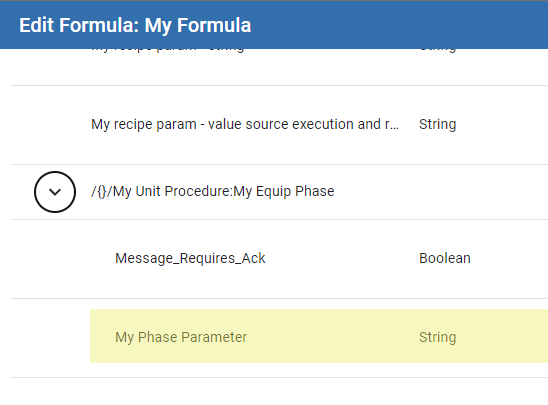
Indented Path, Name and Value.
With the IndentedParameterList property set to True, uses the same structure as paths in a recipe.
The phase parameter displays in the formula.
Flat, Name and Value
With the IndentedParameterList property set to False, all of the parameters display as a flat list.
Adding Parameters to Formulas
Parameters are available in formulas from the master recipe: both modified values and ones with default values.
Validation: Syncing Parameters to Formulas
Once you create a formula and you want to update the values and references, you need to sync the formula. You can get the formula up-to-date in a few ways.
Options:
- Formula Specific Syncing: Sync a single Formula to a master recipe
- This syncs all recipe parameters to a single formula.
- This syncs all recipe parameters to a single formula.
- Recipe-Specific Syncing to Formula(s): Sync all Formulas referenced from a master recipe.
- This syncs parameters from the recipe to formula(s).
- This syncs parameters from the recipe to formula(s).
- Phase-Specific Syncing to Master Recipe: Sync a Phase to master recipe( s) and to Formula(s)
- This is synching one phase at a time to master recipe. Then, manually using one of the first two options, sync phases to formulas.
|
|
Phase-Specific Syncing to Master Recipe will be included in 3.81.11 RC2 - This feature is not in 3.81.11 RC1 |
Formula Specific Syncing
In Batch Formula Manager, open the formula associated with the master recipe. Then, sync and save. If the parameters are out of sync, you'll see a notification when editing the formula.
Recipe-Specific Syncing to Formula(s)
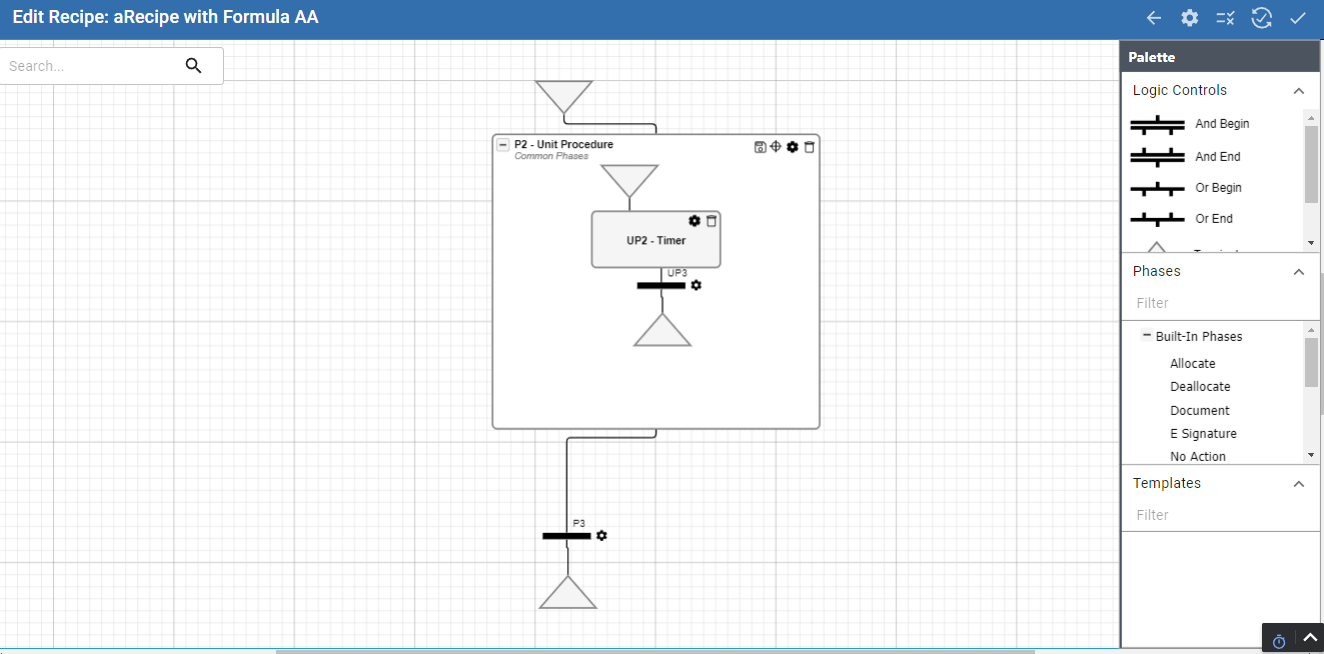
In Batch Recipe Editor, open a recipe and in the action bar, select Sync recipe to formula.
Duplicating Formulas
- You can duplicate formulas and then make any needed modifications and save with a different name and formula state.
Deleting Formulas
- Currently when you delete a formula, you can not undelete it. Make sure to manage formulas with this in mind.
Sepasoft MES Module Suite