Sepasoft MES Module Suite
Document Phase
- Overview
- Document Phase Change Propagation
- The Propagation Mechanism: How it Works
- Change Detection and Versioning
- The User Control for Propagation
- The Forceful Overwrite Behavior
- Expected Outcomes Based on User Action
- Known Limitations and Important Notes
- Document Phase Parameters
- Exposed Set to True
- Edit Menu
- Checkbox Form Field Properties
- Radio button Form Field Properties
- Dropdown List Form Field Properties
- Text Area Form Field Properties
- Text Form Field Properties
Overview
Use the Document Phase for:
- Adding procedures and steps to recipes.
- Adding instructional and informational materials.
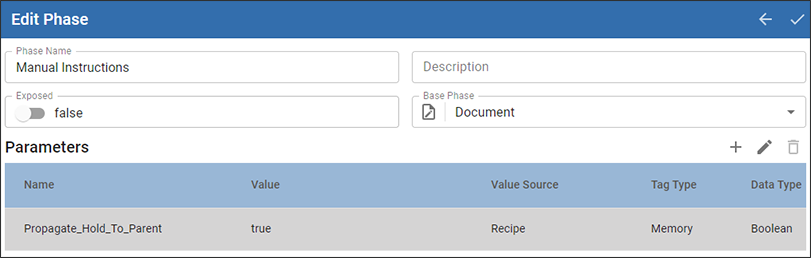
Built to support HTML5, a Document Phase supports form elements such as check boxes and entry fields as well as media.
Content can be driven by Ignition tag values and other phases.
Document Phase Change Propagation

|
Included in 3.81.11 SP9 and later. |
The Document Phase Change Propagation feature is a core mechanism for managing and distributing updated documents from a central 'document phase' to all associated recipes and templates where it is utilized. Its strategic purpose is to ensure that revisions made to a source document can be systematically and intentionally pushed downstream, maintaining consistency across multiple dependent items.
This guide details the propagation mechanism, the user controls that govern it, the expected outcomes of your actions, and known operational limitations of the feature. To use this feature effectively, it is important to first understand its fundamental concepts and workflow.
The Propagation Mechanism: How it Works
Understanding the step-by-step process of document propagation is key to leveraging this feature correctly. The mechanism is not automatic; it is a deliberate action controlled by the user during the phase update process, designed to give you explicit control over how and when document changes are distributed.
Change Detection and Versioning
The propagation process is initiated when a document linked to a document phase is modified.
- The "Changed" Status Trigger When a document attached to a document phase is changed, its status is recorded as "Changed."
- Automatic Phase Versioning This change automatically triggers an increment of the phase version number, creating a new version of the phase that contains the updated document.
The User Control for Propagation
The decision to propagate the document change is managed by a single, critical user control element.
- The Propagation Checkbox A checkbox is located within the phase update dialog.
- Explicit User Permission Checking this box explicitly grants permission for the document changes to be pushed from the updated phase to all dependent recipes and templates.
The Forceful Overwrite Behavior
Enabling propagation has a significant and immediate impact on the recipes where the document phase is used. The new version of the document from the phase forcefully overwrites whatever document was previously attached to the recipe.
Warning: This overwrite occurs even if the recipe's document had been modified from the original phase document. As a result, any local changes made to the document at the recipe level will be permanently lost once propagation is enabled.
This concludes the mechanics of how the propagation is triggered and executed. The following section details the specific outcomes based on your choice to enable this feature.
Expected Outcomes Based on User Action
The update status of all associated recipes and templates is determined entirely by the user's decision to "push" the document edits during the update process. The outcome varies depending on whether you check the propagation box and which assets you target for the update.
Scenario 1: Propagating Document Edits (Checkbox is CHECKED)
When the checkbox is checked, the updated document is successfully pushed from the phase to the targets you select.
When only updating recipe: Recipes that use the document phase will be updated with the new document.
When only updating templates: Templates that use the document phase will be updated with the new document.
When updating recipes and templates: Both recipes and templates that use the document phase will be updated.
Scenario 2: Not Propagating Document Edits (Checkbox is UNCHECKED)
If you choose not to check the propagation box, the document changes remain isolated within the document phase. No downstream assets will be updated.
When only updating recipe: Recipes will not be updated with the document phase change.
When only updating templates: Templates will not be updated with the document phase change.
When updating recipes and templates: Neither recipes nor templates will be updated.
While these scenarios describe the intended behavior, it is important to be aware of certain limitations observed during testing, which are detailed below.
Known Limitations and Important Notes
This section contains critical information for the successful use of the Document Phase Change Propagation feature. While the functionality is robust for updating recipes, testing has revealed specific limitations regarding template updates that users must be aware of to avoid unexpected results.
Observed Behavior in Template Updates
Recent testing has identified inconsistencies when attempting to propagate document changes to templates. The following outcomes were observed:
If the user selects to update only the recipe, recipes will update correctly.
If the user selects to update only templates, templates do not update.
If the user selects to update both recipes and templates, recipes are updated, but templates are not updated.
Users should factor this observed behavior into their workflow, particularly when managing documents intended for use in templates.
Note on Non-Document Phases
Please note that the behaviors and limitations described in this guide apply exclusively to the propagation of documents within document phases. Standard propagation for phases that do not contain documents operates under a separate mechanism and is expected to function as intended.
Extract HTML Documents from Document Phases
To extract HTML documents from document phases, use the scripting function: batch.queue.getStepDocument(batchID, Document Phase Reference).
Required

|
The Sepasoft Document Management module must be installed with the Batch Procedure module to use Document Phases in a batch system. |
Document Phase Parameters
See Properties Common to All Phase Parameters
| Parameter Name | Data Type | Description | Value Source By Default | Recording Type By Default | Tag Type |
| Propagate_Hold_To_Parent | Boolean | When a Phase state changes to HELD, the HELD state is propagated to the Unit Procedure and Operation. If this parameter is set to True, then the HELD state is passed up to the next parent level. Keep in mind that when you restart the unit procedure or operation, the batch is not restarted. Restart the batch from Batch Controller or Batch Monitor. | Recipe | Changes Not Saved | Memory |
Exposed Set to True
When true, recipe parameters are available to reference in the form fields.
Only parameters that match the field data type are displayed. For example, Checkbox only work for "Boolean" type parameters, Input fields of a "number" type only work for Integer/Short/Long type parameters,
Editing a Document in a Document Phases
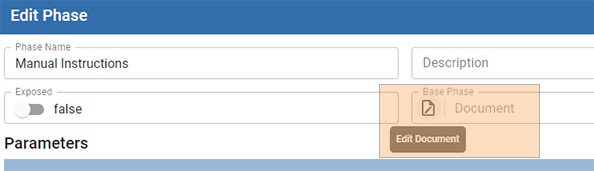
In Phase Manager, edit the Document Phase and then click the edit document in the Base Phase field.
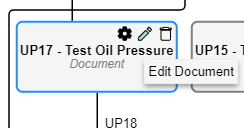
In Recipe Editor, click the pencil icon to edit the document.
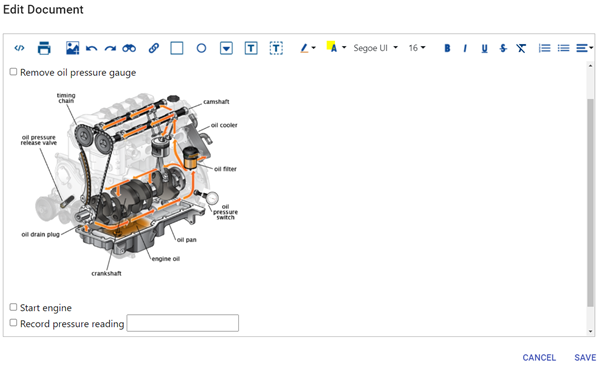
The document opens where you can add media and form fields.
Input Fields and Referencing Parameters
|
|
Version Specific 3.81.10 SP When adding new input fields to a document in Batch Phase Manager or Batch Recipe Editor, new fields are highlighted with a warning until the field is attached to a Batch Parameter. This indicates that the field is not correctly attached to a parameter. |
Edit Menu

| Icon | Name | Description |
|---|---|---|
| Code View | Provides HTML coding in the editor. Toggle between the Code View and Display View. You can edit in both views. |
| Opens the browser print menu. | |
| Picture | Insert an image into the text, either from a URL located on the internet or from a file on your local machine or network. |
| Undo | Undo the last action carried out by the user. For each successive press of the undo button a preceding user action will be undone. |
| Redo | Redo the last action carried out by the user. For each successive press of the redo button a preceding user action will be carried out again. |
| Find and Replace | Find text strings. Replaces existing text strings. |
| Link | Insert a hyperlink in the text to a link that is accessible on the Internet. |
| Insert Checkbox | Inserts a form-field checkbox. |
| Insert Radio Button | Inserts a form-field radio button. |
| Insert List | Inserts a form-field list box. |
| Insert Text Box | Inserts a form-field text box. |
| Insert Text Area | Inserts a form-field text area, scrolling text box. |
| Style | Adds inline style. |
| Recent Color | Displays recent inline colors |
| More Colors | Provides a color picker |
| Font Family | Provides inline font families. |
| Font Size | Sets inline font text. |
| Bold | Adds inline bold formatting to text. |
| Italics | Adds inline italic formatting to text. |
| Underline | Adds inline underline formatting to text. |
| Strike Out | Adds strike-out underline formatting to text. |
| Remove Font Style | Removes inline text styles. |
| Ordered List | Makes the currently-selected lines into a numbered list. |
| Unordered List | Makes the currently-selected lines into a bulleted list. |
| Paragraph Alignment | Aligns text blocks. Left-align the currently-selected text. Center-align the currently-selected text. Right-align the currently-selected text. Justify the currently-selected text. |


Referencing Phase Parameters in Form Fields
The default phase parameters and user-defined phase parameters can be tied to form fields.
- Right click a form field in the Document Editor and select Form Field Properties.
- Each form field has its own set of properties. Each has the option: Attach to Batch Parameter. Enable Attach to Batch Parameter.
See below for each form fields unique properties.
Checkbox Form Field Properties
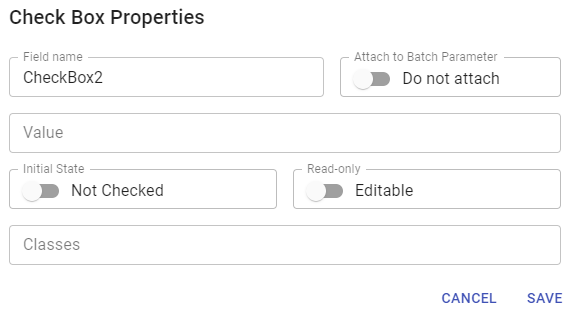
| Property | Data Type | Description |
|---|---|---|
| Field Name | String | Name of the form-field element. |
| Attach to Batch Parameter | Boolean | When enabled you can reference a parameter within a recipe's framework: top level procedure down to phase parameters. |
| Value | String | To reference a batch parameter, see Referencing Parameters in Batch Recipes. |
| Initial State | Boolean | When enabled, initial state is checked. |
| Read-only | Boolean | When enabled, this field is not editable in run-time. |
| Classes | String | Reference style classes. |
Radio button Form Field Properties
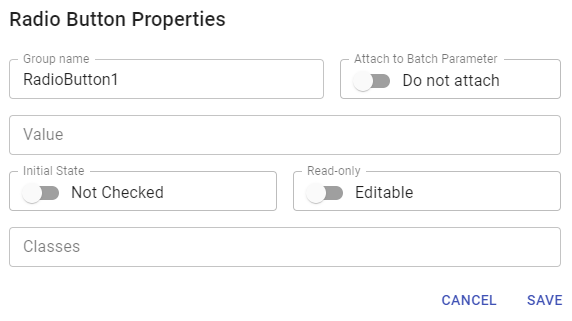
| Property | Description |
|---|---|
| Field Name | Name of the form-field element. |
| Attach to Batch Parameter | When enabled you can reference a parameter within a recipe's framework: top level procedure down to phase parameters. |
| Value | To reference a batch parameter, see Referencing Parameters in Batch Recipes. |
| Initial State | When enabled, initial state is checked. |
| Read-only | When enabled, this field is not editable in run-time. |
| Classes | References style classes. |
Dropdown List Form Field Properties
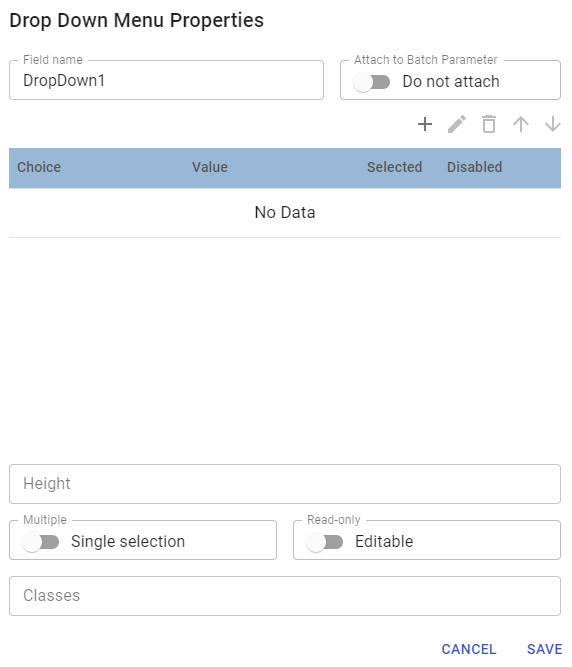
| Property | Description |
|---|---|
| Field Name | Name of the form-field element. |
| Attach to Batch Parameter | When enabled you can reference a parameter within a recipe's framework: top level procedure down to phase parameters. |
| Items for List | Value: To reference a batch parameter, see Referencing Parameters in Batch Recipes. Selected: Sets the item as selected in the list. Disabled: Displays the item as non-selectable. |
| Height | Height in pixels. The Height property can be set to force the box to remain fixed in height at the number of lines specified. The order of the entries can be modified by selecting an item and clicking Up or Down to move it in relation to the other entries. |
| Single or Multiple Selection | Single selection only allows one selection. Multiple selection allows and submits one or more. |
| Read-only or Editable | When enabled, this field is not editable in run-time. |
| Classes | References style classes. |
Text Area Form Field Properties
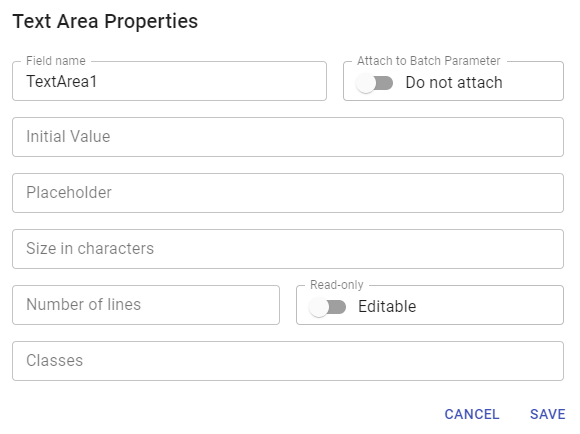
| Property | Description |
|---|---|
| Field Name | Name of the form-field element. |
| Attach to Batch Parameter | When enabled you can reference a parameter within a recipe's framework: top level procedure down to phase parameters. |
| Initial Value | Enter any text that you want to show in this text field in runtime. |
| Placeholder | Specifies a short hint that describes the expected value of an input field. |
| Size in characters | The Size in Characters property can be set to force the box to remain fixed in width to the number of characters specified. |
| Number of lines | Sets the number of lines based on the font size. |
| Read-only or Editable | Initial state is read only. Enable Editable to allow the end user to input text in runtime. |
| Classes | References style classes. |
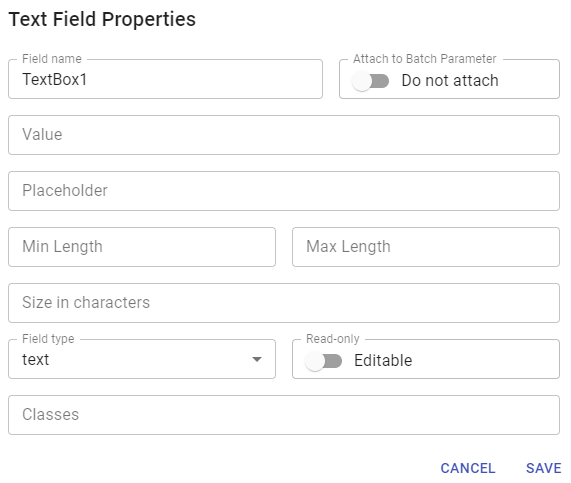
Text Form Field Properties
| Property | Description |
|---|---|
| Field Name | Name of the form-field element. |
| Attach to Batch Parameter | When enabled you can reference a parameter within a recipe's framework: top level procedure down to phase parameters. |
| Value | Enter any text that you want to show in this text field in runtime. |
| Placeholder | Specifies a short hint that describes the expected value of an input field. |
| Min/Max Length | Sets the minimum and maximum characters of the text form field. |
| Size in characters | Sets the font size. |
| Field Type | When referencing parameters, only parameters that match the field data type should be displayed. i.e. Checkbox only work for "Boolean" type parameters, Input fields of a "number" type only work for Integer/Short/Long type parameters, |
| Read-only or Editable | Initial state is read only. Enable Editable to allow the end user to input text in runtime. |
| Classes | References style classes. |
Sepasoft MES Module Suite