Sepasoft MES Module Suite
e-Signature Authorization in Batch Procedure
Overview of Authoring a Batch Recipe with E-Signatures
In Batch Procedure, use the e-signature phase and components to track: who did what and when.
Tracking is configured at the Batch Procedure Phase level within the Batch Procedure Framework and Batch Commands within the Batch Command-State Sequence.
Version Specific

|
E-Signature is supported in 3.81.6 RC 1 and later. |
FR21 Part 11 Code FDA Compliance

|
Sepasoft and Ignition used in solutions that require 21 CFR part 11 compliance. |
Scripting:
system.mes.signature
Authoring a Batch Recipe with e-Signature
You create the signature template and then add the e-Signature phase to a recipe. When you execute the batch, the authorization challenges displays in the list.
To set this up:
- You need to add the Signature Template Manager to your project. And then, create an e-Signature Template with the desired approvers on it.
- Add the e-Signature step to a Batch Recipe prior to the step that requires approval.
- Ensure the "approved" and "reject" paths are separate branches in the Batch Recipe.
- Run the Batch Recipe from the Batch Execution component.
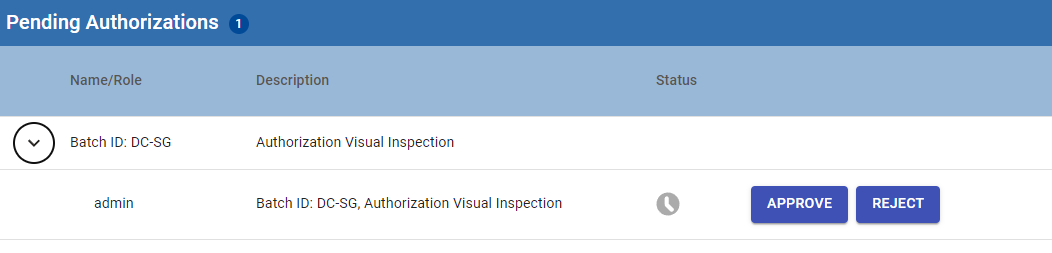
- When the e-Signature step is executed the Pending Authorization component displays an authorization challenge for each user on the template specified in the e-Signature step.
- Users approve or reject the challenge.
- If the challenge(s) are approved by ALL required users, the Recipe takes the "approved" path.
- If the challenge(s) are rejected by any ONE of the users, then the "rejected" path is followed.
Sepasoft MES Module Suite