Sepasoft MES Module Suite
Recipe Import and Export
A Machine Recipe has two main components:
- Recipe Value Definition
- Recipe Value
Recipe Value Definition
Recipe value definitions can be imported and exported through the Ignition Designer. This is because the recipe value definitions are tightly tied to production items (equipment) and tags, both of which cannot be created in the client.
Recipe Values
Recipes and their recipe values can be imported and exported using the Recipe Editor component and also through scripting either at the client or in the gateway.
Export
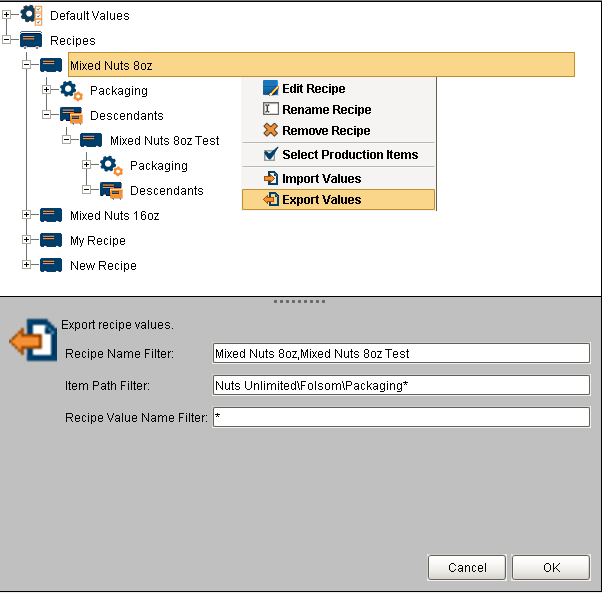
To export the recipe values using the Recipe Editor in the client, right-click anywhere underneath the  root folder and select Export Values. Where you select in the tree view will determine which recipes and lines are included in the export.
When you select Export Values a window appears that allows you to filter exactly which recipe values are exported.
- Recipe Name Filter will automatically populate with a list of recipe names beneath the selected item. You can choose to export all of them or only the ones you are interested in.
- Item Path Filter provides the ability to filter recipe values for a specific site, area, line etc. The wildcard * can be used here.
- Recipe Value Name Filter can be used to return a subset of Recipe Values. The wildcard * can be used here. *Weight* would return Min Weight, Max Weight, Target Weight.
The file format is a comma separated values (CSV) and contains the following columns:
| Recipe_Name | Value_Name | Item_Path | Data_Type | Format | Recipe_Value | Assigned_By |
|---|---|---|---|---|---|---|
| Mixed Nuts 8oz | Line Speed | Nuts Unlimited\Folsom\Packaging\Packaging Line 1 | Int4 | #,##0.## | 20 | Mixed Nuts 8oz |
| Mixed Nuts 8oz | Case Size | Nuts Unlimited\Folsom\Packaging\Packaging Line 1\Casepacker | Int4 | #,##0.## | 0 | Mixed Nuts 8oz |
| Mixed Nuts 8oz | Target Weight | Nuts Unlimited\Folsom\Packaging\Packaging Line 1\Checkweigher | Float4 | #,##0.## | 0 | Mixed Nuts 8oz |
| Mixed Nuts 8oz | Min Weight | Nuts Unlimited\Folsom\Packaging\Packaging Line 1\Checkweigher | Float4 | #,##0.## | 7.9 | Mixed Nuts 8oz |
| Mixed Nuts 8oz | Max Weight | Nuts Unlimited\Folsom\Packaging\Packaging Line 1\Checkweigher | Float4 | #,##0.## | 8.5 | Mixed Nuts 8oz |
| Mixed Nuts 8oz | Container Size | Nuts Unlimited\Folsom\Packaging\Packaging Line 1\Filler | Float4 | #,##0.## | 8 | Mixed Nuts 8oz |
| Mixed Nuts 8oz | Line Speed | Nuts Unlimited\Folsom\Packaging\Packaging Line 1\Filler | Float4 | #,##0.## | 8 | Mixed Nuts 8oz |
| Mixed Nuts 8oz | Pattern Code | Nuts Unlimited\Folsom\Packaging\Packaging Line 1\Palletizer | Int4 | #,##0.## | 28 | Mixed Nuts 8oz |
Import
To import recipe values using the Recipe Editor in the client, right-click anywhere underneath the root folder and select Import Values. Where you select in the tree view doesn't affect where the imported recipe will reside. That is determined by the data in the import file. The file format is a comma separated values (CSV) and must contain the following columns.
Recipe_Name, Value_Name, Item_Path, Recipe_Value
All other columns will be ignored during the import. Also, all values must be surrounded with quotes including the recipe value. During importing, the recipe value will be converted to the appropriate data type that the recipe value is defined as, which is based on the tag it is associated.
Recipe values can be imported for multiple recipes and production items combinations in one single import operation as defined with the Recipe_Name and Item_Path columns of the CSV file. This supports bulk import operations instead of only being limited to one recipe at a time.
Sepasoft MES Module Suite