Sepasoft MES Module Suite
JCo Library for SAP
Before installing the Interface for SAP ERP module, JCo library files must be downloaded and moved to the correct location.
JCo is available for existing SAP customers only and can be downloaded from the following location: https://support.sap.com/en/product/connectors/jco.html
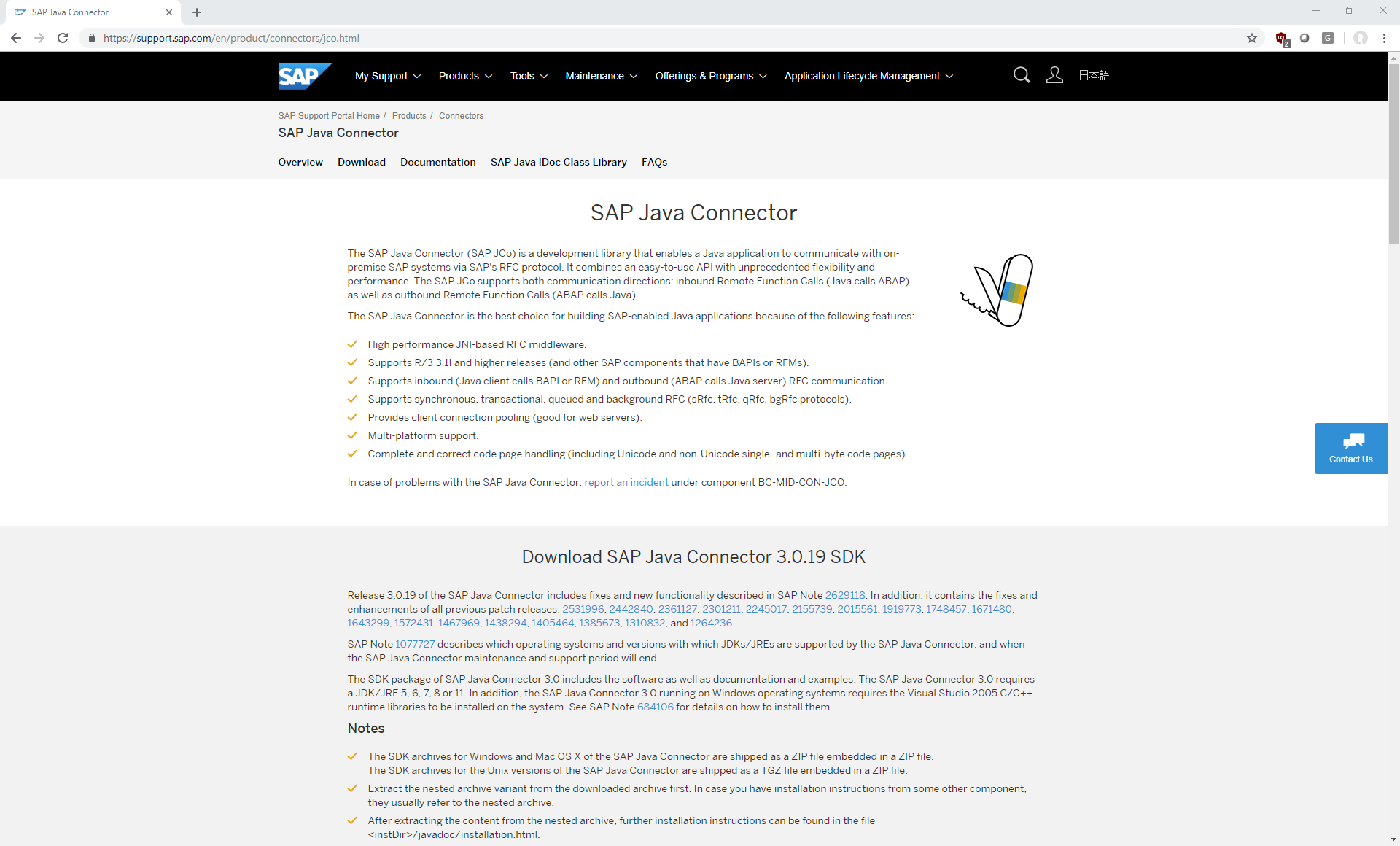
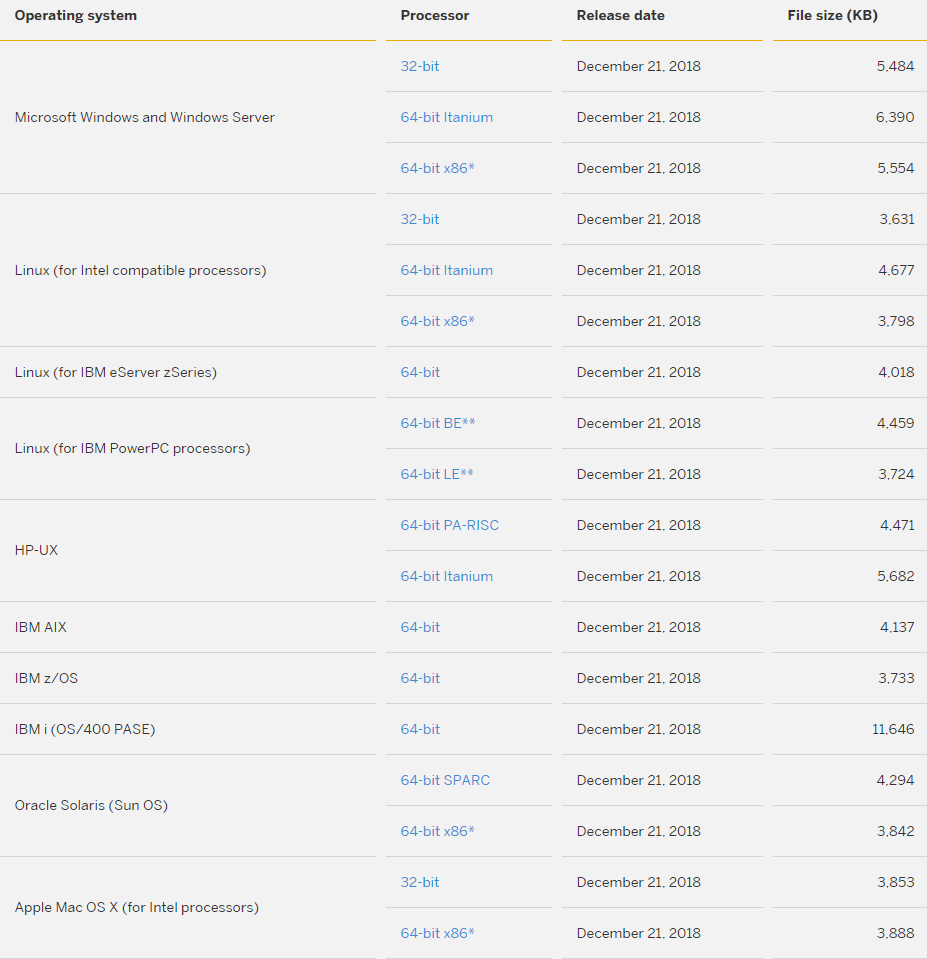
Scroll down to the Download section. Under the "Processor" column, click the link for the appropriate architecture and operating system of the Ignition Gateway server (not your client computer) on which the Interface for SAP ERP module will be installed. For example, if your Ignition Gateway server is installed on a 64-bit version of Windows, select the "64-bit x86*" link next to "Microsoft Windows and Windows Server."
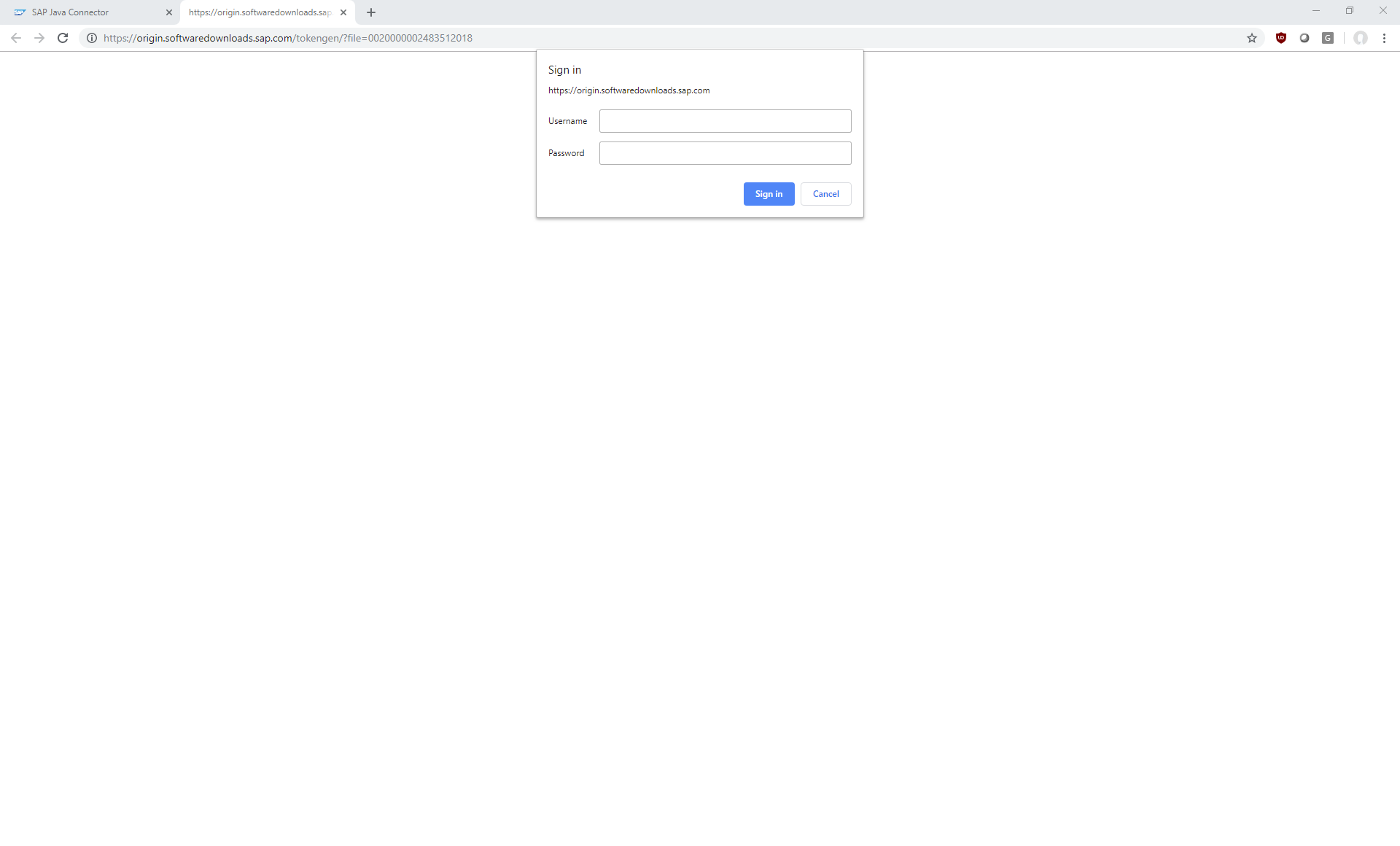
You will be taken to a login page. Enter a username and password corresponding to a valid SAP S-ID account. If you do not have an account, speak with your SAP administrator.
Your browser should begin downloading a ZIP file. Once the download is complete, you may extract the ZIP file's contents and proceed with the installation procedure.
User Account for SAP
A user account that has access to call Remote-enabled Function Modules (RFMs) is required to allow the Interface for SAP ERP to connect to SAP.
User accounts can be created within SAP using T-Code SU01.
Installing the JCo Library
Windows
- Create a "jco" directory on the Ignition server
- C:\Program Files\Inductive Automation\Ignition\user-lib\jco
- The above path may differ if you installed Ignition in a non-default location.
- Extract the JCo ZIP file, and find the following two files:
- sapjco3.jar
- sapjco3.dll
- Copy those two files to the "jco" directory created in Step 1.
- Edit your ignition.conf file:
- Typically found at C:\Program Files\Inductive Automation\Ignition\data\ignition.conf
At the very bottom of the ignition.conf, add the following lines:
ignition.conf
Code# Java Classpath for Interface for SAP ERP wrapper.java.classpath.100=C:\Program Files\Inductive Automation\Ignition\user-lib\jco\sapjco3.jar
- Save
- Restart your Ignition Gateway
Linux
- Create a "jco" directory on the Ignition server
- /var/lib/ignition/user-lib/jco
- The above path may differ if you installed Ignition in a non-default location.
- Extract the JCo ZIP file, and find the following two files:
- sapjco3.jar
- libsapjco3.so
- Copy those two files to the "jco" directory created in Step 1.
- Edit your ignition.conf file:
- Typically found at /var/lib/ignition/data/ignition.conf
At the very bottom of the ignition.conf, add the following lines:
ignition.conf
Code# Java Classpath for Interface for SAP ERP wrapper.java.classpath.100=/var/lib/ignition/user-lib/jco/sapjco3.jar
- Save
- Restart your Ignition Gateway
Sepasoft MES Module Suite