Sepasoft MES Module Suite
MES Analysis Controller in Vision
The analysis controller is an invisible component that makes analysis data available for reports and other components. The term invisible component means that the controller component appears in the designer, but is not visible from the client.
How to add columns into the dataset of the analysis controller from a custom property dataset?
Python |
#Get the table data from the Analysis Controller ds1 = event.source.parent.getComponent('Analysis Controller').tableData colCount = ds1.getColumnCount() #Get the custom property 'Area' columnName = event.source.parent.getComponent('Analysis Controller').Area #Area is the column to be added columnData = [] for i in range(ds1.getRowCount()): columnData.append(i* 10) #Adds 'Area' to the Analysis Controller's dataset ds2 = system.dataset.addColumn(ds1, colCount, columnData, columnName, int) event.source.parent.getComponent('Analysis Controller').tableData = ds2 |
Component Properties
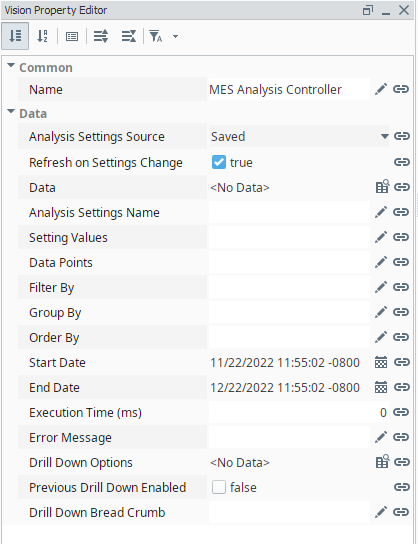
Properties are provided that can be set to affect the operation and look of the component. They can be set through the Property Editor in the Designer or through scripting.
Example
Python |
event.source.parent.getComponent('MES Analysis Controller').previousDrillDownEnabled = True |
Data
| Name | Scripting | Property Type | Description |
|---|---|---|---|
| Refresh on Settings Change | refreshOnSettingsChange | boolean | If true, automatically refresh when analysis settings values change |
| Data | data | Dataset | Analysis results. |
| Drill Down Options | drillDownOptions | Dataset | Dataset containing drill down options. |
| Previous Drill Down Enabled | previousDrillDownEnabled | boolean | If true, then prevDrillDown. |
| Drill Down Bread Crumb | drillDownBreadCrumb | String | A string representing the drill down path. |
| Ignition Dataset | ignitionDataset | Dataset | Analysis results returned in an Ignition component friendly dataset. This property is not visible from the properties tab, but is accessbile for bindings to other components. |
| Analysis Settings Source | analysisSettingsSource | int | The source of the analysis settings. If set to Component, the component Data Points, Filter By, etc. property settings are used. If set to Saved, then the named analysis settings are used. |
| Analysis Settings Name | analysisSettingsName | String | Name of the analysis settings. |
| Filter By | filterBy | String | The filter section allows you to limit the data that is included in the analysis. For details, refer to the MES Analysis Selector. |
| Group By | groupBy | String | Group Bys are the factors used to group the analysis data. For details, refer to the MES Analysis Selector. |
| Order By | orderBy | String | Order Bys are the factors used to sort the analysis data. For details, refer to the MES Analysis Selector. |
| Data Points | dataPoints | String | Data points are the individual pieces of information that will be present in the analysis. For details, refer to the MES Analysis Selector. |
| Start Date | startDate | DateTime | Start Date. |
| End Date | endDate | DateTime | End Date. |
| Error Message | errorMessage | String | Error Message. |
| Execution Time (ms) | executionTime | long | Analysis execution time in milliseconds. |
| Setting Values | settingValues | String | Additional analysis setting values separated with commas. |
Event Handlers
Event handlers provide the ability to add custom script when a user interacts with a component.
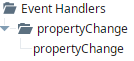
propertyChange
propertyChange
Fires whenever a bindable property of the source component changes. This works for standard and custom (dynamic) properties.
| Property | Description |
|---|---|
| .source | The component that fired this event. |
| .newValue | The new value that this property changed to. |
| .oldValue | The value that this property was before it changed. Note that not all components include an accurate oldValue in their events. |
| .propertyName | The name of the property that changed. NOTE: Remember to always filter out these events for the property that you are looking for! Components often have many properties that change. |
Extension Functions
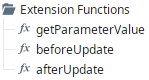
getParameterValue
- Description
Called to get a parameter value.
- Parameters
self - A reference to the component that is invoking this function.
name - The parameter name as a string.
- Return
The parameter value.
- Scope
Client
Code Snippet
Code |
|
beforeUpdate
- Description
Called just before analysis data is refreshed.
- Parameters
self - A reference to the component that is invoking this function.
- Return
Nothing
- Scope
Client
afterUpdate
- Description
Called just after analysis data is refreshed.
- Parameters
self - A reference to the component that is invoking this function.
data - The dataset that contains the new analysis data.
- Return
Nothing
- Scope
Client
Custom Methods
Custom methods allow you to add your own component functions to a component that can be called through scripting. This is a useful and clean method of re-using script that is specific to the component (say you want to update a visual aspect of the component in the same way whether a user clicks on the component or a window property value changes). See Component Custom Methods in the Ignition Help Manual for more information.
Component Functions
This component provide the following functions that can be called on it. If this component has been dropped onto the windows root container, the path and an example call would be event.source.parent.getComponent('MES Analysis Controller').refresh().
refresh()
- Description
Causes the results to be refreshed.
- Parameters
None
- Return
Nothing
- Scope
Client
Sepasoft MES Module Suite