Sepasoft MES Module Suite
MES Analysis Selector | Vision
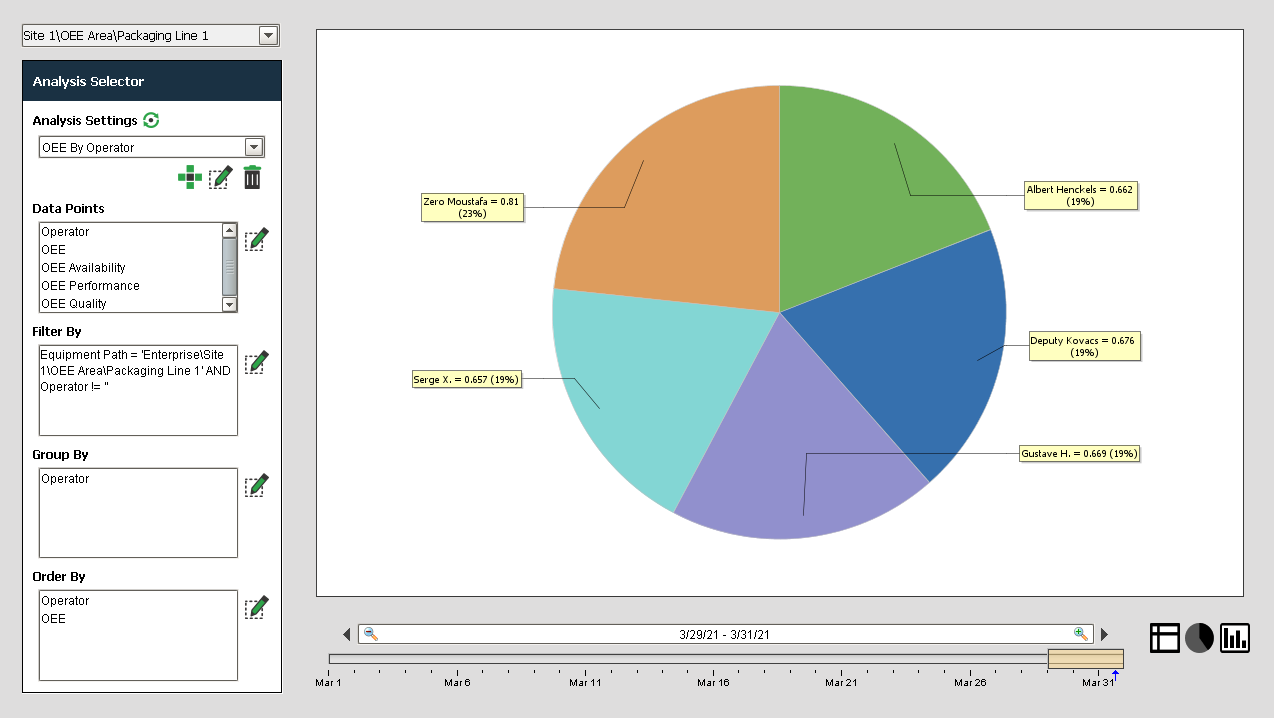
The MES analysis selector component allows for ad hoc selection of analysis data. Analysis Results can be limited based on the selected Data Points, Filter By, Group By and Order By settings.
Features
Reporting
The Analysis Selector is exposed to support the configuration of "MES Analysis" data sources in the Ignition Reporting Module Data tab. Stored Analysis settings used on the operator screens may also be applied to reports.

|
A difference for Reports over Screens is the use of Report Parameters to bind data automatically. |
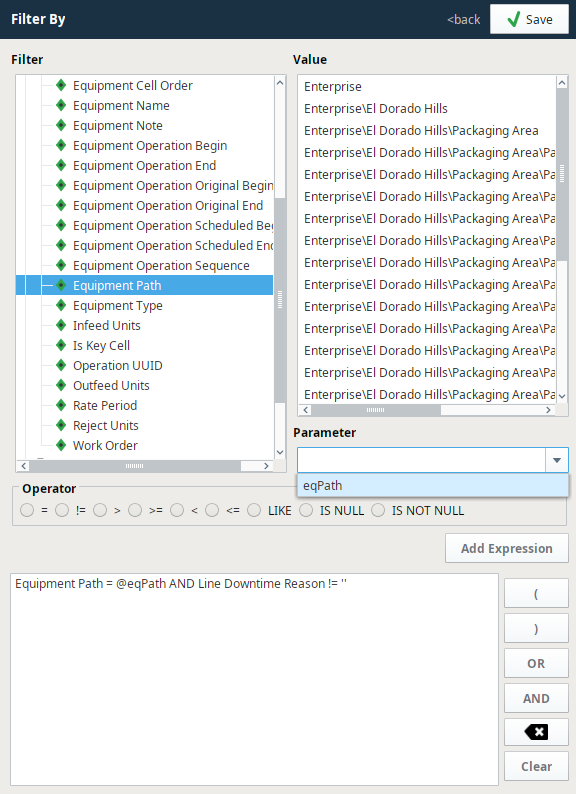
In this example the Equipment Path property will be bound to the Report parameter eqPath. This will allow an equipment path to be passed to the report and used in the analysis rather than statically assigning the path.
When selected with the Add Expression button, the filter will be shown as "Equipment Path = @eqPath". Since this notation differs slightly from custom properties in the Vision Module, check the above example for the extension function getParameterValue() which will set the parameter value so that the same Stored Analysis settings may be used for Reports and On-Screen analysis.
The rest of the features function like the Vision Module version of the Analysis Selector.
Component Properties
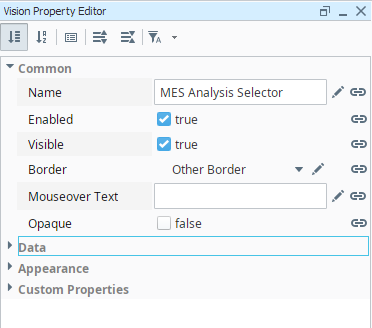
Properties are provided that can be set to affect the operation and look of the component. They can be set through the Property Editor in the Designer or through scripting.
Example
Python |
def loadIcon(self, iconName): #Return a path to a different image to replace the default delete image: if iconName == 'remove': return 'Builtin/icons/24/delete2.png' |
Data
| Name | Scripting | Property Type | Description | ||
|---|---|---|---|---|---|
| Refresh on Settings Change | refreshOnSettingsChange | boolean | If true, automatically refresh when analysis settings values change. | ||
| Data | data | Dataset | Dataset that contain the analysis results. | ||
| Ignition Dataset | ignitionDataset | Dataset | Analysis results returned in an Ignition component friendly dataset. This property is not visible from the properties tab, but is accessbile for bindings to other components. | ||
| Drill Down Options | drillDownOptions | Dataset | Dataset containing drill down options. | ||
| Previous Drill Down Enabled | previousDrillDownEnabled | boolean | If true, then prevDrillDown. | ||
| Message | message | String | Message returned with the analysis results. | ||
| Drill Down Bread Crumb | drillDownBreadCrumb | String | A string representing the drill down path. | ||
| showMessage | Show Message | boolean | If true, show the message returned with the analysis results. | ||
| Start Date | startDate | DateTime | Start date to get filter values. | ||
| End Date | endDate | DateTime | End date to get filter values. | ||
| Execution Time (ms) | executionTime | long | Analysis execution time in milliseconds. | ||
| is Public | isPublic | Boolean | If true, settings can be synchronized across Gateways based on the Synchronization Strategy. Use the property with Synchronization Strategy, Included in Sepasoft Versions:
| ||
| Synchronization Strategy | synchronizationStrategy | String | Options:
Included in Sepasoft Versions:
|
Appearance
| Name | Scripting | Property Type | Description |
|---|---|---|---|
| Title Font | titleFont | Font | Font to use for the title bar. |
| Title Foreground Color | titleForeground | Color | Foreground color of the title bar. |
| Title Background Color | titleBackground | Color | Background color of the title bar. |
| slidePanelWidth | Slide Panel Width | int | Width of the slide panel. |
General Settings
Name
A Unique name for the analysis settings.
Description
An optional description for the new analysis settings.
Scope
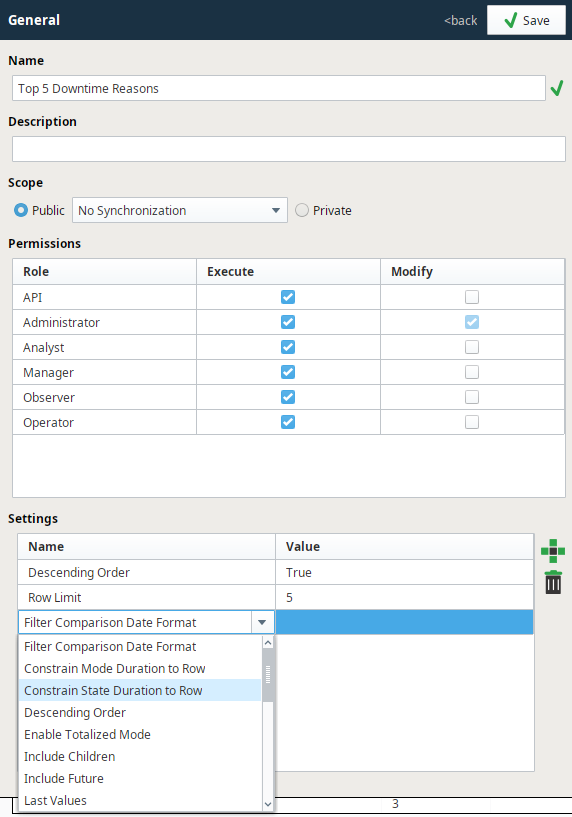
Scope refers to the availability of an analysis settings for use by another user. The scope of Analysis Settings can be set to either public or private.
Permissions

|
Roles containing invalid characters will not be displayed in the Permissions table. |
You can assign permissions to Administrator and individual users to execute and/or modify the analysis settings. Check the corresponding boxes to do the same as shown. Only security roles that the current logged user belongs to will be shown in the list. After the user is added to a security role, they will have to relog into the designer or client before it will appear in the list. This is when Ignition updates the list containing security roles that we have available.
Settings
Filters
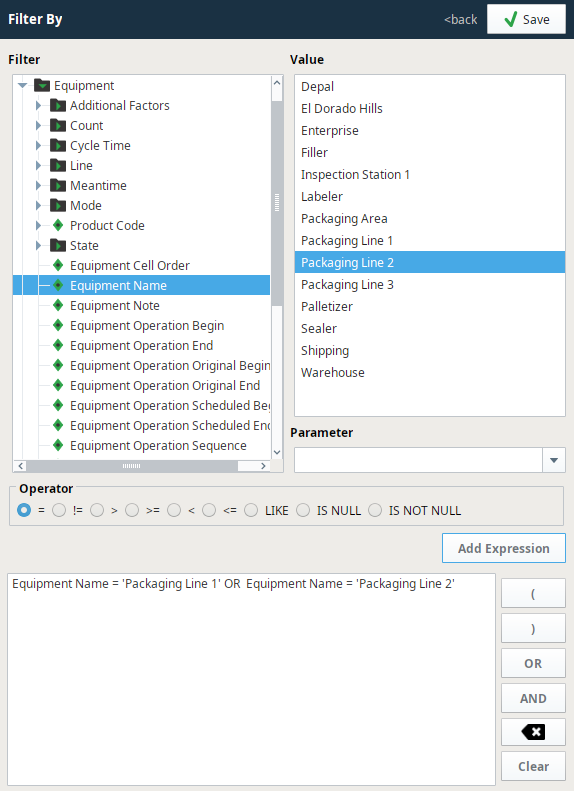
A filter can be added by selecting the link to the right of Filter By. The window panel will open and filter categories will be displayed as shown in the screenshot. Multiple filters can be added using expressions. To add expression first select a filter and then a logical operator (horizontal list). Now select a operator (vertical list) and then add the next filter.
Filters follow a format similar to SQL in that you can use AND, OR and LIKE operators.
|
|
The Filter By expression character length is limited to 1000. |
Allowable Key Words
|
|
Operator expression key words inside string parameters (in either upper or lower or mixed case), such as 'AND', 'OR', 'LIKE', 'IS NULL', 'IS NOT NULL' and 'IN' will be safely ignored. Therefore, these key words are permissible (example: Equipment Path = 'My Enterprise\Site\Area\Line\Block and Tackle'). |
Deleted Equipment
|
|
When equipment items are deleted, they will no longer appear in the Analysis Selector filter lists. |
Wildcards
'*' can be used as a wildcard in your expressions. When filtering using the Equipment Path datapoint with a wildcard, data can be returned at the Enterprise, Site, Area, Line or Cell level.
Example:
- Equipment Path LIKE 'Nuts Unlimited\Folsom\Mixing\Mixing Line*' will only return data at the line level (not cell) for lines in the mixing area that begin with 'Mixing Line...'.
- Equipment Path LIKE 'Nuts Unlimited\Folsom\Mixing\Mixing Line 1\*' will only return data for cells under Mixing Line 1.
- Equipment Path LIKE 'Nuts Unlimited\Folsom\*\*' will return totals for all Lines in all Areas in the Folsom site.
- Equipment Path LIKE 'Nuts Unlimited\*\*\*' will return totals for all Lines in all Areas in all Sites of the "Nuts Unlimited" Enterprise.
As such, if you create an Analysis with the datapoints "OEE", "OEE Availability", "OEE Performance", and "OEE Quality", and set your Filter Expression to Equipment Path LIKE '*\*\*\*', the Analysis engine will produce the OEE values for the entire Enterprise.
Filter By Equipment Path
|
|
It is required to include Equipment Path in the Filter By expression in some form. Doing so will help analysis operate more efficiently. As a reminder, an Info message will appear if an analysis is run (e.g. using the Refresh Analysis button Note: In the MES Analysis Controller component, the Error Message field will contain the reminder message: |
 ) without including Equipment Path. It is recommended that Equipment Path be the first expression in the total Filter By expression.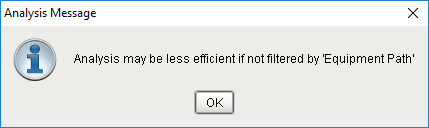

Filter Example
Operation UUID != '' AND Equipment Path = @LinePath AND Shift LIKE @ShiftName
Click the link by the filter category and specific filter items will be displayed.
When selected they will be added to the filters as shown below.
To minimize the number of filter options, only the options for the selected date range defined by the Start Date and End Date properties will be shown.
Compare By and Data Points work similarly to Filter By except there are no categories for these selections, just items. Selections can be removed by clicking icon and unchecking the appropriate box. Analysis settings can be deleted by hitting the delete icon.
Group By
The Group By will not accept the following data points (they will be excluded from the available choices):
- Line Downtime Occurrence Count
- Line Schedule Count
- Line Schedule Duration
- Schedule Rate
Drill Down
When the MES Analysis Selector is bound to a Sepasoft Analysis Table component, data drill down capabilities become available for any row in the table (the Analysis Table is basically an Ignition Table component with Drill Down capability added). This provides further-refined Analysis Results based on selecting an additional drill-down Data Point. Once a Data Point is selected from the Drill Down menu, the MES Analysis Selector component is triggered to run a new Analysis using the selected Data Point in place of the first Data Point currently listed in the Data Points field. The first column in the Analysis table becomes the selected Drill Down Data Point.
Drill Down Example
This example requires an MES Analysis Selector and an Analysis Table, using the following two bindings and one event handler script:
- The Data property of the Analysis Table is bound to the Data property of the MES Analysis Selector.
- The Drill Down Options property of the Analysis Table is bound to the Drill Down Options property of the MES Analysis Selector.
The following script is in the drillDown event handler of the Analysis Table:
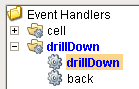
Analysis Table -- drillDown Event Handler Script
Codedef loadIcon(self, iconName): #Return a path to a different image to replace the default delete image: if iconName == 'remove': return 'Builtin/icons/24/delete2.png'
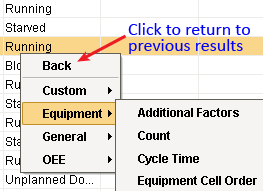
In the example below, an entry in the Analysis Table was clicked on, bringing up a Drill Down Menu containing a tree of Analysis Data Points to choose from. In the Equipment Mode category, the Data Point Equipment Mode Type is selected.
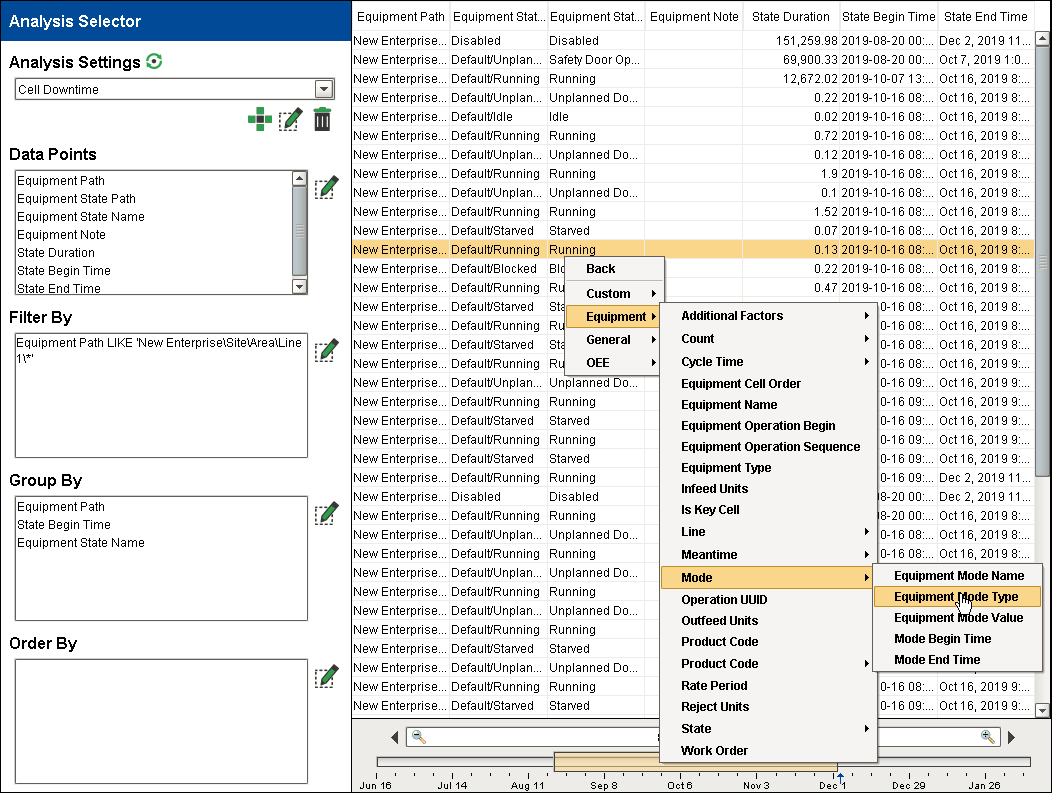
This triggers the script in the Drill Down event handler of the Analysis Table to execute a secondary Analysis via the MES Analysis Selector where the selected Data Point Equipment Mode Type becomes the first column in the results displayed, as shown below:
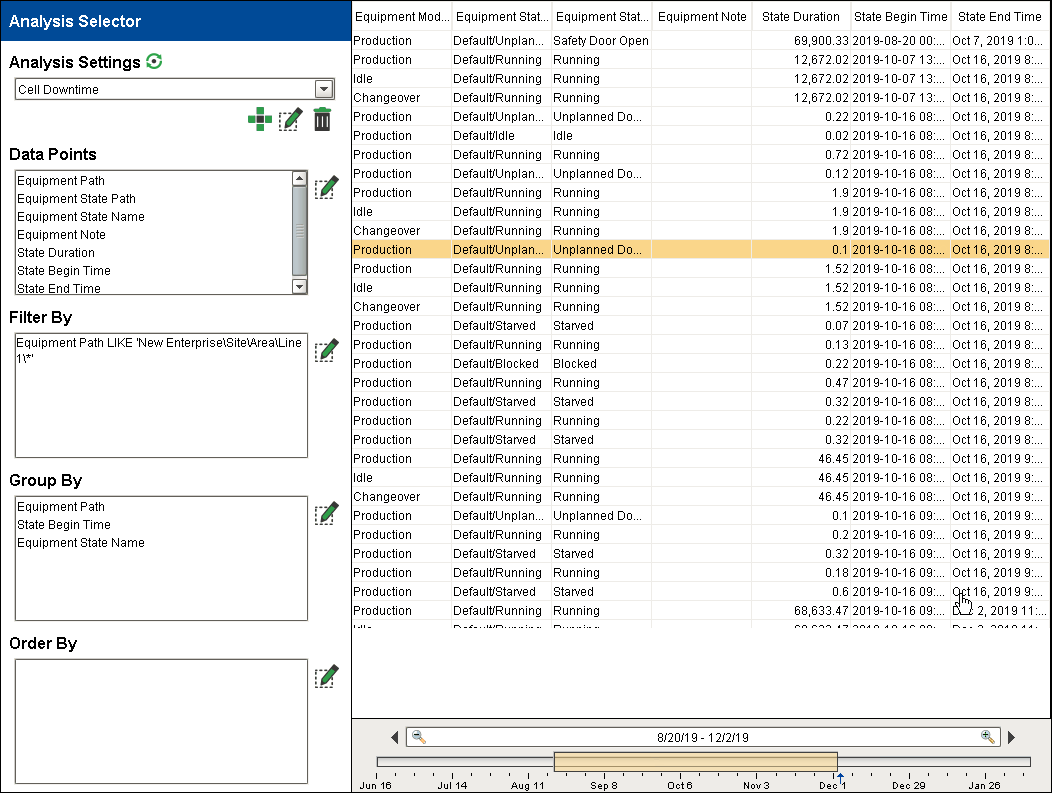
Users can continue to run further Analyses as desired, or use the Back selection to go back to the previous results.
Event Handlers
Event handlers provide the ability to add custom script when a user interacts with a component.
propertyChange
propertyChange
Fires whenever a bindable property of the source component changes. This works for standard and custom (dynamic) properties.
| Property | Description |
|---|---|
| .source | The component that fired this event. |
| .newValue | The new value that this property changed to. |
| .oldValue | The value that this property was before it changed. Note that not all components include an accurate oldValue in their events. |
| .propertyName | The name of the property that changed. NOTE: Remember to always filter out these events for the property that you are looking for! Components often have many properties that change. |
Extension Functions
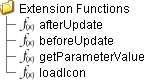
afterUpdate
- Description
Called just after analysis data is refreshed.
- Parameters
self - A reference to the component that is invoking this function.
data - The dataset that contains the new analysis data.
- Return
Nothing
- Scope
Client
beforeUpdate
- Description
Called just before analysis data is refreshed.
- Parameters
self - A reference to the component that is invoking this function.
- Return
Nothing
- Scope
Client
getParameterValue
- Description
Called to get a parameter value.
- Parameters
self - A reference to the component that is invoking this function.
name - The parameter name as a string.
- Return
The parameter value.
- Scope
Client
Code Snippet
Code |
def loadIcon(self, iconName): #Return a path to a different image to replace the default delete image: if iconName == 'remove': return 'Builtin/icons/24/delete2.png' |
loadIcon
Description
Allows users to change an icon. based on the icon name parameter, returns the image path to the icon to use in place of the default icon.
Parameters
self - A reference to the component that is invoking this function.
iconName - The name of the icon.
Return
Returns a dictionary of name-value pairs with the desired attributes.
Scope
Client
Example: Load Icon
Code |
def loadIcon(self, iconName): #Return a path to a different image to replace the default delete image: if iconName == 'remove': return 'Builtin/icons/24/delete2.png' |
Custom Methods
Custom methods allow you to add your own component functions to a component that can be called through scripting. This is a useful and clean method of re-using script that is specific to the component (say you want to update a visual aspect of the component in the same way whether a user clicks on the component or a window property value changes). See Component Custom Methods in the Ignition Help Manual for more information.
Customizers
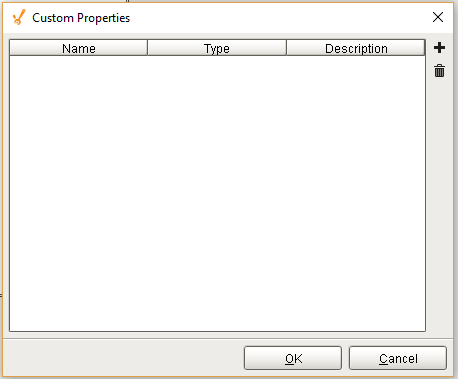
Custom Properties
The custom properties can be used to add user defined properties.
Component Functions
This component provide the following functions that can be called on it. If this component has been dropped onto the windows root container, the path and an example call would be event.source.parent.getComponent('MES Analysis Selector').clearDrillDownHistory().
clearDrillDownHistory()
- Description
Removes the drill down history.
- Parameters
None
- Return
Nothing
- Scope
Client
drillDown(compareByName, filterValue)
- Description
Sets all the analysis selections to new state dictated by the drill down definition.
- Parameters
String compareByName - The compareBy definition to base the drill down.
String filtervalue - The value for filtering the analysis selections.
- Return
Nothing
- Scope
Client
prevDrillDown
- Description
Sets all the analysis selections to the previous state before the last drill down.
- Parameters
None
- Return
Nothing
- Scope
Client
executeAnalysis()
- Description
Causes analysis results to update with current result.
- Parameters
None
- Return
Nothing
- Scope
Client
Data Points and Settings
Sepasoft MES Module Suite