Sepasoft MES Module Suite
MES Equipment
The MES Equipment Manager for Perspective is installed with the MES Production Module. The Equipment Manager allows you to define your manufacturing process in a tree view form and provides an organized way to configure, control, and analyze your manufacturing activities for all of the core MES modules including Batch Procedure, OEE, SPC, Recipe, Track & Trace. It provides the foundation on which the MES modules are built including defining the Equipment Path that the system uses as reference throughout the configuration.
Production Equipment Model
The Production Equipment Model is a hierarchy of Sites, Areas, Lines with Cell Groups, Cells, Process Cell(s) with Units, Locations, Storage Zones and Storage Units. Typically, Lines and Cells are used to represent machinery or equipment where a process occurs transforming raw materials into sub-assemblies or finished goods. Storage Zones and Storage Units are typically used to define where to get or store material.
Lines with Cells and Process Cells with Units defined in the Production Model should be considered to be equipment that is bolted to the floor and has conduit running to it. Mobile equipment such as pallets, bins, dies used for pressing, etc. are not defined in the Production Model, but configured in the MES Object Editor as Supplemental Equipment.
Using Equipment Manager to Build and Configure Your Production Equipment Model
The MES Equipment Manager component can be dragged onto a view from the Production Component Palette, to allow run-time building and editing of your Production Model configuration and settings.
For information about each of these elements in a Production Equipment Model, see Production Equipment Model Overview.


|
Copying an equipment path to the clipboard is only supported over HTTPS client-connections and is browser dependent. |

|
For larger UI buttons for touch screens, use the style properties and increase the padding. |
| Icon | Name | Definition | ||||||||||||||||||||||||
|---|---|---|---|---|---|---|---|---|---|---|---|---|---|---|---|---|---|---|---|---|---|---|---|---|---|---|
 | Add Adds an element to the Equipment Model based on the selected item in the hierarchy. For information about each of these elements in a Production Equipment Model, see Production Equipment Model Overview.
| |||||||||||||||||||||||||
 | Edit Opens the item for editing: adding a description or making Active.
| |||||||||||||||||||||||||
 | Delete Deletes an item and its children if present.
| |||||||||||||||||||||||||
 | Copy Context Menu offers two selections:
Important
| |||||||||||||||||||||||||
 | Paste Pastes the item under a valid selection in the Equipment Model | |||||||||||||||||||||||||
 | Move Move items within a Process Cell:
| |||||||||||||||||||||||||
 | Activate Deactivate Activates and deactivates the items in the system. | |||||||||||||||||||||||||
 | Toggle Column Visibility Option to set Name and Description to hidden. | |||||||||||||||||||||||||
 | ||||||||||||||||||||||||||

Equipment Manager Properties
Properties are provided that can be set to affect the operation and look of the component. They can be set through the Property Editor in the Designer or through scripting.
Python |
self.getSibling("mesEquipmentManager").enableEquipmentAdd = True |
These properties listed in the table below set behavior within the Equipment Manager UI.
See below for a list of scripting functions to use for configuration.
| enableEquipmentAdd | Boolean | When true, a user may add new equipment. This includes via the menu or by pasting. When False, the Plus icon in the header is disabled.
| All | ||
| enableEquipmentDelete | Boolean | When true, a user is able to delete equipment. When False, the delete icon in the header is disabled. | All | ||
| enableEquipmentEdit | Boolean | When true, a user is able to edit (move, rename) equipment. When False, the Edit icon in the header is disabled.
| All | ||
| enableEquipmentStatus | Boolean | When true, a user is able to enable or disable equipment. When False, the icon to make equipment active/inactive is disabled. | All | ||
| enableGeneralSettingEditing | Boolean | When true, the Settings menu option under "General" is displayed, when applicable. | All | ||
| enableAdditionalFactorsEditing | Boolean | When true, the Additional Factors menu option under "General" is displayed, when applicable. | SPC | ||
| enableGeneralCountersEditing | Boolean | When true, the Settings menu option under "Counters" is displayed, when applicable. | OEE | ||
| enableGeneralTagCollectorsEditing | Boolean | When true, the tag Collectors menu option under "General" is displayed, when applicable. | OEE | ||
| enableGeneralShiftEditing | Boolean | When true, the Shift menu option under "General" is displayed, when applicable. | OEE | ||
| enableGeneralLiveAnalysis | Boolean | When true, the Live Analysis menu option under "General" is displayed, when applicable. | All | ||
| enableOEEDowntimeDetectionEdition | Boolean | When true, the Downtime Detection Method menu option under "OEE" is displayed, when applicable. OEE module must be installed. | OEE | ||
| enableOEEModeClassEditing | Boolean | When true, the Mode Class menu option under "OEE" is displayed, when applicable. OEE module must be installed. | OEE | ||
| enableOEEStateClassEditing | Boolean | When true, the State Class menu option under "OEE" is displayed, when applicable. OEE module must be installed. | OEE | ||
| enableSPCSettingEditing | Boolean | When true, the Settings menu option under "SPC" is displayed, when applicable. SPC module must be installed. | SPC | ||
| enableSPCControlLimitsEditing | Boolean | When true, the Control Limits menu option under "SPC" is displayed, when applicable. SPC module must be installed. | SPC | ||
| enableSPCSampleIntervalEditing | Boolean | When true, the Sample Intervals menu option under "SPC" is displayed, when applicable. SPC module must be installed. | SPC | ||
| enableSPCOutOfControlSignalEditing | Boolean | When true, the Out of Control signals for equipment is editable. | SPC | ||
| enableSPCSampleIntervalEditing | Boolean | When true, the Out of Sample Intervals for equipment is editable. | SPC | ||
| enableSPCOutOfControlSignalsEditing | Boolean | When true, the Out of Sample Signals for equipment is editable. | SPC | ||
| enableSPCSampleEventEditing | Boolean | When true, the Sample Events for equipment is editable | |||
| enablePaging | Boolean | When true, navigation controls are displayed. | All | ||
| enableRecipeValuesEditing | Boolean | When true, the Values menu option under "Recipe" is displayed, when applicable. Settings & Changeover module must be installed.
| Settings & Changeover | ||
| enableRecipeSecurityEditing | Boolean | False by default. When true, the Settings and Changeover security entries for Equipment setpoints are editable.
| Settings & Changeover | ||
| enableTraceLotHandlingEditing | Boolean | When true, the Lot Handling menu option under "Track & Trace" is displayed, when applicable. Track and Trace module must be installed. | Track & Trace | ||
| requireChangeNote | Boolean | Changes to setpoint settings require a note to save.
| Settings & Changeover |
Scripting functions can be used to configure equipment regardless of property values.
Style Properties
The Equipment Manager component has these style sets and each one has the same set of style tags. The tags under each style can be accessed by clicking the notepad icon to the right of the style name. | |||||
| buttonStyle | The tree below displays the set of style tags that are part of every style set and is copied from the Ignition style definition for its components. 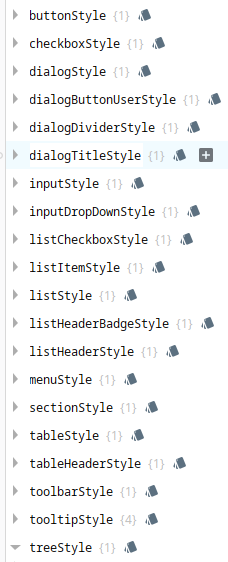 Ignition Style Editor
| ||||
| checkboxStyle | |||||
| dialogStyle | |||||
| dialogButtonUserStyle | |||||
| dialogDivideStyle | |||||
| dialogTitleStyle | |||||
| inputStyle | |||||
| inputDropDownStyle | |||||
| listCheckboxStyle | |||||
| listItemStyle | |||||
| listStyle | |||||
| listHeaderBadgeStyle | |||||
| listHeaderStyle | |||||
| menuStyle | |||||
| sectionStyle | |||||
| tableStyle | |||||
| tableHeaderStyle | |||||
| toolbarStyle | |||||
| tooltipStyle | |||||
| treeStyle | |||||
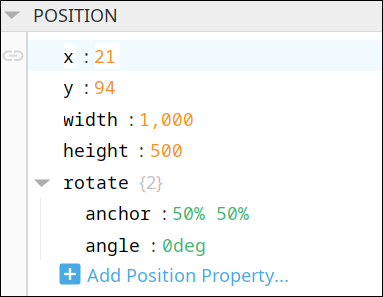
Position Properties
The component position properties aren't usually changed by users during runtime, but they can be written and read in the same manner as other properties, if ever needed. Refer to Ignition Perspective Component Properties for details on POSITION properties.
New user-defined position properties can be created in this section.
User-defined Properties
| | Best practice: If user-defined properties are required, create them in the CUSTOM section instead of here. |
Custom Properties
New user-defined custom properties can be created in this section.

Meta Properties
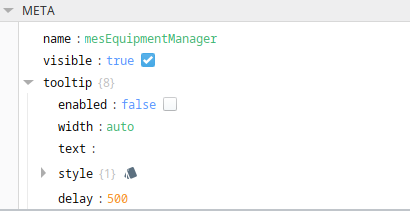
This section contains the name and visibility properties for the component.
New user-defined meta properties can be created in this section.
User-defined Properties
| | Best practice: If user-defined properties are required, create them in the CUSTOM section instead of here. |
Sepasoft MES Module Suite