Sepasoft MES Module Suite
Description
A component that is added to visually see traceability results. It shows the flow of production for bulk lot (batch) and / or serialized items. This allows entering a lot (batch) number and seeing what went into making it up from raw materials through the production steps to the finished goods. Then if desired, product can be tracked beyond the production facility. Individual items can also tracked by using a serial number or other item identification.
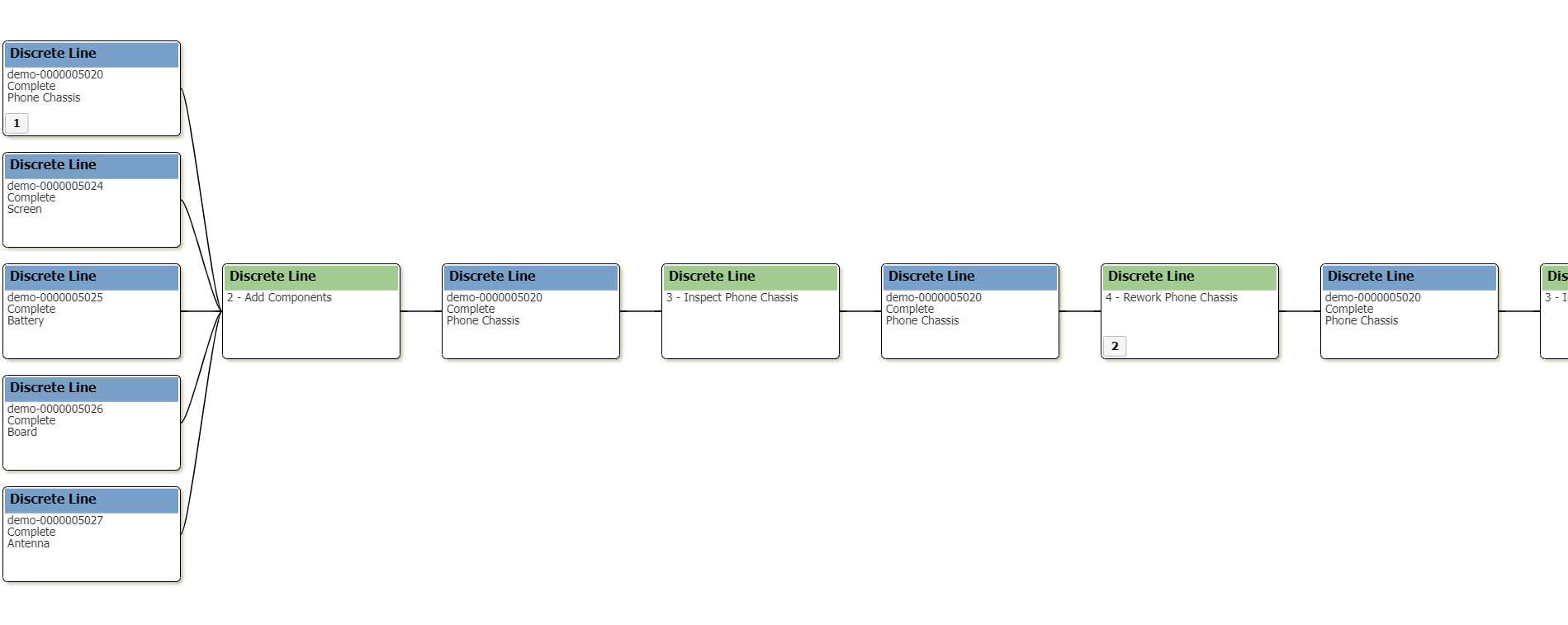
Perspective component vs. Vision component

|
The Perspective version of the MES Trace Graph:
|
Traceability section of
Component Palette
If a node has a sublot that has a name that matches the Highlight Sublot Name, then text specified by the Sublot Match Text property will be displayed in the lot node. This is valuable at determining which lots contain the sublot (serial number) of interest.
The nodes are laid out in chronological order from left to right. The node type alternates starting with a segment then showing a lot. The idea behind this is there are lots that are inputs to an operation and there are lot that the operation produced. In the image below, the upper left node titled Unload Station 1 is the operation that vinegar was unloaded. When this operation was done, a new lot VIN 2988 was created. Then that lot was used in the operation of making of balsamic dressing at Mix Station 1, which produced balsamic dressing that resides in Holding Tank 2.
The Trace Graph component also is an excellent navigation tool to zero in on non-trace information. Because the date and times, material, equipment, lot numbers, serial number, etc. are known, other data can be filtered to match the trace information being shown. This gives, otherwise just time series data, context to specific lots and serialized items without the need to look it up manually potentially across multiple systems.
To support this functionality, the trace graph component has very configurable menus that are used to display additional non-trace information. When the menu is selected by the user, the associated date and times, lot number, material, personnel, etc. is included in the menu event so that data within and outside of Ignition can be looked up and displayed.
Features
User Menu Items Property
The User Menu Items property allows custom menu items to be added. Custom script can then be added to the userMenuItemClicked event handler to add functionality to this component.
| Steps | Description | |
|---|---|---|
| 1 | Click the | 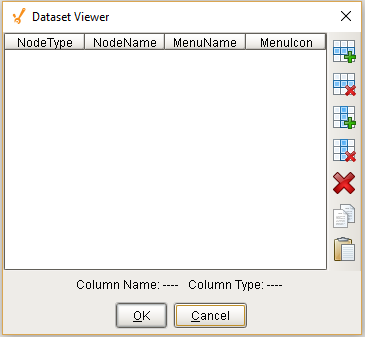 |
| 2 | Add your custom script to the userMenuItemItemClicked event handler. |

Node Configuration Property
This property controls the appearance of each node. Click on the Dataset Viewer icon for the Behaviour property in Property Editor to set the values.
Name will filter the MES object name that should be included as nodes. Default, MaterialClass and ResponseSegment are the values inbuilt on Ignition, as shown below. HeaderBackground is the color of the node header. HeaderFontColor will decide the color of the text. Color of the node is determined by BodyBackground. BodyFontColor will decide the color of the text. The color of the nodes with sublots will be controlled by HasSublotFontColor. BorderColor is the color of the border.
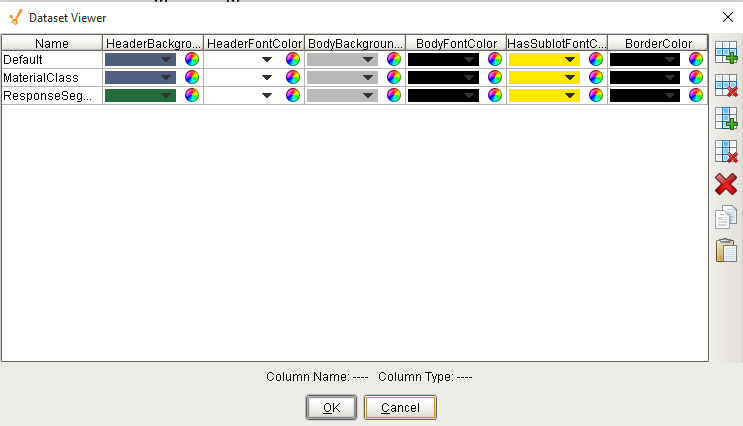
Component Properties
Properties are provided that can be set to affect the operation and look of the component. They can be set through the Perspective Property Editor in the Designer or through scripting. Note that the section prefix is included before the property name (props, position, custom or meta).
Example
Code |
|
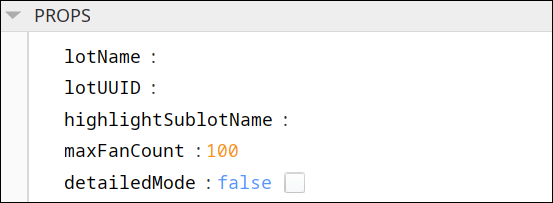
PROPS
Component Properties
| Name | Scripting | Property Type | Description |
|---|---|---|---|
| Lot Name | lotName | String | Lot name to show trace graph for. If this is set, it will ignore the Lot UUID property. |
| Lot UUID | lotUUID | String | Lot UUID to show trace graph for. If the Lot Name property is set, this property will be ignored. |
| Highlight Sublot Name | highlightSublotName | String | Optionally, set the name of the sub lot to highlight. |
| Max Fan Count | maxFanCount | Integer | The maximum number of nodes to fan out from a single node or fan in from a single node. |
| Detailed Mode | detailedMode | Boolean | If true, more details are shown in the trace graph. |
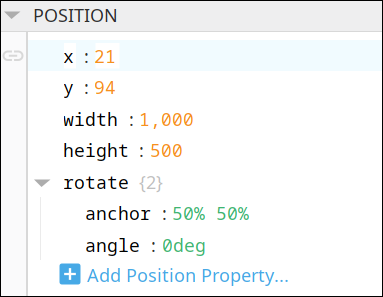
POSITION
Position Properties
The component position properties aren't usually changed by users during runtime, but they can be written and read in the same manner as other properties, if ever needed. Refer to Ignition Perspective Component Properties for details on POSITION properties.
New user-defined properties can be created in this section.
User-defined Properties
|
|
Best practice: If user-defined properties are required, create them in the CUSTOM section instead of here. |
CUSTOM
Custom Properties
New user-defined custom properties can be created in this section.

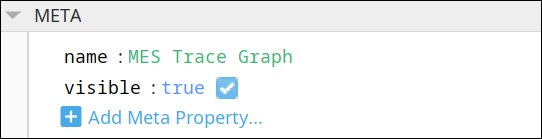
META
Meta Properties
This section contains the name and visibility properties for the component.
New user-defined meta properties can be created in this section.
User-defined Properties
|
|
Best practice: If user-defined properties are required, create them in the CUSTOM section instead of here. |
Event Handlers
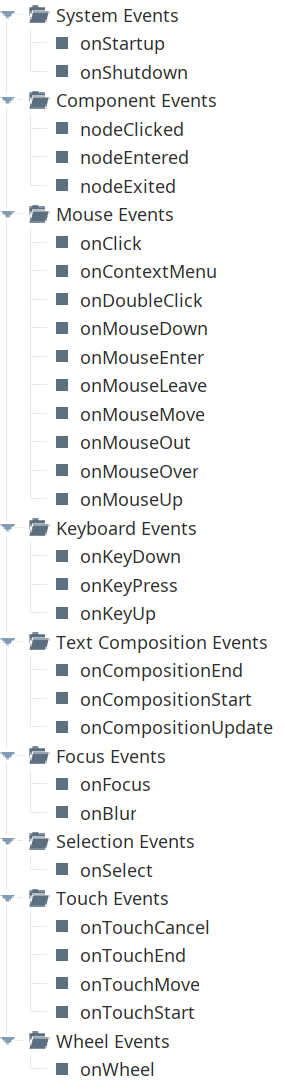
Event handlers provide the ability to add custom script when a user interacts with a component.
Refer to the Ignition User Manual for details on using the available event handlers:
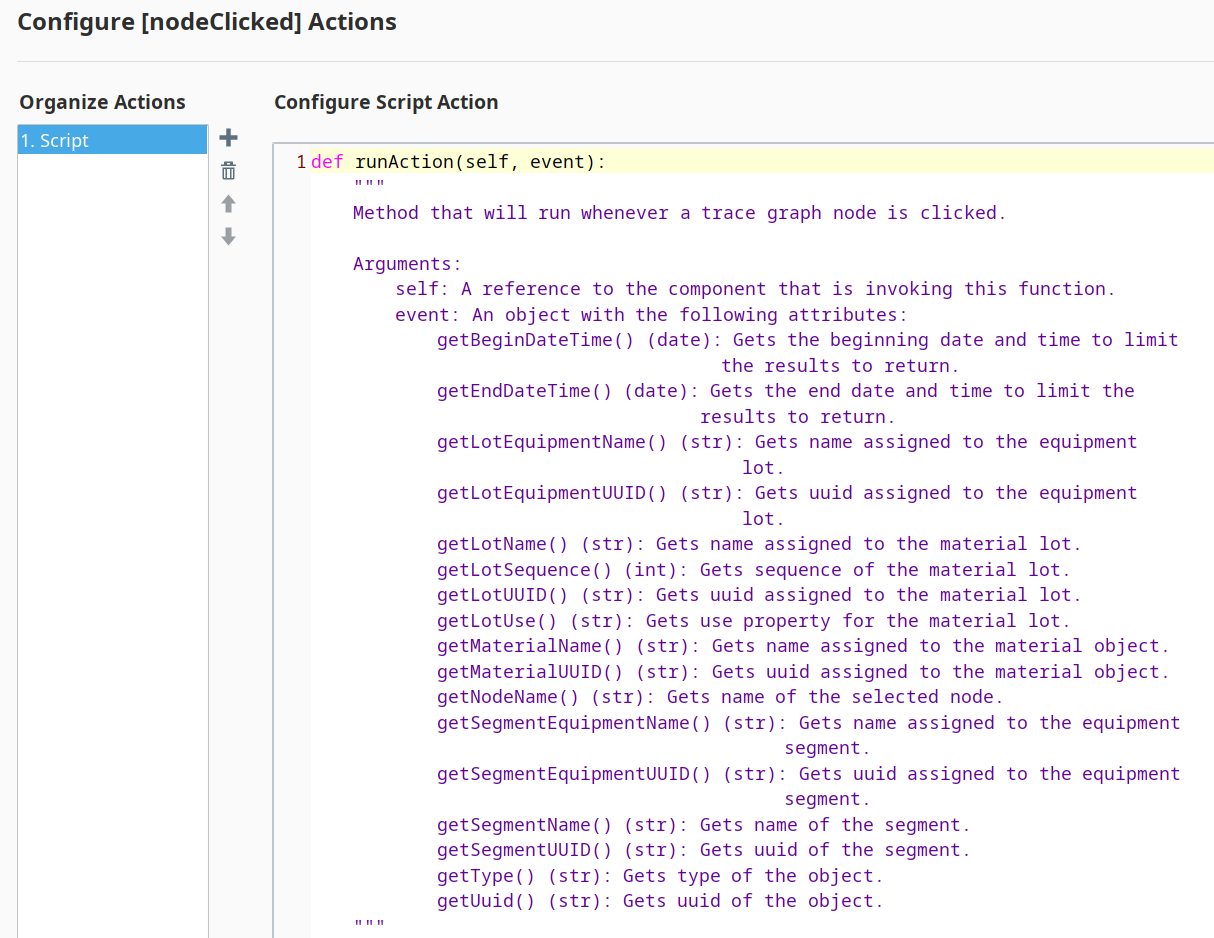
nodeClicked
The nodeClicked event is generated when the user clicks a particular Node object.
| Property | Description |
|---|---|
| .getBeginDateTime | Gets the beginning Date and Time to limit the results to return. |
| .getEndDateTime | Gets the end Date and Time to limit the results to return. |
| .getLotEquipmentName | Gets the name assigned to the equipment lot. |
| .getLotEquipmentUUID | Gets the UUID assigned to the equipment lot. |
| .getLotName | Gets the name assigned to the material lot. |
| .getLotSequence | Gets the sequence number assigned to the material lot. |
| .getLotUUID | Gets the UUID assigned to the material lot. |
| .getLotUse | Gets the use property for the material lot. |
| .getMaterialName | Gets the name assigned to the material object. |
| .getMaterialUUID | Gets the UUID assigned to the material object. |
| .getNodeName | Gets the name of the selected node. |
| .getSegmentEquipmentName | Gets the name assigned to the equipment segment. |
| .getSegmentEquipmentUUID | Gets the UUID assigned to the equipment segment. |
| .getSegmentName | Gets the name of the segment. |
| .getSegmentUUID | Gets the UUID of the segment. |
| .getType | Gets the type of the object. |
| .getUUID | Gets the UUID of the object. |
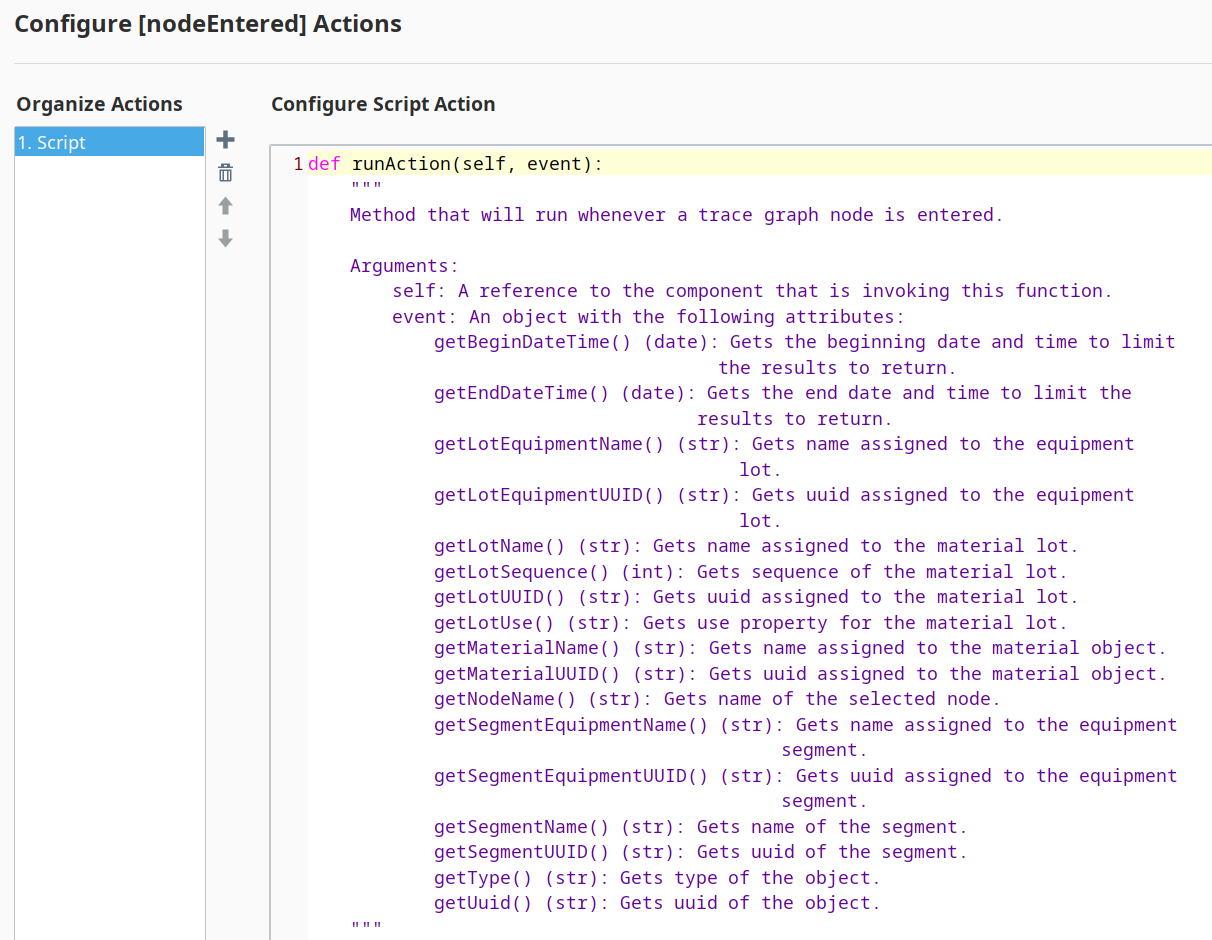
nodeEntered
This nodeEntered event is generated when the Node is being hovered over.
| Property | Description |
|---|---|
| .getBeginDateTime | Gets the beginning Date and Time to limit the results to return. |
| .getEndDateTime | Gets the end Date and Time to limit the results to return. |
| .getLotEquipmentName | Gets the name assigned to the equipment lot. |
| .getLotEquipmentUUID | Gets the UUID assigned to the equipment lot. |
| .getLotName | Gets the name assigned to the material lot. |
| .getLotSequence | Gets the sequence number assigned to the material lot. |
| .getLotUUID | Gets the UUID assigned to the material lot. |
| .getLotUse | Gets the use property for the material lot. |
| .getMaterialName | Gets the name assigned to the material object. |
| .getMaterialUUID | Gets the UUID assigned to the material object. |
| .getNodename | Gets the name of the selected node. |
| .getSegmentEquipmentName | Gets the name assigned to the equipment segment. |
| .getSegmentEquipmentUUID | Gets the UUID assigned to the equipment segment. |
| .getSegmentName | Gets the name of the segment. |
| .getSegmentUUID | Gets the UUID of the segment. |
| .getType | Gets the type of the object. |
| .getUuid | Gets the UUID of the object. |
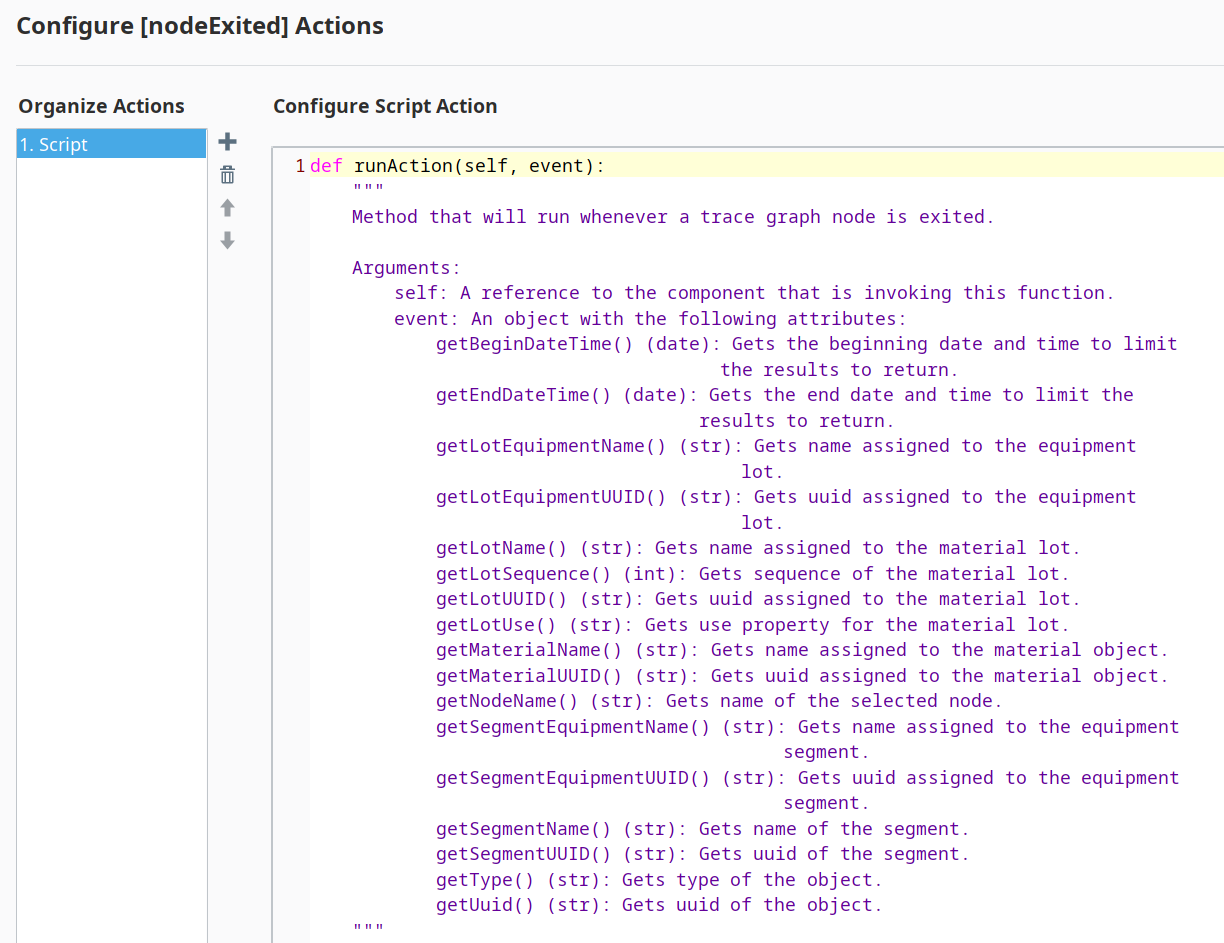
nodeExited
This nodeExited event is generated when drag gesture exits this Node.
| Property | Description |
|---|---|
| .getBeginDateTime | Gets the beginning Date and Time to limit the results to return. |
| .getEndDateTime | Gets the end Date and Time to limit the results to return. |
| .getLotEquipmentName | Gets the name assigned to the equipment lot. |
| .getLotEquipmentUUID | Gets the UUID assigned to the equipment lot. |
| .getLotName | Gets the name assigned to the material lot. |
| .getLotSequence | Gets the sequence number assigned to the material lot. |
| .getLotUUID | Gets the UUID assigned to the material lot. |
| .getLotUse | Gets the use property for the material lot. |
| .getMaterialName | Gets the name assigned to the material object. |
| .getMaterialUUID | Gets the UUID assigned to the material object. |
| .getNodename | Gets the name of the selected node. |
| .getSegmentEquipmentName | Gets the name assigned to the equipment segment. |
| .getSegmentEquipmentUUID | Gets the UUID assigned to the equipment segment. |
| .getSegmentName | Gets the name of the segment. |
| .getSegmentUUID | Gets the UUID of the segment. |
| .getType | Gets the type of the object. |
| .getUuid | Gets the UUID of the object. |
Component Functions
This component has no Component Functions.
Sepasoft MES Module Suite