Sepasoft MES Module Suite
OEE Material Manager Vision Component
The OEE Material Manager component allows users to modify and configure materials used for OEE. Materials are organized in Material Classes. The is the folder that holds all the Material Classes with Material Definitions used in OEE. Expand the Material Classes to see the Material Definitions. This component can also be used to add, edit, delete, copy, paste, import and export a Material Definition or the Material Class.
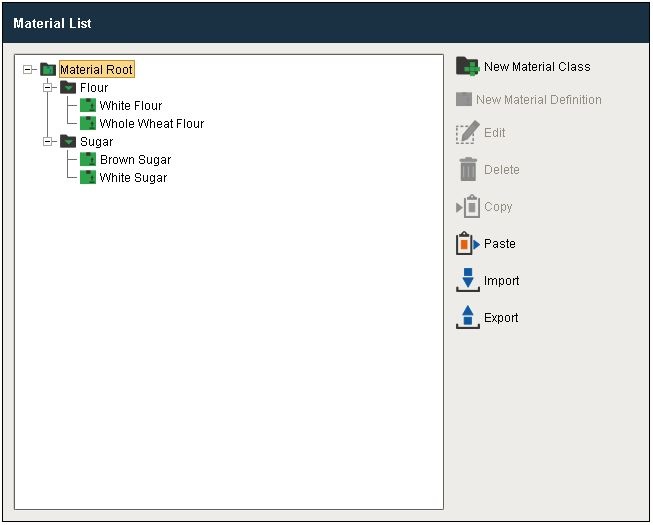
Exporting Material Definitions and Material Classes to XML
If you click on Export, save window will appear to set your export location. Select the file type as xml to get the following xml file.
Material List Export
Code |
# This example will return a path to a different image to replace the default delete image: if iconName == 'remove': return 'Builtin/icons/24/delete2.png' |
Adding a New Material Definition
First select the material class Finished Goods and then New Material Definition. The following editor appears.
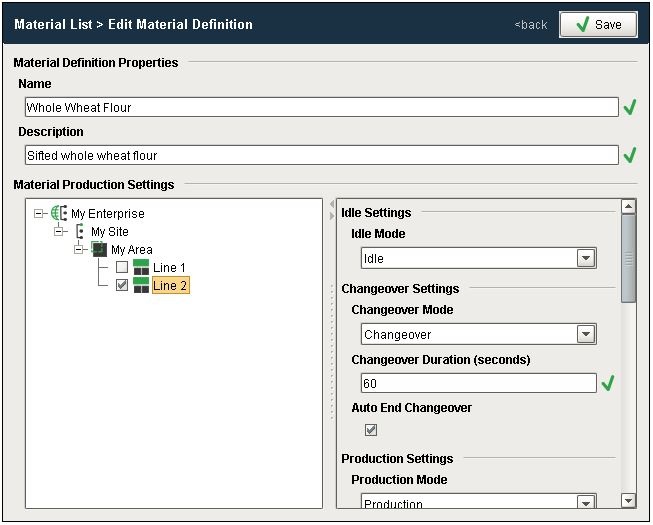
Give it a name (In this example, the Name is set to Whole Wheat Flour) and modify the settings. Click Save.
Material Classes can be added to an existing Material Class or to the Material Root.
Characters Not Allowed in Names
These characters are reserved by the Sepasoft modules.
Production Equipment
. ? ! # % ^ * ~ [ ] { } + = ` \ @ & ( ) < >,
MES Person
. ? ! # % ^ * ~ [ ] { } + = ` \/ " $ | < >
Other MES Objects
. ? ! # % ^ * ~ [ ] { } + = ` \/ " $ | ,
Machine Recipe Name in Settings & Changeover Module
Follows the same convention as Other MES Objects
Exception: Full-stop period . is allowed as of 3.81.10 SP2
Batch Names in Batch Procedure Module
. ? ! # % ^ * ~ [ ] { } + = ` \/ " $ | ,
Component Properties
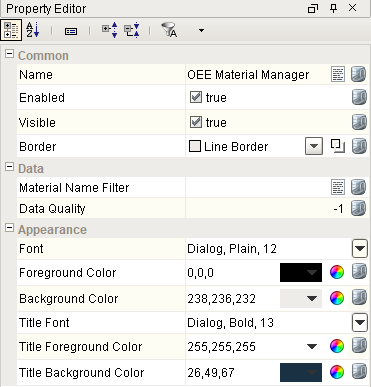
Properties are provided that can be set to affect the operation and look of the component. They can be set through the Property Editor in the Designer or through scripting.
Example
Python |
event.source.parent.getComponent('OEE Material Manager').materialNameFilter = '*Flour' |
Data
| Name | Scripting | Property Type | Description |
|---|---|---|---|
| Material Name Filter | materialNameFilter | String | Material name filter, a comma-separated list of material names, that can include * and ? wildcard characters, to filter the materials by. |
| Material Class Name Filter | materialClassNameFilter | String | Material class name filter, a comma-separated list of material class names, that can include * and ? wildcard characters, to filter the material classes by. |
Appearance
| Name | Scripting | Property Type | Description |
|---|---|---|---|
| Title Font | titleFont | Font | Font to use for the title bar. |
| Title Foreground Color | titleForeground | Color | Foreground color of the title bar. |
| Title Background Color | titleBackground | Color | Background color of the title bar. |
Event Handlers
Event handlers provide the ability to add custom script when a user interacts with a component.
propertyChange
propertyChange
Fires whenever a bindable property of the source component changes. This works for standard and custom (dynamic) properties.
| Property | Description |
|---|---|
| .source | The component that fired this event. |
| .newValue | The new value that this property changed to. |
| .oldValue | The value that this property was before it changed. Note that not all components include an accurate oldValue in their events. |
| .propertyName | The name of the property that changed. NOTE: Remember to always filter out these events for the property that you are looking for! Components often have many properties that change. |
Extension Functions
filterMaterials
- Description
Provides an opportunity to filter the materials shown in the tree. This function is called each time a node is expanded and child material objects are loaded. Only the materials in the returned list of material links will be displayed as children of parentMaterial. Note that the component property filters are applied before this function is called.
- Parameters
MESObjectLink parentMaterial - The parent material link for which the children are being loaded and filtered. This material link could be for a material class or a material definition.
MESObjectLink materialList - A list of material links to consider for filtering. Each link is a child of parentMaterial and could be for a material class or material definition.
- Returns
Returns a list of MESObjectLink objects that should be displayed as children of parentMaterial. Children not in the returned list will be filtered out.
- Scope
Client
Example
Code |
# This example will return a path to a different image to replace the default delete image: if iconName == 'remove': return 'Builtin/icons/24/delete2.png' |
loadIcon
- Description
Provides a chance to change an icon. Based on the icon name parameter, this extension function will return the image path to the icon to use in place of the default icon.
- Parameters
self - A reference to the component that is invoking this function.
iconName - The name of the icon you wish to replace. The eligible parameter names are export, materialroot, select, back, newclass, material, edit, remove, copy, and import.
- Returns
Nothing
- Scope
Client
Example
Code |
# This example will return a path to a different image to replace the default delete image: if iconName == 'remove': return 'Builtin/icons/24/delete2.png' |
Custom Methods
Custom methods allow you to add your own component functions to a component that can be called through scripting. This is a useful and clean method of re-using script that is specific to the component (say you want to update a visual aspect of the component in the same way whether a user clicks on the component or a window property value changes). See Component Custom Methods in the Ignition Help Manual for more information.
Customizers
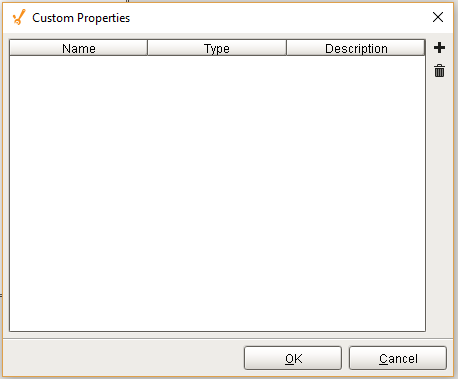
Custom Properties
The custom properties can be used to add user defined properties.
Component Functions
This component does not have functions associated with it.
Sepasoft MES Module Suite