Sepasoft MES Module Suite
SAP Destinations
See Below:
Add Destination
To establish a connection to a SAP server, you need to add a Destination and set connection details, such as host name (or IP address) and user credentials.
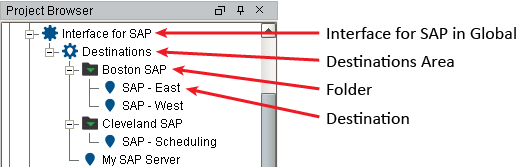
With the Interface for SAP ERP Module installed, a new Interface for SAP ERP node appears under the Global scope within the Ignition Designer Configuration Project Browser. Expanding the Interface for SAP ERP node displays the Destinations node.
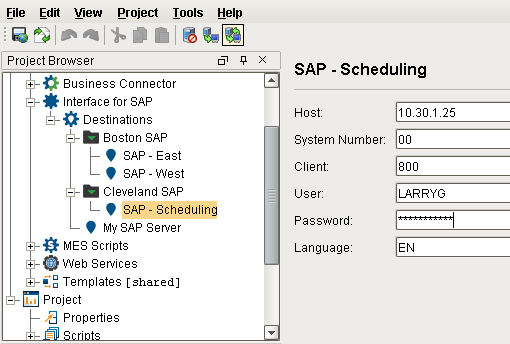
Creating and Organizing New Folders and Destinations

|
Be sure to Save your project after adding or making changes to folders or Destinations. |
Naming Characters Allowed

|
Names must begin with a letter, digit or underscore. Subsequent characters may also include spaces, dashes, underscores and parentheses. All other special characters, such as period, comma, colon, semicolon, all slashes, brackets and braces, as well as the special characters on the 1-8 keys, are not allowed. |
Create New Folder
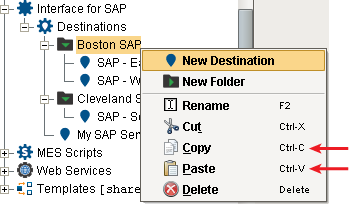
Folders are for organization purposes only. Right click and and select New Folder.
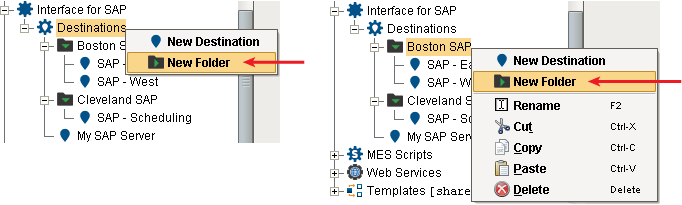
Create New Destination
To create a new Destination instance, navigate to the Destinations section under Interface for SAP ERP in the Ignition Designer Project Browser, right-click on either Destinations or an existing folder, then select New Destination. Name the new Destination.
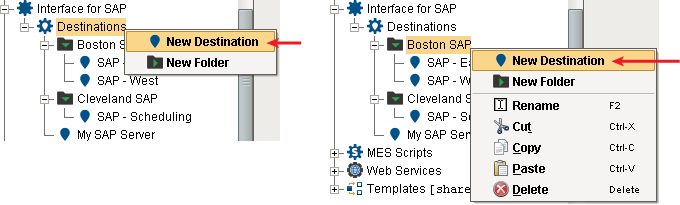
Move Folder or Destination
Typical cut and paste options work here. Drag and drop does not.
Destination Properties Pane
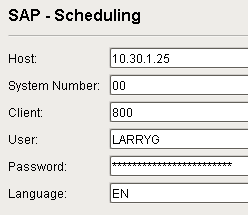
With the selected Destination highlighted, fill in the parameters below. These parameters should be provided by your company's SAP team.
| Field | Description |
|---|---|
| Host | SAP server Host Name (optionally, use an IP address) |
| System Number | Number of the server (in a multi-server cluster) |
| Client | Client Number for SAP server account (supplied by the SAP Administrator) |
| User | Username for SAP server account supplied by the SAP Administrator |
| Password | Password for SAP server account supplied by the SAP Administrator (stored encrypted on the Ignition project) |
| Language | Language for server interactions (Note: English = EN) |
| Test Destination | Once all the destination data is filled in, press this button to test the connection to the destination |
Password Encryption
|
|
The Password is stored only in encrypted form as part of the Ignition project. If a Destination is copied to another Ignition server, decryption of the password will fail because the new server has a different encryption key. A log entry will be generated, stating that the Password must be re-entered. If applicable, a dialog box will appear prompting for a new password. If a Gateway backup is created, the correct encryption key will be saved with it. Therefore, when the backup is restored, Password can be decrypted. |
|
|
Be sure to Save your project after completing the Destination property fields. |
Adding BC Server Functionality
- Add Destination
- Creating and Organizing New Folders and Destinations
- Create New Folder
- Create New Destination
- Move Folder or Destination
- Destination Properties Pane
- Settings
- Server Functions
- Monitoring

|
Offered in 3.81.10 RC1 and later Business Connector Server Functionality - input/output data structures in start element. The data structure for input and output parameters are defined at the Business Connector chart start element. Parameters defined at the start element support complex and simple user-defined structures or select predefined structures. The predefined structures include B2MML and general MES structures. The general MES structures are stripped down to the point structures when the complexity of B2MML is not needed. |
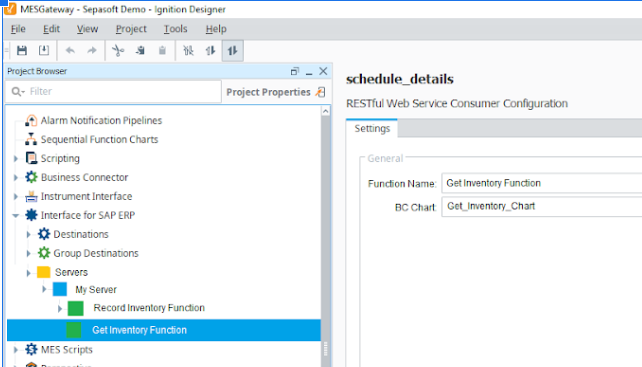
- Select Servers > Add New Server.
Settings
Server Name
Enabled - Boolean - this is not a JCo setting, but the Interface for SAP does register the server if this setting is not checked.
Destination - string - this must match one of the previously configured destinations.
Gateway Host - string - this is the URL to the SAP Server or Gateway. In most cases, this matches the Host setting in the Destination configuration.
Gateway Server - string - this is an open field but follows the format of “sapgw00” where the 00 defines the ports used by the JCo library.
- Connection Count - integer - this specifies the maximum simultaneous connections that JCo accepts for the server.
Server Functions
At the Function level, these settings are available:
Enabled
Business Connector chart to execute when a request comes in for the function endpoint. The chart is referenced by an internal ID or UUID so that it can be renamed without breaking the association.
The input and output data structures are shown in the panels on the right side but are read-only.
The structures are retrieved from the select Business Connector chart and will refresh when a new chart is selected.
The format and data types from the Business Connector module shall be translated into SAP format and datatypes before displaying in this section.
SAP handles arrays as Tables (rows and columns). The Business Connector uses XML, which doesn’t have the notion of tables but does support arrays. A translation between arrays and tables will need to be done between the Business Connector and Interface for SAP.
These structures can be large, and each section should automatically show a scroll bar if the contents extend beyond the visible bounds.
Monitoring
A JCoServerErrorListener is registered for each server. When JCo reports errors or exceptions, they echo to the Ignition logs. A JCoServerStateChangedListener is registered for each server. This status is reflected in the Designer UI and Ignition logs.
Sepasoft MES Module Suite