Sepasoft MES Module Suite
Scheduling
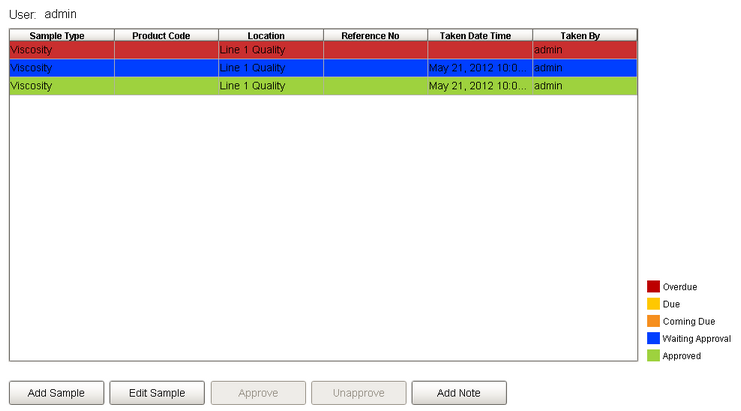
Samples can be scheduled to be taken in the Sample Definition based on the Interval Type selected. The schedule sample list allows you to monitor the scheduled entries to see when they are coming due, due, overdue and waiting for approval and approved. Based on the color, users can easily see the current state of samples.
From this list, users can select a sample to enter measurements for or create new samples. By selecting a sample and clicking on the Edit Sample button, the sample data can be entered. Likewise, by clicking on the Add Sample button, a new sample can be added. Depending on the sample definition, samples can be automatically or manually approved. Once a sample has been approved, it will appear in the control charts and will be automatically evaluated for an out of control condition. In this demo, the Unapprove Sample button has been added to demonstrate the ability to correct previously approved sample data. This can be removed from the screen or allowed based on the user's security role.
See the Sample Definition section for more information about how to schedule samples or define them to be taken manually.
Adding and Editing Samples
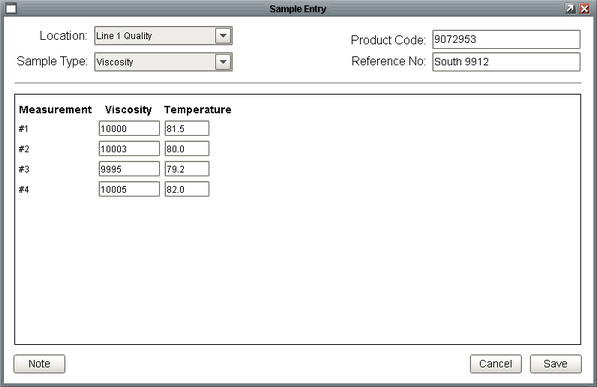
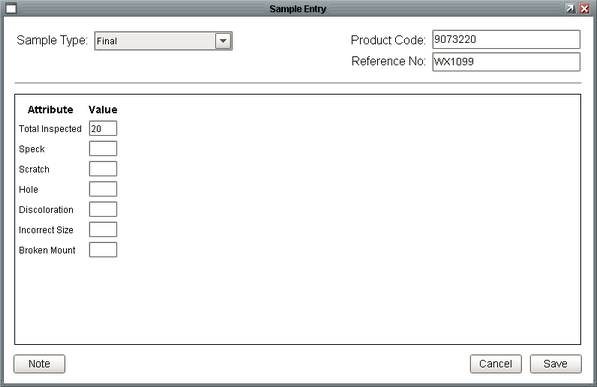
When a user clicks on the Edit Sample or Add Sample button, the sample entry form appears. If a new sample has been added, the location can be selected.
The following screen shows the entering of measurements for a value based sample. In this case, viscosity and temperature values. Users also have the ability to enter a product code and reference number (located in the upper right-hand corner). These can be used when viewing the samples in the control charts or for analysis beyond control charts.
If multiple measurements have been defined for each attribute, the attributes appear horizontally and the measurements vertically. If the sample definition only calls for one measurement, then the attributes will appear vertically.
Approving Samples
Samples can be configured in the Sample Definition screen to require the additional step of being approved or set to be auto approved. This provides the functionality of configuring an approval step with roles based security.
Sample values will not be shown in the control charts until they have been approved.
Sepasoft MES Module Suite