Sepasoft MES Module Suite
Soap Action Block
The SOAP Action Block provides a data 'consumer' connection to SOAP 'provider' web resources.
Connections
Two connections are required:
Input — (input) Receives execution control from the previous Block in the sequence. Unlimited input connections are allowed (spread across up to three available edges).
Output — (output) Passes execution control to the next Block in the sequence.
Properties
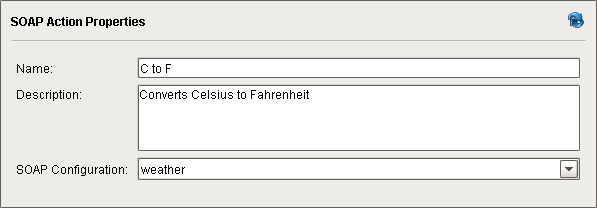
The optional Name and Description fields are included on most Blocks for clarity and documentation benefit. Note: The text in the Name field will also appear on the Block's icon on the Design Grid.
Naming Characters Allowed

|
Names must begin with a letter, digit or underscore. Subsequent characters may also include spaces, dashes, underscores and parentheses. All other special characters, such as period, comma, colon, semicolon, all slashes, brackets and braces, as well as the special characters on the 1-8 keys, are not allowed. |
Mapping Parameters
All Chart Parameters (defined in the Start Block) are available for mapping in the Input tab.
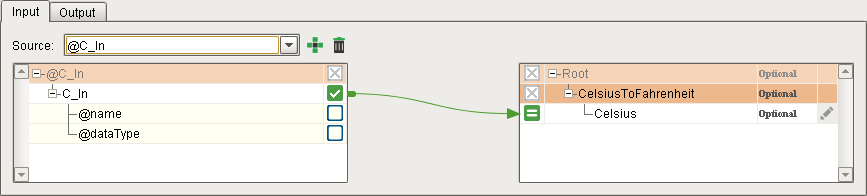
In this example, a Chart Parameter value is mapped to a parameter in the Request Message which will be passed to the SOAP provider site (e.g. https://www.w3schools.com/xml/tempconvert.asmx).
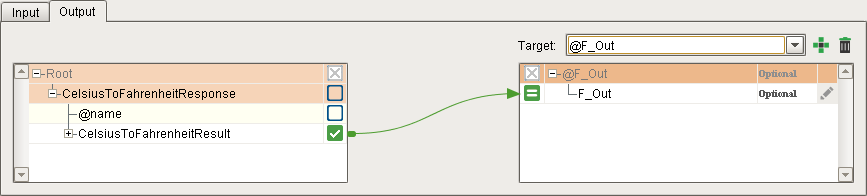
All Chart Parameters (defined in the Start Block), as well as the parameters in the Response Message from the selected SOAP consumer are available for mapping in the Output tab.
In this example, a parameter value returned in the Response Message from the SOAP provider site will be mapped to a Chart Parameter for return via the chart execution function (e.g. in a Button that executed the chart).
Schema Refreshing and Changes
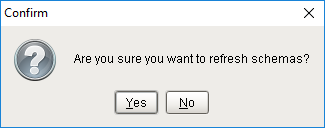
Clicking the Refresh (  ) button will cause a re-fetch of both the input and output schemas. If both schemas still match what is currently selected for each in the Block, then a "Confirm" dialog box will appear.
- Clicking Yes will cause the Block to fetch fresh data.
- Clicking No will abort the refresh.
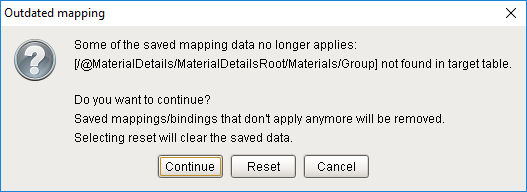
If either schema has been edited, an "Outdated Mapping" dialog box will immediately appear (without the need to press Refresh), with two choices on how to handle the schema mismatch, plus Cancel.
- Clicking Continue will apply all the mappings that are still valid and clean up the outdated mappings.
- Clicking Reset will clear all the saved data and mapping connections and then fetch a fresh copy of both schemas.
- Clicking Cancel will abort the refresh, allowing the user to manually fix the schema without losing saved data.
Usage: Connecting the SOAP Action Block
- Drag a SOAP Action Block onto the Design Grid (position to be the next block in the chart sequence).
- Click on the previous Block in the sequence and draw a Connector to the SOAP Action Block (any available edge). This becomes the Input connection. Repeat for any additional input Blocks, if applicable (unlimited connections are allowed on up to three edges).
- Click on the SOAP Action Block and draw a Connector (from any available edge) to the next Block in the sequence. This becomes the Output connection.
Selecting a SOAP Configuration
- Select one of your SOAP Consumer configurations from the SOAP Configuration drop-down list (must already exist in order to appear in the list).

Mapping Chart Parameters and SOAP Parameters
- In the Input tab, add (

) a Chart Parameter from the Start Block and map it to a parameter in the Request Message (defined in the SOAP Consumer selected in SOAP Configuration). Repeat for any other Request Message mapping connections required. Skip this step if there are no input parameters.
-
In the Output tab, add ( ) a different Chart Parameter from the Start Block. Map a parameter from the Response Message to it. Repeat for any other Response Message mapping connections required.
Example
Temperature Conversion
This example chart uses a SOAP Provider to convert a user-provided Celsius temperature value to Fahrenheit. The Celsius value is grabbed from a Numeric Text Field component and passed into a Chart Parameter. The C to F button passes the Chart Parameter into the chart SOAP C to F, which uses a SOAP Action Block to interact with a SOAP Provider to convert the Celsius value. The returned Fahrenheit value from the SOAP Provider is returned to the chart execution function in the button script via another Chart Parameter and the button script displays it on an Ignition LED Display component.
User-Interface Window
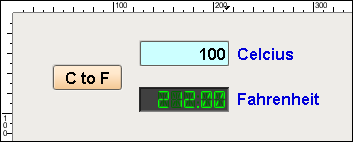
This window provides a Numeric text Field component for user input of the Celsius value, a Button component to execute the chart, and an LED Display component to display the Fahrenheit conversion performed by the SOAP Provider.
SOAP Consumer
See SOAP Configuration for instructions on creating a SOAP Consumer.
In the Sepasoft Web Services module, a SOAP Consumer called weather is configured to interact with a SOAP Provider on the internet.
Creating the Request Schema
The URL for the SOAP Provider (with the suffix "?WSDL") is placed in the WSDL URL field and the  button is pressed. This fetches and then parses the returned WSDL and the SOAP Provider's available functions will populate in the Port field. The TempConvertSoap port is selected from the drop-down, and then the CelsiusToFahrenheit operation is selected from the Operation drop-down.
The Request Message structure for the selected operation will be displayed in the Request Message area, as shown below. The  button can be pressed to see both the Request Message and the Response Message structures in a pop-up dialog box as reference. The user doesn't need to worry about how to interface with these structures in script because the mapping in the SOAP Action Block will handle data type and syntax error-checking when the user draws each mapping connection.
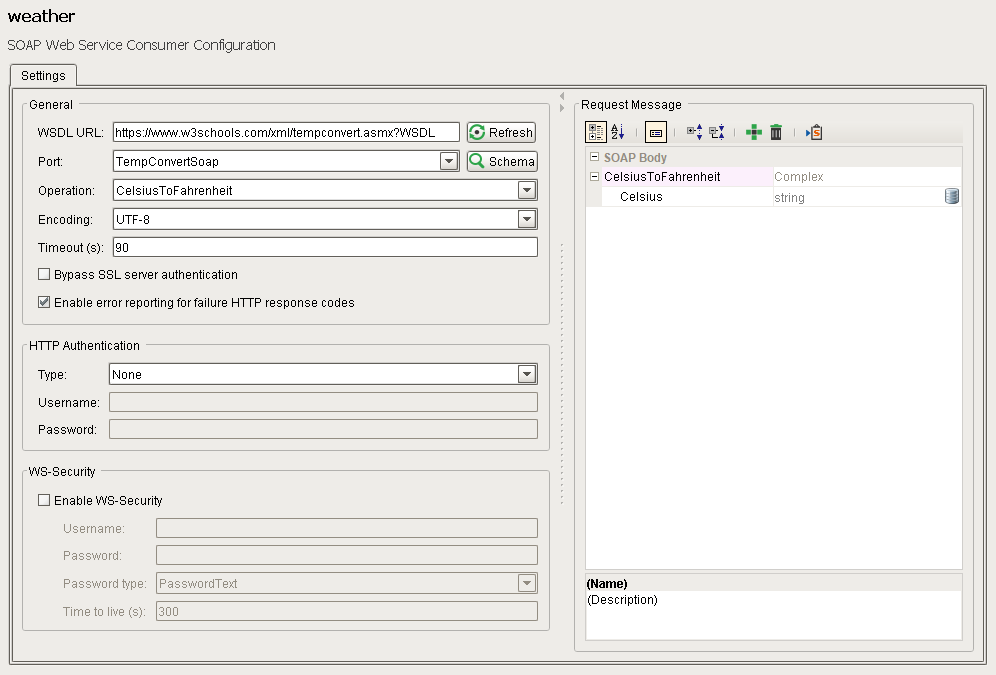
SOAP Web Services Consumer Configuration
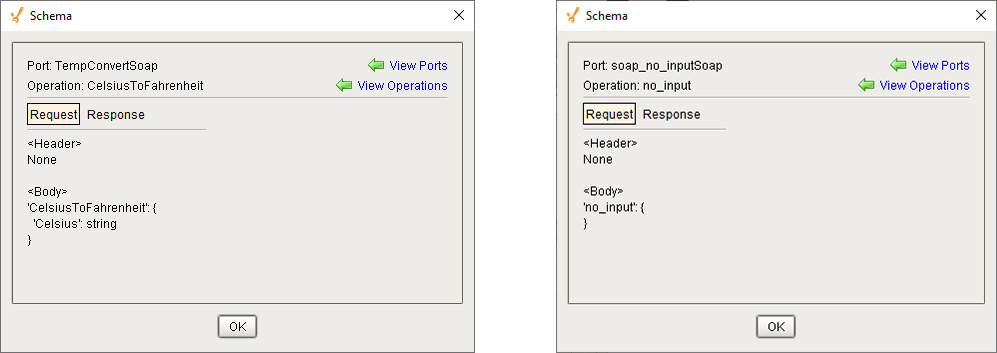
Request Message Schema Request Message Schema (with empty body block)
|
|
If the WSDL does not require an input, it will return an empty body block. |
Creating the Response Schema
When the chart is executed, the SOAP Action Block will run the selected function in the weather SOAP Consumer. The SOAP Provider will be given the Celsius value (converted to a string), and return a string containing the calculated Fahrenheit value. The mapping area in the SOAP Action Block connects the returned value with the Chart Parameter F_out which will be returned to the button script.
See the section below on how parameters from the Response Message are mapped to Chart Parameters for return to the button script.
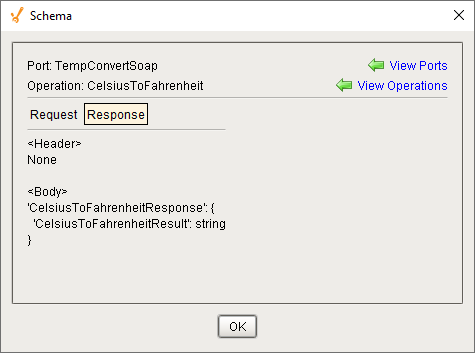
Response Message Schema
Naming
If any elements of the SOAP response/request contain characters that are illegal for XML (see https://www.w3schools.com/xml/xml_elements.asp) then they will be escaped using the following map:
Naming Character Escape Map
{char, escape_char} // HTML number CHAR Description
//------------------------------------------------------------
{"\t", "_-09."}, // 	 \t Tab
{" ", "_-32."}, //   \s Space
{"!", "_-33."}, // ! ! Exclamation mark
{"\"", "_-34."}, // " " Quotation mark
{"#", "_-35."}, // # # Number sign
{"$", "_-36."}, // $ $ Dollar sign
{"%", "_-37."}, // % % Percent sign
{"&", "_-38."}, // &(&) & Ampersand
{"'", "_-39."}, // ' ' Apostrophe
{"(", "_-40."}, // ( ( Left parenthesis
{")", "_-41."}, // ) ) Right parenthesis
{"*", "_-42."}, // * * Asterisk
{"-", "_-43."}, // + - Plus sign
{",", "_-44."}, // , , Comma
{"/", "_-47."}, // / / Slash
// Colon is allowed in XML names but is reserved for namespaces
// {":", "_-58."}, // : : Colon
{";", "_-59."}, // ; ; Semi-colon
{"<", "_-60."}, // <(<) < Less than
{"=", "_-61."}, // = = Equals sign
{">", "_-62."}, // >(>) > Greater than
{"?", "_-63."}, // ? ? Question mark
{"@", "_-64."}, // @ @ Commercial at
{"[", "_-91."}, // [ [ Left square bracket
{"\\", "_-92."}, // \ \ Reverse solidus (backslash)
{"]", "_-93."}, // ] ] Right square bracket
{"^", "_-94."}, // ^ ^ Caret
{"`", "_-96."}, // ` ` Acute accent
{"{", "_-123."}, // { { Left curly brace
{"|", "_-124."}, // | | Vertical bar
{"}", "_-125."}, // } } Right curly brace
{"~", "_-126."}} // ~ ~ Tilde
Business Connector Chart
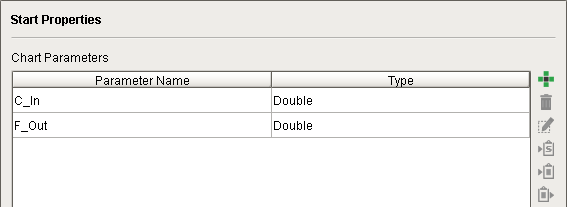
The chart in this example is very simple, consisting only of two Chart Parameters configured in the Start Block, the SOAP Action Block and an End Block.
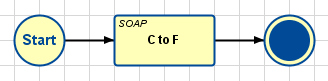
Two Chart Parameters are used by the chart, to pass in the Celsius value and return the Fahrenheit value calculated by the SOAP Provider:
- C_In — The button script will pass the Celsius value entered by the user into the chart with this parameter.
-
F_Out — After conversion by the SOAP Provider, the SOAP Action Block passes the Fahrenheit value into this parameter for return to the button script.
The SOAP Action Block has the SOAP Consumer weather selected:
Mapping Chart Parameters to SOAP Parameters
The SOAP Action Block mapping is set to pass the incoming Celsius value from Chart Parameter C_In to the SOAP Provider's Request Message parameter Celsius.
The SOAP Action Block mapping is set to pass the SOAP Provider's Response Message parameter CelsiusToFahrenheitResult to Chart Parameter F_Out.
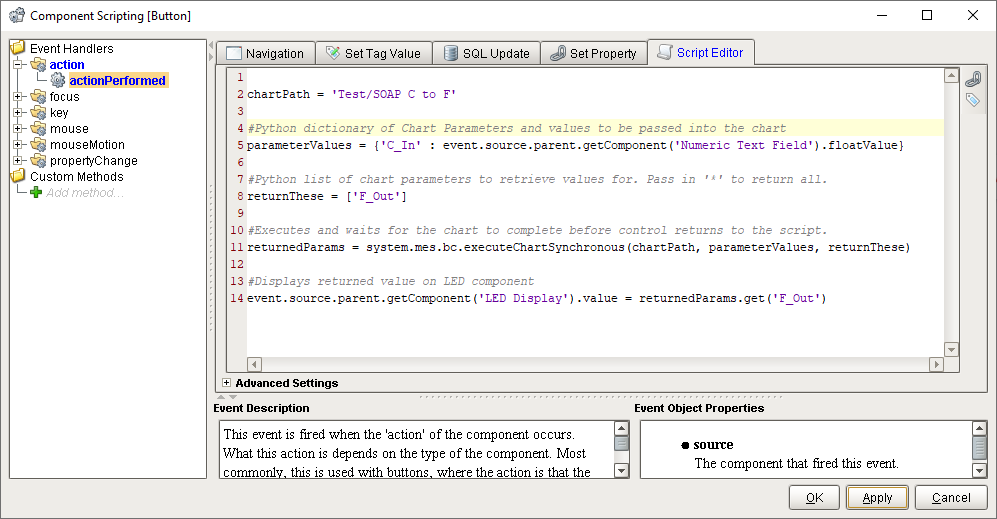
"C to F" Button Script
When the C to F button is pushed, the script will:
- Assign the chart path to point to the SOAP C to F chart.
- Create a Python dictionary of values to pass into the chart. In this example, there is only the Celsius value fetched from the Numeric Text Field component to pass in to Chart Parameter C_In.
- Create a list of Chart Parameters that the chart will return when execution completes. In this example, only Chart Parameter F_Out needs to be returned to the script for display.
- Execute the SOAP C to F chart (which interacts with the SOAP Provider to convert Celsius to Fahrenheit) and return the value F_Out in a Python dictionary (assigned to returnedParams).
-
Use the Python .get method to extract the value of F_Out and display it on the LED Display component.
C to F button script
Code |
|
Running the window in Preview Mode, a value of 100 is entered into the Numeric Text Field and the C to F button is pushed. The Fahrenheit value returned by the SOAP Provider is displayed on the LED Display component.
Sepasoft MES Module Suite