Sepasoft MES Module Suite
Tag Collector View
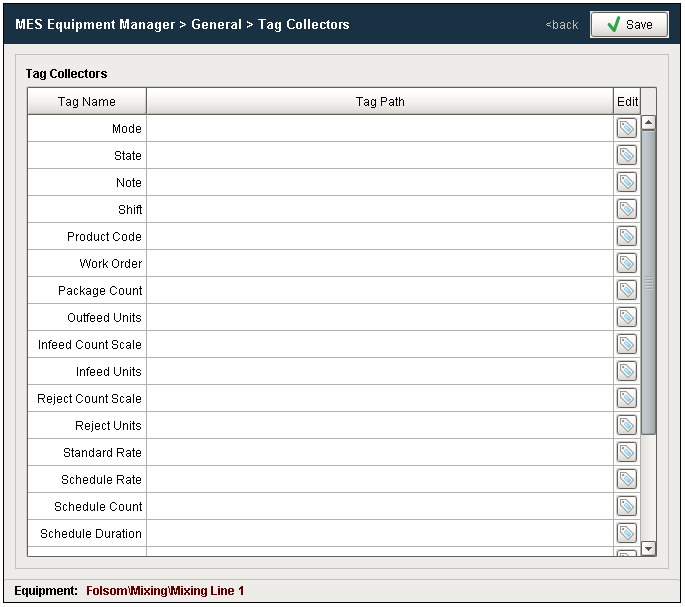
The Tag Collectors section is specific to the OEE module and is available for the Line, Cell Group and Cell Production Items. A number of configuration settings are provided that can be used to obtain equipment mode, state and count values from ignition tags (whether PLC tags, memory or expression tags).
Downtime Detection Modes
How line downtime is determined can be changed based on the selected Downtime Detection Mode. Valid options for the downtime detection mode are:
- Equipment State
- Key Reason (Cell Priority)
- Key reason (Neighbor Priority)
- Initial Cell
- Parallel Cells
Refer to Downtime Detection Modes for more information on the various Downtime Detection Methods.

|
Downtime Detection Modes is only available for the Line and Cell Group Production Item. |
Minimum Cells Running Threshold
Minimum Cells Running Threshold determines how many cells in the Line (or Cell Group) must be running in order for the Line (or Cell Group) to be considered as Running.
Tag Collector Paths
Tag Collectors are provided to allow any of the parameters needed to drive OEE Metrics to be provided externally to the OEE module. Virtually all the Tag Collectors can be left blank in which case the OEE engine will determine the value from product code configuration information as defined in OEE Material Production Settings in the OEE Material Manager or from internal calculations. Exceptions to this would be the equipment state and counts where needed.
Note
|
|
The fastest recording resolution is 1 second and the value will be overridden if a tag changes within the same second. This applies to all tag collectors except for shift. |
OEE Rates are stored as "per minute"

|
The Sepasoft OEE module always stores rates (including the Standard Rate) in "per minute" equivalent, in order to streamline functionality (regardless of the units set in GUI-based components such as the OEE Material Manager). However, when utilizing the Tag Collector, you are storing values directly to the database, so you must convert the values to "per minute" before writing values to these tags. Rate values in the Value Editor will also be "per minute". |
Tag Collector Tag Name length
|
|
The Tag Collector Tag Name field length is limited to 255 characters, consisting of the automatically-generated string 'Sample Attribute-' - <sample definition name> - '-' - <attribute name> - plus 6 characters reserved for appending a UUID whenever a Tag Collector becomes deleted. Therefore, the user-created <sample definition name> and <attribute name> must total 231 characters maximum. |
| Tag Collector Path | Data Type | Description | ||
|---|---|---|---|---|
Mode | Integer | When left blank, the Mode will be determined from the Mode setting for the currently running Product Code (Material), as defined in the Material Manager. When a tag path is provided, the Mode for the line or equipment (cell) will be determined from the value of the tag. For more information on the Mode, refer to the OEE Material Production Settings section. | ||
State | Integer | The State Tag path will generally come from a PLC as the source of the current equipment state. Exceptions to this are at the Line level when using a downtime detection method other than Equipment State. | ||
Note | String | As well as through scripting on the OEE Downtime Table - Vision component, the downtime notes can also be added by passing a note through a tag referenced here. | ||
Shift | String | When left blank, shifts defined in the Ignition Schedule Management component and defined in the Equipment Manager for a line will be used to determine the current shift. If a tag is provided here, whatever value is in the tag e.g. 'Shift A' will be recorded for the current shift. | ||
Product Code | String | When left blank, the Product Code currently running on the line will be determined from the scheduled run as selected by the Scheduler or Run Director component. When a tag path is provided, the product code for the line or equipment (cell) will be determined from the value of the tag. | ||
Work Order | String | When left blank, the Work Order currently running on the line will be determined from the scheduled run as selected by the Scheduler or Run Director component. When a tag path is provided, the product code for the line or equipment (cell) will be determined from the value of the tag. | ||
Package Count | Float | When left blank, the Package Count will be determined from the Package count setting for the currently running Product Code (Material) as defined in the Material Manager. When a tag path is provided, the Package Count for the line or equipment (cell) will be determined from the value of the tag. For more information on the Package Count, refer to the OEE Material Production Settings section. | ||
Outfeed Units | String | When left blank, the Line Outfeed Units will be determined from the Line Outfeed Units setting for the currently running Product Code (Material) as defined in the Material Manager. When a tag path is provided, the Line Outfeed Units for the line or equipment (cell) will be determined from the value of the tag. For more information on the Line Outfeed Units, refer to the OEE Material Production Settings section. | ||
Infeed Count Scale | Float | When left blank, the Infeed Count Scale will be determined from the Infeed Count Scale setting for the currently running Product Code (Material) as defined in the Material Manager. When a tag path is provided, the Infeed Count Scale for the line or equipment (cell) will be determined from the value of the tag. For more information on the Infeed Count Scale, refer to the OEE Material Production Settings section. | ||
Infeed Units | String | When left blank, the Line Infeed Count Scale will be determined from the Infeed Count Scale setting for the currently running Product Code (Material) as defined in the Material Manager. When a tag path is provided, the Infeed Count Scale for the line or equipment (cell) will be determined from the value of the tag. For more information on the Line Infeed Units, refer to the OEE Material Production Settings section. | ||
Reject Count Scale | Float | When left blank, the Reject Count Scale will be determined from the Reject Count Scale setting for the currently running Product Code (Material) as defined in the Material Manager. When a tag path is provided, the Reject Count Scale for the line or equipment (cell) will be determined from the value of the tag. For more information on the Reject Count Scale, refer to the OEE Material Production Settings section. | ||
| Reject Units | String | When left blank, the Line Reject Units will be determined from the Line Reject Units setting for the currently running Product Code (Material) as defined in the Material Manager. When a tag path is provided, the Line Reject Units for the line or equipment (cell) will be determined from the value of the tag. For more information on the Line Reject Units, refer to the OEE Material Production Settings section. | ||
| Standard Rate | Float | When left blank, the Standard Rate will be determined from the Standard Rate setting for the currently running Product Code (Material) as defined in the Material Manager. When a tag path is provided, the Standard Rate for the line or equipment (cell) will be determined from the value of the tag. For more information on the Standard Rate, refer to the OEE Material Production Settings section. | ||
| Schedule Rate | Float | When left blank, the Schedule Rate will be determined from the Schedule Rate setting for the currently running Product Code (Material) as defined in the Material Manager. When a tag path is provided, the Schedule Rate for the line will be determined from the value of the tag. For more information on the Schedule Rate, refer to the Material Production Settings > Schedule Rate section.
| ||
| Schedule Count | Integer | When left blank, the Schedule Count will be determined from the scheduled run as selected by the Scheduler or Run Director component. When a tag path is provided, the Schedule Count for the line or equipment (cell) will be determined from the value of the tag. The Schedule Count provides the number of units scheduled to be produced.
| ||
| Schedule Duration | Integer | When left blank, the Schedule Duration will be determined from the scheduled run as selected by the Scheduler or Run Director component. When a tag path is provided, the Schedule Duration for the line or equipment (cell) will be determined from the value of the tag. The Schedule Duration provides the expected runtime required for the number of units scheduled to be produced and is calculated by the Schedule Rate. | ||
| Rate Period | String | When left blank, the Rate Period will be determined from the Rate Period setting for the currently running Product Code (Material) as defined in the Material Manager. When a tag path is provided, the Rate Period for the line or equipment (cell) will be determined from the value of the tag. For more information on the Rate Period, refer to the OEE Material Production Settings section. | ||
| Target C/O Time | Integer | When left blank, the Target C/O (Changeover) Time will be determined from the Changeover settings for the currently running Product Code (Material) as defined in the Material Manager. When a tag path is provided, the Target C/O (Changeover) Time for the line or equipment (cell) will be determined from the value of the tag. For more information on the Target C/O (Changeover) Time, refer to the OEE Material Production Settings section.
| ||
| Cycle Count | Float | When left blank, the Cycle Time metrics will not be calculated. When a tag path is provided, the Cycle Count for the line or equipment (cell) will be determined from the value of the tag and Cycle Time metrics will be calculated as a result. | ||
| Operation UUID | String | When left blank, the Operation UUID will be determined from the currently running Operation on the Line or equipment (cell). When a tag path is provided, the Operation UUID for the line or equipment (cell) can be determined from the value of the tag. The purpose for this tag is to be able to provide OEE analysis data when production runs are not scheduled or started using the Run Director or Schedule Selector components, or scripting functions. In this case a tag can be used to provide a Run Identifier value i.e. Run_4253_XX. The Analysis Selector provides the ability to pull the Operation UUID as part of analysis, whether it is an internally generated Operation UUID or a passed Run Identifier.
|

|
Tag Collector Paths can be parameterized with {Equipment Path} to utilize indirection and more rapidly implement the production model. See Parameterized Tag Paths for more details. |
Live Analysis
Live Analysis
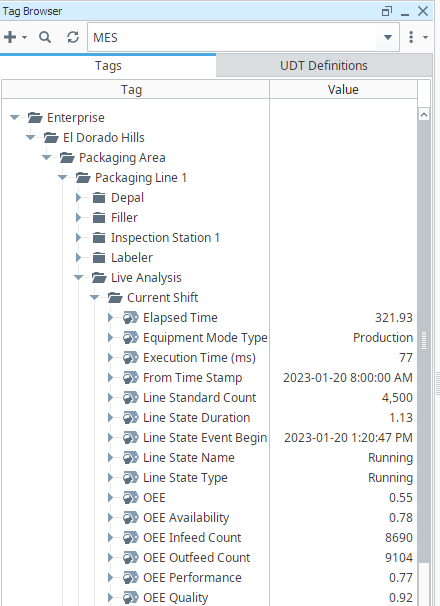
Live Analysis provides a flexible way of customizing your application to provide a set of real-time tag values that can be accessed from the Ignition Designer and used in your application to provide real-time production monitoring. Live Analysis is configured in the MES Equipment Manager for the Line, Cell Group and Cell production items. When a Live Analysis is created, a corresponding set of tags is created in the MES Tag Provider that provide the real-time status of those datapoints based upon the Period defined for the Live Analysis. You can create multiple Live Analysis and use those tags to drive HMI displays.
DateTime Tags Display Differently in Ignition 7 versus Ignition 8
|
|
DateTime Tags in Ignition 7 and Ignition 8 As an example, consider two Ignition Gateways, one is Ignition 7, the other Ignition 8. Both gateways are set to UTC, while the Designer/Client machine is set to PST. There is a 7 hour difference between UTC and PST. In Ignition 7, Date tags translate to PST. In Ignition 8, Date tags show as UTC |
Create a New Live Analysis Profile
To complete these steps, you must have at least one Line in your Production Equipment Model.
- In Equipment Manager, select a line, cell group or cell and from General, click Live Analysis.
- Add Live Analysis and then Edit Live Analysis.
- Refer to the Live Analysis Settings table to configure the live analysis.
|
|
You cannot select all Data Points in one Live Analysis. The maximum length string for Data Points is 1024 characters |
Live Analysis Settings
| Setting | Description | ||||
|---|---|---|---|---|---|
Analysis Name | The name for the live analysis | ||||
Enabled | The live analysis can be enabled or disabled with this setting | ||||
Period | The duration of analysis can be set by:
| ||||
Custom Period Tag | A tag can be assigned to define the start datetime for a custom period. The end time will be the current time. It takes value in the date time data type. Example for a valid value for the custom period tag is:
| ||||
Update Rate | The rate in seconds by which the live analysis is updated. The minimum update rate is 60 seconds. Default value is 60 seconds. | ||||
| Data Points | Data points allows you to pick and choose the values you wish to access through tags. See the table below for the listing of available data points | ||||
| Optional Filter | The optional filter has the same rules as the analysis selector filter but it must not contain any of the following since live analysis is already filtered to an equipment:
Example: filter_expression = "Shift='Morning' AND (Line State Type='Planned Downtime' OR Line State Type='Unplanned Downtime' OR Line State Type='Unknown')" | ||||
| Setting Values | Various filters and qualifiers are available to refine live analysis results. See Analysis Data Points and Settings > Setting Values. |

A new folder with your live analysis name will be added to MES tag browser.
Shift Data Points in Live Analysis
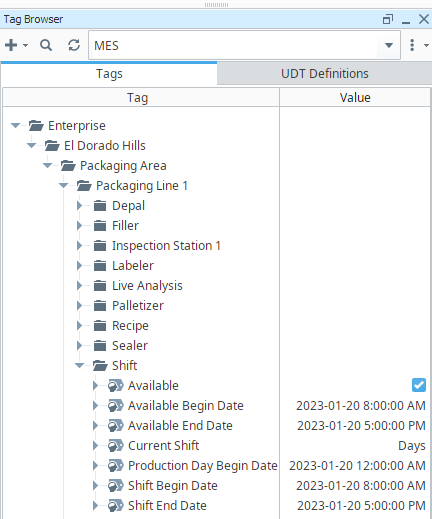
When creating a Live Analysis, the following shift data points will be automatically created.
| Data Point | Data Type | Description | ||
|---|---|---|---|---|
| Available | Boolean | True if the line is currently within an available period. | ||
| Available Begin Date | DateTime | If in an available time, this is the time that that availability began. If in an unavailable time, it reflects the begin date of the most recent availability period. | ||
| Available End Date | DateTime | If in an available time, this is the time that that availability ended. If in an unavailable time, it reflects the ending date of the most recent availability period. | ||
| Current Shift | String | The currently running shift as defined in the Ignition Schedule Management component or passed from the Shift Tag Collector path. | ||
| Production Day Begin Date | DateTime | Start time of the production day's first shift.
| ||
| Shift Begin Date | DateTime | Start time of the Current Shift (the time the Current Shift tag first changed to a given value). | ||
| Shift End Date | DateTime | Ending time of the Current Shift. |
For details, see Analysis Data Points and Settings.
Sepasoft MES Module Suite