Sepasoft MES Module Suite
Using Parameters in Analysis
Both the Analysis Selector and Analysis Controller support parameter passing to filters in two different ways.
- You can use the getParameterValue() extension function to pass the value to the named parameter
- You can add a custom property to the component with the same name as the filter parameter and populate it with the value you want to use for the filter
 |
You can't use both methods at the same time. If you use the custom property method, do not use the getParameterValue() extension function at the same time. |
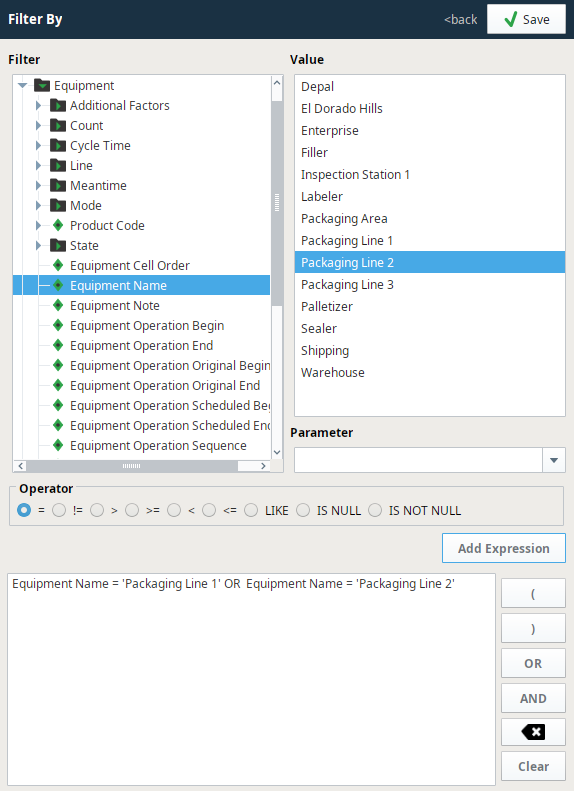
Parameters that are added as custom properties will appear in the Parameter drop down in the filter configuration panel. They will not appear if added to the getParameterValue() extension function but can be typed in. This is filtered to custom properties with the same data type as the analysis item selected to be filtered.
Points to remember while using custom property method
- Custom property name should not have the preceding @ character that appears in the filter expression.
- Parameters can be manually typed in the filter expression.
- All parameters start with the @ character.
- When the analysis is executed, all parameter references in the filter expression will be resolved in the following order. First, a check to see if the custom property exists. If it does, the value will be assigned to the parameter. Second, the getParameterValue extension function will be called. If a value was assigned from the custom property step, then it will be passed into the extension function. The extension function can change the parameter value or return None to keep the current value.
For example, filtering on Equipment Path will only show custom properties with String data types. When filtering on the Schedule Rate analysis item, then custom properties with numeric data types will be shown.
Filter Example
Operation UUID != '' AND Equipment Path = @LinePath AND Shift LIKE @ShiftName
Click the link by the filter category and specific filter items will be displayed.
When selected they will be added to the filters as shown below.
To minimize the number of filter options, only the options for the selected date range defined by the Start Date and End Date properties will be shown.
Compare By and Data Points work similarly to Filter By except there are no categories for these selections, just items. Selections can be removed by clicking  icon and unchecking the appropriate box. Analysis settings can be deleted by hitting the
  delete icon.
Sepasoft MES Module Suite