Create a Schedule a Maintenance Operation
You can skip adding the Trigger Operation Begin if you do not wish for this Operation to Start Automatically on Schedule.
you will then have to right click in the MES Schedule Selector and select "Begin Operation" (in step 7)
Operation details using the MES Object Editor → Segment Operations
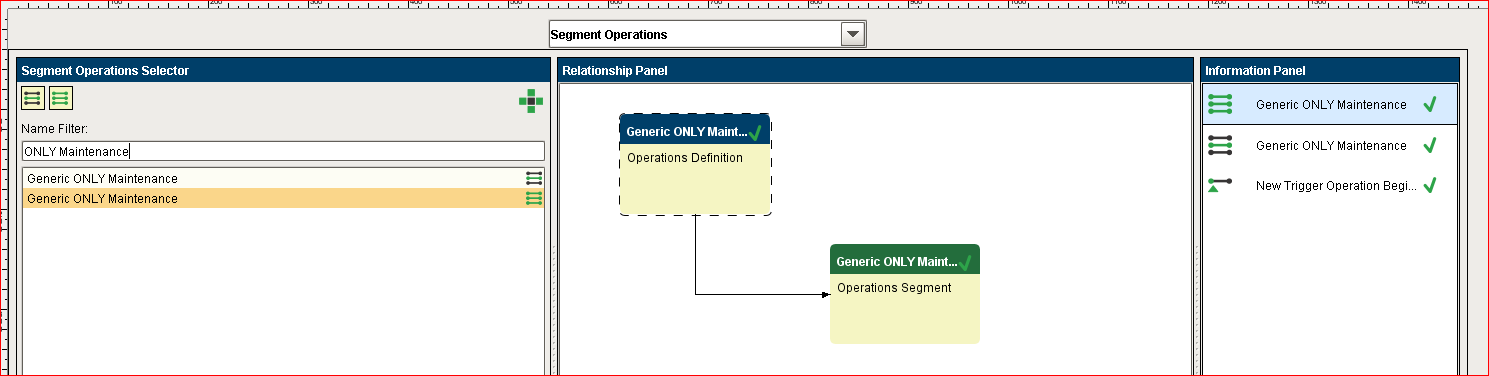
- Use these Settings to ensure Automatic Start on Schedule
First, Operation Definition (right click Edit)
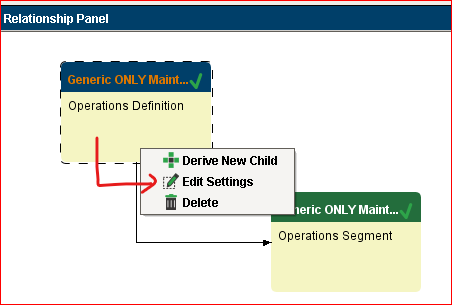
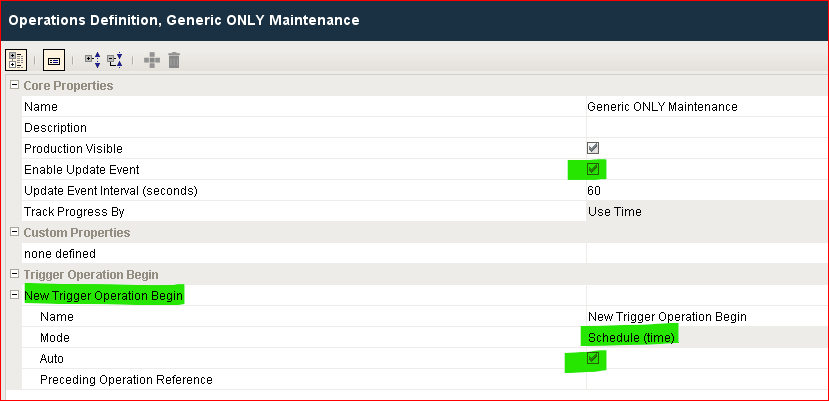
- and Save
Second, Operation Segment
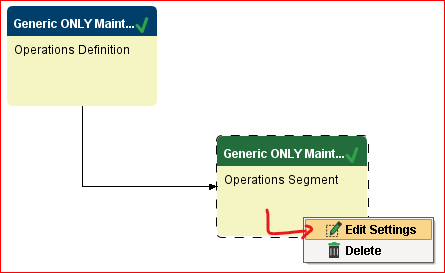
- Select the Equipment this Operation will run on
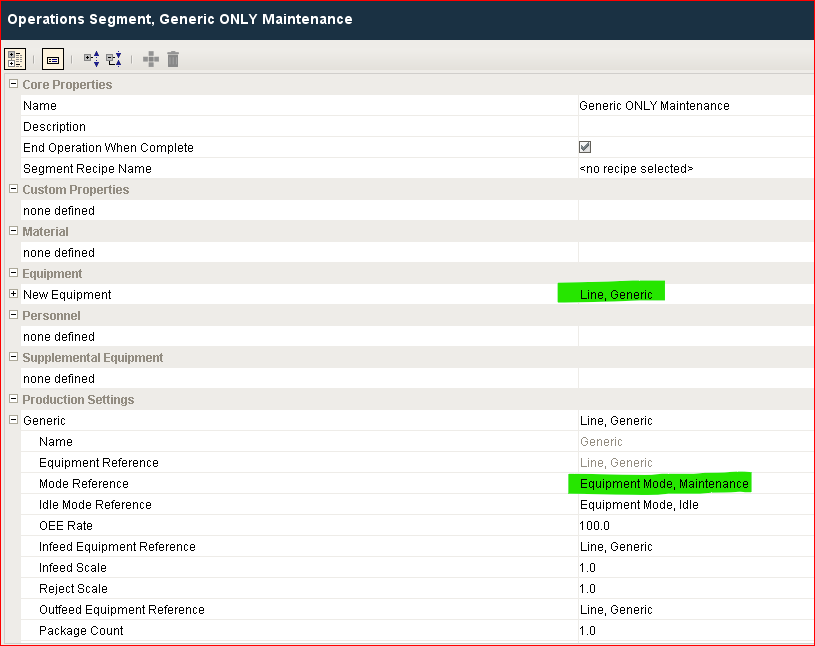
and make sure to expand the to the Cells underneath the Line to use the same Mode (here Maintenance)
or another Mode that makes sense in your Operation
Caution, must make sure to modify the Trigger Begin to select Auto !!
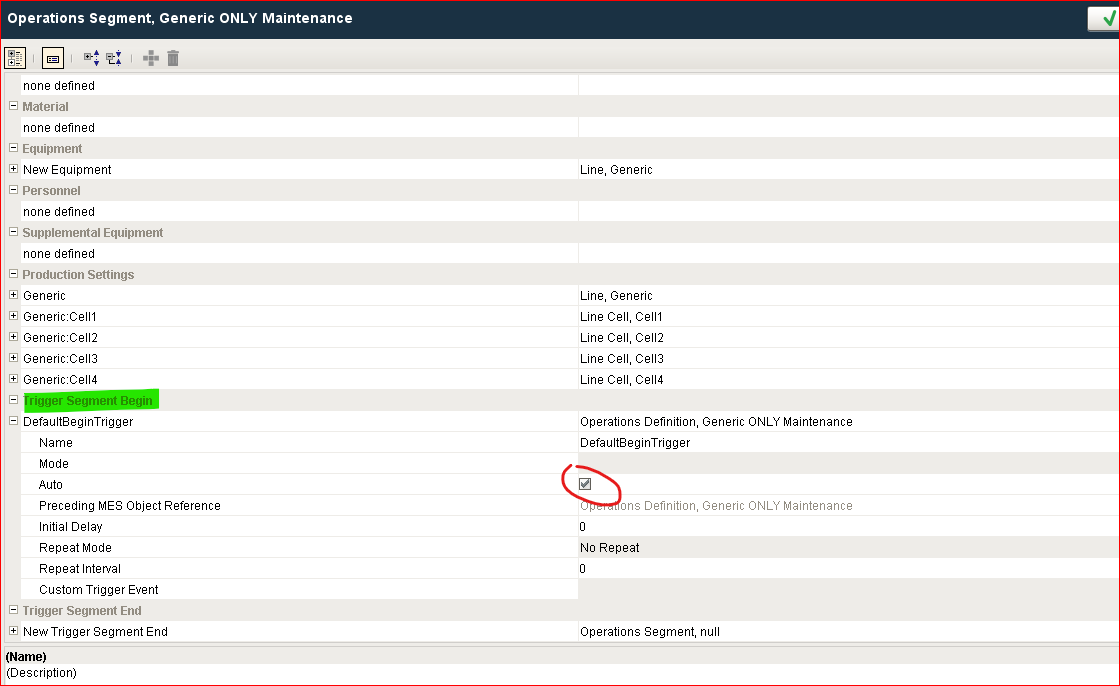
- and Save
- (now) Schedule Operation
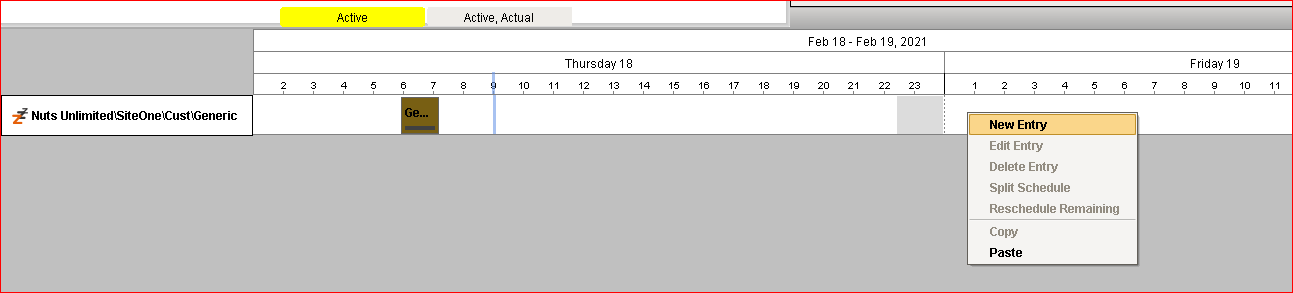
Operation details

- Save
- Result in MES Schedule Selector and Schedule View
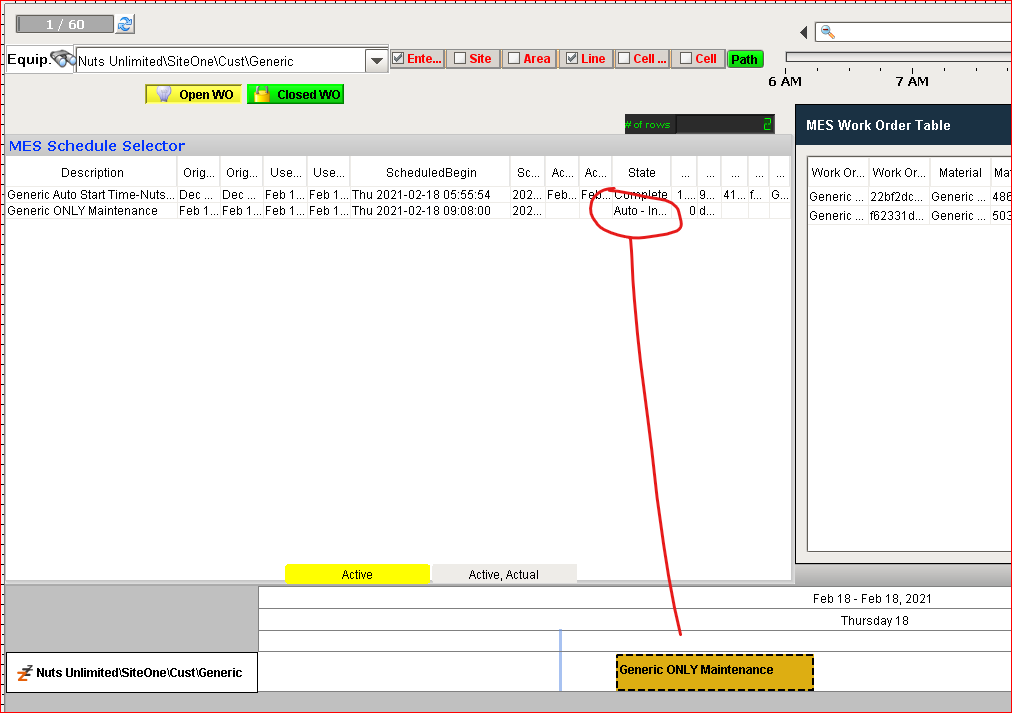
- Note the Maintenance Status and the Active State
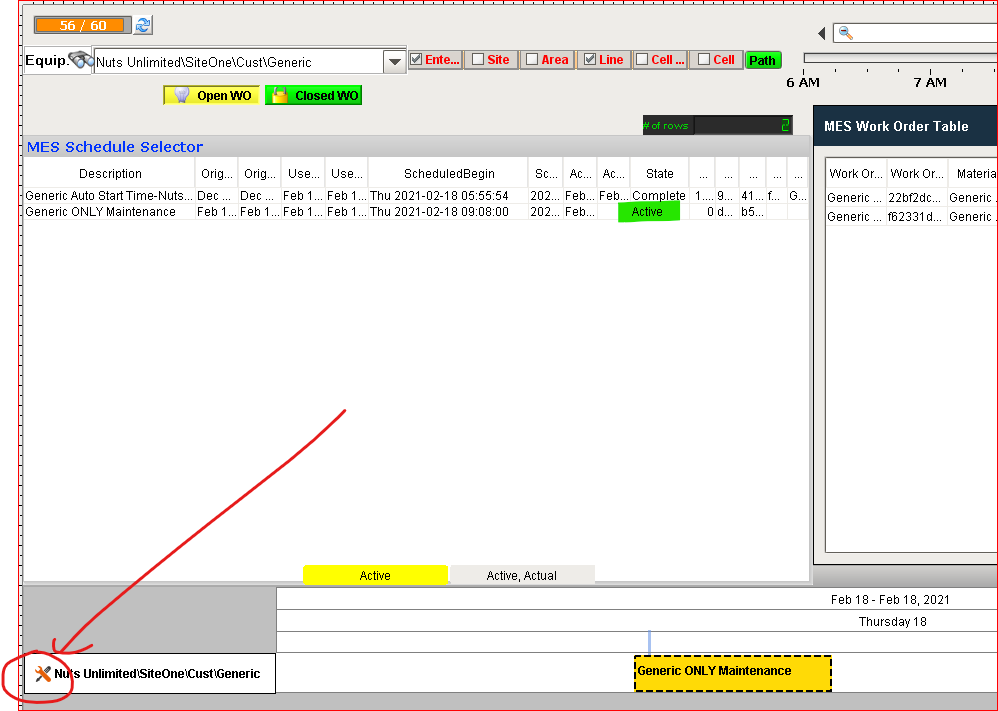
- As seen in the OEE Time Chart to expand the Line
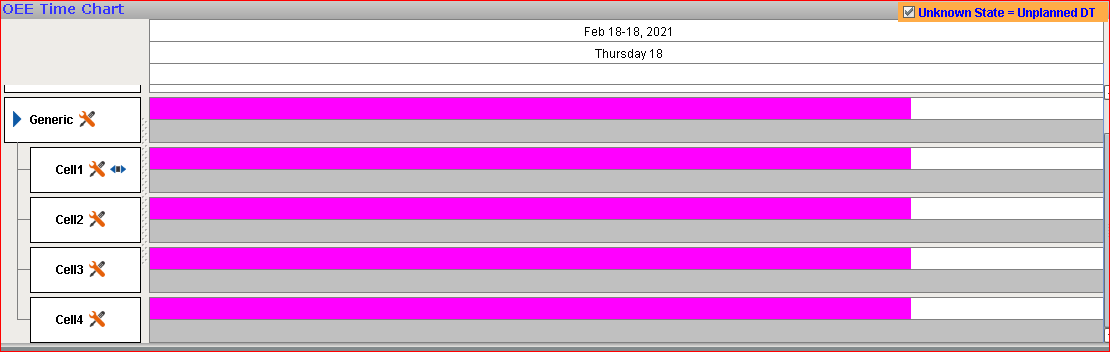
Note: in case this Operation does not complete this should be done the Operation need to be ended not aborted
Aborting an Operation stops the Request and restores the Response to Pending,
in this case it auto starts so the Operation is aborted
then the Schedule is set back to pending, and we auto start it.
This code will end the Operation gracefully (and prevent respawning)
eqPath = '<your Equipment Path'
for segment in system.mes.getCurrentSegments(eqPath):
	system.mes.endSegmentWait(segment.getMESObject())
Related articles
MES Schedule View
Maintenance Operations Management