Setting Up Drilldown in the Analysis Components
This provides clicking on a row in the table to access the drilldown menu. When an item in the drilldown menu is clicked, the drillDown event is fired. Script in the drillDown event is responsible for updating the Data property to change the results shown in the table.
This topic includes:
- Perspective Components
- Configuration and Properties
- Set the drillDownOptions Property
- Enable the previousDrilldownEnabled Property
- Add Scripting to drillDownEvent
- Add Scripting to backEvent
Perspective Components
This example uses these Perspective components:
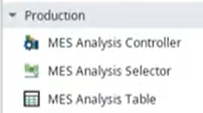
Configuration and Properties
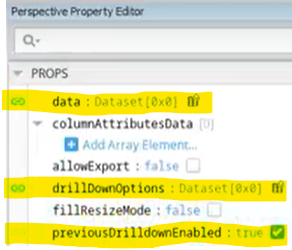
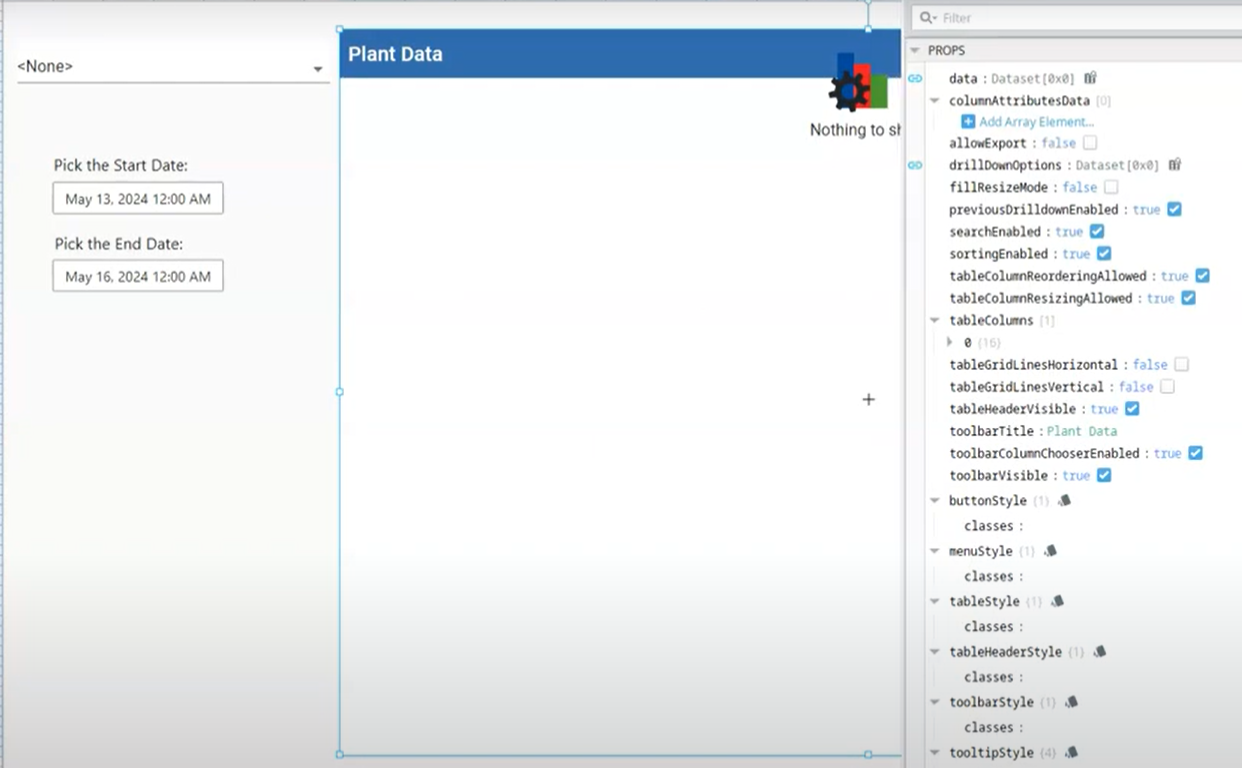
Set these properties: data, drillDownOptions and previousDrilldownEnabled on both the MES Analysis Table and MES Analysis Selector.
Set theData Property
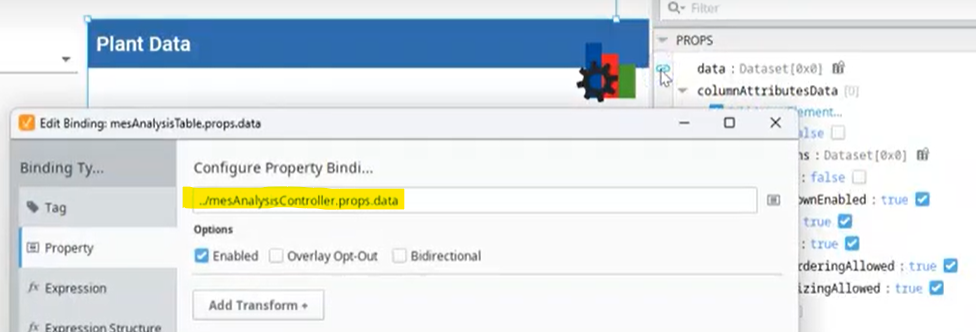
The table data property is bound to the MES Analysis Controller data property. If using the MES Analysis Selector, the table Data property would be bound to its Data property.
Set the drillDownOptions Property
The drilldown options must be bound. The drillDownOption property is bound to the MES Analysis Controller drillDownOption property. If using the MES Analysis Selector, the table drillDownOption property would be bound to its drillDownOption property.
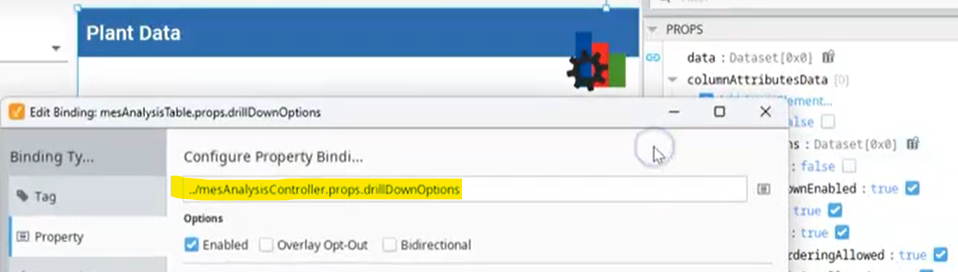
Enable the previousDrilldownEnabled Property
The previous drilldown option must be enabled on the table and data source (either MES Analysis Selector or MES Analysis Controller)

Add Scripting to drillDownEvent
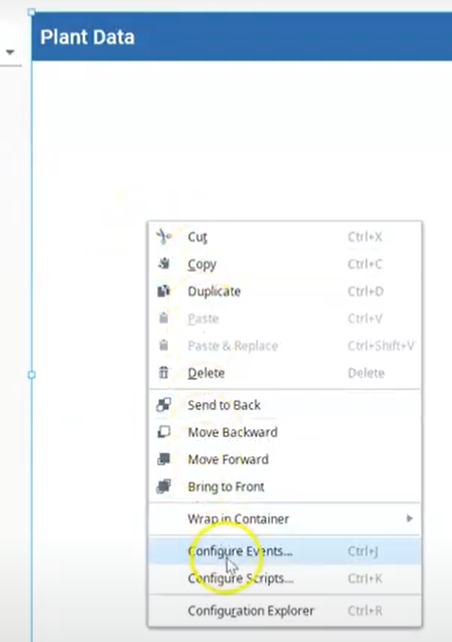
- Select the table in the design view and right click. Select Configure Events.
- Add this script to the drillDownEvent event:
self.getSibling("mesAnalysisController").drilldown(event.compareBy, event.filter)
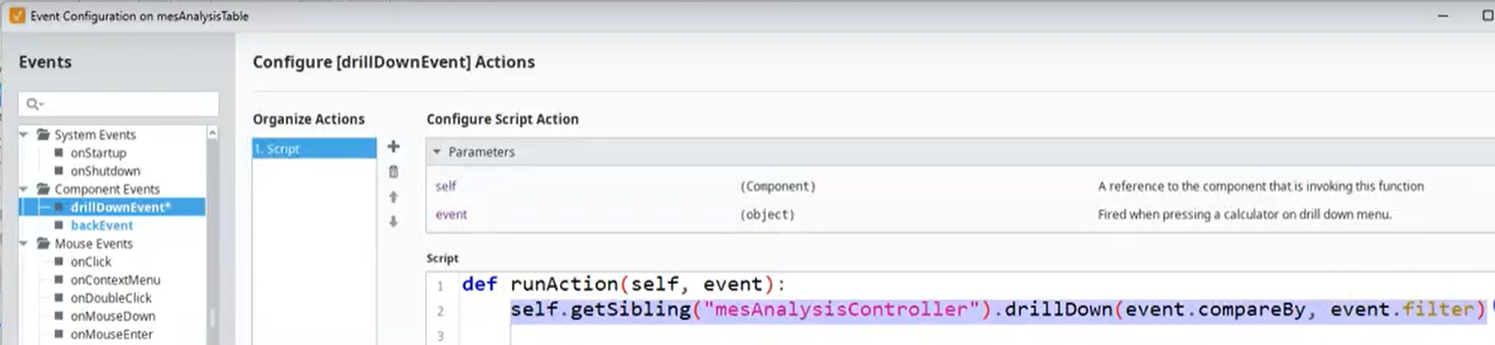
The 'self' refers to the table calling this event. The 'getSibling' method identifies the 'mesAnalysisController'.

|
The 'getSibling' method is referencing a component within the same container. If components are in different containers, use the Browse Properties to set up that reference. 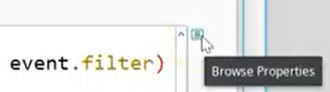 |
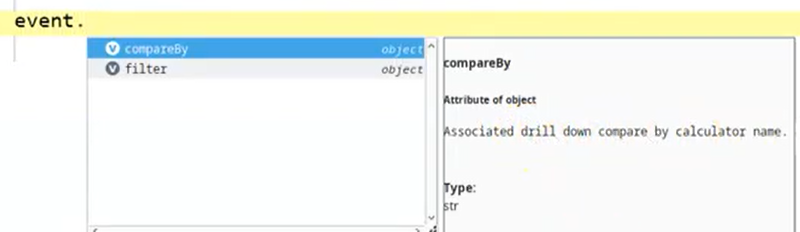
Next, the drillDown method is listed with two input parameters: event.compareBy is a local property of this event for comparing and a filter.
|
|
When you type event. you can see the intellisense documentation for compareBy and filter.
|
Add Scripting to backEvent
- If Event Configuration is still in view, go to the next step. If not select the table in the design view and right click. Select Configure Events.
- Add this script to the backEvent event:
self.getSibling("mesAnalysisController").prevDrillDown()
- Save Project and Publish to view data and use drilldown and backup on the MES Analysis Table.