Create Business Connector Chart | Order Details
We will create a Business Connector chart called getProdOrderDetailByID to execute the Named Query getProductionOrderDetailById that has been supplied in the project files. The chart will map in data from a Perspective view called ProductionOrderById which we will edit to execute the chart and populate a table of data on click of an order id row.
Assemble Chart Blocks
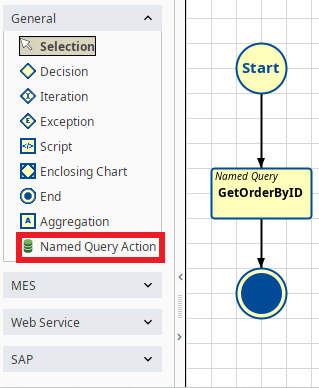
- Drag on a Named Query Action Block and an End Block. Connect them together as shown to the right.
- Rename the Named Query Action Block to GetOrderById.
Configure Start Block
The chart will pass one chart parameter into the the Named Query getProductionOrderById. The output of the named query is a single order with detailed information.
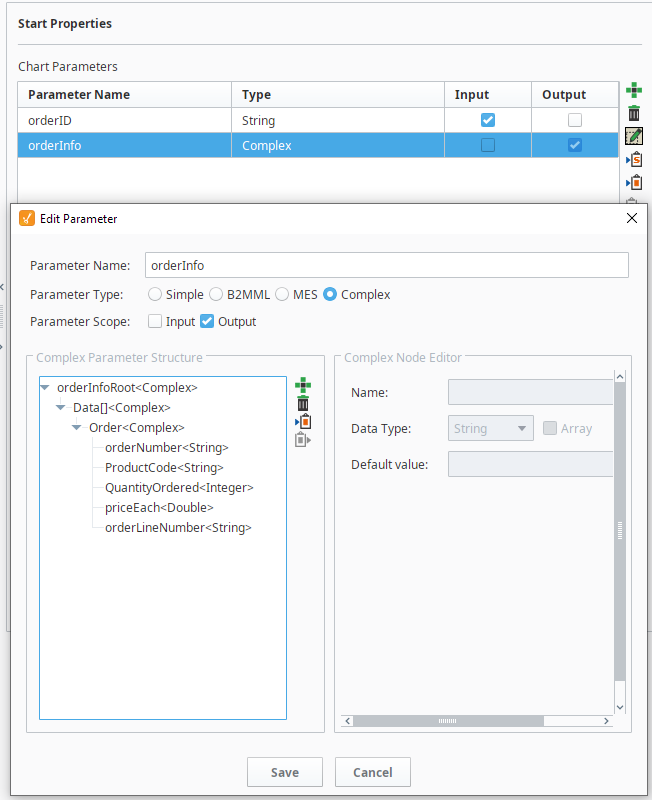
- Create the following chart parameters:
- Input param: orderID - data type = String
- output param: orderInfo - data type = Complex
- Set the Input and Output checkboxes as shown on the right.
Configure Named Query Action Block
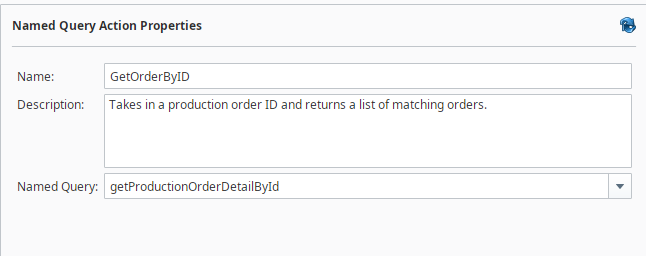
- Set the Named Query Action block to execute the Named query getProductionOrderDetailById
- In the Mapping area, select the Input tab and add the chart parameter @orderID
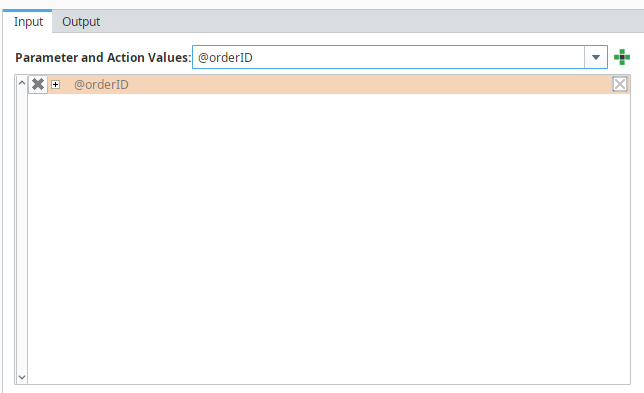
- Expand @orderID and map to the named Query orderID.
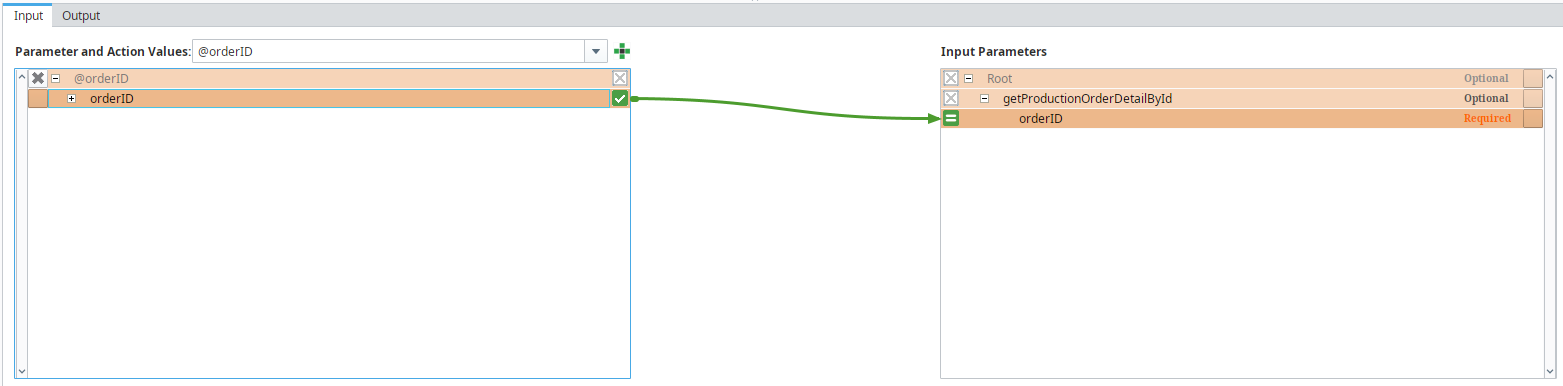
- Select the Output tab and add the @orderInfo parameter.

- Expand and map the output as shown below:
