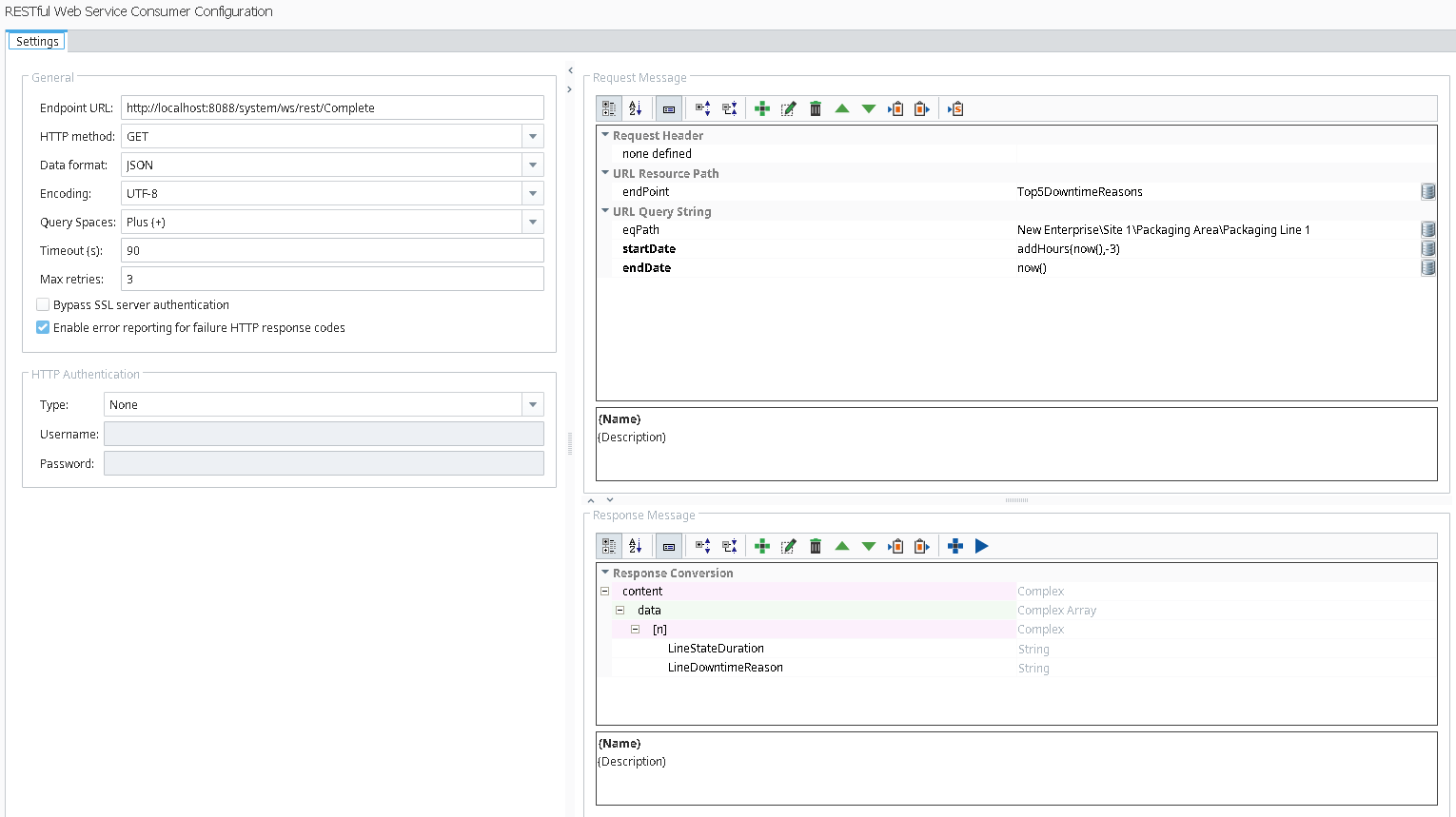
Configuring Request Message
This RESTful Consumer will be executed from the Script Console and will call the RESTful Provider called Top5DowntimeReasons, which will fetch and return a dataset of five downtime reason string values. It should already be pre-built and ready for use in the Consumers → RESTful Configurations → Completed folder.
Configure Request Message
Configure the Request Message for the Top5DowntimeReasons consumer as follows:
- Paste in the following Endpoint URL:
http://localhost:8088/system/ws/rest/Complete - Add the following URL Resource Path to complete the entire path to the RESTful Provider Top5DowntimeReasons. Finishing the path by using a variable you can overwrite allows the caller to use the same consumer for many different RESTful Providers (such as one for each manufacturing line, or one for each CNC machine):
Top5DowntimeReasons Click to highlight the URL Query String field and then use Add Item (
 ) to create three items, using the info below:
Name Data type Simple type eqPath Simple String startDate Simple String endDate Simple String - Paste the following path into eqPath:
New Enterprise\Site 1\Packaging Area\Packaging Line 1 - To use the dynamic response message parsing tools, a default start and end date needs to be provided. Use the binding function
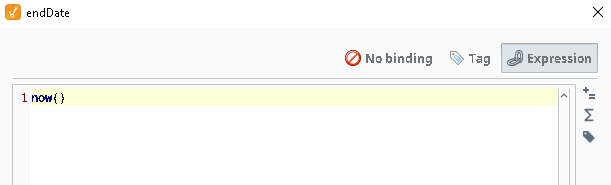
 to bind to an expression as follows:
- StartDate
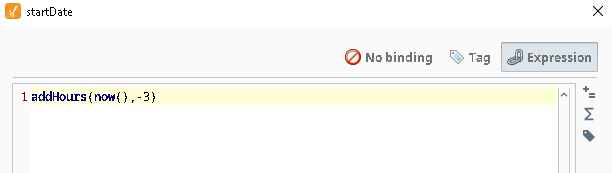
- endDate
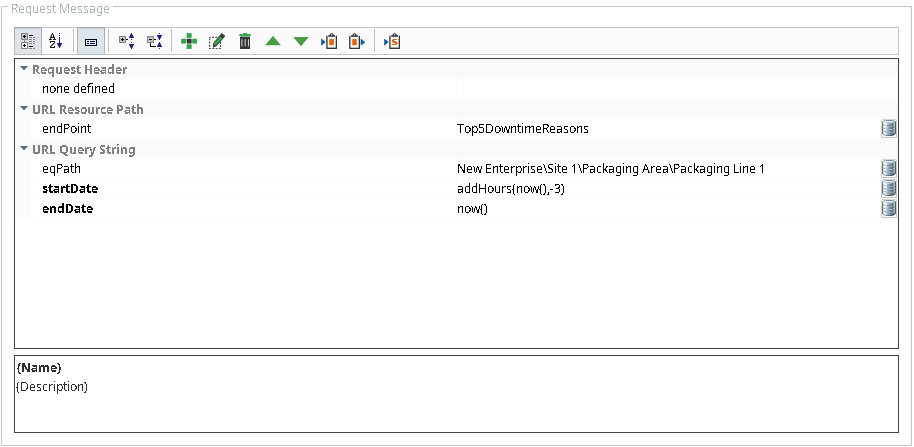
The completed Request Message should look as shown to the right.
- StartDate
- Click Save in Designer before configuring the Response Message in the next section.

Configure Response Message
The Web Services module can automatically configure the entire Response Message by clicking the Run Web Service Configuration button. It will send the Request Message and then parse the response returned by the online RESTful provider.
Configure the Response Message for the Top5DowntimeReasons consumer as follows:
- Click the Run Web Service Configuration button (
 ). It will send the Request Message and then parse the response returned by the online RESTful provider.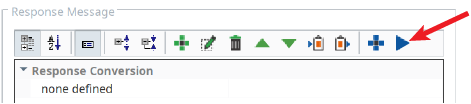
- Verify that the Response Message returned by the weather app was parsed and placed into the Response Conversion. The dialog box with the response message should contain the fields shown to the right (your data values will be different).
Click OK to accept the message and allow the Web Services module to use it as its Response Message. The fields will populate in the Response Conversion, as shown below.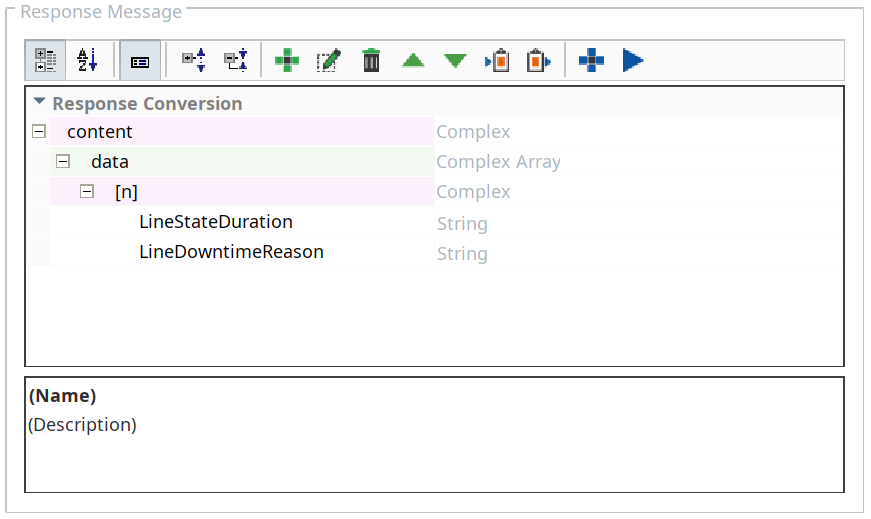
The completed Top5DowntimeReasons RESTful Consumer should look as shown below: