Configure MES Material Manager
Configure the Material Manager component on the window OEE_01_GUI/01_Configuration.
Configure Material Manager
The OEE Material Manager component is used for editing the material classes and definitions in your project. First, we need to configure the OEE Material Manager component itself, so it works with the Ignition Tab Strip component in this tutorial. Follow the steps below.
There are two components:
- Tab Strip (Ignition, already in place for you)
- OEE Material Manager - Vision
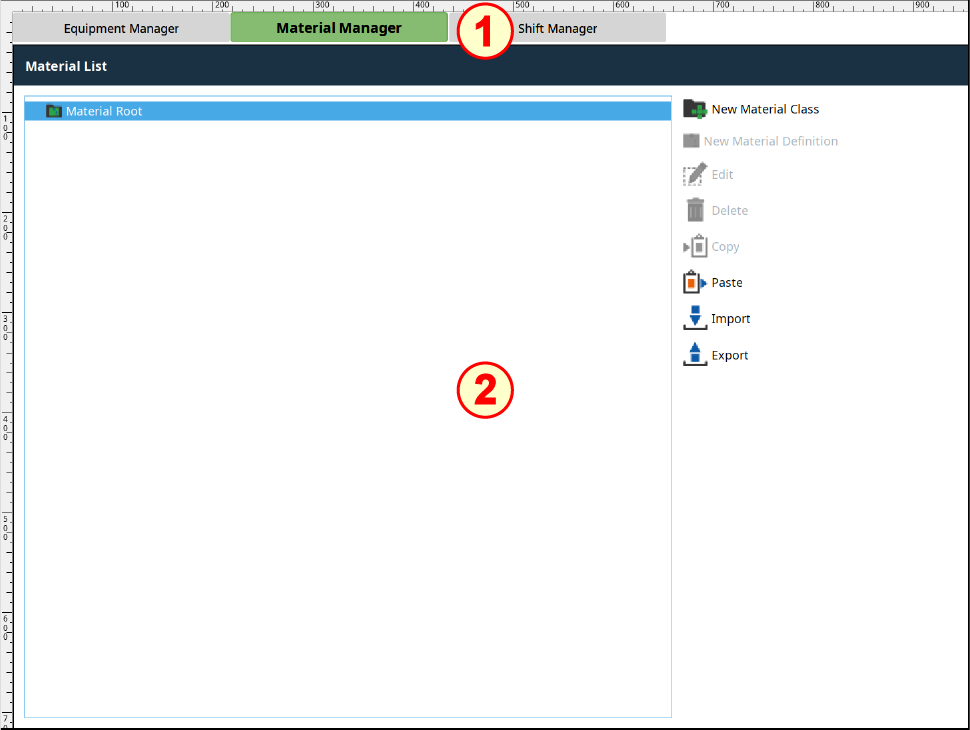
Do the following:
- Drag the OEE Material Manager - Vision component from the OEE Downtime component palette onto the window and position it under the Tab Strip (built for you already), so it looks like the image above. Resize to the remaining area of the window.
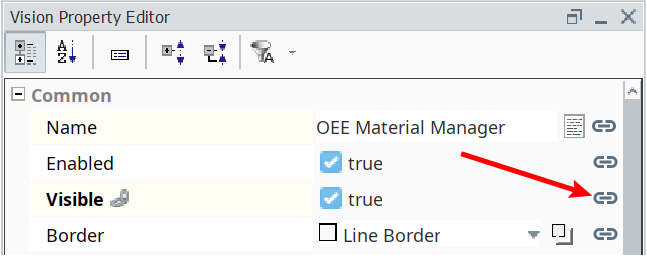
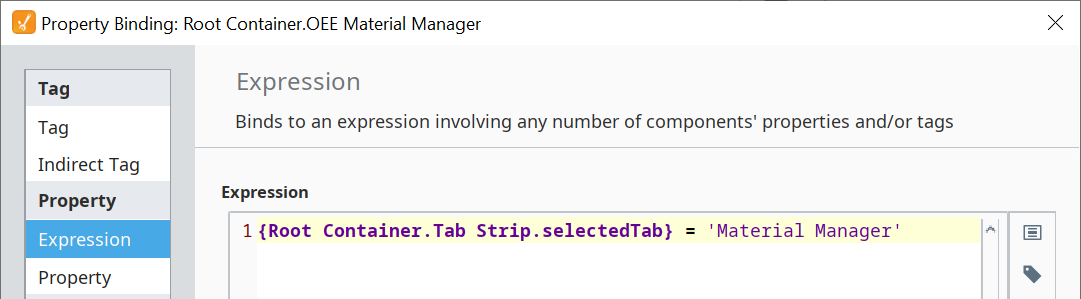
Bind the Visible property to the following expression. This will cause the OEE Material Manager to be visible only when the user clicks on the "Material Manager" tab in the Tab Strip component.
OEE Material Manager 'Visible' expression
Code{Root Container.Tab Strip.selectedTab} = 'Material Manager'

|
When you click on each of the tabs in the Tab Strip component, the OEE Material Manager is only visible when the "Material Manager" tab is clicked, else it hides. |