Create Analysis
Complete the following steps using the 03_Analysis screen recently configured:
Add Analysis
- Add a new Analysis with different data points, filter by, and group by criteria:
- In the MES Analysis Selector, click
 to create a new Analysis.
 - Name it My Test Analysis, then click Save (
 ).
). - Click Edit (
 ) next to each section and add the parameters below (click Save each time):
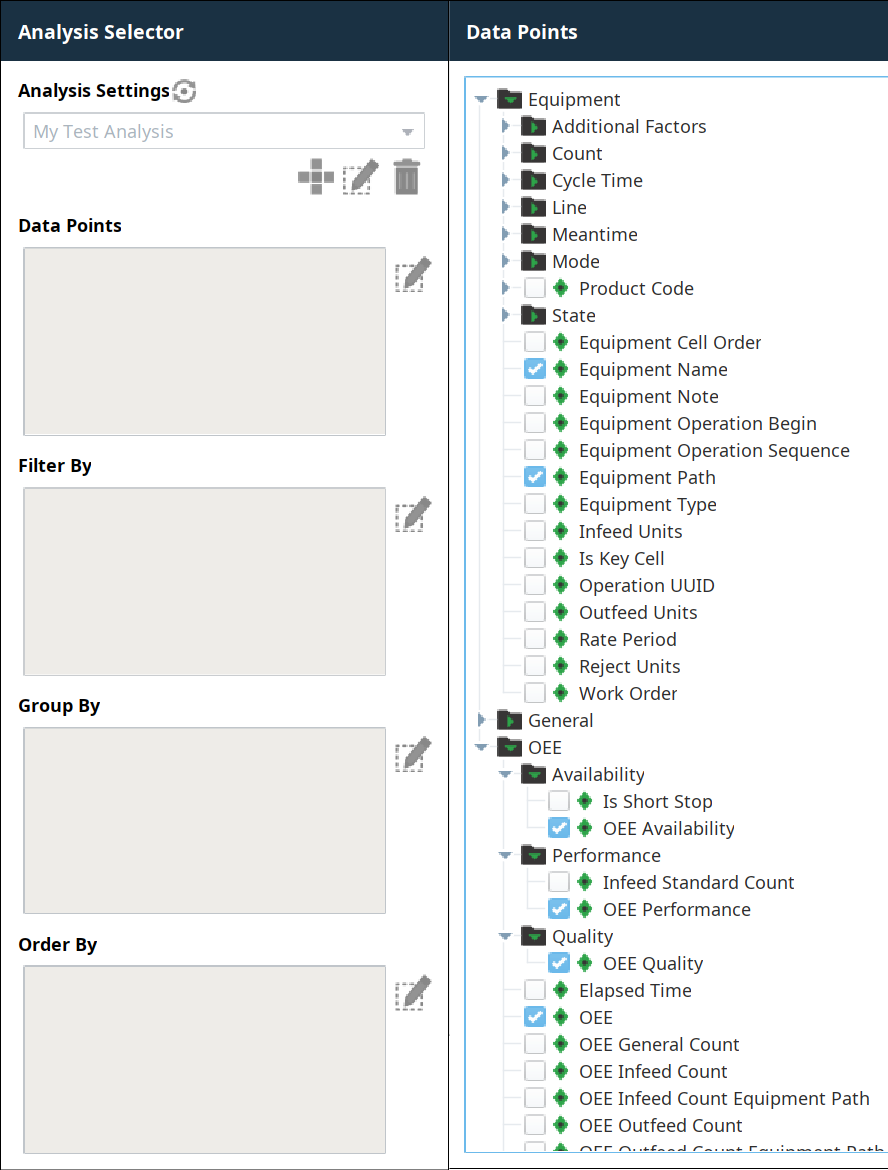
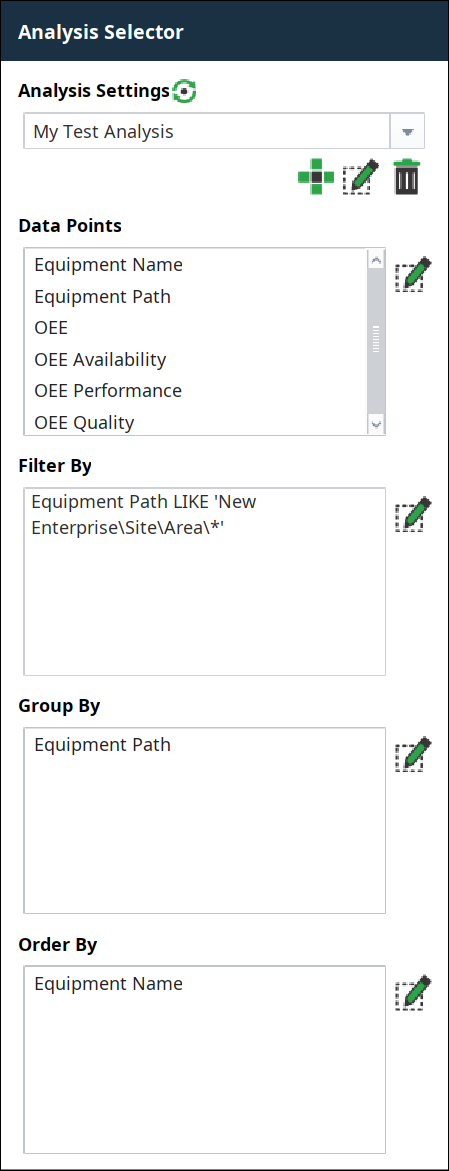
 - Add Data Points: Equipment Name, Equipment Path, OEE, OEE Availability, OEE Performance and OEE Quality.
- Add Filter By selection: Equipment Path LIKE 'New Enterprise\Site\Area\*'
(use "LIKE" not "="). - Add Group By selection: Equipment Path.
- Add Order By selection: Equipment Name.
- Click Save. The Analysis will be listed to the right. Verify that the data displayed is what you were expecting to see. Edit and adjust as desired.
Note: You must click
 to run or refresh the Analysis after editing, to get updated data in the columns to the right.
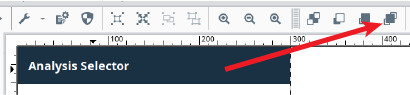
If you cannot see the panel expand to the right when you click New or Edit on the MES Analysis Selector, then exit Preview mode, click the right-most Z-order Button in Ignition Designer, to bring the layer position of the MES Analysis Selector to the top.
- In the MES Analysis Selector, click
- Create one or more additional Analyses, to gain experience configuring them. Focus on key datasets important to your use case or customer.
Execute Analysis
- For any Analysis Settings you have created, just select it from the list in the drop-down and click to run it. The data for that Analysis will appear to the right. If you edit your Analysis settings, click again to refresh the data displayed.
|
|
If you don't see the |

