Ignition Reports
The Reporting set-up on the window OEE_02_Scheduling/04_Reporting has three main components:
- MES Object Selector
- Report Viewer (Ignition)
- Date Range (Ignition)
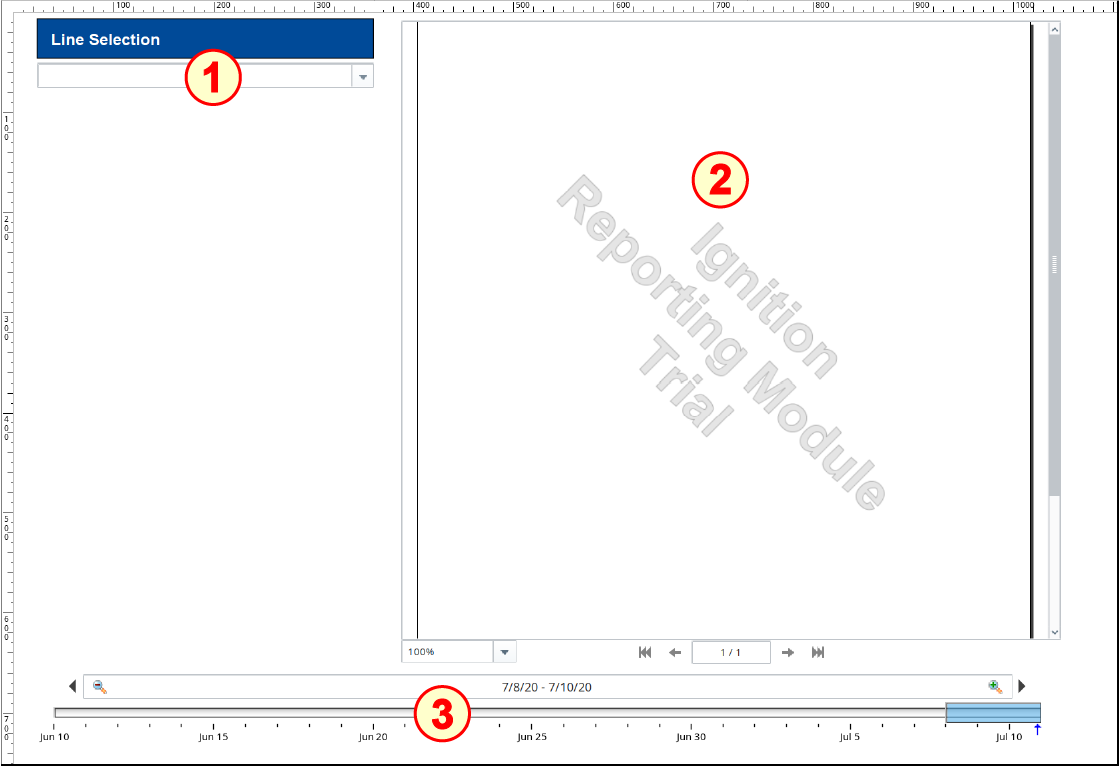
Configure Date Range
- Drag a Date Range component onto the window. Position and resize it it along the entire bottom edge of the window.
- No configuration is required.

Configure MES Object Selector
- Drag an MES Object Selector component onto the window. Position it at the top of the window under the blue label and resize as shown above.
- Set the checkbox for Include MES Line Objects.

Configure Report Viewer
- Drag a Report Viewer component onto the window. Resize it to fill the top-right region of the window, as shown above.
- In the Report Path drop-down, select OEE Report 1.

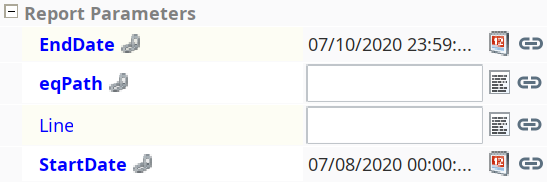
You should now see the custom Report Parameters in the Property Editor pane that were created in OEE Report 1, including the StartDate and EndDate parameters that you'll bind next. - Bind the custom StartDate and EndDate properties to the Start Date and End Date properties of the Date Range component.
- Bind the custom eqPath property to the Equipment Item Path property of the MES Object Selector.
- Classroom:
- Follow the instructor on creating an OEE Downtime Report (in-class activity).
- Follow the instructor on creating an OEE Downtime Report (in-class activity).
- Self-Guided:
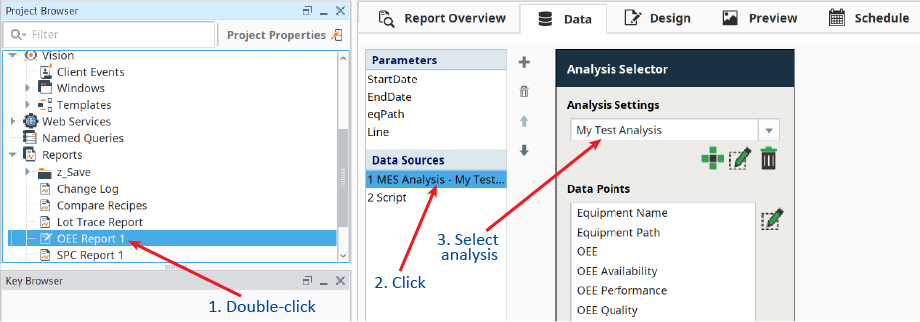
- Double-click on OEE Report 1 in the Project Browser to open the report itself.
Click MES Analysis in the Data Sources section.
Select the My Test Analysis Analysis that you created in the previous screen.
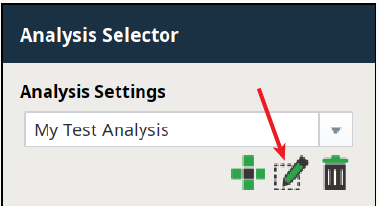
- Click
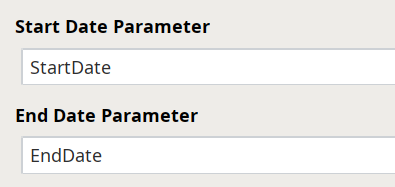
 to edit the Analysis you selected. At the bottom of the editing panel that opens, set the Start Date Parameter and End Date Parameter to StartDate and EndDate, respectively.