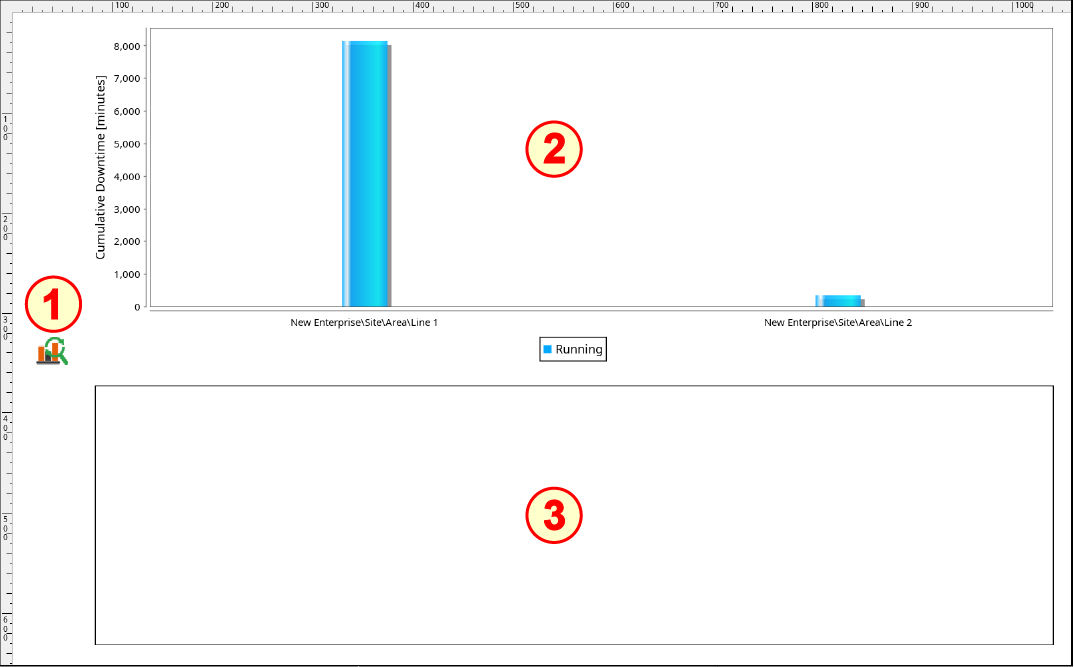
Configure MES Analysis Controller
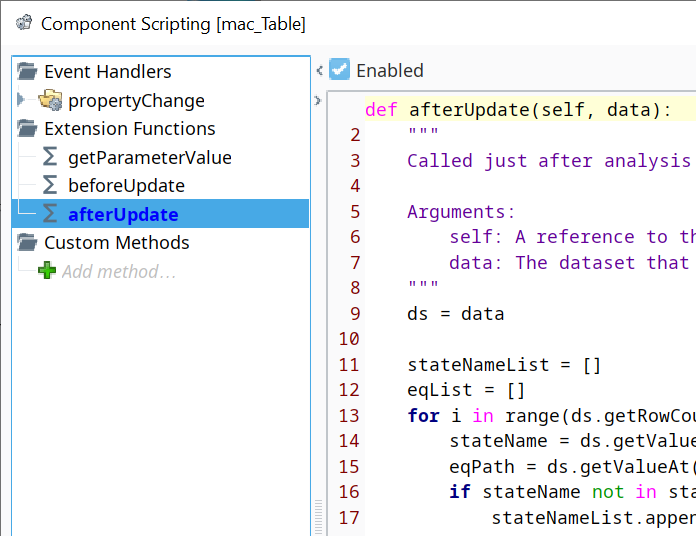
In the afterUpdate event handler script area, set the Enabled checkbox and paste in the following script (delete "return None"):
Script for afterUpdate event handler
Codetimer = system.mes.monitor.start("BuildDashboardScript") ds = data stateNameList = [] eqList = [] for i in range(ds.getRowCount()): stateName = ds.getValueAt(i, 'Equipment State Name') eqPath = ds.getValueAt(i, 'Equipment Path') if stateName not in stateNameList: stateNameList.append(stateName) if eqPath not in eqList: eqList.append(eqPath) header = ['Equipment State Name'] + eqList finalDS = system.dataset.toDataSet(header, [['test']+[0.0]*len(eqList)]) i = 0 for i in range(ds.getRowCount()): newState = True stateName = ds.getValueAt(i, 'Equipment State Name') eqPath = ds.getValueAt(i, 'Equipment Path') val = ds.getValueAt(i, 'State Duration') for j in range(finalDS.getRowCount()): if stateName == finalDS.getValueAt(j, 'Equipment State Name'): newState = False finalDS = system.dataset.setValue(finalDS, j, eqPath, val) if newState == True: finalDS = system.dataset.addRow(finalDS, finalDS.getRowCount(), [stateName] + [0.0]*len(eqList)) finalDS = system.dataset.setValue(finalDS, finalDS.getRowCount() - 1, eqPath, val) finalDS = system.dataset.deleteRow(finalDS, 0) self.parent.getComponent('Production Bar Chart').data = finalDS self.parent.getComponent('Analysis Table').data = ds timer.end()

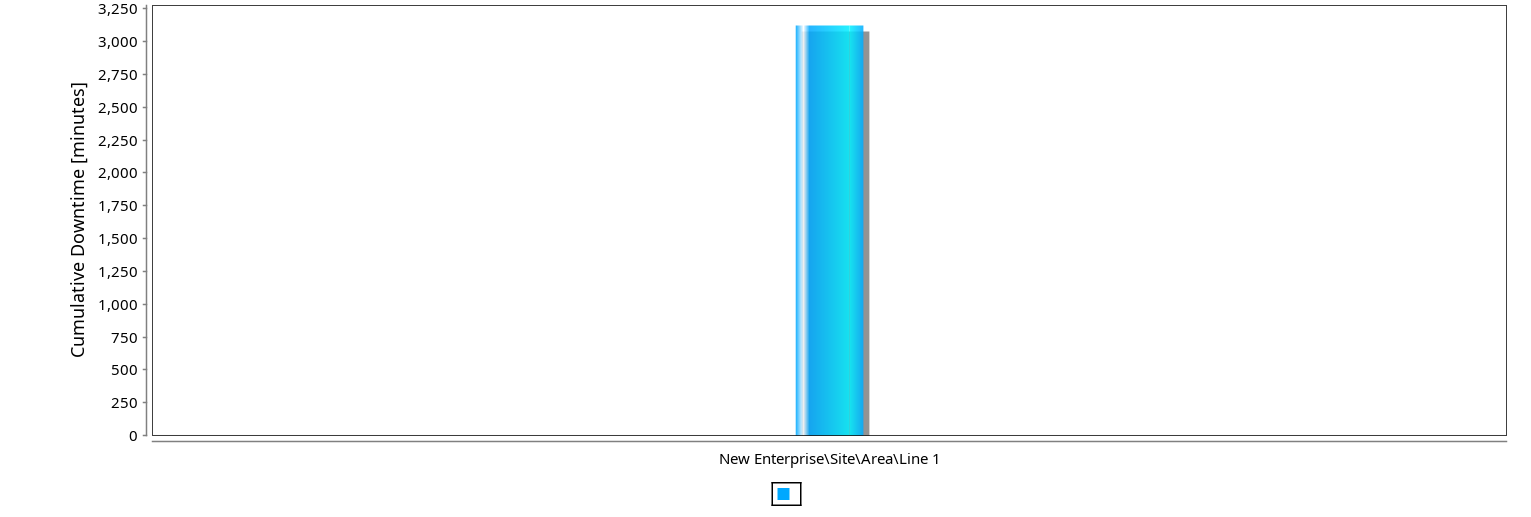
Configure Production Bar Chart
Data will be 'pushed' to the Production Bar Chart by the script in the MES Analysis Controller, so no configuration is required.
Configure Analysis Table
Data will be 'pushed' to the Analysis Table by the script in the MES Analysis Controller, so no configuration is required.

