Configure Sample Collection
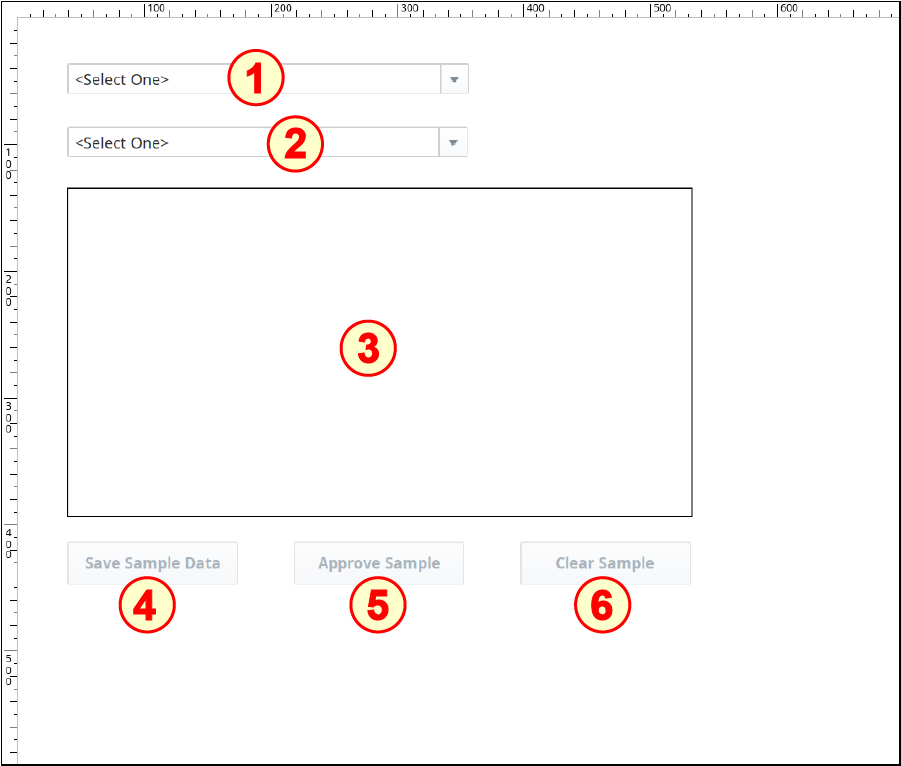
The Manual Sample Collection set-up on the window SPC_01_GUI/02_Production Control has six components:
3. Sample Entry
4. Ignition Button to save sample data
5. Ignition Button to approve sample
6. Ignition Button to clear sample
Configure Location Selector
- Drag a Location Selector component onto the window. Position it near the top-left corner of the window and resize to approximately double its width, as shown above.
- No configuration is required.
Configure Definition Selector
Drag a Definition Selector component onto the window. Position it under the Location Selector component and resize to approximately double its width, as shown above.
- Set up property binding: bind the Location Path property of the Definition Selector to the Selected Location Path property of the Location Selector.
Open the Component Scripting dialog box (Ctrl-J), select the propertyChange event handler script area and paste in the following script.
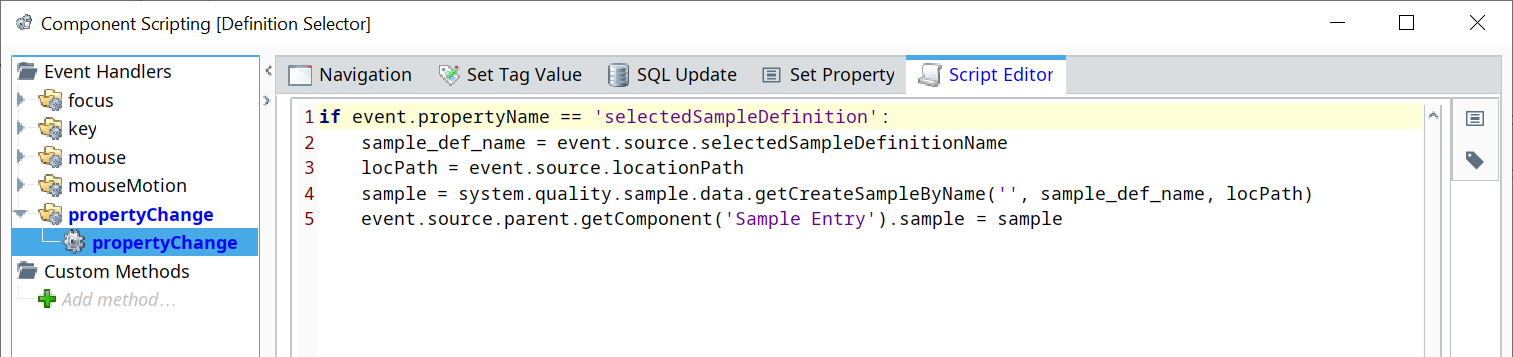
Script for propertyChange event handler
Codeif event.propertyName == 'selectedSampleDefinition': sampleDefName = event.source.selectedSampleDefinitionName locPath = event.source.locationPath sample = system.quality.sample.data.getCreateSampleByName('', sampleDefName, locPath) event.source.parent.getComponent('Sample Entry').sample = sample
Configure Sample Entry
- Drag a Sample Entry component onto the window. Position it under the Definition Selector component and resize as shown above.
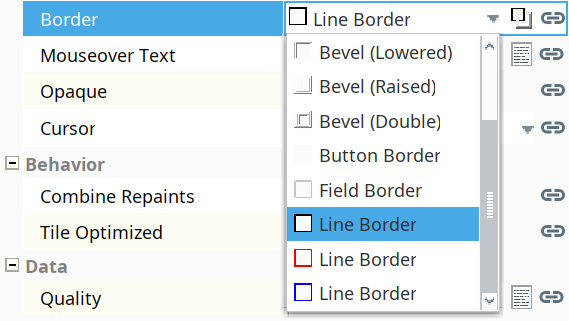
- (optional) Change the Line Border property (using the drop-down list) to the black Line Border choice:

Configure Save Sample Data Button
- Drag three Ignition Button components onto the window. Position and resize all three buttons under the Sample Entry component, as shown above.
- Rename the left button to btn_SaveSample.
- Change the left button's Text property to Save Sample Data.
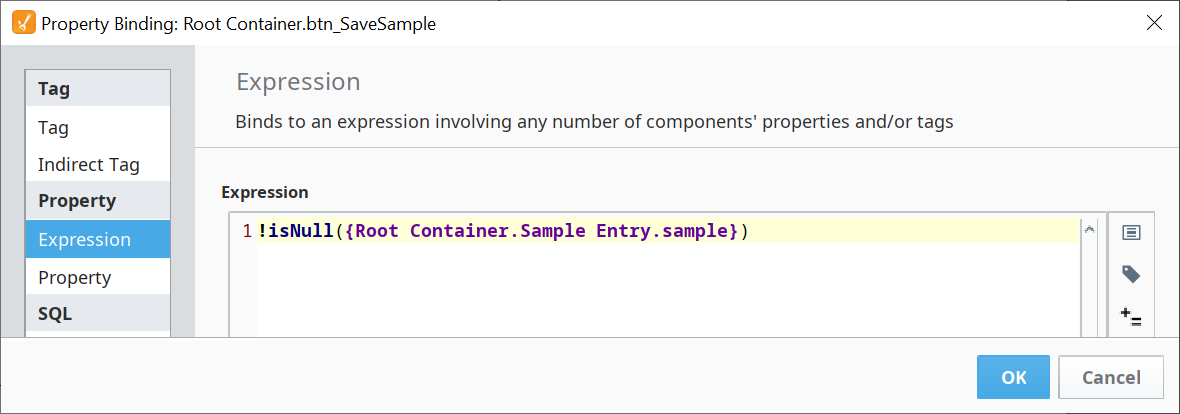
Bind the Enabled property to the expression:
Expression for Save Sample Data Button
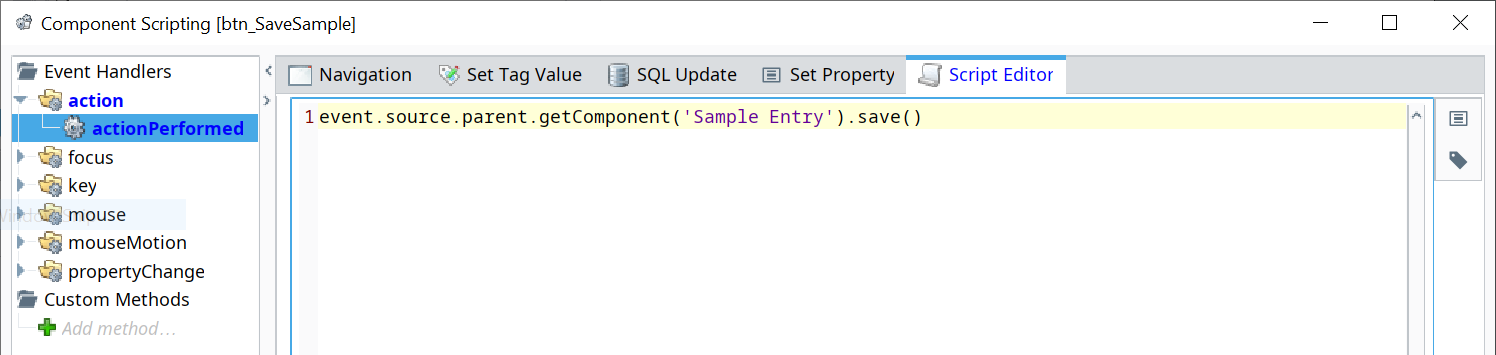
Code!isNull({Root Container.Sample Entry.sample})Open the Component Scripting dialog box (Ctrl-J), select the actionPerformed event script area and paste in the following script.
Script for Save Sample Data Button
Codeevent.source.parent.getComponent('Sample Entry').save()
Configure Approve Sample Button
- Rename the middle button to btn_ApproveSample.
- Change the middle button's Text property to Approve Sample.
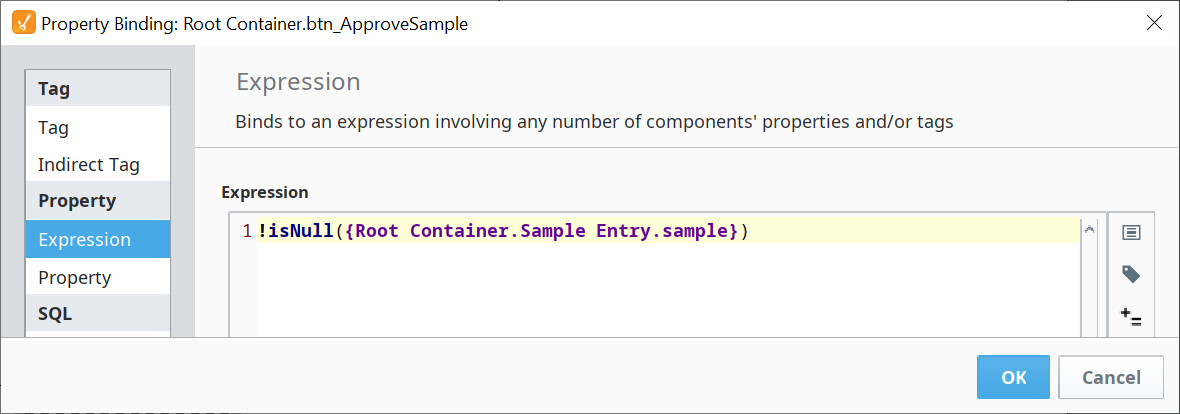
Bind the Enabled property to the expression:
Expression for Approve Sample Button
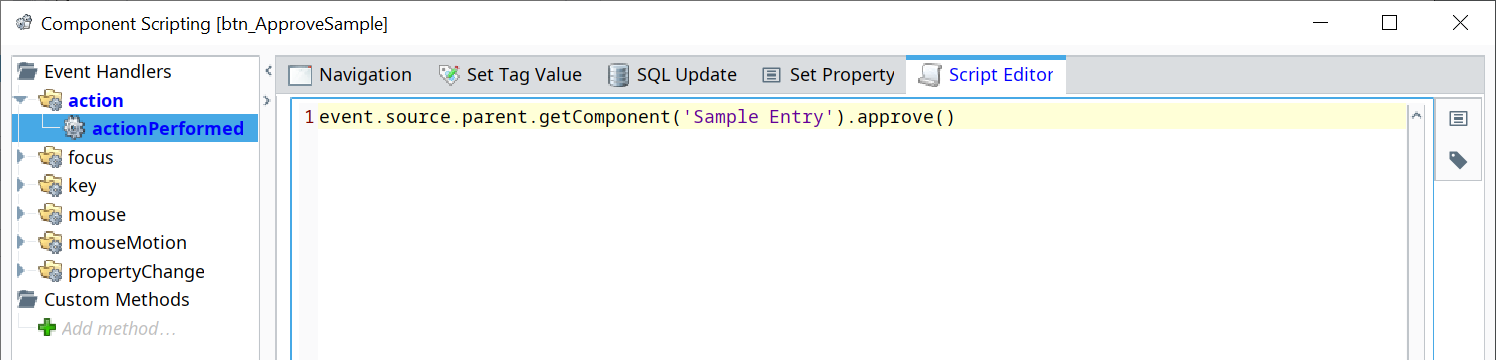
Code!isNull({Root Container.Sample Entry.sample})Open the Component Scripting dialog box (Ctrl-J), select the actionPerformed event script area and paste in the following script.
Script for Approve Sample Button
Codeevent.source.parent.getComponent('Sample Entry').approve()
Configure Clear Sample Button
- Rename the right button to btn_ClearSample.
- Change the right button's Text property to Clear Sample.
Bind the Enabled property to the expression:
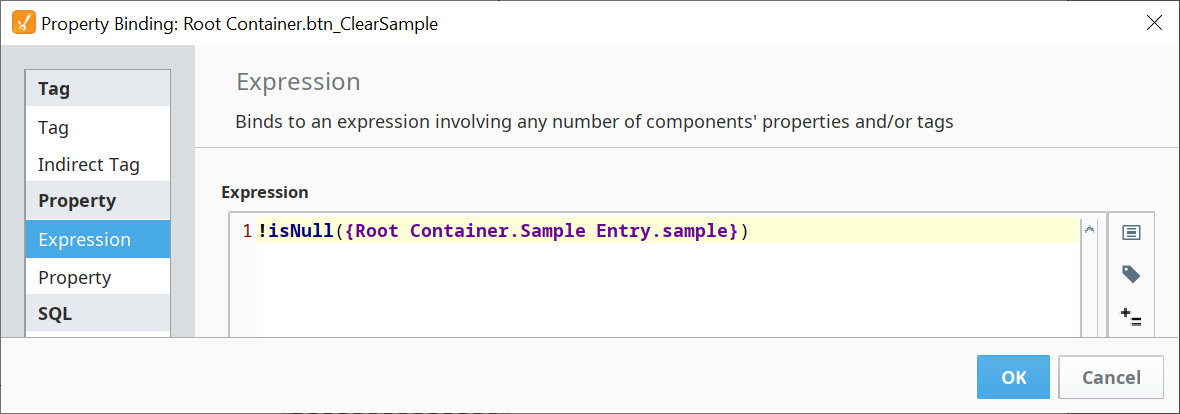
Expression for Clear Sample Button
Code!isNull({Root Container.Sample Entry.sample})Open the Component Scripting dialog box (Ctrl-J), select the actionPerformed event script area and paste in the following script.
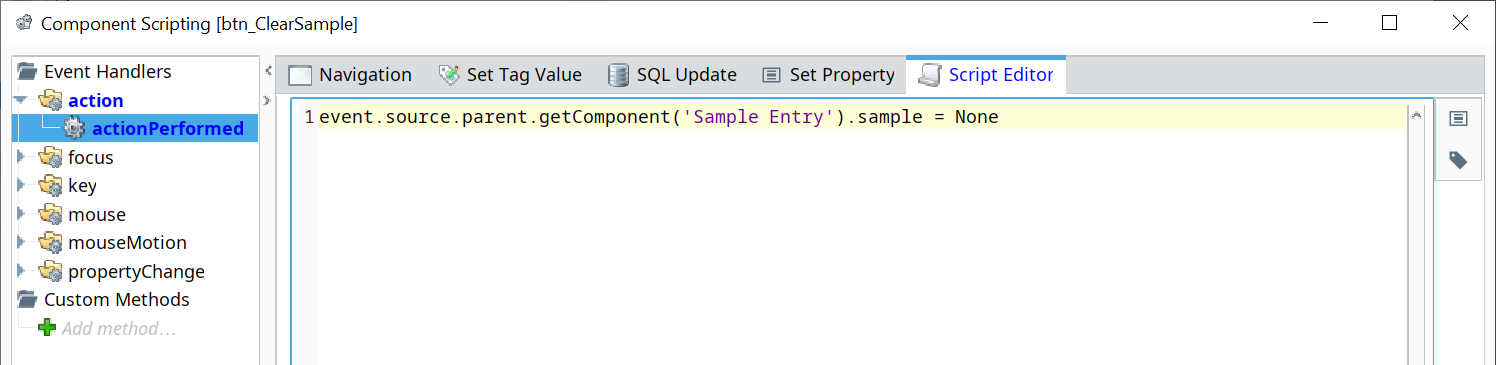
Script for Clear Sample Button
Codeevent.source.parent.getComponent('Sample Entry').sample = None