Create Sample Definitions
Click the Generate Sample Definition button on the 01_Configuration screen. A Sample Definition called Dimension Sample B will be created, with the attributes Diameter, LocationX and LocationY per the following two lines in the button script:
CodesampleDefName = 'Dimension Sample B' newAttList = ['Diameter', 'LocationX', 'LocationY']
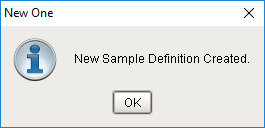
- Click OK on the confirmation screen "New Sample Definition Created".

|
To create your own Sample Definition, find and edit the two lines above in the button script on the 01_Configuration screen and provide a new name and list of attributes. |
Validate Sample Definitions
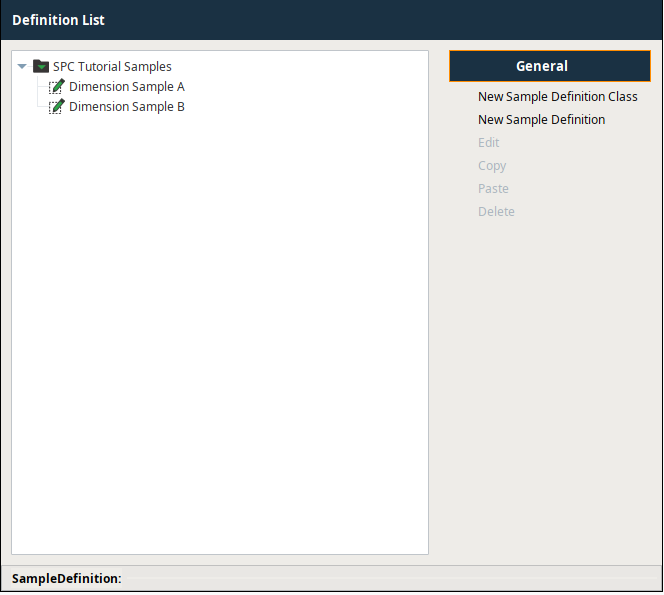
- Open a screen with the Sample Definition Manager component. You should see your new Sample Definition with its attributes and location. You could also confirm your sample definition generation action through a selector component, such as the MES Object Selector.
Some use cases require the creation of Sample Definitions via script due to source and flexibility requirements. By checking your script with a UI screen, you can ensure the script functions as expected. Of course, in production environments, these scripts run on events typically away from a UI, but this is a best practice to validate the script runs properly.