Sepasoft MES Module Suite
Add New Enterprise Server and New Site Server with Existing Configuration and Data
The steps below set up a new enterprise-root server using the backup of an existing site server's configuration and data.
Install Ignition and Sepasoft Modules on Enterprise Server and Site Server
Before following these steps, see Preparing before Configuring MES Enterprise Network
On the Enterprise Server:
- Install Ignition.
- Install Sepasoft MES Modules.
On the Site Server:
- Install Ignition.
- Install Sepasoft Modules.

|
Install the same version of the Sepasoft MES Modules on the servers. |
Apply Licenses
To apply licenses on the Enterprise and Site Servers:
- In Ignition 8.3.x, go to Ignition Gateway > Platform > System > Licensing. click Activate License. Enter license.
- In Ignition 8.1.x, go to Ignition Gateway > Config > Licensing, click Activate License. Enter license.

|
Assigning licenses to equipment is done after the servers are connected. |
Backup the Existing Site Server: Ignition Gateway and Database Backups
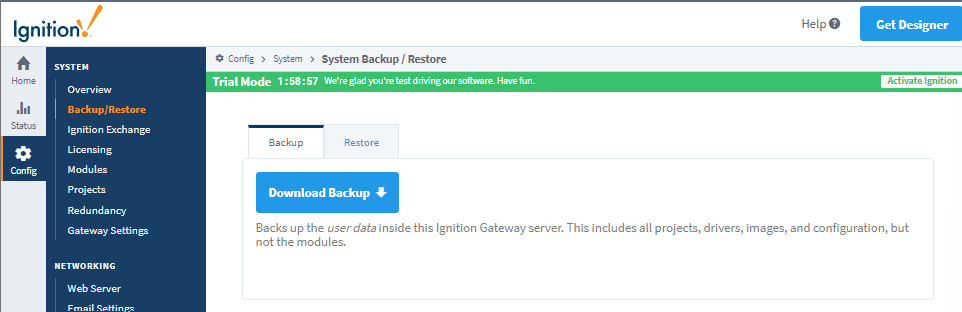
To download a gateway backup:
- On the stand alone server Ignition Gateway Server, go to the Config tab > Backup/Restore > Backup Tab > click Download Backup. .
To backup the database:
- Follow your specific database protocol for database backups.
Restore Ignition Gateway Backup and MES Database
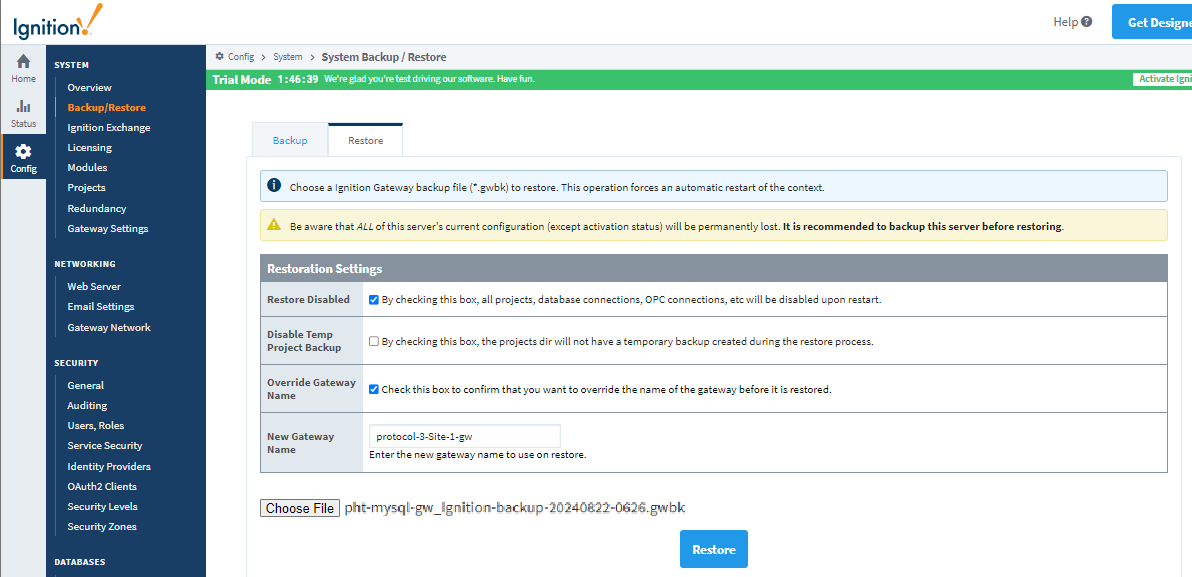
To restore Ignition Gateway Backup:
- On the New Site Server, go to the Config tab > Backup/Restore > Restore tab.
- Click Restore Disabled checkbox to set to True.
- Click Override Gateway Name checkbox to set to True.
- Enter the Gateway Name.
- Click Choose File to browse to select the Gateway backup.
To restore the database:
- Follow your specific database protocol for database restores.
Restart Production Module on New Site Server
- In the Ignition Gateway, go to the Config tab > Modules.
- Under the Sepasoft modules > Production, click Restart.
Rename New Enterprise to Enterprise
This may not be required if the names match when exporting the production equipment model.
- On the Enterprise root server, open Ignition Designer and in Equipment Manager, rename 'New Enterprise' to 'Enterprise'.
Connect Site Server to Enterprise
To connect the site gateway to the enterprise:
- Go the Ignition Gateway:
- In Ignition 8.3 Gateway > Network > Gateway Network > Outgoing Connections.
- In Ignition 8.1 Gateway > Config > Networking > Gateway Network Settings, click Outgoing Connections.
- In Ignition 8.3 Gateway > Network > Gateway Network > Outgoing Connections.
- Click Create new Outgoing Gateway Connection...
- Enter the Host and Port.
Accept Incoming Site Server Connection on Enterprise
To accept the incoming connection:
- Go the Ignition Gateway:
- In Ignition 8.3 Gateway > Network > Gateway Network > Outgoing Connections.
- In Ignition 8.1 Gateway > Config > Networking > Gateway Network Settings, click Incoming Connections.
- In Ignition 8.3 Gateway > Network > Gateway Network > Outgoing Connections.
- Approve the connection.
Set Server as Enterprise Root
On the Enterprise Server:
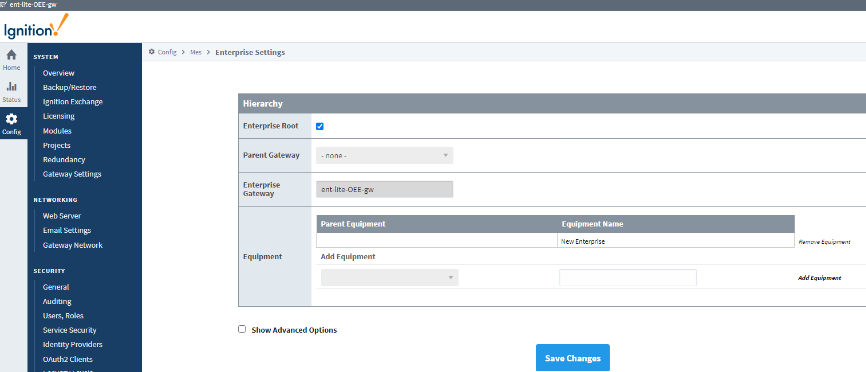
- Go to the Config tab > MES Modules > Enterprise Settings and check the Enterprise Root checkbox.
- Click Save Changes.
Set Parent Gateway Server
On the Site Server:
|
|
Clicking Save Changes begins the synchronization process. It is highly recommended to remove any equipment not intended to be added, before clicking save. |
- Go to the Config tab > MES Modules > Enterprise Settings.
- In the Parent Gateway field, select the Enterprise server.
- Under Equipment, enter the Site server's equipment path with a back-slash. For example: Site 1\Area 1. To understand this path, see Production Equipment Model.
- Click Add Equipment. Do this for all equipment to be managed by the Enterprise.
- Click Save Changes.

|
Syncing starts. A message displays the Source Server, Equipment item path and child path count. |
To verify the connections, go to MES Monitor. See Network MES Metrics for reference.
Verify Licenses
In Equipment Manager, verify licenses for the Site.
Validation Testing
Verify the installed modules are functioning.
Sepasoft MES Module Suite