Sepasoft MES Module Suite
Create a Custom Analysis Settings
These steps use the MES Analysis Controller in Vision.
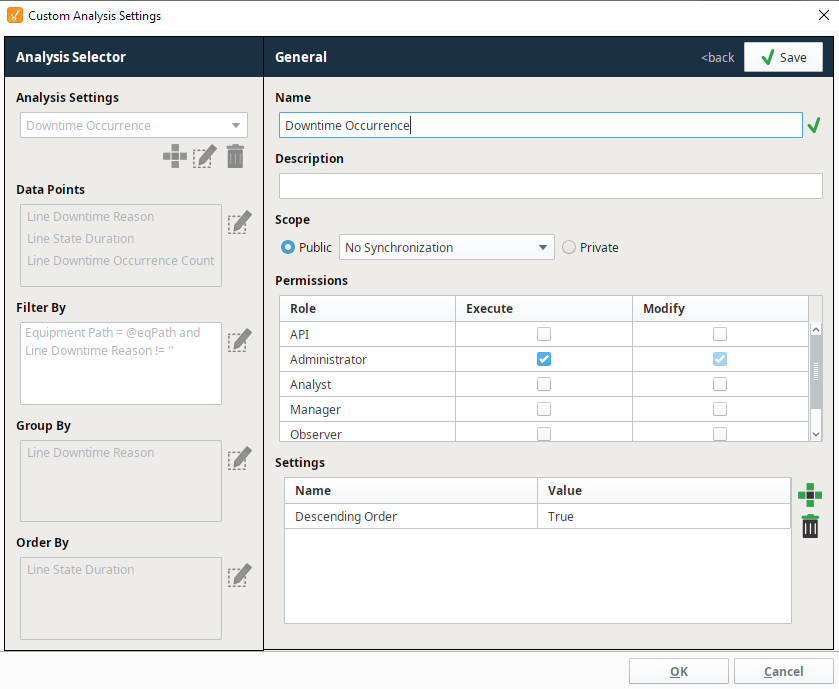
Right click on the MES analysis Controller and select Custom Analysis Settings. The same selection interface as the MES Analysis Selector component is displayed, which allows you to select a stored analysis or create new analysis settings for use on this analysis controller.
Creating an Analysis Setting

|
Always use single quotes around strings within python strings. |
- Click on the plus icon.
- Give the setting a name.
- Set the permissions of who can execute or modify these settings.
 |
Roles containing invalid characters will not be displayed in the Permissions table. |
- Add parameters.
- Save the setting.
For more details on adding Data Points, Filter By, Group By and Order By, please refer to the MES Analysis Selector.
Allowable Key Words
 |
Operator expression key words inside string parameters (in either upper or lower or mixed case), such as 'AND', 'OR', 'LIKE', 'IS NULL', 'IS NOT NULL' and 'IN' will be safely ignored. Therefore, these key words are permissible (example: Equipment Path = 'My Enterprise\Site\Area\Line\Block and Tackle'). |
Filter By Equipment Path
|
It is recommended to include Equipment Path in the Filter By expression in some form. Doing so will help analysis operate more efficiently. As a reminder, a message will appear in the Error Message field if if an analysis is run without specifying Equipment Path:
|

Deleted Equipment
|
When equipment items are deleted, they will no longer appear in the analysis settings lists. |
Sepasoft MES Module Suite