Sepasoft MES Module Suite
Equipment Manager | Edit Views
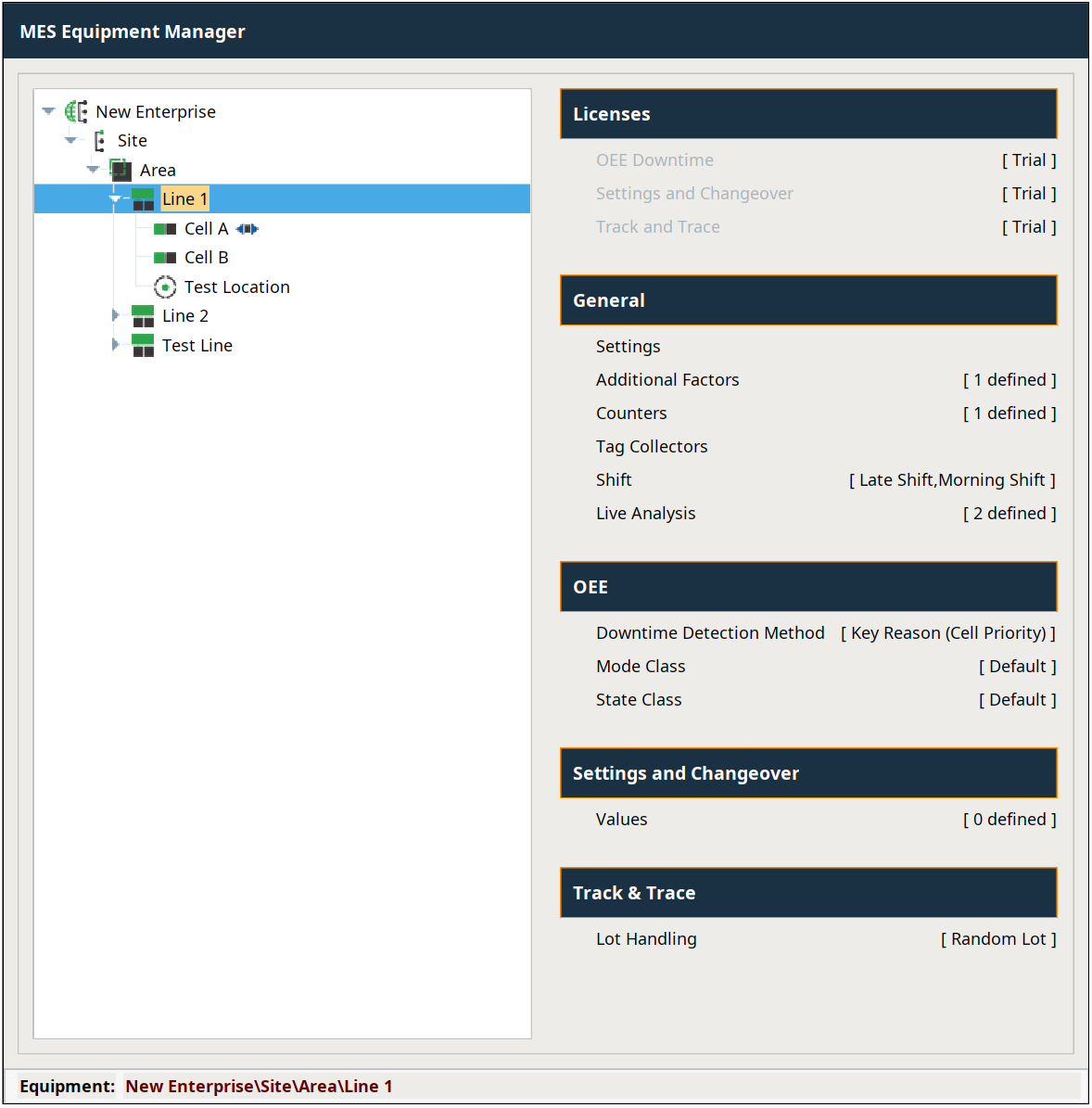
- Licenses Views
- General Views
- OEE Downtime Views
- SPC Views
- Settings and Changeover Views
- Track and Trace Views
Each of the menu options will open a view specific to the option selected. These views have been carefully designed to provide a consistent user experience. There are two common controls on every view: the "Save" button and the "{{<back}}" button, both visible within the title bar of the view. A keyboard shortcut is available to activate each button without the need for clicking with the mouse. For save the shortcut is Ctrl-S, and for back the shortcut is the Escape key.
All edit views will track when any data has been changed. If you try to leave a view that has had a data change, you will be asked to confirm that you want to abandon those changes.
Some edit views will contain a field to enter a tag path. These fields will have an edit box and a button with a blue tag icon, like the one shown below:

Using the Tag Browser panel of Ignition's Designer, you can drag and drop any tag directly onto the textbox. Alternatively, the button may be clicked to open a Tag Browse Tree popup window from which to select a tag. Pressing "OK" will automatically populate the textbox with the selected value.
Available Configuration and Settings Views
Sepasoft MES Module Suite