Sepasoft MES Module Suite
Sample Intervals
Samples can always be taken manually, but the SPC module also supports the automated scheduling of samples. Sample Intervals are used to define the amount of time or number of readings that pass between samples. For example, the interval may be a timed interval that occurs every three minutes, every 100 readings, or samples can be taken continuously. These options will be available when defining a sample on the Sample Definition page when adding or editing a location. The intervals can also also be defined when creating Tag Sample Collectors in the Production Model.
When sample definitions are created in the Sample Definition screen, an interval can be selected and will define when new samples are scheduled. These scheduled samples then require manual entry of measurements. When samples are created in the Tag Sample Collector configuration, the interval used defines when SPC will automatically take samples.
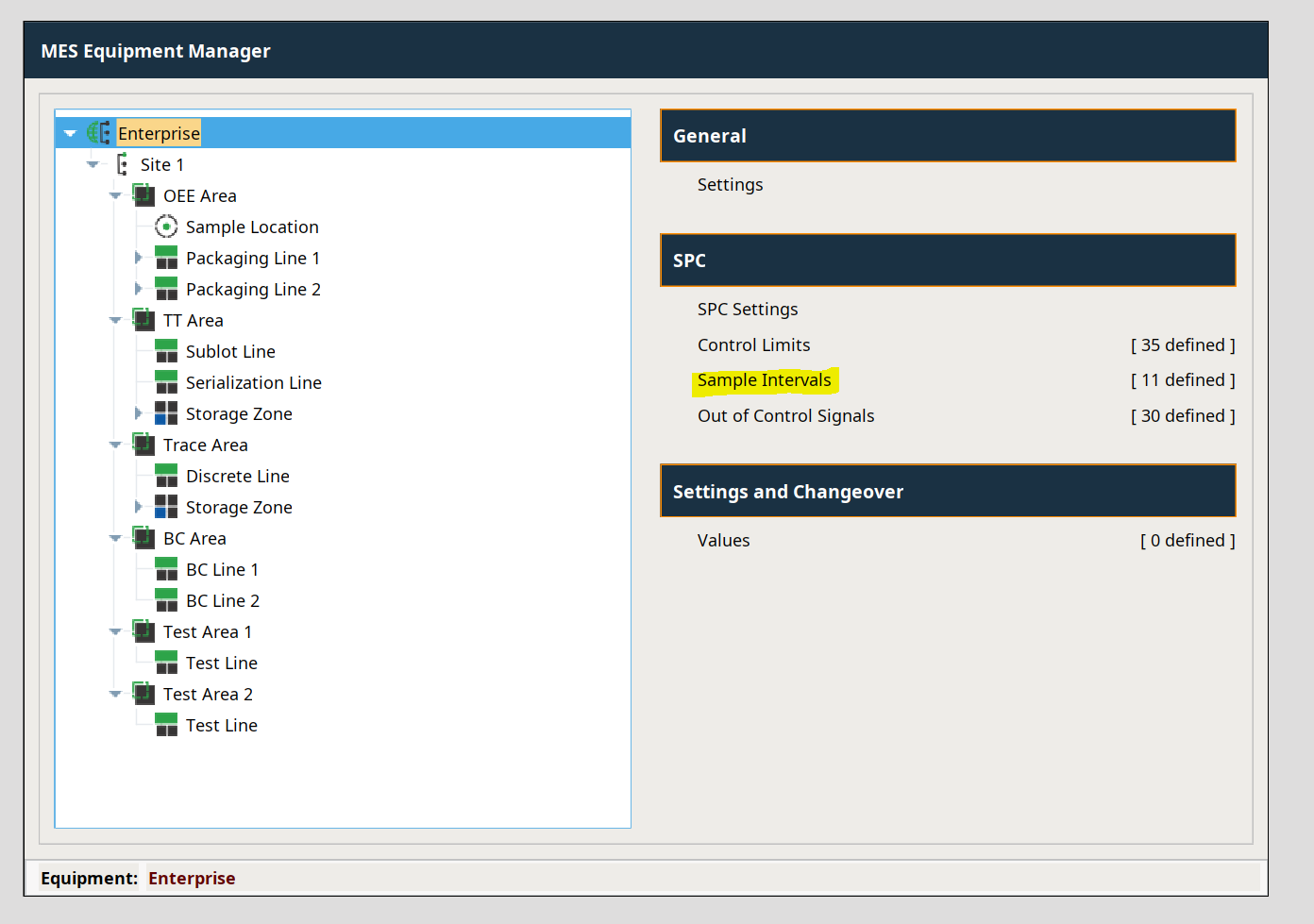
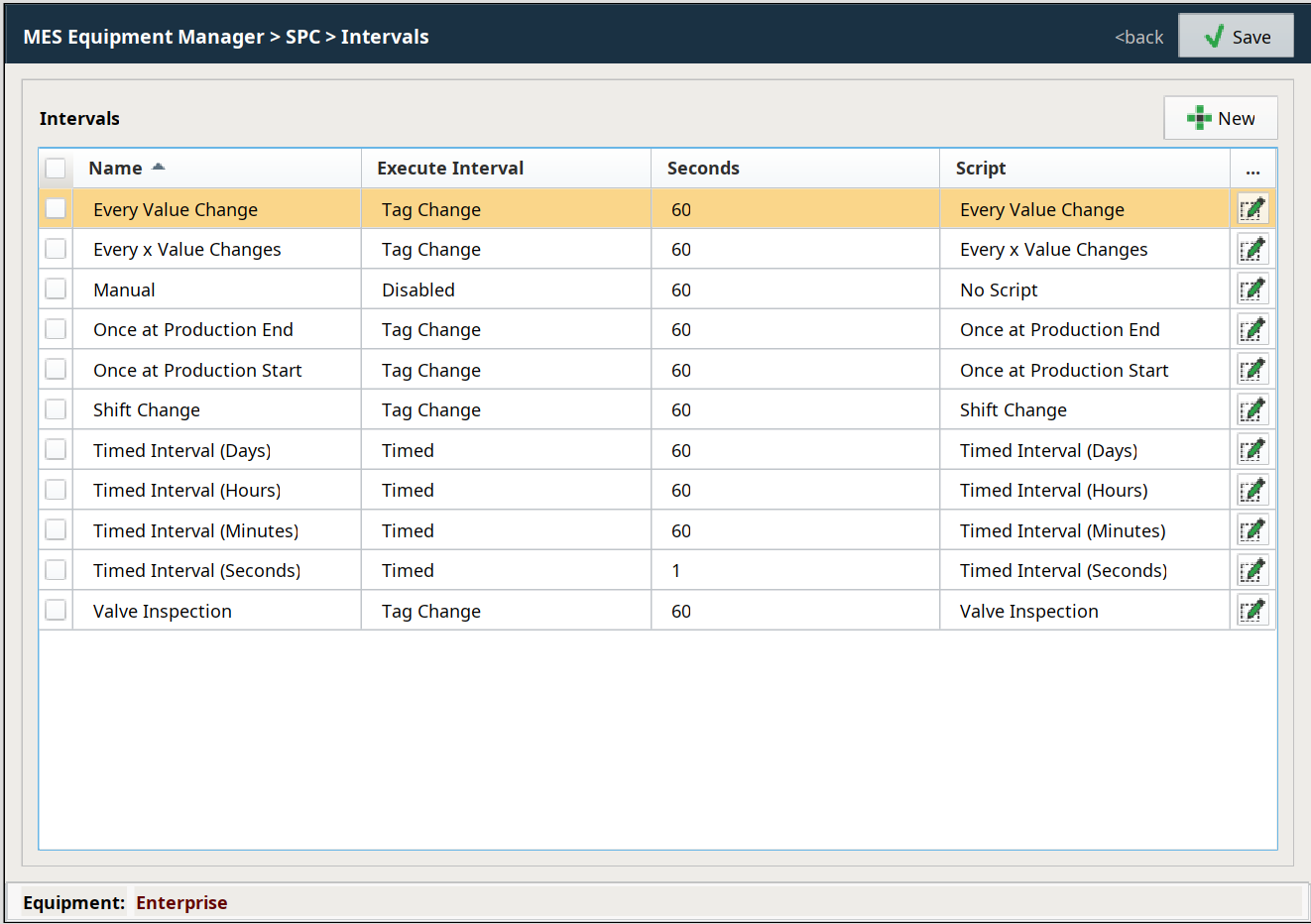
Sample Intervals can be added, edited or deleted on the Enterprise page of the designer under the Quality tab as shown.

|
Edits to the pre-built SPC intervals found on the Enterprise node in the Equipment Manager are reset to the default settings on MES Module restart. |
Vision Equipment Manager > Enterprise
In Perspective
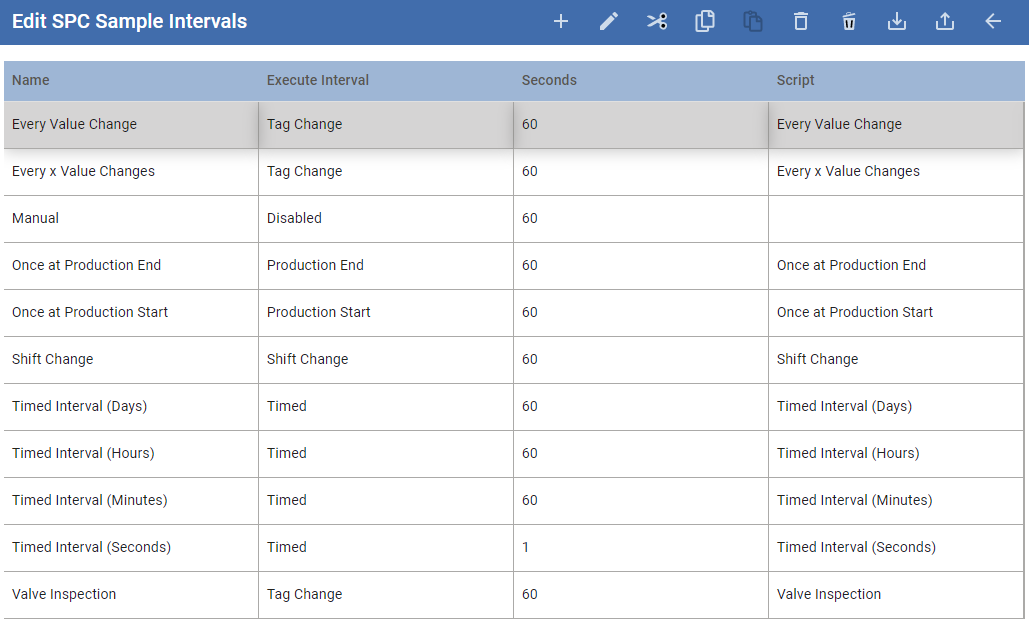
By default, the SPC module provides the following intervals:
| Interval | Description |
|---|---|
Every Value Change | A sample will be taken every time the tag value changes. Only used with Tag Sample Collectors. |
Every x Value Changes | A sample will be taken every x time the tag value changes where x is the specified Interval value. Only used with Tag Sample Collectors. |
Manual | Samples are not not automatically taken but entered by an operator or through scripting |
Once at Production End | When this interval is used, the system.production.cancelLocationProductCode (See Designer Intellisense for documentation - this is an MES 1.0 script that is still used for this Interval) can be used to disable the SPC Trace . The Interval script will check if Trace is enabled and create a sample. You can add more logic to check for certain product codes etc. |
Once at Production Start | When this interval is used, the system.production.setLocationProductCode() scripting function (See Designer Intellisense for documentation - this is an MES 1.0 script that is still used for this Interval) can be used to enable the SPC Trace. The Interval script will check if Trace is enabled and create a sample. You can add more logic to check for certain product codes etc. |
Shift Change | A sample is taken whenever we detect a shift change occur based on the defined shifts in the production model. |
Timed Interval (Days) | A sample is taken every x days where x is the specified Interval. |
Timed Interval (Hours) | A sample is taken every x hours where x is the specified Interval. |
Timed Interval (Minutes) | A sample is taken every x minutes where x is the specified Interval. |
Timed Interval (Seconds) | A sample is taken every x seconds where x is the specified Interval. |
Valve Inspection | An example Interval that creates a sample based on the passed interval value * 84600 (1 day) |
Adding and Editing Intervals
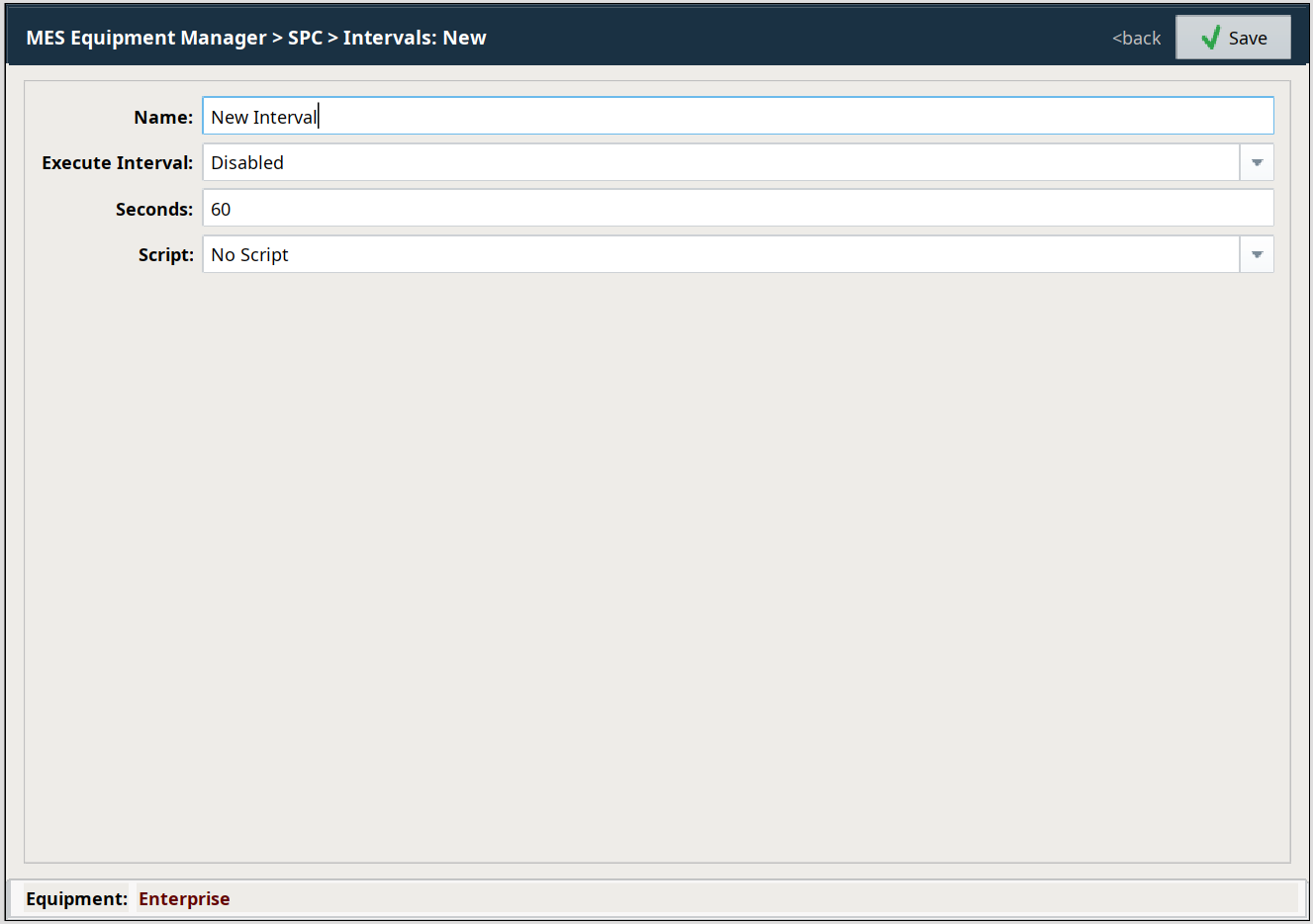
To add a new sample interval, right-click the Sample Intervals pane and select New from the drop-down menu. To edit a sample interval, right-click the Sample Intervals table and select Edit. A window as shown will appear with several fields to be completed, including the name of the sample interval, as well as the scripting necessary to use the sample interval.
| Property | Description | ||
|---|---|---|---|
| Name | This is the required unique name of the interval as it will appear in selection lists. | ||
| Execute Interval | Determines when the Interval script is executed by 3 options:
| ||
| Seconds | When Execute Interval is set to Timed , use this to set the Sample Interval time in seconds. By default, this value is set to 60 .
| ||
| Shift Change | Vision - The interval script that is executed whenever the shift for the MES Location changes. Make sure that the MES Locations that are bound to this interval have Shifts set up on them. | ||
| Script | The SPC module uses python scripting to determine whether a sample should be taken or scheduled. This allows the user to override the default calculation of an interval or add new intervals that are not provided by default. Additionally, they can be removed, cleaning up selection lists of intervals that may never be used. |
Add New Intervals with Script
This example:
Imports the Calendar object to allow us to do math with date values. See the Ignition documentation for more information.
- Returns the seconds since the last time a sample was scheduled. There is a wealth of information in the event object that can be used to determine if a sample should be scheduled or taken. See Sample Interval Event Object.
- Returns the duration to use. In this case it is in minutes.
- Returns the coming due minutes. It is going to be used to schedule a sample prior to the time it is due, so that it will show in the sample list component prior to the time it is actually due. For Tag Sample Collectors, the coming due will be 0 and the sample will be recorded and measurements collected when the sample is created.
- Does the actual checks to determine if a new sample should be scheduled. If secSinceLastSample equals None, then it means a sample has not been scheduled for the sample definition and location that is being checked. In this case, a new sample should be created.
- Calculate the scheduled start time for the sample. This is the time that the sample will appear in the sample list component and set the Sample Coming Due tag associated with the production location.
- Sets the create sample flag that tells the SPC module to create a new sample after executing this script. This can be done through script functions specifically for creating samples, but this simplifies the task of doing so down to one line of script.
Python |
#Time Interval (Minutes) from java.util import Calendar #Get the last time a sample was scheduled secSinceLastSample = event.getSecSinceLastSampleScheduled() #Calculate the interval in seconds intervalSec = event.getInterval() * 60 comingDueSeconds = event.getComingDueMin() * 60 #If a sample has not been scheduled or intervalSec has expired, schedule a new sample if secSinceLastSample == None or secSinceLastSample >= intervalSec - comingDueSeconds: #Schedule next sample to start now + coming due minutes cal = Calendar.getInstance() cal.add(Calendar.SECOND, int(comingDueSeconds)) event.setScheduleStart(cal.getTime()) #Create new sample - no values are recorded event.setCreateSample(1) |
Delete Intervals
To delete a sample interval, select the item to be deleted. After selecting, right-click the item and select Delete from the drop-down menu. A window will appear as shown confirming that you permanently want to delete the sample interval.
Importing and Exporting Intervals
To export interval entries, right-click anywhere on the table containing interval entries and select the Export menu item. A dialog box will appear to allow selection of an existing file or the entry of a name for the new file to which the interval entries are saved. If a file extension is not entered, then the default .csv will be used.
To import interval entries, right-click anywhere on interval entries and select the Import menu item. A dialog box will appear to allow selection of a comma separated values (csv) formatted file. The first line of the file must at least contain the property names separated by commas. If additional names exist, they will be ignored. The property names can be in any order.
Example csv file
"Timed Interval (Days)","2","60","#Time Interval (Days)
from java.util import Calendar

#Get the last time a sample was scheduled
secSinceLastSample = event.getSecSinceLastSampleScheduled()

#Calculate the interval in seconds
intervalSec = event.getInterval() * 86400
comingDueSeconds = event.getComingDueMin() * 60

#If a sample has not been scheduled or intervalSec has expired, schedule a new sample
if secSinceLastSample == None or secSinceLastSample >= intervalSec - comingDueSeconds:

\t#Schedule next sample to start now + coming due minutes
\tcal = Calendar.getInstance()
\tcal.add(Calendar.SECOND, int(comingDueSeconds))
\tevent.setScheduleStart(cal.getTime())
\t
\t#Create new sample - no values are recorded
\tevent.setCreateSample(1)"
"Timed Interval (Hours)","2","60","#Time Interval (Hours)
from java.util import Calendar

#Get the last time a sample was scheduled
secSinceLastSample = event.getSecSinceLastSampleScheduled()

#Calculate the interval in seconds
intervalSec = event.getInterval() * 3600
comingDueSeconds = event.getComingDueMin() * 60
#If a sample has not been scheduled or intervalSec has expired, schedule a new sample
if secSinceLastSample == None or secSinceLastSample >= intervalSec - comingDueSeconds:

\t#Schedule next sample to start now + coming due minutes
\tcal = Calendar.getInstance()
\tcal.add(Calendar.SECOND, int(comingDueSeconds))
\tevent.setScheduleStart(cal.getTime())
\t
\t#Create new sample - no values are recorded
\tevent.setCreateSample(1)"
"Timed Interval (Minutes)","2","60","#Time Interval (Minutes)
from java.util import Calendar

#Get the last time a sample was scheduled
secSinceLastSample = event.getSecSinceLastSampleScheduled()

#Calculate the interval in seconds
intervalSec = event.getInterval() * 60
comingDueSeconds = event.getComingDueMin() * 60

#If a sample has not been scheduled or intervalSec has expired, schedule a new sample
if secSinceLastSample == None or secSinceLastSample >= intervalSec - comingDueSeconds:

\t#Schedule next sample to start now + coming due minutes
\tcal = Calendar.getInstance()
\tcal.add(Calendar.SECOND, int(comingDueSeconds))
\tevent.setScheduleStart(cal.getTime())
\t
\t#Create new sample - no values are recorded
\tevent.setCreateSample(1)"
"Timed Interval (Seconds)","2","1","#Timed Interval (Seconds)
#Get the number of seconds since the last sample was tanken
secSinceLastSample = event.getSecSinceLastSampleScheduled()
\t
#Get the interval in seconds
intervalSec = event.getInterval()
\t
#Test if the elapsed time since the last sample is greater then the interval
if secSinceLastSample < 0 or secSinceLastSample >= intervalSec:
\tevent.setCreateSample(1)"
"Valve Inspection","1","60","secSinceLastSample = event.getSecSinceLastSampleScheduled()
intervalSec = event.getInterval() * 86400
if secSinceLastSample < 0 or secSinceLastSample >= intervalSec:
\tevent.setCreateSample(1)"
|
|
The Export function will export all intervals, not the selected Interval. |
Sepasoft MES Module Suite