Sepasoft MES Module Suite
Quality Vision Component | Sample Definition Manager
Use the SPC Sample Definition Manager component to modify and configure Sample Definition Classes and Sample Definitions that are used for quality testing in the SPC module. Sample Definitions are organized in Sample Definition Classes. This component can be used to add, edit, delete, copy and paste a Sample Definition or Sample Definition Class.
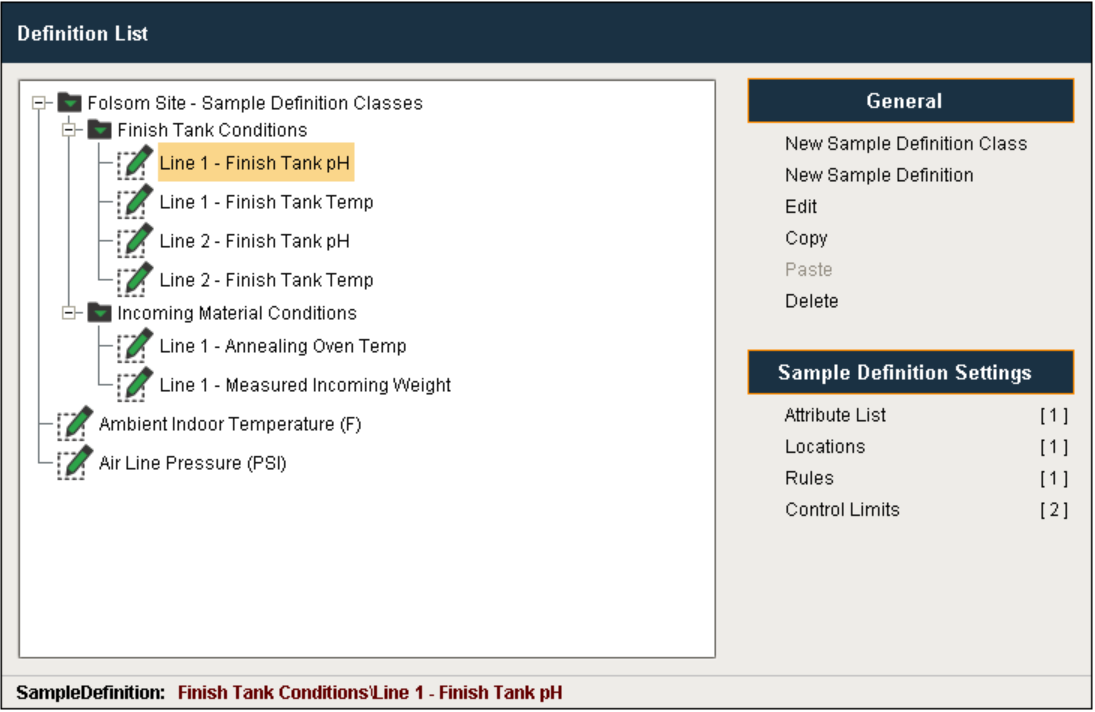
The SPC Sample Definition Manager component allows for the management of Sample Definitions and the sample Definition Classes that hold them. By selecting a Sample Definition, the Attributes, Locations, Signals (Rules) and Control Limits associated with it can be accessed and edited.
Hierarchy Tree
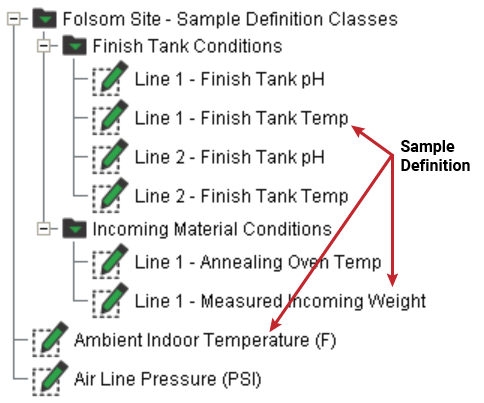
The Hierarchy Tree area depicts the parent-child relationships of the Sample Definition Classes and Sample Definitions that exist in this gateway.

|
Collapsing and then expanding the tree at the top node will refresh the tree's contents if they have changed. |
Sample Definition Classes are depicted with a folder icon (  ). Sample Definition Classes can be created as children to other Sample Definition Classes, but not as children to Sample Definitions.
Sample Definitions are depicted with a pencil and paper icon (  ). Sample Definitions can be created as children of Sample Definition Classes, but not as children to other Sample Definitions.
General
The commands in this area act upon whichever Sample Definition Class or Sample Definition is highlighted (clicked on) in the Hierarchy Tree. When not permitted for the selected item, the command will be grayed out.
Sample Definition Settings
For each Sample Definition, there are various properties that control how sample collection will occur. These are located in the Sample Definition Settings section of the component:
- Attribute List — Defines the data measurements to collect for each sample. Attributes can be exported and then imported into other Sample Definitions.
- Locations — Selects the available Location (created in the Production Model in an Area or Line) to associate with the Sample Definition.
Note: The Hierarchy tree will only display Lines and Areas that have a Location: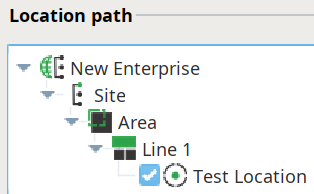
- Rules (to generate Signals) — Defines which out-of-control rules to apply to the Sample Definition (e.g. Individual Nelson Rule 3) for signal generation.
- Control Limits — Defines which control limits to enable for the Sample Definition.
Sample Definition Classes and Sample Definitions
See Sample Definitions page for using this component to create and edit Sample Definition Classes and Sample Definitions, add Attributes, Locations, Rules (to generate Signals) and Control Limits.
Sample Definition Class
A Sample Definition Class acts a folder to hold Sample Definitions. Classes can be nested, allowing for hierarchical organization.
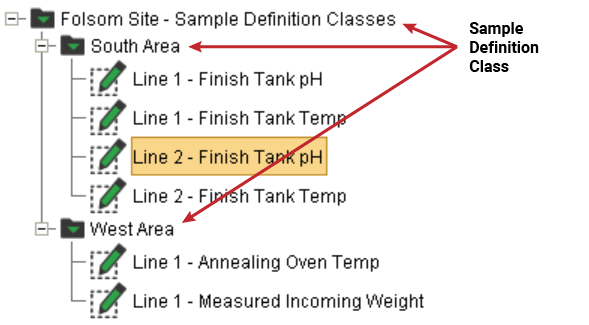
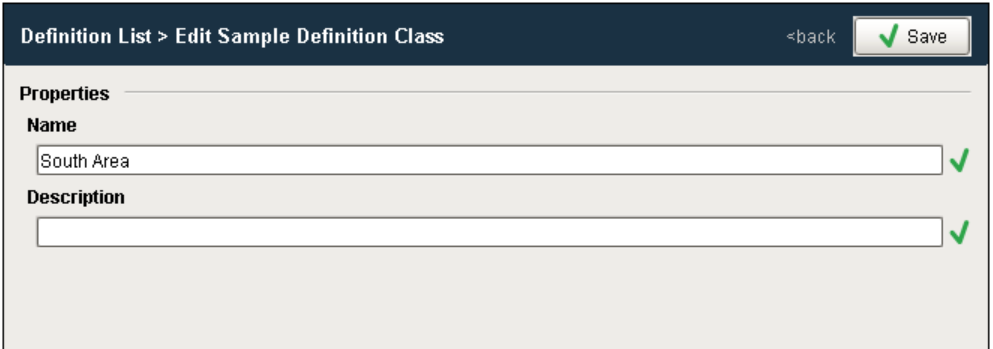
Create or Edit a Sample Definition Class
Sample Definition
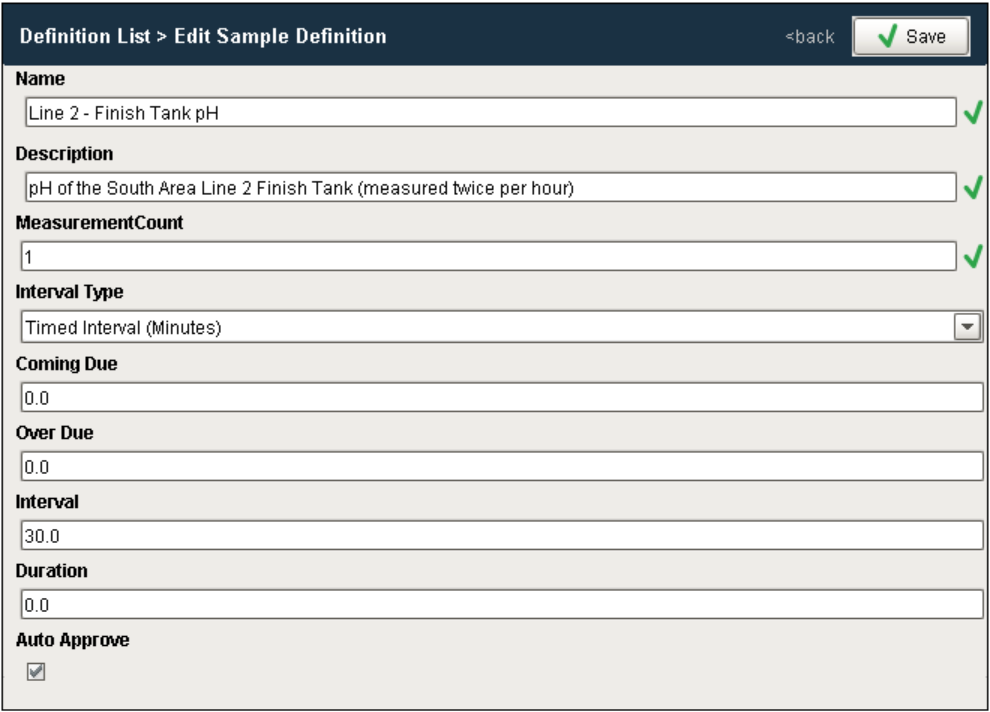
A Sample Definition object holds all of the information defining a type of sample. It specifies the Attributes to collect, the Locations where sample data is collected from, as well as the Rules (to generate Signals) and Control Limits that apply.
When samples are created, they are based on a Sample Definition. When sample measurement values are recorded, the Sample Definition is used to validate the measurement values.
Create or Edit a Sample Definition
Component Properties
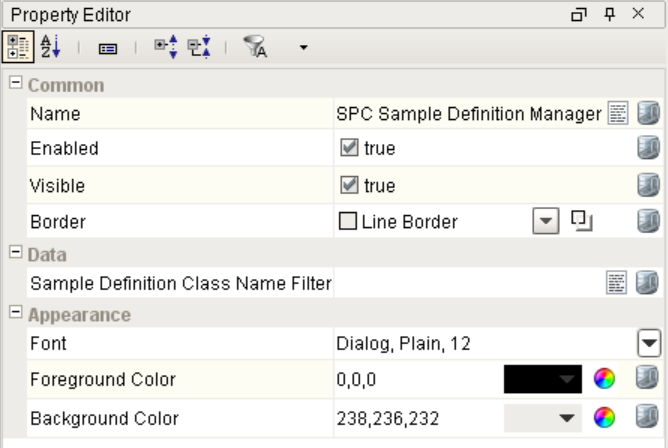
Properties are provided that can be set to affect the operation and look of the component. They can be set through the Property Editor in the Designer or through scripting.
Example
Code |
|
Data
| Name | Scripting | Property Type | Description |
|---|---|---|---|
| Sample Definition Class Name Filter | sampleDefinitionClassNameFilter | String | Sample Definition Class Name filter, a comma-separated list of material names, that can include * and ? wildcard characters, to filter the materials by. |
Appearance
| Name | Scripting | Property Type | Description |
|---|---|---|---|
| Font | font | Font | Font for the text in the hierarchy tree window. |
| Title Foreground Color | foreground | Color | Foreground color of the component. |
| Title Background Color | background | Color | Background color of the component. |
Event Handlers
Event handlers provide the ability to add custom script when a user interacts with a component.
propertyChange
propertyChange
Fires whenever a bindable property of the source component changes. This works for standard and custom (dynamic) properties.
| Property | Description |
|---|---|
| .source | The component that fired this event. |
| .newValue | The new value that this property changed to. |
| .oldValue | The value that this property was before it changed. Note that not all components include an accurate oldValue in their events. |
| .propertyName | The name of the property that changed. NOTE: Remember to always filter out these events for the property that you are looking for! Components often have many properties that change. |
Extension Functions
filterSampleDefinition
- Description
Provides an opportunity to filter the Sample Definitions shown in the tree. This function is called each time a node is expanded and child material objects are loaded. Only the Sample Definitions in the returned list of Sample Definition links will be displayed as children of parentDefinition. Note that the component property filters are applied before this function is called.
- Parameters
self - A reference to the component that is invoking this function.
MESObjectLink parentDefinition - The parent definition link for which the children are being loaded and filtered. This definition link could be for a Sample Definition Class or a Sample Definition.
MESObjectLink definitionList - A list of definition links to consider for filtering. Each link is a child of parentDefinition and could be for a Sample Definition Class or a Sample Definition.
- Returns
Returns a list of MESObjectLink objects that should be displayed as children of parentDefinition. Children not in the returned list will be filtered out.
- Scope
Client
Example
Code |
# This example only displays definitions that have a description set filteredList = [] for definitionLink in definitionList: if definitionLink.getMESObjectType().getName() == 'SampleDefinition': definition = definitionLink.getMESObject() if definition.getDescription(): filteredList.append(definitionLink) else: filteredList.append(definitionLink) return filteredList |
loadIcon
- Description
Provides a chance to change an icon. Based on the icon name parameter, this extension function will return the image path to the icon to use in place of the default icon.
- Parameters
self - A reference to the component that is invoking this function.
iconName - The name of the icon you wish to replace.
- Returns
A path to the new icon image.
- Scope
Client
Example
Code |
# This example will return a path to a different image to replace the default delete image: if iconName == 'edit': return 'Builtin/icons/24/edit2.png' |
Custom Methods
Custom methods allow you to add your own component functions to a component that can be called through scripting. This is a useful and clean method of re-using script that is specific to the component (say you want to update a visual aspect of the component in the same way whether a user clicks on the component or a window property value changes). See Component Custom Methods in the Ignition Help Manual for more information.
Customizers
Custom Properties
The custom properties can be used to add user defined properties.
Sepasoft MES Module Suite