Templates

Sepasoft MES Module Suite

Using Templates in Batch Procedure Recipes

Templates capture complex logic, variables, and Unit Class assignments into a single, deployable asset. When a recipe element is templated, it transitions from a local instance to a global asset.

Operations and Unit Procedure can be saved as Templates.

Within the Batch Procedure framework, you can create Unit Procedure and Operation templates:

Unlinked Template

Including and Previous to version: 3.81.12 SP4 and 4.83.1 SP4 it is important to note that once a template is placed, the instance is unlinked from the master template. This allows you to extend or modify the logic to meet the specific requirements of the new recipe without affecting the original template or other instances—providing a structured start while maintaining local flexibility.

Success

Added in 3.81.12 SP5 and 4.83.1 SP5:

Sync-able templates are governed by strict protocols designed to prevent data loss. The primary rules for using them include:
  • Read-Only State: Sync-able templates are deployed as read-only assets.

  • Modifications Break the Link: You cannot modify any parameters or configurations on the deployed template instance without "breaking the link" to its source master template.

  • Irreversible Action: Breaking the link between the master template and the child template is permanent and cannot be undone.

  • Halted Synchronization: Once the link is broken, any future edits made to the master template are no longer synchronized down to that specific child template instance

Linked and Non-linked Templates

Note In version: 3.81.12 SP5, 4.83.1 SP5 and later

The core difference between linked and non-linked templates lies in their reference with the master template and their capacity for local customization:
  • Linked Templates maintain an active, synchronized connection to their source. Because they enforce a read-only configuration, they ensure that any structural updates or edits made to the master template are automatically synchronized to the child instance.

  • When a Template becomes unlinked: Once a template is unlinked, it retains the fully populated logic and parameters of the original as a starting point, but you are completely free to modify, extend, and customize the logic for your specific recipe without affecting the master template or receiving future updates from it.

Creating and Accessing Batch Recipe Templates

First create the template classes if you want to organize templates into categories. Then, open a recipe and start saving Unit Procedures or Operations into templates. 

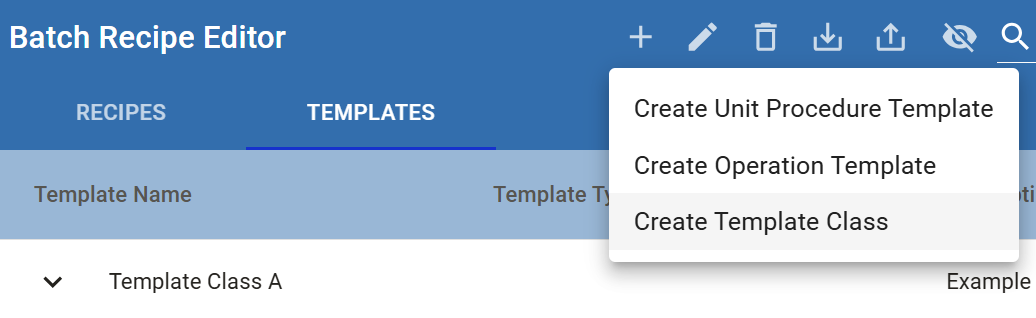
Access Templates from Batch Recipe Editor.
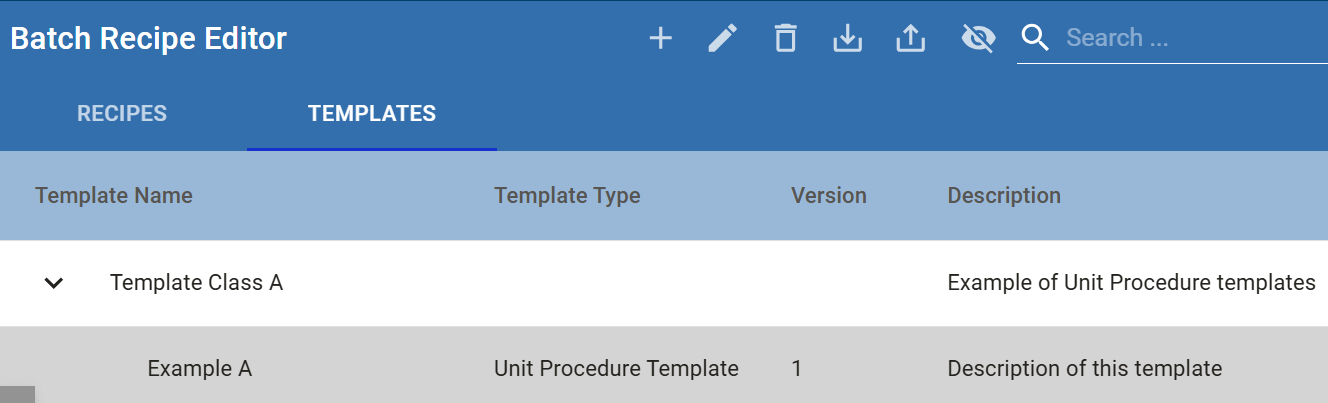
Perspective Batch Recipe Editor Component

Learn about the Batch Recipe Editor component.
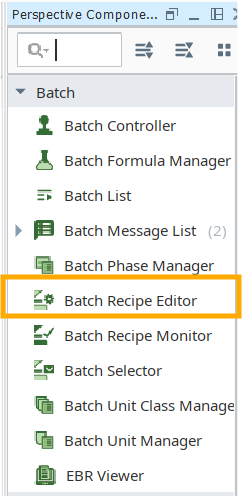

Define Template Classes

Template Classes function as a directory or folder system. If no specific class is selected, the template is stored in the root directory by default.

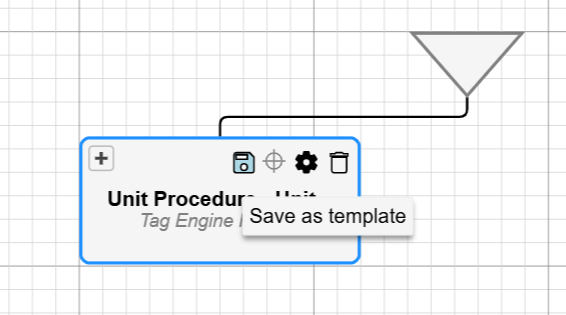
Save a Unit Procedure as a Template

In Batch Recipe Editor, open the recipe, navigate to the Unit Procedure and click the Save icon.

Save an Operation as a Template
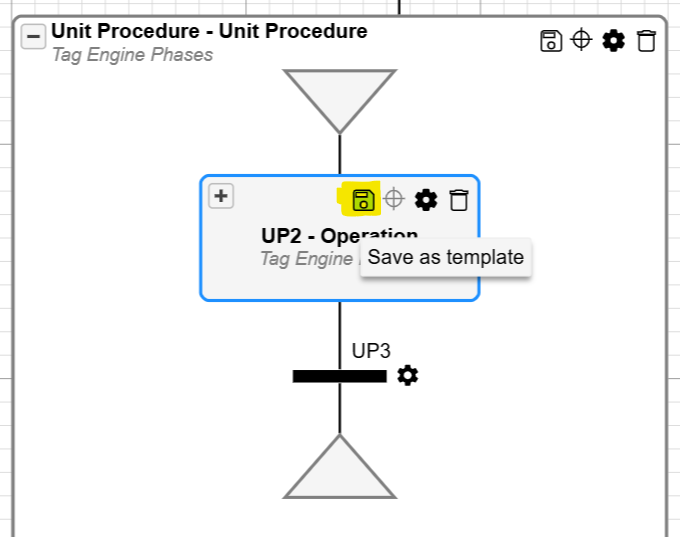
In Batch Recipe Editor, open the recipe, navigate to the Operation block and click the Save icon.

Add the template by entering a name using a naming convention for your project, You have the option of selecting a unit class and adding a description.
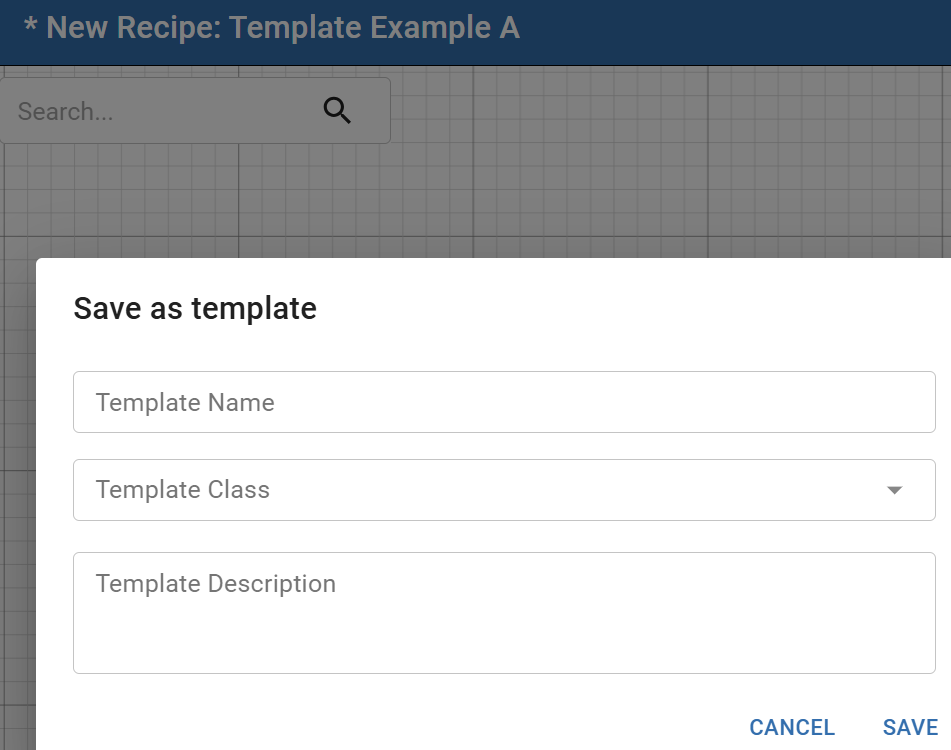

Saving as a template encapsulated logic, variables, specific parameters, and unit class assignments so that it can be easily reused and modified in future recipes.


Add a Template to a Recipe

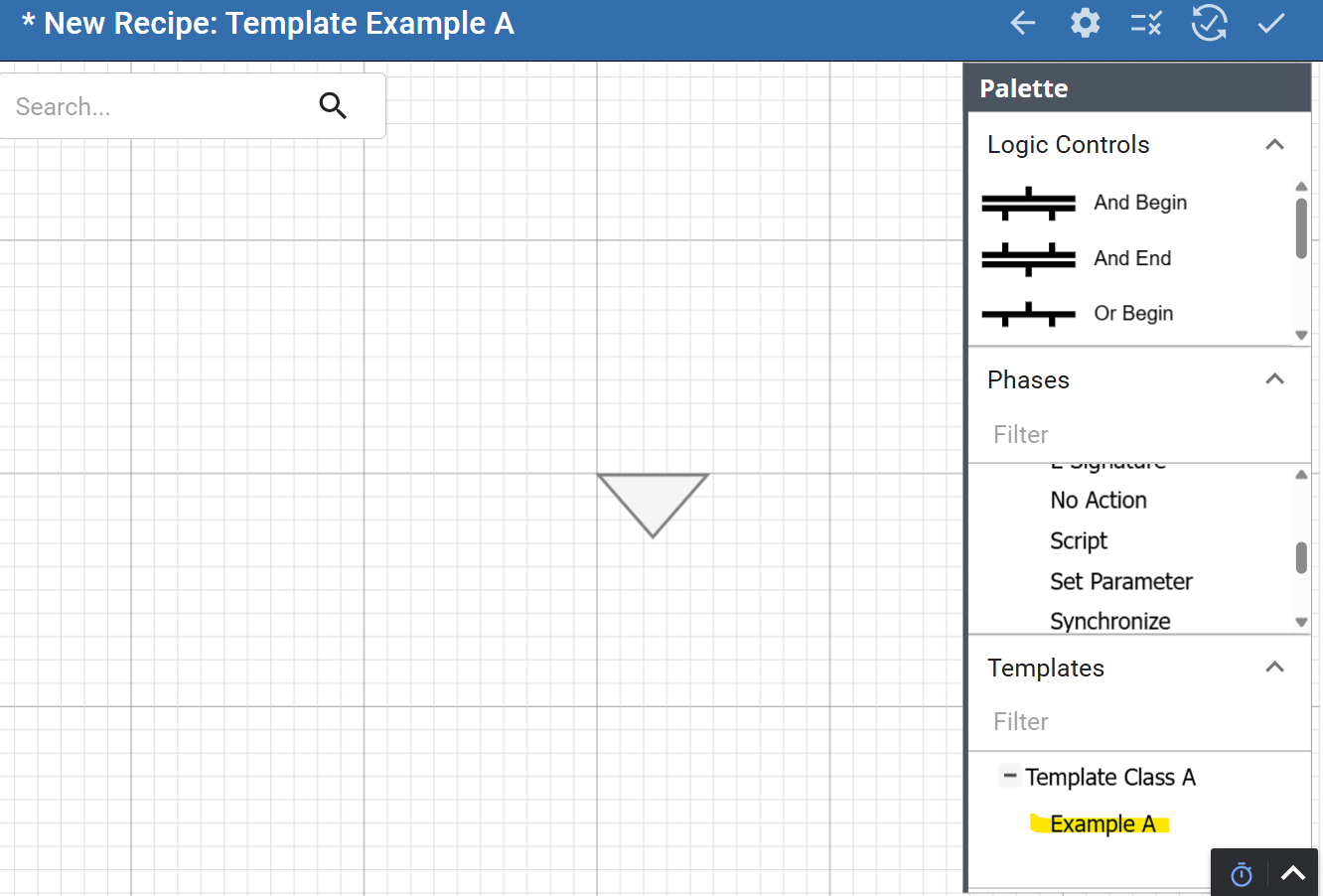
Available templates are listed in the palette.
Note

Version specific Rules: Including and Previous to version: 3.81.12 SP3 and 4.83.1 SP3

You can drag and drop the element in the design space. Doing this unlinks from the master template. This allows you to extend or modify the logic to meet the specific requirements of the new recipe without affecting the original template or other instances.

Scripting Functions for Managing Templates

All programmatic template actions are executed using functions within the system.mes.batch.recipe scripting library and BatchMasterLogic Object.

Generation and Organization:


Use createTemplate(name, parentLink) and createTemplateClass(name, parentLink) to build new templates and folder structures.

Python
# 1. Retrieve the root template directory link to serve as the base location
rootLink = system.mes.batch.recipe.getRootTemplateLink()

# 2. Create a new Template Class (folder) using the root link as its parent
newClass = system.mes.batch.recipe.createTemplateClass("Automated Scripts Folder", rootLink)

# 3. Save the new Template Class to commit it to the system
system.mes.batch.recipe.saveTemplateClass(newClass)

# 4. Create a completely new Template, using the newly created class as its parent
newTemplate = system.mes.batch.recipe.createTemplate("New Automated Template", newClass)

# 5. Save the new Template object (Note: saveTemplate takes a list of objects)
system.mes.batch.recipe.saveTemplate([newTemplate])

Loading and Saving:

Existing templates can be accessed using loadTemplate(mesObjectLink), getTemplateLink(name, parentLink),

or getTemplateLinkList(parentLink, pageNumber, pageSize, searchPattern), and committed back to the system using saveTemplate(mesObjectList)

Python
Example Script: Loading and Saving Templates
# 1. Retrieve the root template directory link to use as our starting parent link
rootLink = system.mes.batch.recipe.getRootTemplateLink()

# =========================================================
# METHOD A: Loading and Saving a Single Specific Template
# =========================================================

# 2. Retrieve the link for a specific existing template by its name
singleTemplateLink = system.mes.batch.recipe.getTemplateLink("1183-Premix", rootLink)

# 3. Load the actual template object into memory using its link
singleTemplateObject = system.mes.batch.recipe.loadTemplate(singleTemplateLink)

# [Hypothetical Step]: You would modify the properties of 'singleTemplateObject' here

# 4. Save the modified template back to the system 
# Note: saveTemplate requires a list of objects, so we wrap our single object in brackets
system.mes.batch.recipe.saveTemplate([singleTemplateObject])


# =========================================================
# METHOD B: Loading and Saving Multiple Templates via Search
# =========================================================

# 5. Get a list of template links matching a search pattern (e.g., finding all "Premix" templates)
# Parameters: parentLink, pageNumber (0 = first page), pageSize (100), searchPattern
templateLinkList = system.mes.batch.recipe.getTemplateLinkList(rootLink, 0, 100, "*Premix*")

# 6. Create an empty list to hold the loaded objects
objectsToSave = []

# Loop through the retrieved links, load each object, and add it to our list
for link in templateLinkList:
    loadedTemplate = system.mes.batch.recipe.loadTemplate(link)
    
    # [Hypothetical Step]: Make automated modifications to 'loadedTemplate' here
    
    objectsToSave.append(loadedTemplate)

# 7. Commit all modified templates back to the system in a single batch save
system.mes.batch.recipe.saveTemplate(objectsToSave)

Modifying and Duplicating:

You can duplicate existing configurations using copyTemplate(copyFromLink, newTemplateName) → MESObjectList,

or move them between systems using exportTemplate(templateLink) and importTemplate(xml, parentLink).

Python
# 1. Retrieve the root template directory link to use as our base parent link
rootLink = system.mes.batch.recipe.getRootTemplateLink()

# =========================================================
# METHOD A: Duplicating an Existing Template
# =========================================================

# 2. Retrieve the link for the existing template you want to duplicate
sourceTemplateLink = system.mes.batch.recipe.getTemplateLink("1183-Premix", rootLink)

# 3. Duplicate the configuration. 
# copyTemplate returns an MESObjectList containing the newly created object.
newCopiedTemplateList = system.mes.batch.recipe.copyTemplate(sourceTemplateLink, "1183-Premix_V2")


# =========================================================
# METHOD B: Exporting and Importing Between Systems
# =========================================================

# 4. Export an existing template into an XML string format so it can be moved
# This is highly useful for migrating templates from a staging environment to production
exportedXmlData = system.mes.batch.recipe.exportTemplate(sourceTemplateLink)

# [Hypothetical Step]: You could save 'exportedXmlData' to a file, send it over a network, 
# or load it into a completely different Ignition gateway here.

# 5. Import the XML data back into the system (or into a new system)
# We provide the XML string and the destination folder (parentLink) where it should live
importedTemplateList = system.mes.batch.recipe.importTemplate(exportedXmlD

Handling Synchronization:

To specifically handle the synchronization of logic phases (which relates to the syncable templates), you can use the syncPhasesAndSaveTemplate(mesObjectList) function.

Python
# 1. Retrieve the root template directory link to use as the base parent link
rootLink = system.mes.batch.recipe.getRootTemplateLink()

# 2. Retrieve the link for the specific syncable master template you need to update
masterTemplateLink = system.mes.batch.recipe.getTemplateLink("Master-1183-Premix", rootLink)

# 3. Load the master template object into memory so it can be modified
masterTemplateObject = system.mes.batch.recipe.loadTemplate(masterTemplateLink)

# [Hypothetical Step]: You would programmatically update the logic phases, 
# parameters, or unit classes on the 'masterTemplateObject' here.

# 4. Commit the changes and synchronize them to all linked child instances.
# syncPhasesAndSaveTemplate takes a list of MES objects, so we wrap our object in brackets.
system.mes.batch.recipe.syncPhasesAndSaveTemplate([masterTemplateObject])

Alphabetical listing of template scripting functions

Scripting Functions within system.mes.batch.recipe for generating and managing templates:


Sepasoft MES Module Suite