Sepasoft MES Module Suite
Work Order Management
Work Orders are generally created from customer orders to define a desired quantity of product and a due date. Other information such as priority and status may also be attached to a Work Order. Both the Sepasoft Track & Track and OEE Downtime Module provide a number of components and scripting functions to allow for Work Order management and operations scheduling.
How to access work order information, specifically quantities, within the MES system
Work order information, including quantities like Work Order Quantity, Remaining Quantity, and Actual Quantity, can be accessed through scripting in both Track & Trace and OEE 3.0 and 4.0 modules. You can retrieve quantities for a specific work order by its UUID or name, or iterate through all work orders to get their respective quantities. While OEE analysis can return work order names, it doesn't automatically provide detailed data like due dates or quantities, requiring the use of associated work order objects for extended analysis.
Creating Work Orders Through Components
The MES Work Order Table component allows for the creation, editing, deleting and importing of Work Orders. Work Orders can then be scheduled across production lines and the quantity scheduled, produced and remaining can be tracked.
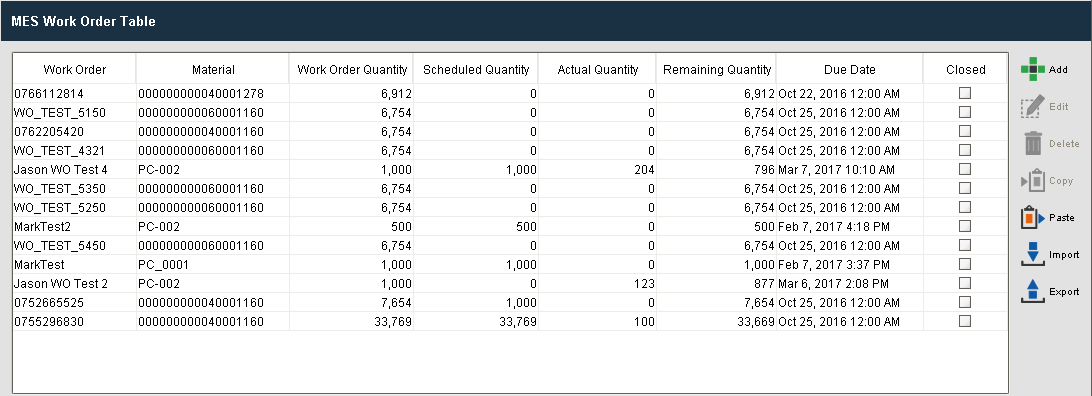
Work Order Table Functions
| Function | Description |
|---|---|
| Add Work Order | Click on the  button and provide a name for the work order. Select the Material Definition, assign the quantity and pick the due date. button and provide a name for the work order. Select the Material Definition, assign the quantity and pick the due date. |
| Edit Work Order | Select the work order you want to edit and click on the  button. Edit the settings and click Save. button. Edit the settings and click Save. |
| Delete Work Order | Select the work order and click on the  button button |
| Copy/Paste Work Order | Select the Work order to be copied, click Copy and then click Paste. The new work order will be shown at the bottom of the table. |
| Export Work Orders | Click Export. All the work orders will be exported at once. When the save window appears, name the file to be exported and click Save. |
| Import Work Orders | Click Import. Use the File Open dialog box to select the xml file to be imported and Click Open. |
Drag and Drop Work Order Creation
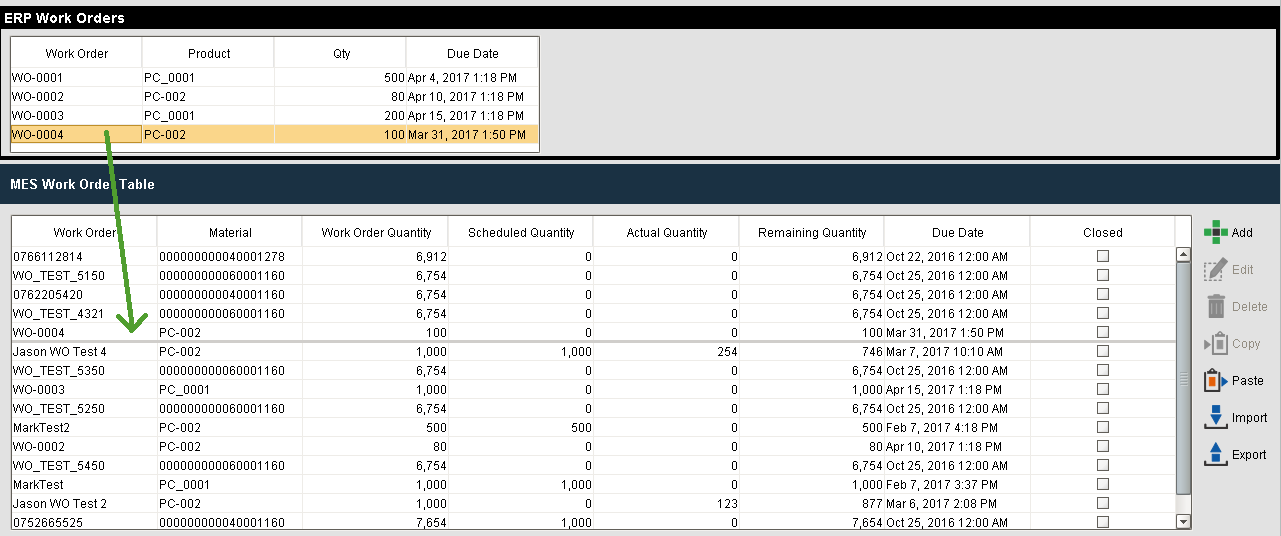
The MES Work Order Table component allows for dragging and dropping rows from a power table onto itself. You could create a power table that pulls work orders from ERP and then allows a user to drag Work Orders over. In order to perform drag and drop, you must enable the Row Dragging Enabled property of the power table.
Creating Work Orders Through Scripting
Work Orders can also be created, edited, deleted and imported through scripting. This method is mostly likely used when an interface exists to pull work orders from an ERP system on a timely or event driven basis. Scripting functions are provided in the system.mes.workorder space for managing the work order objects in the MES layer. The following scripting functions are available:
Whether a Work Order is created through scripting or by using the Work Order Table, a MES Work Order object is created in the background that can be accessed and modified to adjust any of the parameters such as required quantity, due date and status. As the MES Work Order object is derived from the AbstractMESObject, custom properties can be added to a Work Order object to store metadata about the work order.
Drag and Drop Work Order Scheduling
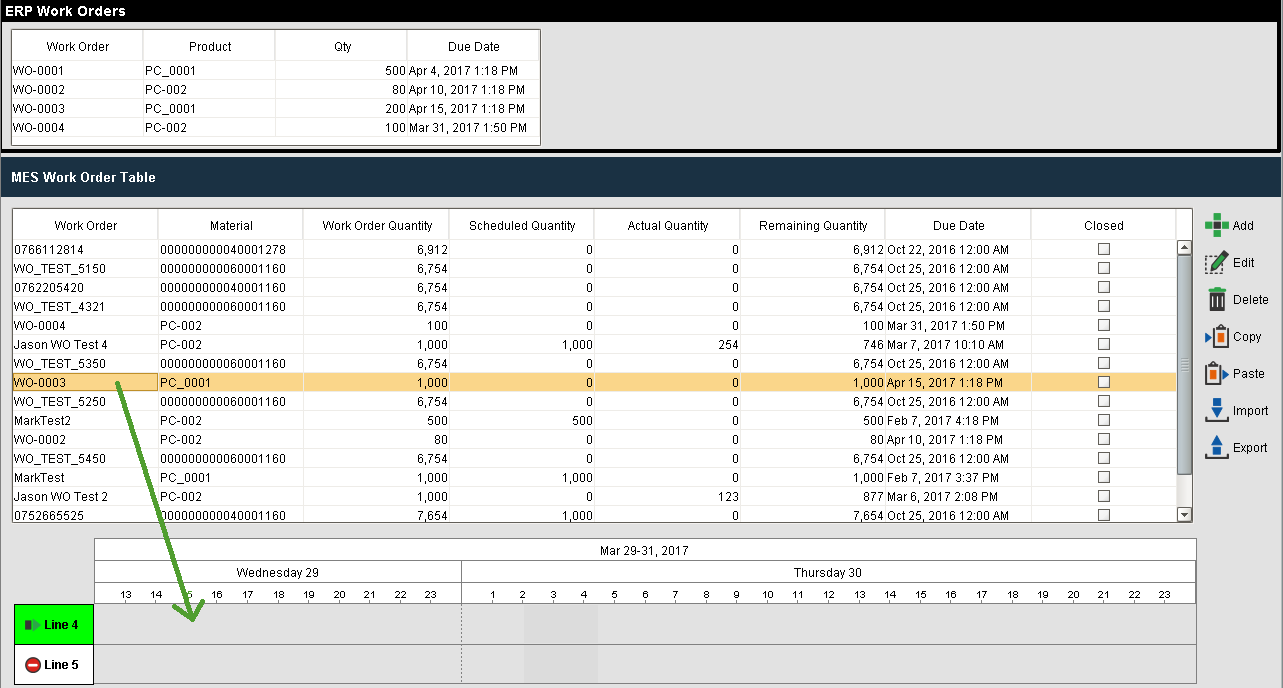
The MES Work Order Table component also allows for dragging and dropping a Work Order onto the MES Schedule View Component.
Sepasoft MES Module Suite