Configure MES Value Editor
The MES Value Editor set-up on the window OEE_01_GUI/03_Analysis :
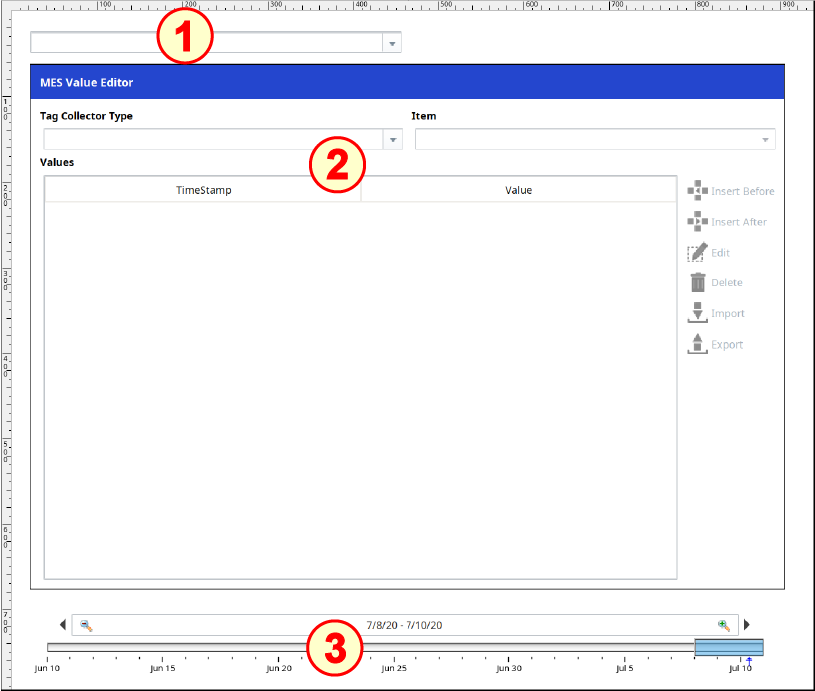
Configure MES Object Selector
In the MES Object Selector component properties:
- Drag an MES Object Selector component onto the window and place it in the upper-left corner, as shown above. Drag the size out to about four times its original width.
- In the MES Object Selector component properties, set the checkboxes for Include MES Line Objects, Include MES Line Cell Objects and Show Equipment Path.
Configure MES Value Editor


In the MES Value Editor component properties:
- Drag an Ignition Date Range component onto the window. Position it at the bottom of the window and resize as shown above.
- Drag an MES Value Editor component onto the window and place it under the MES Object Selector. Position and resize down to touch the Date Range component, as shown above.
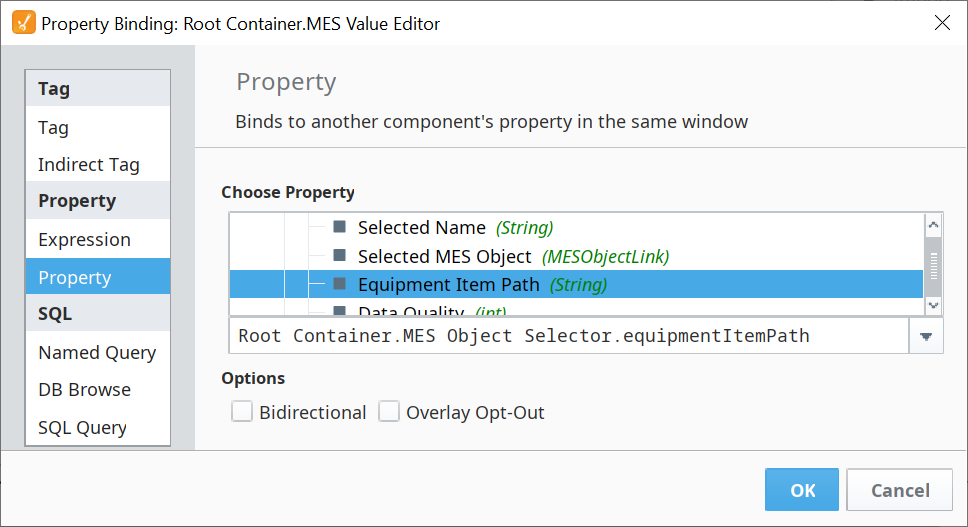
- Bind the Equipment Path property to the Equipment Item Path property of the MES Object Selector.
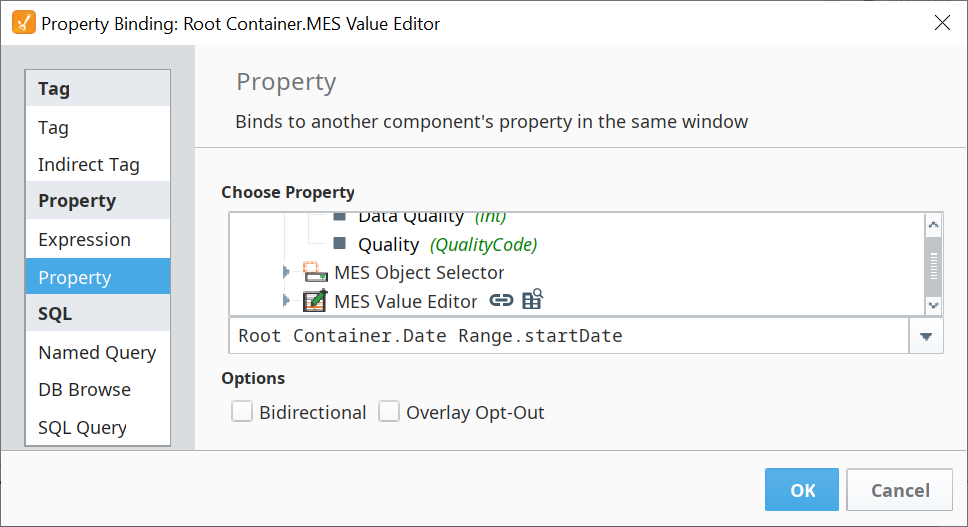
- Bind the Start Date property to the Start Date property of the Date Range component.
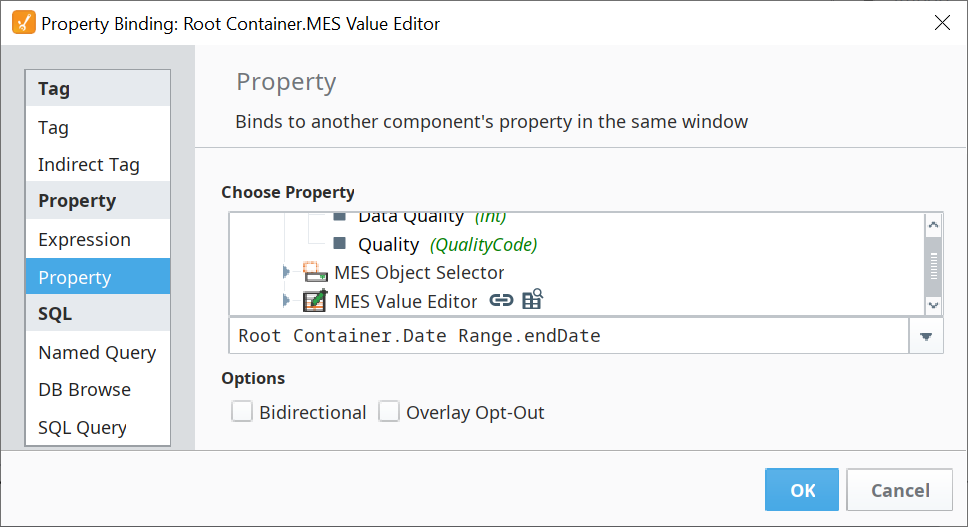
- Bind the End Date property to the End Date property of the Date Range component.
Configure Date Range
No configuration is required.

