Configure OEE Tags
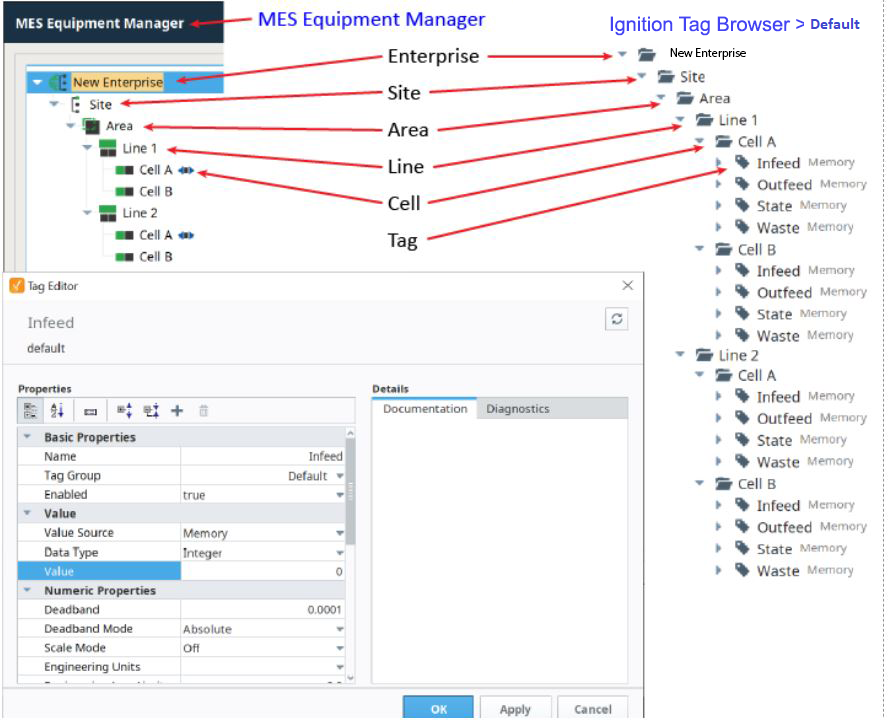
Create the following Tag folder structure and Tags (if you haven't already created it in a previous section). The paths are deliberately created to exactly match the Production Model, so the "{Equipment Path}" prefix can be used in scripting for the Equipment Path to simplify Tag handling (as well as being able to use the Copy Tag Path command in the Production Model when assigning tag paths).
Create Tag Folders
- Create the following folder tree in Tags in the Tag Browser, within the Default Tag Provider to match the the Production Model items in New Enterprise:
- Create a Site folder called Site.
- Create an Area folder called Area.
- Create two Line folders called Line 1 and Line 2.
- In both the Line 1 and Line 2 folders, create Cell folders called Cell A and Cell B.
Create Tags
- In the Cell A folder of Line 1, create four Memory Tags as data type Integer:
Infeed, Outfeed, Waste and State. - Highlight all four tags, right-click and select Copy. Paste these same four tags into the other three Cell folders. Your completed tag structure should look as shown to the right.

Create MES Counters
The Tags you just created will drive OEE functionality via MES Counters configured for Cell A and Cell B. They can also be created at the Line level. The counters are used to calculate OEE Performance and OEE Quality as well as track production output, scrap, etc.
- In the MES Equipment Manager, click to highlight Cell A of Line 1.
- In the General section, click Counters and click the Edit button (
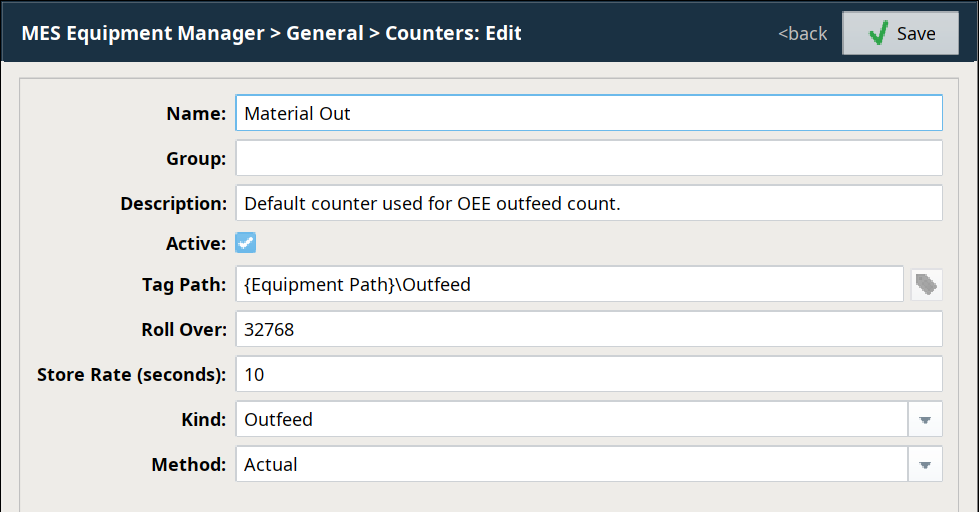
 ) on the right side for the Material Out counter in the MES Counter section. Edit the following:
- Tag Path: {Equipment Path}\Outfeed
- Store Rate: Change to 10 (seconds)
- Kind: Should already be set to Outfeed
- Method: Set to Actual
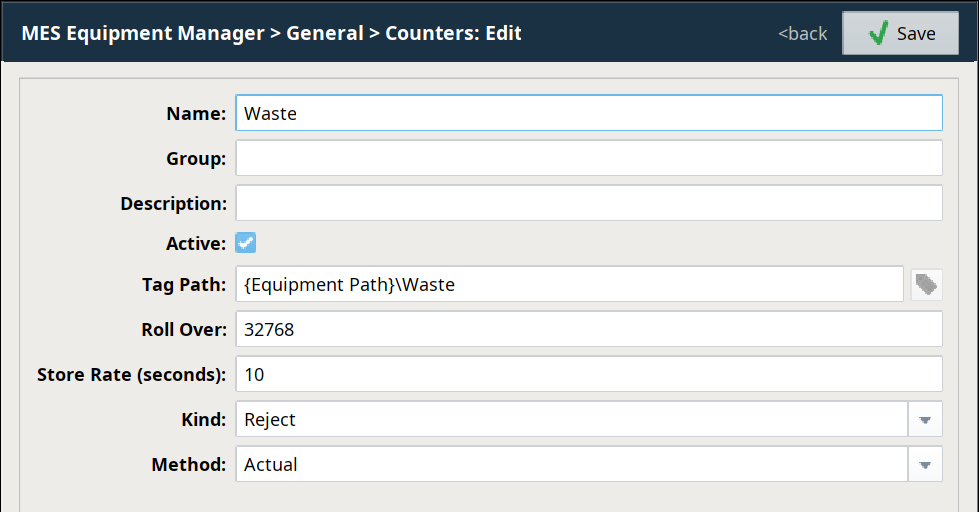
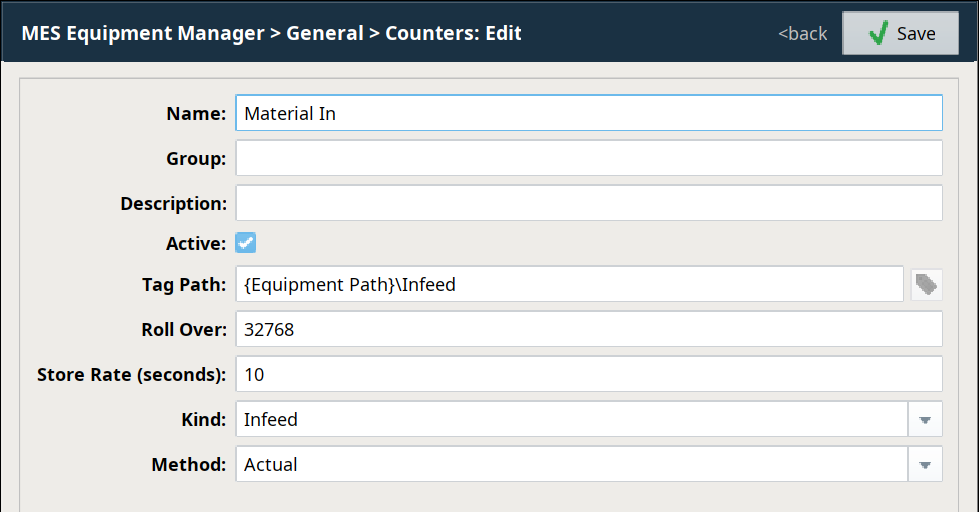
- Create two new counters, Infeed and Waste with settings as shown to the right and below (in Counters, click
 to create a new MES Counter). Be sure to select the appropriate counter Kind and Tag Path (use {Equipment Path}\Infeed for the Infeed counter and {Equipment Path}\Waste for the Waste counter).
 - Edit/create (or copy/paste) the same three counters for the other three Cells.
Assign State Tag Paths
OEE calculations require State inputs at the Cell and/or Line level, to know the local status of equipment (i.e. is the cell running or down?). In this tutorial, we will use a State memory Tag in each Cell to simulate the state of each Cell.
- In the MES Equipment Manager, click to highlight Cell A of Line 1.
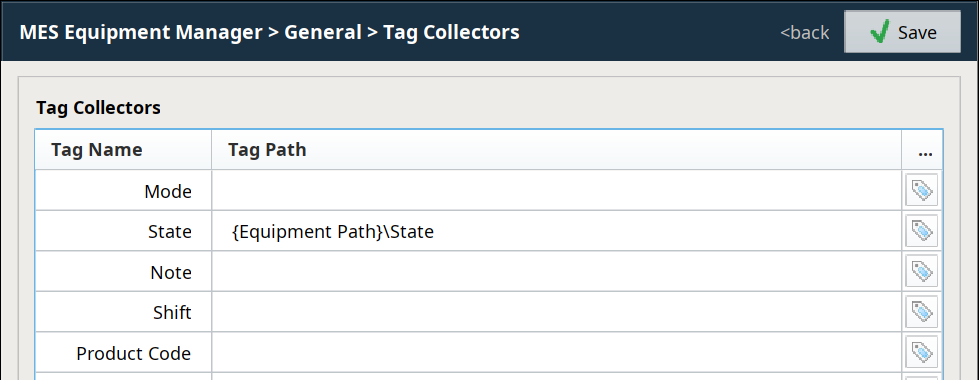
- In the General section, click Tag Collectors.
Type {Equipment Path}\State into the State field and hit Enter (you must hit Enter before you click Save, or your change will not be saved!)

Using the implied Equipment Path {Equipment Path} is the preferred method, instead of explicitly providing the entire tag path string, since it allows easy 'copy/paste' duplication of Cells and Lines without having to go in and manually update all of the tag paths.
- Repeat for the other three Cells (using the string {Equipment Path}\State each time means that each Cell's State Tag Path will point to the State Tag in that Cell's corresponding folder).
Add Additional Factors
The Analysis Engine within the OEE Downtime Module can utilize historical data from custom additional factors that might be useful for improving efficiency and tracking downtime or production delays. These additional factors are created at the Line or Cell level.
For this tutorial, create an Additional Factor called Operator for Line 1:
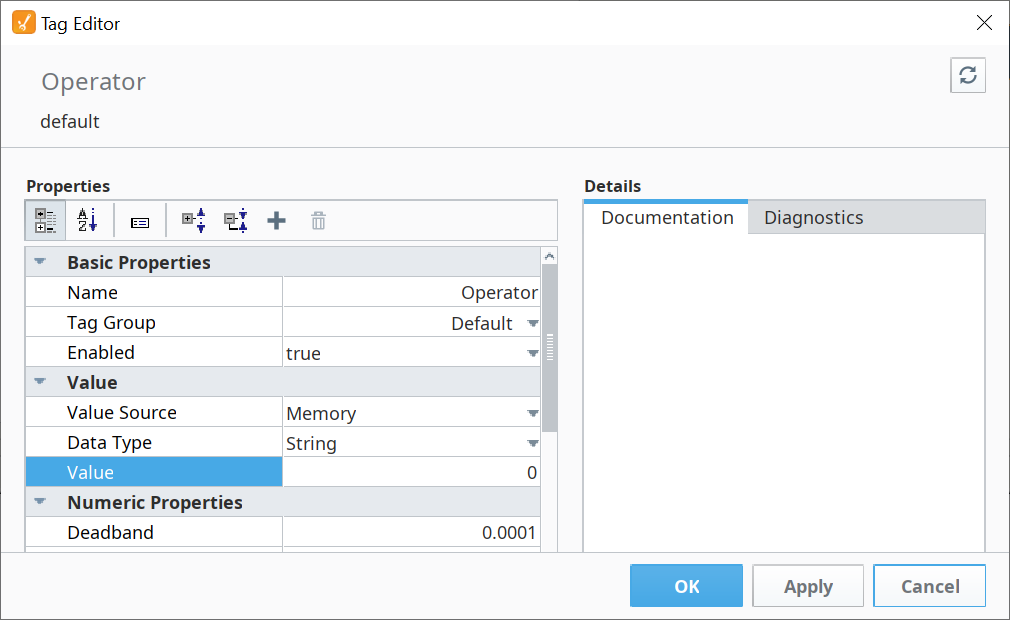
- In the Tag Browser, create a new Memory Tag called Operator in the Line 1 folder of type String.
- In the MES Equipment Manager, click to highlight Line 1.
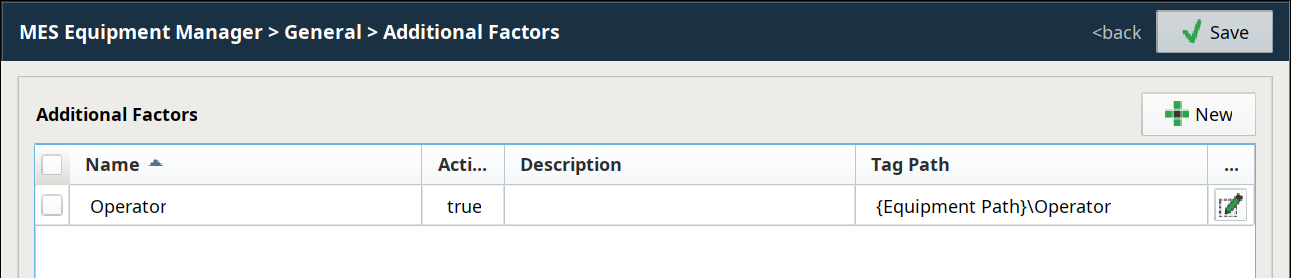
- In the General section, click Additional Factors.
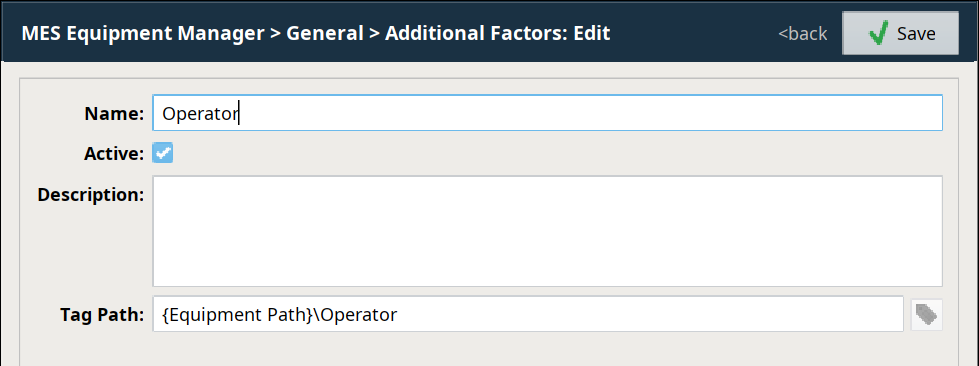
- Click to create a new factor called Operator, as shown to the right, pointing to the Operator Tag you just created.
- Repeat for Line 2 (create the same Tag and Additional Factor).
Configure Tags and UDTs
How to Configure Tags and UDTs
This tutorial utilizes Ignition Tags to simulate input from and output to a factory environment. The simulator module previously loaded will interact with the Tags created and allow live activity in your 'factory' that results in changes that the MES modules can react to and measure.
Tag Hierarchy
In general, it is strongly advised to make your Tag path hierarchy match your Production Model hierarchy, as shown above. The reason is that your scripting will be far easier because the 'paths' will match, making scripting and managing equipment Tags much easier.
Use UDTs For Rapid Scaling
Build a UDT once, use many times for easier deployment.
Refer to the section Creating User Defined Types (UDTs) in the Ignition User Manual for information on creating UDTs for your project.
Memory Tags
Refer to Ignition: Online Help → Tags → Creating Tags
Basic steps:
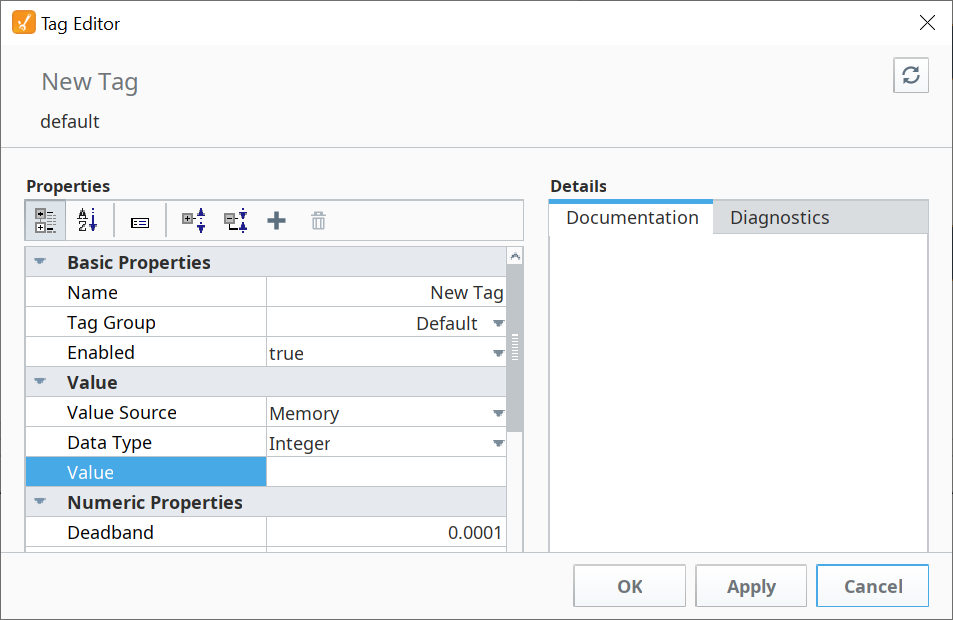
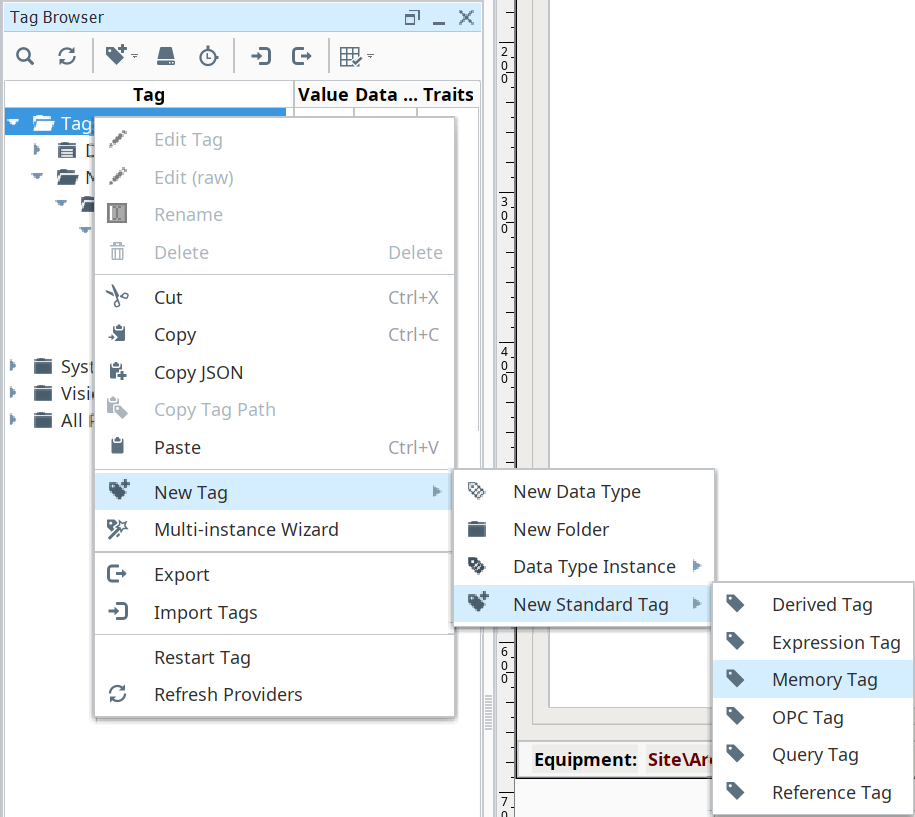
- Right-click on Tags in the Tag Browser and select New Tag →
- New Standard Tag → Memory Tag.
Fill out the new Tag's properties and click OK.
Pulling in OPCs
Refer to Ignition: Online Help → Tags → Browsing and Creating OPC Tags
Basic steps:
- Browse to find the desired OPC Tags.

- Click and drag the OPC Tag folder into the Tags folder in the Tag Browser.

Create UDTs
Basic steps:
- Define the UDT either by using an existing Tag structure or OPC Tag structure as the template.

- Create a UDT instance from the defined UDT 'template'.


UDTs for processing incoming PLC data