Sepasoft MES Module Suite
Batch Procedure: Active Step and Skip Step Functionality

|
Active Step | Skip Step is available in 3.81.12 RC3 and later. |
Transcript
The Active Step and Skip Control functionality provides a powerful set of intervention tools for batch operators, empowering them to respond effectively to process deviations during live execution. The core business value of this feature is the ability to save a batch when things don't go exactly as planned. What might have previously been a costly failure can now be addressed with a routine correction, such as repeating a mixing step to adjust product viscosity. This direct control enhances process flexibility, reduces waste, and can prevent the loss of an entire product batch.
The foundational gateway to all of these advanced capabilities is Manual Mode. It is the essential state that unlocks the ability for an operator to step in and directly alter the execution path of a running batch.
In this topic:
For reference about the Command-States, see Batch Command Life Cycle.
Understanding Manual Mode in Batch Execution
Manual Mode is the essential prerequisite for enabling dynamic step changes in a batch process. It is best understood as a "service panel for your batch process"—a state intended for direct intervention when an operator needs to take control.
Logic Items and Modes
The system defines specific hierarchical elements and the modes that can be assigned to them.
- Elements that can use Active Step | Skip Step:
- Procedures: Batch-Recipe Procedure
- Unit Procedures: Unit Procedures within a recipe
- Operations: Operation element within a recipe
- Logic Modes are the three states that can be assigned to any Logic Item. Logic modes can be set in the UI Batch Controller component and system.mes.batch.queue scripting functions:
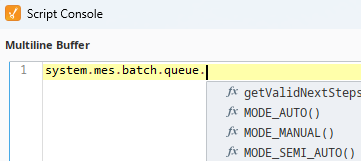
- Auto: batch engine runs the command sequence.
- Semi-Auto: phases run as in Auto; Transitions evaluate but do not allow the batch to continue without operator input.
- Manual: operator controls the commands.
|
|
Default State: By default, all Logic Items are in Auto mode. |
Updated Mode Propagation Logic
When the mode of a Logic Item is changed, the system's behavior for propagating that change up or down the process hierarchy is now controlled by specific parameter settings. This provides granular, bi-directional control over how mode changes are applied.
Propagate Properties
Two properties provide granular, bi-directional control over how Logic Mode changes are propagated.
Property Name | Functional Description |
Propagate_Mode_To_Children | (Applies to Procedures & Unit Procedures) When enabled, any Logic Mode change made to a parent Logic Item will automatically cascade down to its child logic items. This can propagate from a Procedure all the way down to Operations if the setting is enabled on each parent. |
Propagate_Mode_To_Parent | (Applies to Unit Procedures & Operations) When enabled, a Logic Mode change at a child level will propagate up to its direct parent. This allows a change at the Operation level to propagate all the way up to the Procedure if the setting is enabled at each level. |
|
|
Backwards Compatibility for Batch Recipes created before 3.81.12 RC3. It is important to note the rule for recipes created before this update: because the Propagate_Mode_To_Children and Propagate_Mode_To_Parent parameters do not exist in older recipes, mode propagation will instead depend on the global "Batch Recipe Settings" configured on the Enterprise equipment using the Perspective Equipment Manager. |
With a clear understanding of the prerequisites for Manual Mode, we can now explore the core function of changing an active step.
Using Active Step | Skip Step
Changing the active step is governed by a strict set of rules that function as essential safeguards, ensuring process integrity and product safety when making powerful, live interventions.
Manually set actions in the Batch Monitor component. For component properties, see Batch Recipe Monitor Component Properties
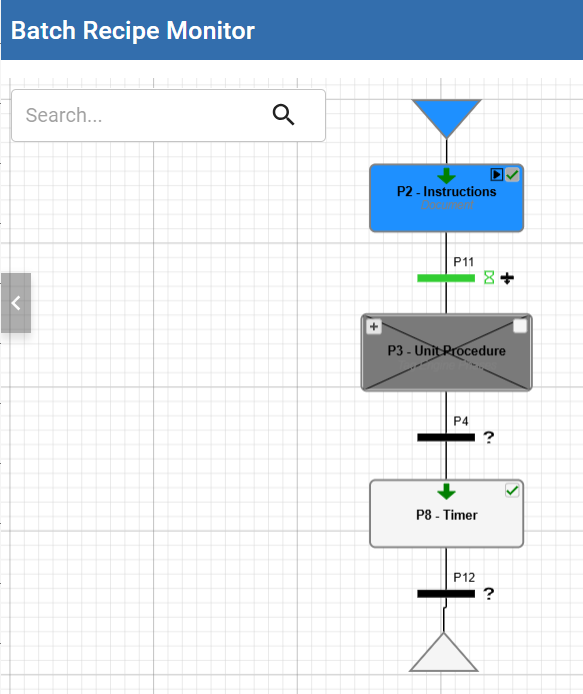
Prerequisites for Changing an Active Step
Before an operator can change the active step, four mandatory conditions must be met:
Running Batch: The batch must be running state.. This function is not available for batches in an idle, completed, paused, held, stopped, or aborted state.
Manual Mode: The specific logic hierarchy (e.g., Procedure, Unit Procedure) containing the step you wish to modify must be in Manual mode.
Not in Semi-Automatic Mode: Active steps cannot be changed when in semi-automatic mode.
Inactive State: The phase associated with the current active step must be in an inactive or terminal state (Idle, Aborted, Stopped, or Complete) before a new step can be selected. The operator is responsible for bringing the phase to this state, either by letting it complete normally or by stopping or aborting the associated action.
Execution Scenarios
The process for changing an active step varies depending on the structure of the batch recipe.
Serial Path
This is the most straightforward scenario. In a simple sequence of steps, an operator can move backward to repeat a previously completed step or move forward to skip an upcoming step. For example, if a step P2 is complete and the batch is waiting on the next transition, the active step can be changed back to P2 to repeat it, or forward to P4 or P6 to skip ahead. The only requirements are that the parent logic is in Manual Mode and the current phase is in an inactive or terminal state.
Loopbacks
Loopbacks are handled similarly to serial paths. Once the logic is in Manual Mode and the current phase is in an inactive or terminal state, the operator has several options. For example, if the batch is executing a step P10 inside a loop, the operator can:
Select a new active step within the loop, such as P4 or P8, even if it has already been executed.
Select a step that occurs before the loop began, such as P2.
Select a step that occurs after the loop is scheduled to finish, such as P15 or P16.
Parallel Paths
This scenario provides immense flexibility, allowing operators to correct or repeat a step in one parallel process leg without halting the others, maximizing efficiency even during interventions. This flexibility is governed by a clear framework of rules to maintain process integrity. There are two distinct types of changes an operator can make:
Manipulating a Step Within an Active Parallel Path: An operator can change the active step for any individual leg of a parallel process, provided that the active phase in that leg is brought to an inactive or terminal state first. For example, if a step P23 in one leg needs to be repeated, the operator can re-select P23 as the active step, all while other parallel legs continue to run.
Changing the Primary Path Outside the Parallel Block: To change the primary execution path (e.g., to repeat the entire parallel block or to skip ahead to a step after it), all individual paths within the block must first be in terminal states. For example, if a parallel block contains paths ending in steps P23, P5, and P22, all three of these steps must be complete, stopped, or aborted before the operator can select a new active step outside of that block. The transition immediately after the And_End step may also be manually skipped to “exit” the Parallel Block. This ensures the entire parallel operation is resolved before the main sequence is altered.
With a firm grasp of how to change the active step, we can now explore other advanced control features, such as proactively skipping future steps.
Advanced Control Features: Skipping Future Steps
The "Skip Steps" feature is a complementary function that provides operators with finer, proactive control over the batch execution path. While in Manual mode to address a current issue, an operator can designate future steps to be bypassed once the process is returned to automated control.
Mechanism and Behavior
The core mechanics of this feature are straightforward and intentional:
The "Skip Steps" feature provides the ability to bypass specific steps during a process run. This functionality is also governed by the Manual Logic Mode.
Requirement: A Logic Item must be in Manual mode before any of its steps can be configured to be skipped.
Mechanism: To mark a step for skipping, the user deselects the "Execute Step" checkbox on the step's interface. This option is checked by default.
Execution Behavior: After configuring the desired steps to skip, the Logic Mode can be changed back to Auto or Semi-Auto. During sequential execution, any step with a deselected "Execute Step" checkbox will be bypassed.
Automatic Reset Behavior: Once a step is skipped, its "Execute Step" checkbox is automatically re-checked. Consequently, a user must re-enter Manual mode each time they wish to skip a step in a subsequent cycle (such as in a loopback), as this behavior intentionally prevents a step from being permanently or accidentally set to be skipped.
Traceability
For regulatory compliance and process analysis, every decision to skip a step is fully traceable. This action is controlled by the Execute_Step phase parameter, and the event is recorded in the Electronic Batch Record (EBR).
The next section shifts focus from the functional logic to the user interface elements that enable these powerful controls.
Active Step | Skip Step User Interface
This section serves as a visual reference guide for the new features within the Batch Monitor and Batch Controller components. These interfaces have been updated with specific icons and color codes to support the new step change functionalities.
Batch Monitor Component
Icons
Two new icons appear on steps when the associated logic is in Manual Mode to control active step changes.
|
Icon |
Description |
|
Include Step Icon |
A checkbox that controls whether a step will be executed. By default, all steps are set to execute. Unchecking this checkbox toggles the step to be skipped. This setting only takes effect when the process is returned to Auto mode. 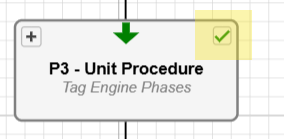 |
| Set as Active Step | A green arrow icon allows you to set a step as the active step in the recipe. Clicking this icon on a step designates it as the new active step. Only one step within an execution path can be selected at a time. This allows you to repeat previous steps or skip ahead to future ones. If a step is not eligible to be changed to as an active step, based on where the recipe is currently executing in the logic engine, the Change Step Icon will be hidden. 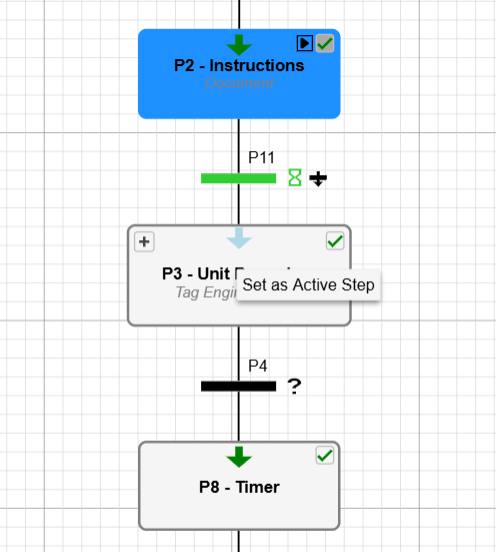 |
Batch Monitor Component Properties | Set in Ignition Designer
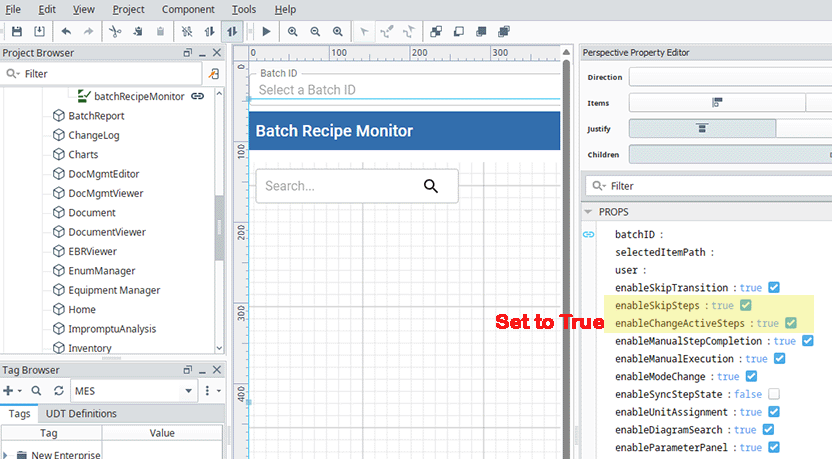
Set these properties in the Batch Monitor component within Ignition Designer:
|
Property Name |
Description (Tooltip Text) |
Type |
Default Value |
|
enableChangeActiveSteps |
Enables permission for the Change Active Step icons to be shown, when applicable. |
Boolean |
False |
|
enableSkipSteps |
Enables the permission for the “Execute Step” checkbox to be shown on all applicable steps. |
Boolean |
False |
Batch Controller Component

|
Limitation: Changing the active step or skipping steps is not supported in the Batch Controller component because of the complexity of navigating parallel paths in this view. All step change actions must be performed from the Batch Recipe Monitor. Now, see how these features come together in a real-world scenario. |
Practical Application: A Real-World Use Case
This section demonstrates the significant financial and operational value of the active step change feature through a common real-world scenario: repeating a mixing step to correct product quality and save a batch from being discarded.
Playbook: Correcting Product Viscosity
An operator is monitoring a batch and observes that the product viscosity is too high after a mixing step, likely due to a variation in raw material quality. Without the ability to intervene, this batch would be lost. Using the Active Step functionality, the operator can take the following steps:
Identify the Problem: The operator confirms that the product is not fully mixed and requires additional mixing time.
Enter Manual Mode: The operator places the relevant Unit Procedure containing the mixing step into Manual mode.
Prepare for Step Change: The operator ensures the currently active phase is brought to a terminal state (e.g., by stopping the downstream transfer action).
Select the New Active Step: Using the "Change Active Step" button in the Batch Recipe Monitor, the operator navigates back in the sequence and selects the mixing step to be repeated. The mixing step will begin executing immediately after clicking the “Change Active Step” button.
Resume Operation: The operator now has two options. They can either return the unit to Auto mode, allowing the recipe to continue normally after the repeated mixing is complete, or they can keep the unit in Manual mode, wait for the mixing step to finish, and then manually change the active step back to the point where the deviation was first identified.
This sequence of actions, enabled by the new active step change functionality, directly prevented the loss of the product batch, demonstrating the significant value of this feature in a production environment.
Active Step | Skip Step in Scripting
For programmatic control over step execution, new script methods have been added to the system.mes.batch.queue library. These functions provide a powerful alternative to the user interface for managing the active step within a batch process.
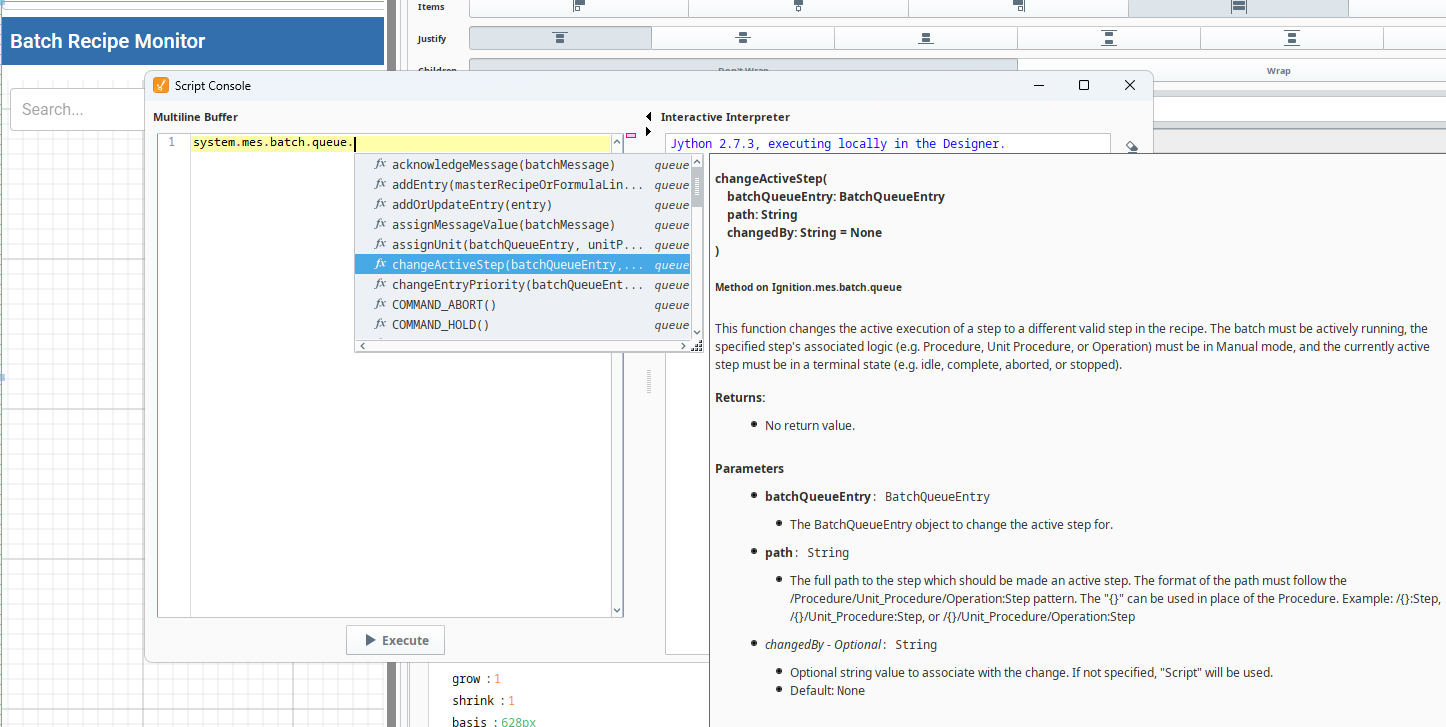
The new methods are:
system.mes.batch.queue.changeActiveStep(batchQueueEntry, path, [changedBy])
system.mes.batch.queue.getValidNextSteps(batchQueueEntry, [path])
system.mes.batch.queue.getActiveSteps(batchQueueEntry, [path])
Sepasoft MES Module Suite