Sepasoft MES Module Suite
Add New Enterprise Server and New Site Server
The steps below set up a new enterprise server and one new site gateway.
Install Ignition and Sepasoft Modules on Enterprise Server and Site Server
Before following these steps, see Preparing before Configuring MES Enterprise Network
On the Enterprise Server:
- Install Ignition.
- Install Sepasoft MES Modules.
On the Site Server:
- Install Ignition.
- Install Sepasoft Modules.

|
Install the same version of the Sepasoft MES Modules on the servers. |
Apply Licenses
To apply licenses on the Enterprise and Site Servers:
- In Ignition 8.3.x, go to Ignition Gateway > Platform > System > Licensing. click Activate License. Enter license.
- In Ignition 8.1.x, go to Ignition Gateway > Config > Licensing, click Activate License. Enter license.

|
Assigning licenses to equipment is done after the servers are connected. |
Connect Site Server to Enterprise
To connect the site gateway to the enterprise:
- Go the Ignition Gateway:
- In Ignition 8.3 Gateway > Network > Gateway Network > Outgoing Connections.
- In Ignition 8.1 Gateway > Config > Networking > Gateway Network Settings, click Outgoing Connections.
- In Ignition 8.3 Gateway > Network > Gateway Network > Outgoing Connections.
- Click Create new Outgoing Gateway Connection...
- Enter the Host and Port.
Accept Incoming Site Server Connection on Enterprise
To accept the incoming connection:
- Go the Ignition Gateway:
- In Ignition 8.3 Gateway > Network > Gateway Network > Outgoing Connections.
- In Ignition 8.1 Gateway > Config > Networking > Gateway Network Settings, click Incoming Connections.
- In Ignition 8.3 Gateway > Network > Gateway Network > Outgoing Connections.
- Approve the connection.
Set Server as Enterprise Root
On the Enterprise Server:
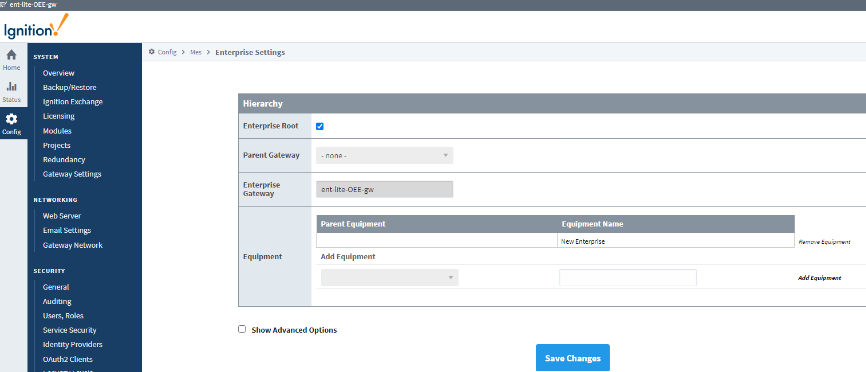
- Go to the Config tab > MES Modules > Enterprise Settings and check the Enterprise Root checkbox.
- Click Save Changes.
Set Parent Gateway Server
On the Site Server:
|
|
Clicking Save Changes begins the synchronization process. It is highly recommended to remove any equipment not intended to be added, before clicking save. |
- Go to the Config tab > MES Modules > Enterprise Settings.
- In the Parent Gateway field, select the Enterprise server.
- Under Equipment, enter the Site server's equipment path with a back-slash. For example: Site 1\Area 1. To understand this path, see Production Equipment Model.
- Click Add Equipment. Do this for all equipment to be managed by the Enterprise.
- Click Save Changes.

|
Syncing starts. A message displays the Source Server, Equipment item path and child path count. |
Next Steps:
Define the Sync and Data Retention Strategies on the Parent and Child Servers.
A child server retains data for a set amount of time. A parent server retains data for a set amount of time. These two retention times are most commonly different and are defined by your data retention policy.
Sepasoft MES Module Suite