Sepasoft MES Module Suite
Using Batch Controller
This topic shows you how to use Batch Controller.
See Batch Controller Component Reference for properties.
Ignition Designer Component Palette
The Batch Controller component is installed with the Batch Procedure module.
- In Ignition Designer, find Batch Controller in the Perspective Component Palette.
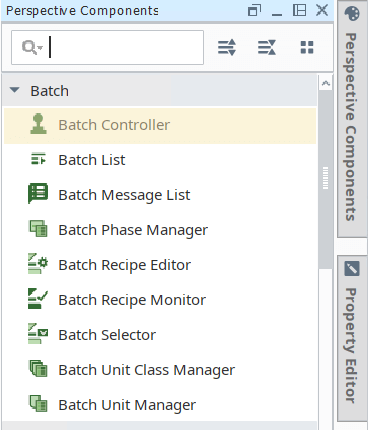
Adding the Batch Controller Component to a View in Ignition
- In Ignition Designer, with a Perspective View active, go to the Perspective Component Palette and add the Batch Controller component to the design space.
No additional configuration is required to use this component.
Who uses Batch Controller
An operator can use Batch Controller to:
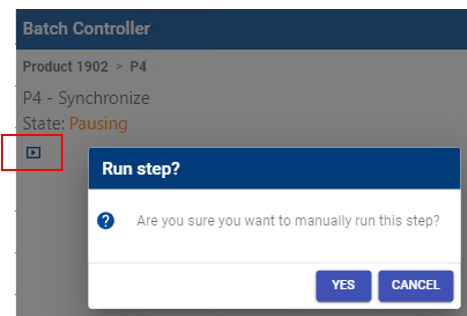
- Monitor and control a Recipe including Unit Procedures, Operations and Phases.
- View and acknowledge messages.
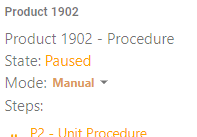
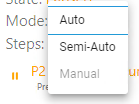
- Change modes between Auto, Semi-auto and Manual.
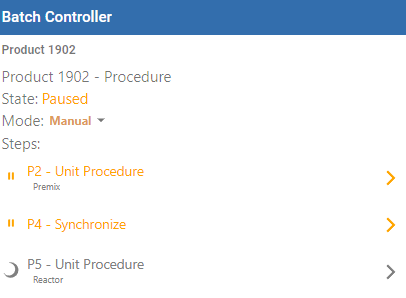
Batch Controller lists the steps in logic order, which means in the order that they are executed in the Batch Procedure Recipe.
Provides visual indicators of the batch command lifecycle, including Permissive Start.
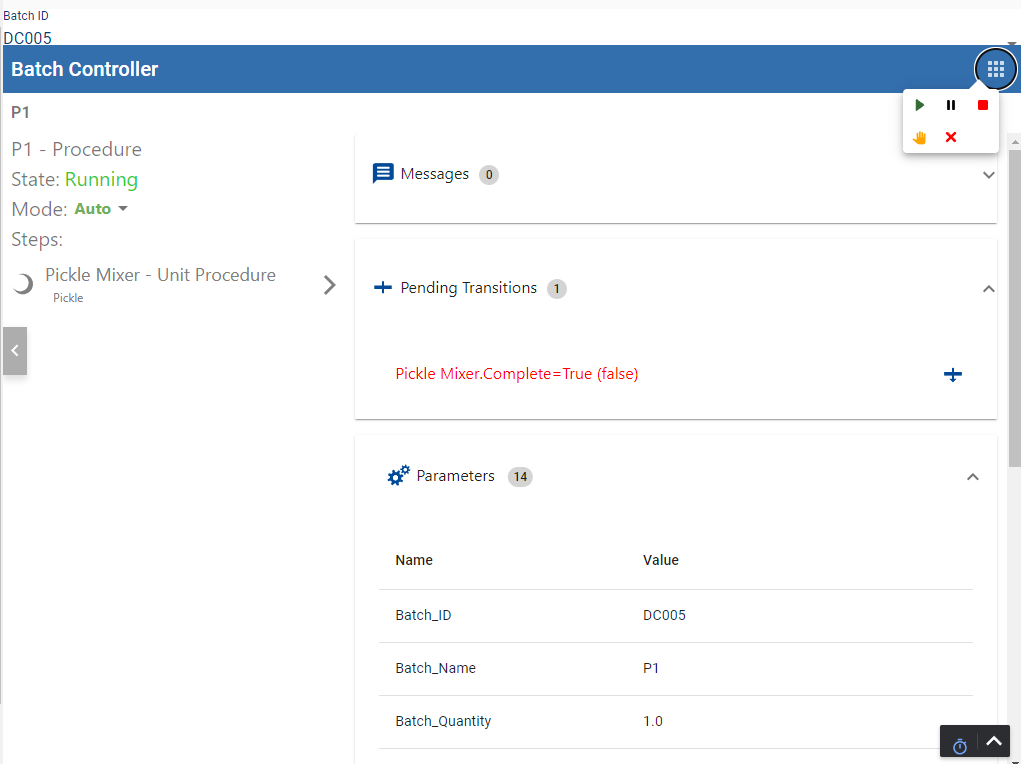
Using Batch Controller
Once the component is added to a Perspective view, you can launch a Perspective session to start using the component.
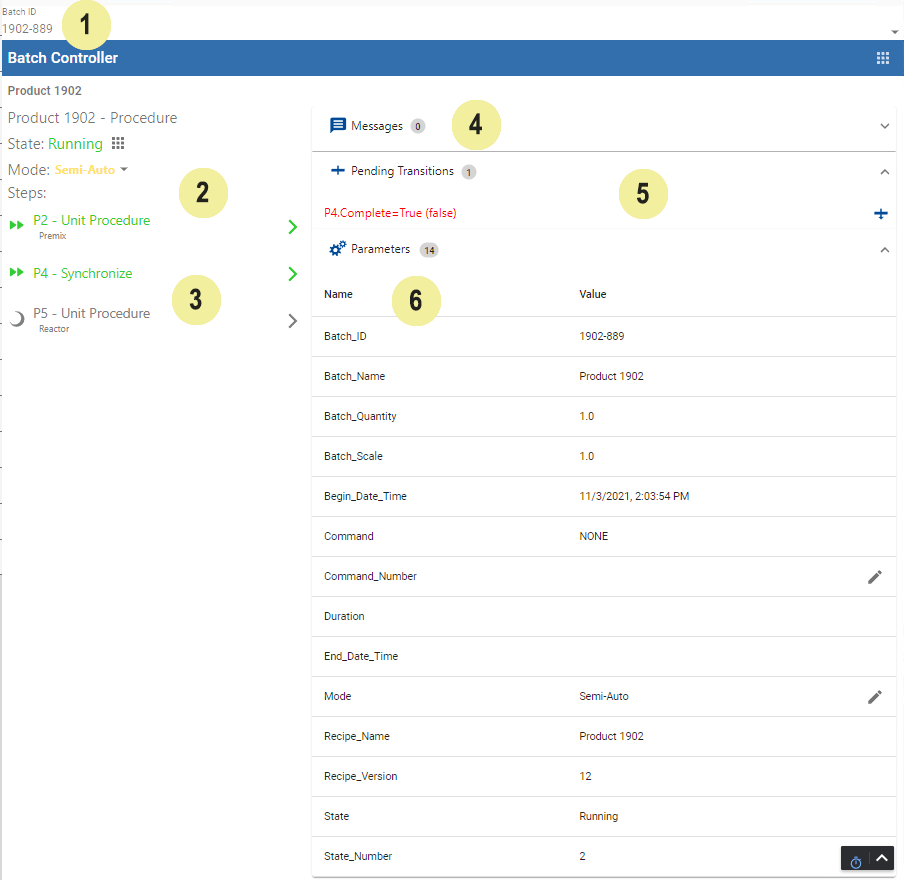
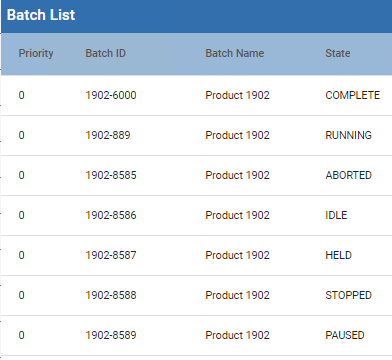
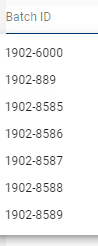
| Batch Select Batches in these states display in the list of Batch Select: Idle, Running, Stopped, Held, Paused, Completed and Aborted. When you start a batch in the Batch Execution component, the batch goes into the Idle state.
| |||||||
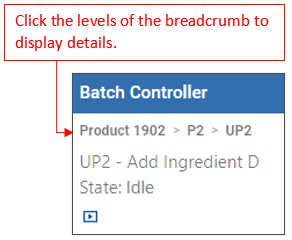
 | Controller The controller has 3 main areas: breadcrumbs to navigate the steps, state display and mode control.
| |||||||
 | Batch Steps This area displays steps based on your selection in the breadcrumb. At the top recipe level, the Unit Procedures display. You can expand a Unit Procedure here.
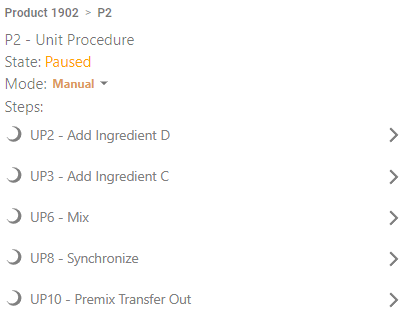 Click into a Phase to see its parameters. 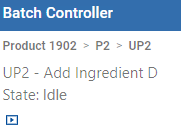 | |||||||
| Messages Click to open and close this section. Messages can come from a User Message phase, an Acknowledge requirement set as a parameter on a phase, or from the equipment PLC. All message types display and can be acknowledged here.  | |||||||
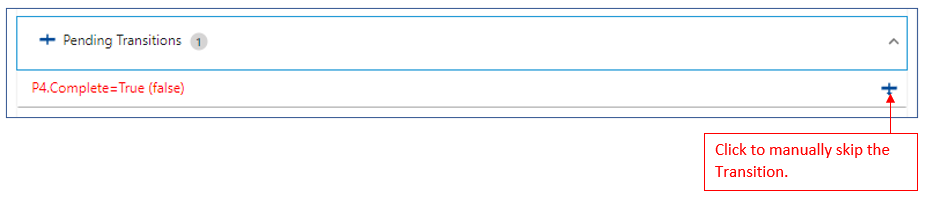
| Transitions Click to open and close this section. This area displays the Transitions in a step.
For active batches, each comparison expression of the transition expression is highlighted indicating the current evaluation state of true or false.  For information about valid transition expressions, see Batch Recipe Authoring and navigate to Transition Expressions. | |||||||
| Parameters Click to open and close this section. Displays parameters for the level selected in the breadcrumb and steps. 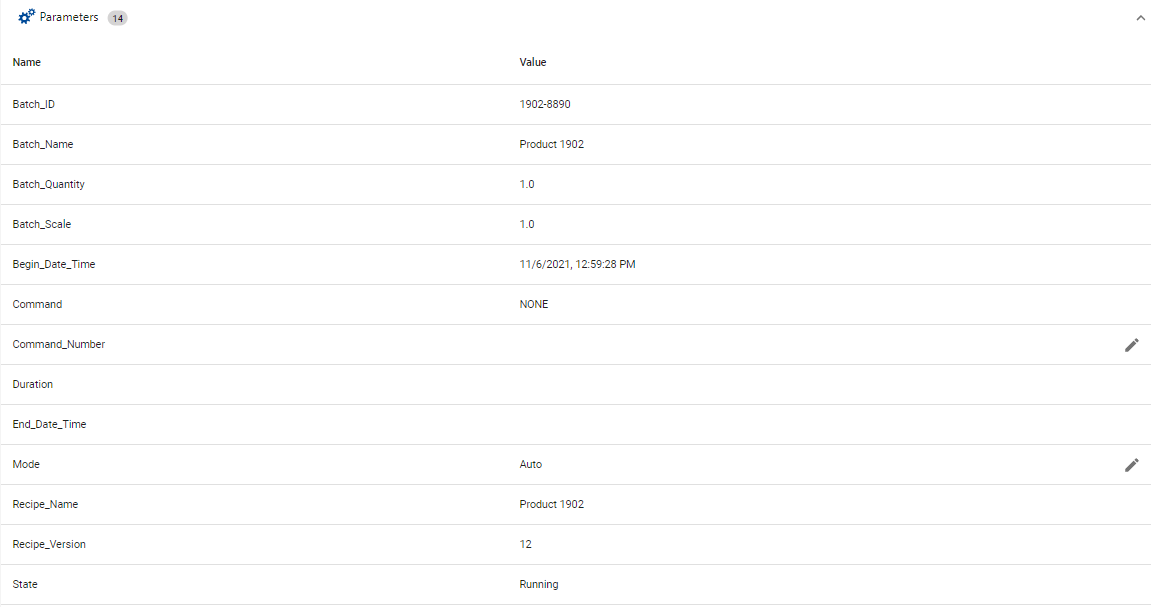 | |||||||




For reference documentation for this component, see Batch Procedure Batch Controller Reference.
Sepasoft MES Module Suite