Sepasoft MES Module Suite
MES Schedule View in Perspective
Installed with the Production Module.
If the property filters are left as Default, the MES Schedule View component gathers data for ALL equipment.

|
In the use-case with lots of equipment, degradation of system performance can occur if All equipment is returned. To avoid this the system will throw an error if there are more than 10 applicable equipment items. More than 10 applicable equipment items can be shown only if one or more of the equipment-related filters is utilized. |

|
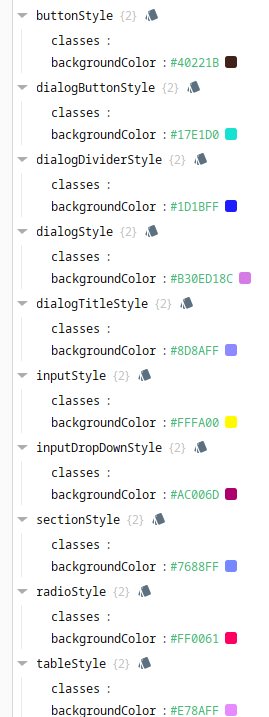
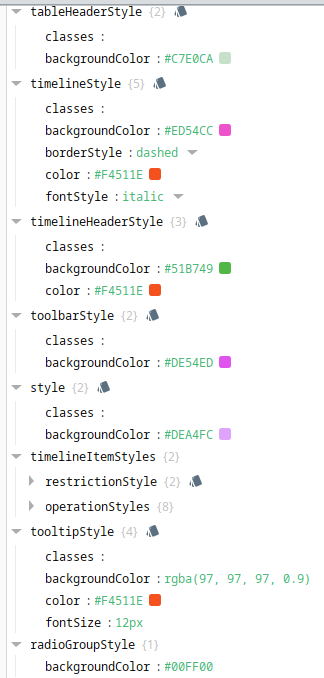
Styling available in version 3.81.10 SP2 and later. |
Use MES Schedule View to View and Schedule Manufacturing Operations.
- Automatically create production operations from work order or a material name.
- Schedule non-production operations such as maintenance, cleaning and training (See MES Object Editor)
This component handles the creation of Request Objects behind the scenes and automatically updates schedule status. Extension functions and component properties provide flexibility in customizing the look and operation of this component.

See below:
- Splitting a Schedule
- Reschedule Remaining
- Begin Operation Automatically
- Component Properties
- Event Handlers
- Component Functions
Splitting a Schedule
Right clicking on a scheduled entry provides the option to Split Schedule. This separates the operation from its parent operation allowing independent schedules.
This option is available to routes with more than one operation and are in the Pending Execution state.
Reschedule Remaining
Right clicking on a scheduled entry provides the option to Reschedule Remaining for operations that prematurely ended. This enables the operation to be quickly rescheduled.
This option is available to any operation that is in the Completed Execution state.
Begin Operation Automatically

|
To begin operation automatically based on the schedule, ensure a Trigger Operation Begin Property is configured with Auto set to True and the Mode set to "Schedule (time)". Then, the schedule entry will automatically start the appropriate response objects based on the schedule. |
Component Properties
Properties are provided that can be set to affect the operation and look of the component. They can be set through the Perspective Property Editor in the Designer or through scripting. Note that the section prefix is included before the property name (props, position, custom or meta).
Python |
self.getSibling("mesScheduleView").includeMESLines = True |
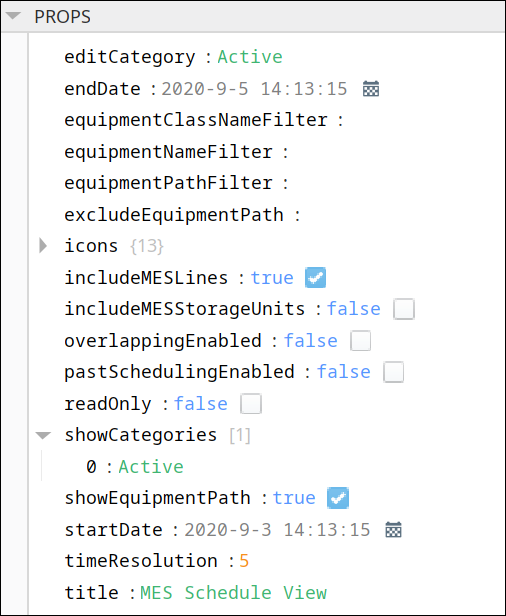
| Name | Scripting | Property Type | Description |
|---|---|---|---|
| Edit Category | editCategory | String | Schedule category that can be edited within the schedule component. If blank, then an exception will be thrown and this property will revert to its previous value. Active is for 'currently active' (this is the default setting). Actual is reserved and will throw an exception. Custom categories are also acceptable. The entry in this property must be also be present in Show Categories (see above). New schedule items made will be assigned this category. |
| End Date | endDate | Date | End of the time range to display. |
| Equipment Class Name Filter | equipmentClassNameFilter | String | Filter value, including * and ? wildcard characters, to filter results by an equipment class. |
| Equipment Name Filter | equipmentNameFilter | String | Filter value, including * and ? wildcard characters, to filter results by an equipment name. |
| Equipment Path Filter | equipmentPathFilter | String | Filter value, including * and ? wildcard characters, to filter results by an equipment path. OR Multiple equipment paths can be included in a comma separated list. These paths can't use wildcard characters. |
| Icons | icons | Available Icons parameters: back, generalTab, save, scheduleTab, stateBlocked, stateChangeover, stateDisabled, stateDownPlanned, stateDownUnplanned, stateIdle, stateMaintenance, stateRunning, and stateStarved. Example:
| |
| Include MES Lines | includeMESLines | Boolean | If true, including MES line objects. |
| Include MES Storage Units | includeMESStorageUnits | Boolean | If true, including MES storage unit objects. |
| Overlapping Enabled | overlappingEnabled | Boolean | If true, allow scheduling entries to overlap. |
| Past Scheduling Enabled | pastSchedulingEnabled | Boolean | If true, allow scheduling in the past. |
| Read Only | readOnly | Boolean | If true, the schedule will not allow creating or editing schedules. This does not affect user-defined menu items. |
| Show Categories | showCategories | String | Schedule categories to display in the schedule. If blank, then an exception will be thrown and this property will revert to its previous value. There can be user defined categories, but Active is reserved. Custom categories are also acceptable. This property also accepts a comma-separated list of category names. The Edit Category (see below) must be present in the list for this property. |
| Show Equipment Path | showEquipmentPath | Boolean | If true, it will show equipment names with equipment paths. |
| Start Date | startDate | Date | Beginning of the time range to display. |
| Time Resolution | timeResolution | Int4 | Controls the resolution (in minutes) of selected time. |
| Title | title | String | Title to appear on the component. |
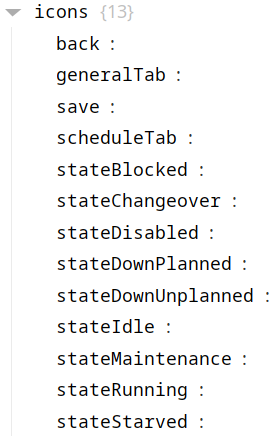
The icons displayed next to the equipment names are equipment mode/state icons. See Equipment Modes and States and Configuring Equipment States for more information.
| Icon Name | Scripting |
|---|---|
| Back | back |
| General Tab | generalTab |
| Save | save |
| Schedule Tab | scheduleTab |
| Blocked | stateBlocked |
| Changeover | stateChangeover |
| Disabled | stateDisabled |
| Planned Downtime | stateDownPlanned |
| Unplanned Downtime | stateDownUnplanned |
| Idle | stateIdle |
| Maintenance | stateMaintenance |
| Running | stateRunning |
| Starved | stateStarved |
There are also several styling properties available:
Styling has been added in version 3.81.10 SP2.
Event Handlers
Event handlers provide the ability to add custom script when a user interacts with a component.
Refer to Ignition documentation.
Component Functions
This component has no Component Functions.
Sepasoft MES Module Suite