Creating Maintenance Operations
Both Track & Trace and the OEE modules share the Schedule View component that allows production and other type of operations to be scheduled against equipment. The Changeover and Production operations created automatically by the OEE Material Manager component are available to be scheduled and executed. However, other activities that are not tied to a product code, such as maintenance or cleaning require a little set up. In this article we will walk through creating a Maintenance operation that can be scheduled and executed and then analyzed. We will show how to set up these types of operations using MES components and also through scripting.
- Create Maintenance Operation
- Scheduling a Maintenance Operation
- Starting and Ending a Maintenance Operation
Create Maintenance Operation
The following steps detail how to create a maintenance operation using the MES Object Editor component
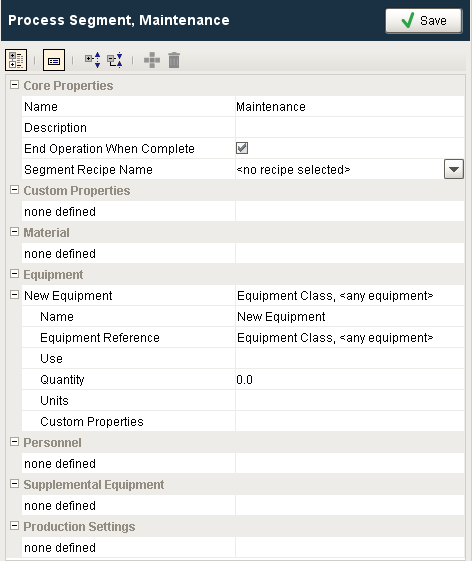
- Create a Process Segment called Maintenance using the MES Object Editor component.
- Set the EquipmentReference to the equipment or class that includes your desired equipment. You can use the generic <any equipment> class to allow this operation to be scheduled or used for any piece of equipment.
- Click Save and select Yes when prompted to 'Create an Operation for this Process Segment?'. This will create the necessary objects for the schedule of the Maintenance operation.
Custom Property for Documentation

|
Additional information regarding the maintenance event can be stored in custom properties attached to the segment. Examples may include Maintenance Order Number, Technician, spare parts used or even a background color to distinguish this operation from others on the Schedule view component. |
The same maintenance operation can also be created through scripting.
Click here to see script examples...
Python |
##specify equipment path eqPath = 'Enterprise\El Dorado Hills\Packaging Area\Packaging Line 2' operationName = 'Line Maintenance' #Create a process segment to base the operations segments on ps = system.mes.createMESObject('ProcessSegment') ps.setPropertyValue('Name', operationName) ##Create an equipment reference complex property eqProp = ps.createComplexProperty('Equipment', 'Production Line') #Set the lot location for it eqLink = system.mes.getMESObjectLinkByEquipmentPath(eqPath) eqProp.setEquipmentRefType(eqLink.getMESObjectType().getName()) eqProp.setEquipmentRefUUID(eqLink.getMESObjectUUID()) #The new process segment only resides in memory so save it to the database system.mes.saveMESObject(ps) print 'Process Segment saved as %s' % ps.getName() #Load the process segment to base the operations segments on ps = system.mes.loadMESObject(operationName, 'ProcessSegment') #Derive a new operation segment from the process segment os = system.mes.deriveMESObject(ps, 'OperationsSegment', True) #Set where it was derived from os.setPropertyValue('DerivedFromRefType', 'ProcessSegment') os.setPropertyValue('DerivedFromRefUUID', ps.getUUID()) #Set a new name os.setPropertyValue('Name', operationName) #Set the equipment for the operation segment eqLink = system.mes.getMESObjectLinkByEquipmentPath(eqPath) eqProp = os.getComplexProperty('Equipment', 0) eqProp.setEquipmentRef(eqLink) #Create a new operations definition od = system.mes.createMESObject('OperationsDefinition') #Set the name using the same name as the operations segment od.setPropertyValue('Name', operationName) #Create a new segment dependency complex property in the operations definition that points to the operations segment depProp = od.createComplexProperty('SegmentDependency', ps.getName()) depProp.setSegmentRefType('OperationsSegment') depProp.setSegmentRefUUID(os.getUUID()) #Create a new begin trigger complex property in the operation segment begTrig = os.createComplexProperty('TriggerSegBegin', 'DefaultBeginTrigger') begTrig.setPrecedingRefType('OperationsDefinition') begTrig.setPrecedingRefUUID(od.getUUID()) begTrig.setMode('At Operation Begin') begTrig.setDefault(True) #Save the objects as a group objList = system.mes.object.list.createList() objList.add(od) objList.add(os) system.mes.saveMESObjects(objList) |
Now that the Maintenance Operation has been created, it can now be scheduled, started and ended.
Scheduling a Maintenance Operation
The MES Schedule View component can be used to schedule any operation created using the MES Object Editor or through scripting.
- Right click on a production item on the MES Schedule View component and select New Entry.
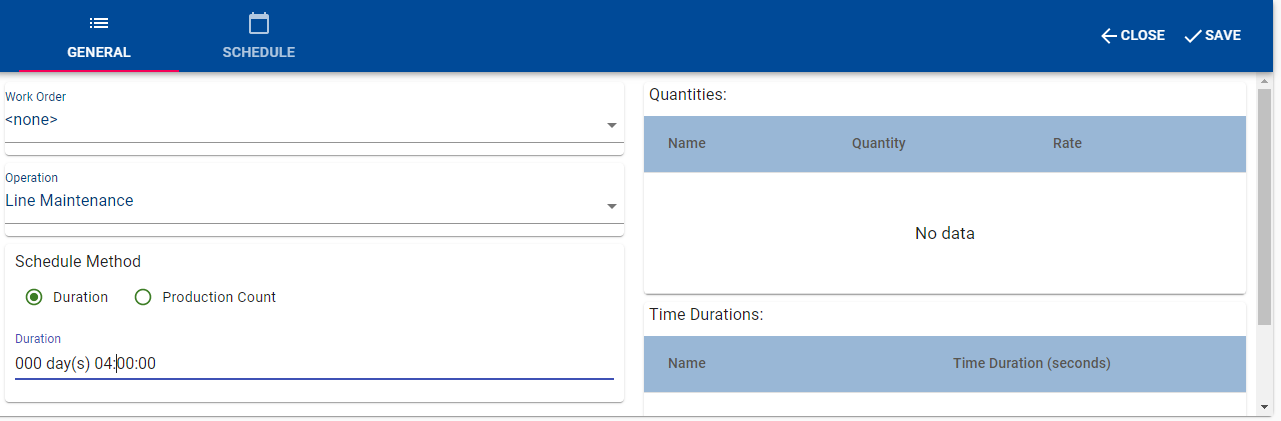
- Select <none> for Work Order and <Your Maintenance Operation Name> for the Operation. The user can then manually enter the Duration hour:minute:second values.
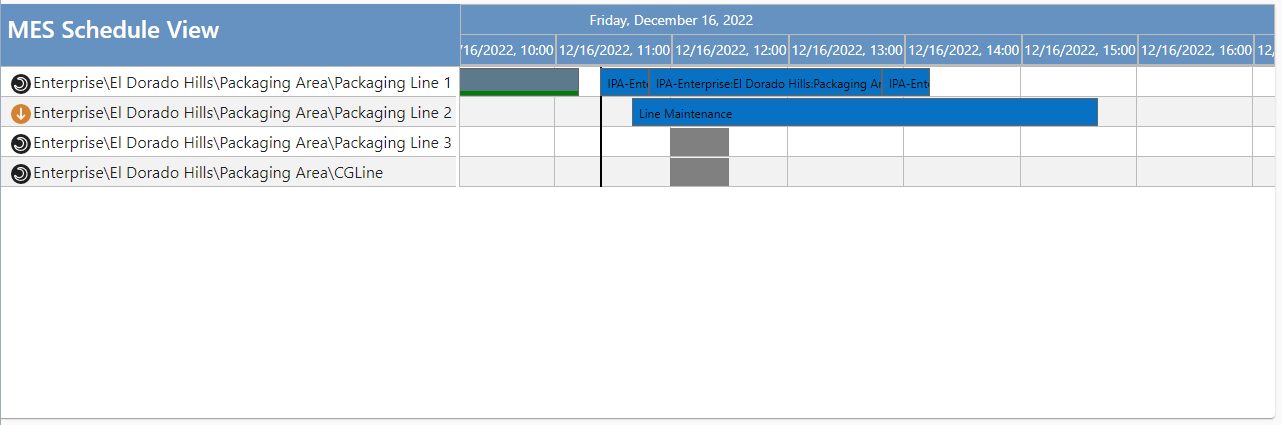
Once scheduled, the maintenance operation is displayed on the schedule.
Starting and Ending a Maintenance Operation
A maintenance operation can be started and ended in the same way as any other T&T operation except OEE operations. OEE operations can be executed using the system.mes.oee functions and the OEE Run Director component. Non OEE operations must use the system.mes functions such as system.mes.beginSegment() or system.mes.createSegment().
If the operation is scheduled, it can be started using the system.mes.loadSchedule() function and beginning the request segment or by using the MES Schedule Selector component.

|
If you are running maintenance operations to track how much time is spent in maintenance compared to production, idle etc. using the OEE module, you will still need to set the MES Equipment Mode to Maintenance either using the Mode Tag Collector tag path or by calling the system.mes.addTagCollectorValue function. |