Sepasoft MES Module Suite
Adjusting Production Run Data
Production values are recorded automatically through values passed via tag collectors, such as counts and status, and those values set by the OEE engine, such as Mode, Standard Rate, shift etc.
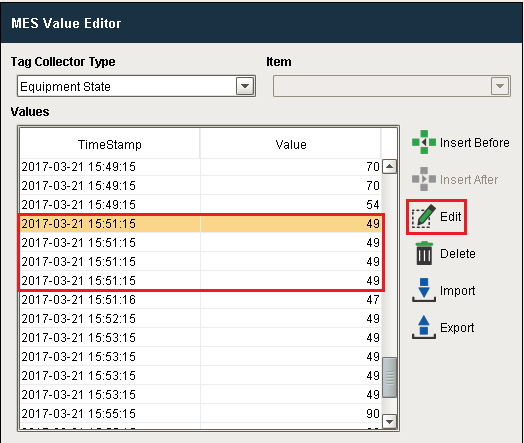
The MES Value Editor component allows for these collected production values to be edited or deleted and for new values to be inserted (with or without updating the values of subsequent entries to reflect the count value change caused by the new entry).
This provides an easy method for correcting production values where the line was set to the wrong mode, line was recorded as running when it was in fact down, production counts are off, or the wrong product code or work order was selected.
See below:
- Accessing Tag Collectors
- OEE Tag Collectors
- Settings & Changeover Tag Collectors
- SPC Tag Collectors
- Scripting Functions for Tag Collectors
- Item
- Insert Value Before or After
- Editing and Deleting Value
- Exporting Values
- Importing Values

Tag Collector Types
Tag collectors record values when the equipment item is active in the production model defined in Equipment Manager.
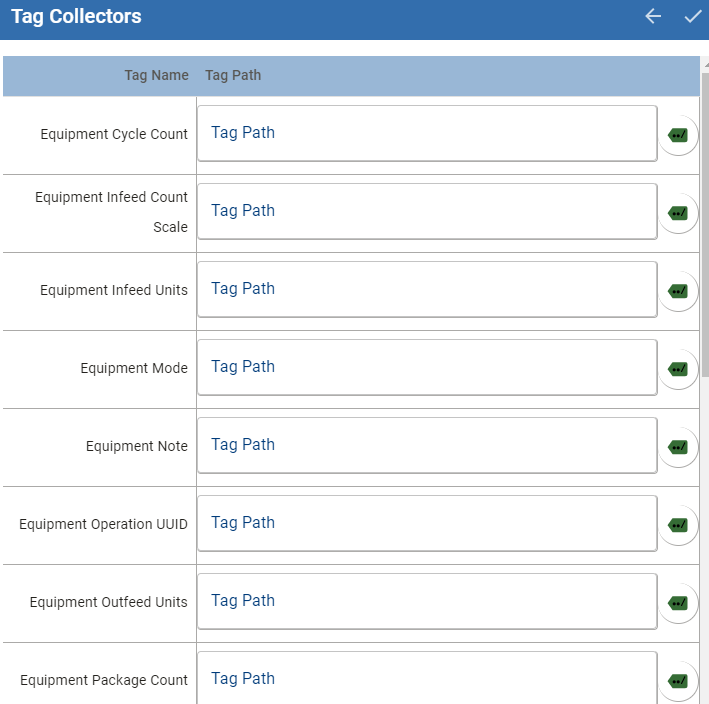
To modify these values, use MES Value Editor, scripting, or OEE Downtime Table for downtime events.
See:
- MES Value Editor | Vision
- MES Value Editor | Perspective
- Tag Collector Scripting
- OEE Downtime Table | Vision
- OEE Downtime Table | Perspective
Tag Collectors are grouped by types:
- OEE Tag Collectors. See Tag Collectors View
- Settings & Changeover Tag Collectors. See Machine Recipe Monitoring.
- SPC Tag Collectors. See Tag Sample Collectors.
Each tag collector type may have a different datatype and some tag collector types have a key (where there is more than one stored value for the tag collector type). Examples of these would be MES Counters, where the Tag Collector Type Equipment Count would have the default Material Out and any other user added MES counter names. Additional Factors would also use the key to distinguish between the user defined additional factors.
The Equipment State tag collector has an additional parameter called the Auxiliary Value. The getTagCollectorValue() and updateTagCollectorValue() have an overloaded function to handle the auxiliary value name for this tag collector type.
See:
Use these scripting functions or the MES Value Editor component to correct values in the cases where the recorded values need to be modified e.g., production counts were off or the line mode was captured as Maintenance when it should have been Production.
Accessing Tag Collectors
- In Equipment Manager, select an item in the tree and then navigate to the right under General > Tag Collectors.
OEE Tag Collectors
OEE Rates are stored as "per minute"

|
The Sepasoft OEE module always stores rates (including the Standard Rate) in "per minute" equivalent, in order to streamline functionality (regardless of the units set in GUI-based components such as the OEE Material Manager). However, when utilizing the Tag Collector, you are storing values directly to the database, so you must convert the values to "per minute" before writing values to these tags. Rate values in the Value Editor will also be "per minute". |
For details about Tag Collector Types and what they do in the system, see:
|
Tag Collector Type |
Data Type | Description |
|---|---|---|
|
Equipment Additional Factor |
String |
Enter the name of the additional factor. Additional Factors can be added to the Line, Cell Group and Cell in the Production Equipment Model. Additional Factors are user-defined data points used with:
Any primitive datatype value that can be read from an Ignition Tag can be added as an additional factor. This includes values derived from scripts, or from barcode readers, databases, calculations, PLCs, etc.
For more information, see:
|
| Equipment Count | Long |
Production counts. See MES Counters. Key: name of user-defined MES counter and the default Material Out. |
| Equipment Cycle Count | Long | Analysis Datapoints and Settings - Cycle Count |
| Equipment Infeed Count Scale | Float8 | See Infeed Count Scale for more details |
| Equipment Infeed Units | String | See Infeed Units for more details |
| Equipment Mode | Int4 | See Equipment Modes and States for more details |
|
Equipment Note
|
String
|
Any downtime notes added through the tag collector or entered through the OEE Downtime Table - Vision component
|
| Equipment Operation UUID | String | Unique Identifier for currently running operation |
| Equipment Outfeed Units | String | See Outfeed Units for more details |
| Equipment Package Count | Float8 | See Package Count for more details |
| Equipment Product Code | String | Product code currently being processed on this equipment |
| Equipment Rate Period | String | See Rate Period for more details |
| Equipment Reject Count Scale | Float8 | See Reject Count Scale for more details |
| Equipment Reject Units | String | See Reject Units for more details |
| Equipment Schedule Count | Float8 | Amount of product that should have been produced (Target) based on the schedule rate |
| Equipment Schedule Duration | Float8 | Duration of scheduled run |
| Equipment Schedule Rate | Float8 | See Schedule Rate for more details |
| Equipment Shift | String | The shift as defined in the Ignition Schedule Management component or passed to the Shift Tag Collector |
| Equipment Standard Rate | Float8 | See standard rate for more details |
| Equipment State | String |
The unique identifier for the equipment Auxiliary Value: EquipmentUUID |
| Equipment State | Int4 |
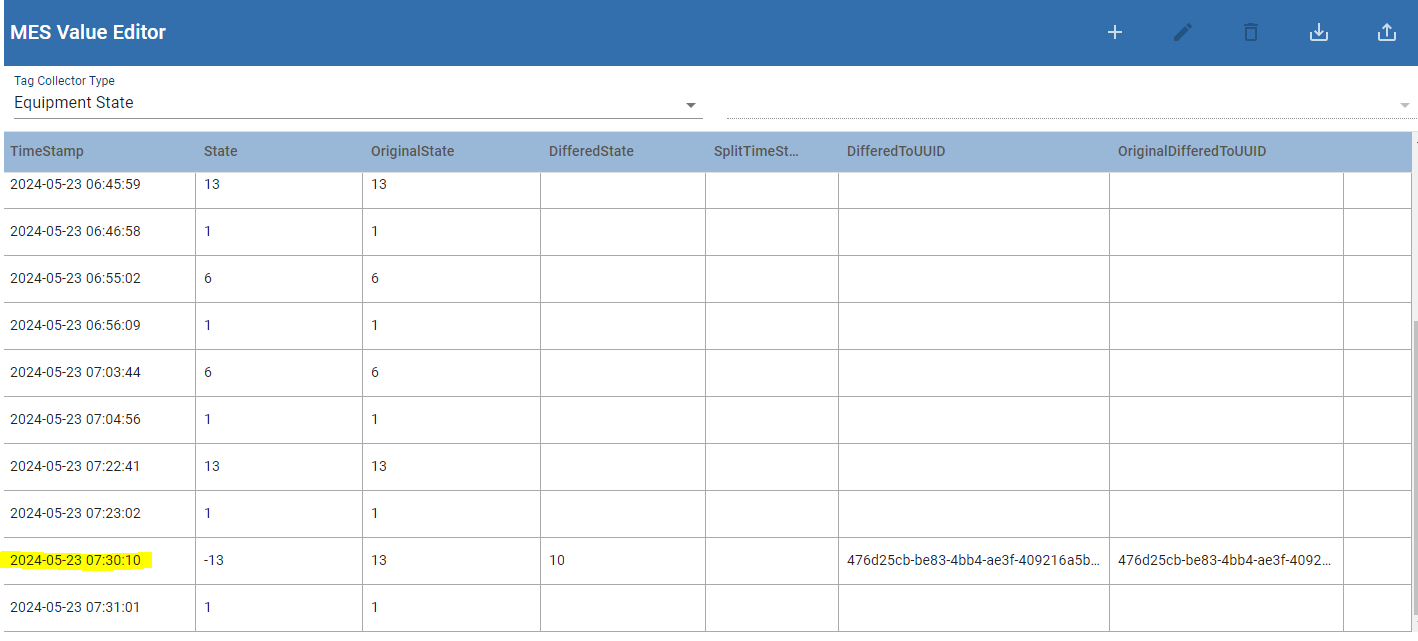
Equipment state value. Note that this may be a negative value if the original value was over-ridden.
Auxiliary Value: State
|
|
When the Equipment State is changed (changed via Downtime Table for downtime events), the system has an additional parameter called the Auxiliary Value, see DifferedToUUID and DifferedState below.
|
||
| Equipment State | Int4 |
The original equipment state before it was updated. Auxiliary Value: OriginalState |
| Equipment State | String |
If the original EquipmentUUID is changed using the Downtime Table then the new uuid is DifferedToUUID
Auxiliary Value: DifferedToUUID
|
| Equipment State | String |
If the original state is changed using the Downtime Table then the new state is DifferedState
Auxiliary Value: DifferedState
|
| Equipment Target Changeover Time | Float8 | Amount of time in minutes set for Target Changeover. |
| Equipment Work Order | String | Work order processed on this equipment |
| Line Infeed Count Equipment UUID | String | Unique identifier for the equipment where the line infeed count came from |
| Line Outfeed Count Equipment UUID | String | Unique identifier for the equipment where the line outfeed count came from |
Settings & Changeover Tag Collectors
|
Tag Collector Type |
Data Type | Key | Auxiliary Value | Description |
|---|---|---|---|---|
|
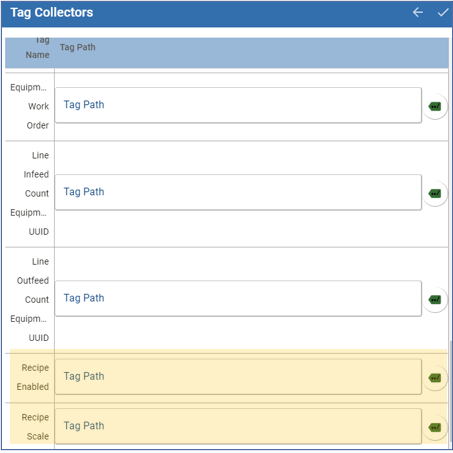
Recipe Enabled |
Boolean | N/A | N/A | If True, the Equipment will be allowed to take part in Recipe Selections. If no Tag is provided, 'True' will be used by default. |
| Recipe Scale | Float8 | N/A | N/A | The value to multiple scaling-sensitive Recipe Values by. If no Tag is provided, '1.0' will be used by default. |
SPC Tag Collectors
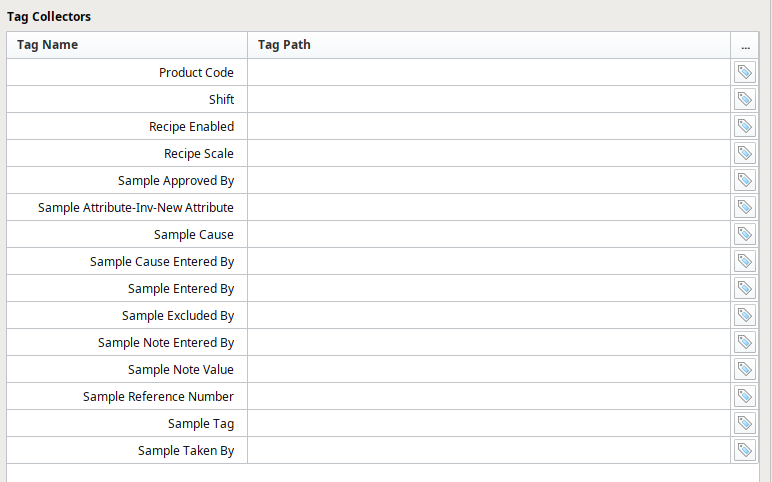
|
Tag Collector Type |
Data Type |
Description Note: Key and Auxiliary Value are not applicable here. |
|---|---|---|
|
Sample Approved By |
String | The person’s name who approved the sample. By default, this is the person who is logged in. For automatically recorded samples, this is “Auto”. |
| Sample Cause | String | The text that was entered as the Cause. |
| Sample Cause Entered By | String | The person’s name who entered the Cause. By default, this is the person who is logged in |
| Sample Entered By | String | The person’s name who entered the sample. By default, this is the person who is logged in. For automatically recorded samples, this is “Auto”. |
| Sample Excluded By | String | The person’s name who excluded the sample. By default, this is the person who is logged i. For automatically recorded samples, this is “Auto”. |
| Sample Note Entered By | String | The person’s name who entered the note. By default, this is the person who is logged in. |
| Sample Note Value | String | The text that was entered in the note. |
| Sample Reference Number | Integer | Returns the id associated with this sample. |
| Sample Tag | String | Tag value that specifies the ownership. |
| Sample Taken By | String | The person’s name who was responsible for taking the sample. By default, this is the person who is logged in when the sample is entered. For automatically recorded samples, this will be “Auto”. |
Scripting Functions for Tag Collectors
Item
When there are multiple values within a tag collector, this specifies which one to show. As an example, there can be multiple MES counters for the Equipment Count tag collector type. If not needed, pass an empty string. In other words it is the name of the MES counter or the name of the Additional Factor.
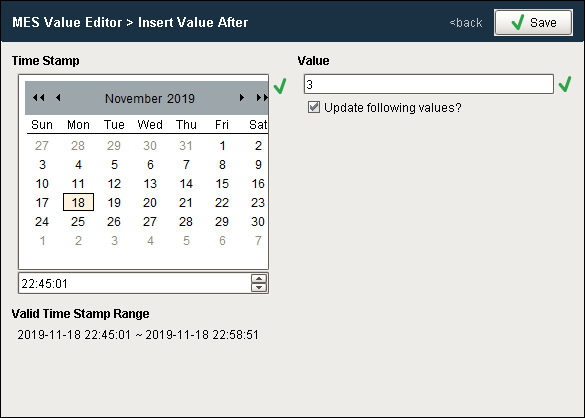
Insert Value Before or After
- Select the value to be changed
-
Click on the
 button or
  button.
- Set the new time stamp and change the value.
- (for tag collector types Equipment Count and Equipment Cycle Count only) Check/uncheck Update following values? (to update all subsequent entries).
- Click Save.
Editing and Deleting Value
- Edit - Click on the value you wish to edit and select Edit.
- Provide the new value and click Save.
- Delete - Click on the value you wish to delete and select Delete.
Exporting Values
-
Select the Tag Collector Type to be exported and click Export.
- When the save window appears, name the file to be exported and click Save.
Importing Values
-
Select the Tag Collector Type to import to and click Import.
- Use the File open dialog box to select the .csv file to be imported and click Open.
Sepasoft MES Module Suite