Configure Scheduling
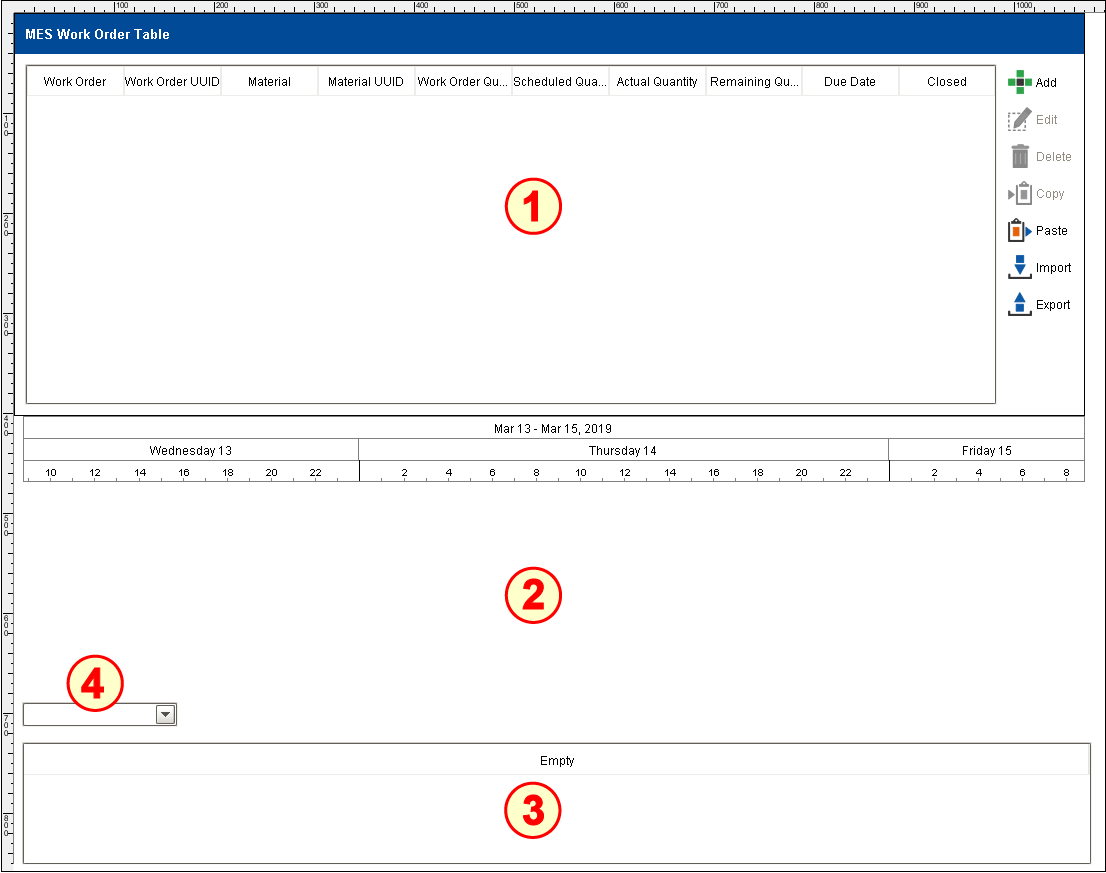
The Scheduling set-up on the window OEE_02_Scheduling/02_Production Control has three components:
Configure MES Work Order Table
- Drag an MES Work Order Table component onto the window. Position it at the top of the window and resize as shown above.
- In the Table Customizer (highlight the MES Work Order Table and type Ctrl-U), hide the following three columns (set the Hide checkbox): Work Order UUID, Material UUID and Closed.
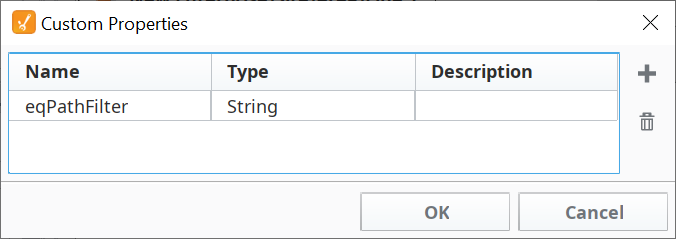
- Create a Custom Property called eqPathFilter (type = String) in the Root Container of the window (not in the MES Work Order Table!).
- In the Vision Property Editor, paste in an initial value for eqPathFilter:
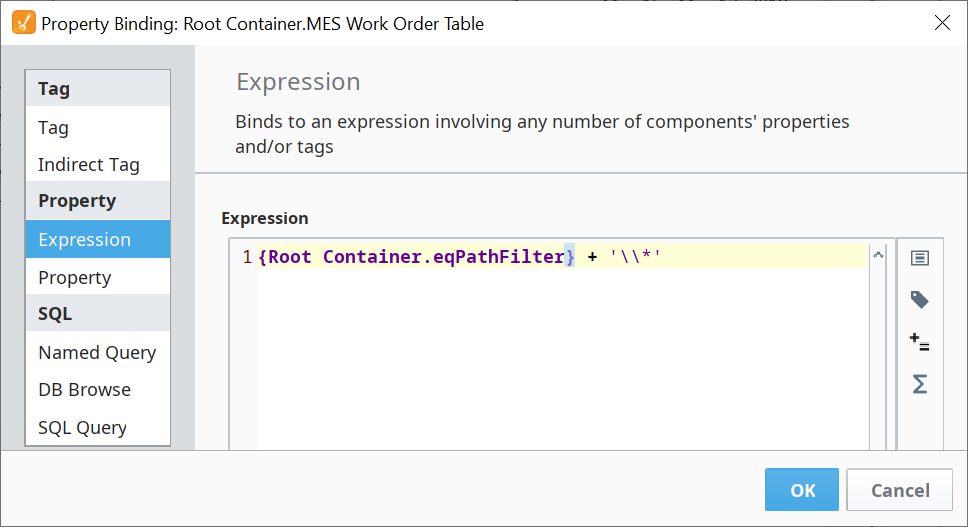
"New Enterprise\Site\Area" (no quotes). Bind the Equipment Path Filter property of the MES Work Order Table to the expression below:
Equipment Path Filter expression
Python{Root Container.eqPathFilter} + '\*'
Configure MES Schedule View
Drag an MES Schedule View component onto the window. Position it below the MES Work Order Table and resize as shown above.
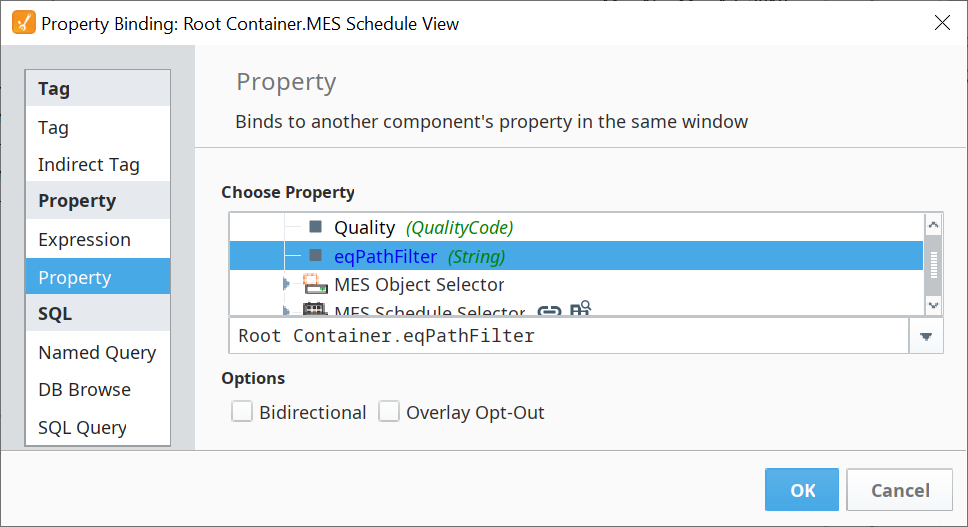
Bind the Equipment Path Filter property to the eqPathFilter property of the Root Container.
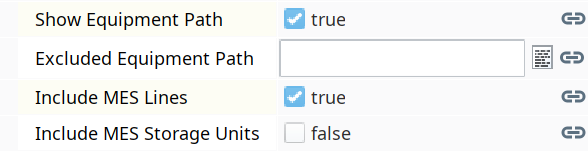
Uncheck the checkbox for Include MES Storage Units. The Include MES Lines property should already be checked (set to True) by default, as shown to the right.
- Check the box for Show Equipment Path.
Configure MES Object Selector
- Drag an MES Schedule Selector component onto the window. Position it at the bottom of the window and resize as shown above.
- Drag an MES Object Selector component onto the window. Position it just above the MES Schedule Selector (reduce the height of the MES Schedule View component just enough to fit it without overlap).
- On the MES Object Selector, set the checkbox for Include MES Line Objects.
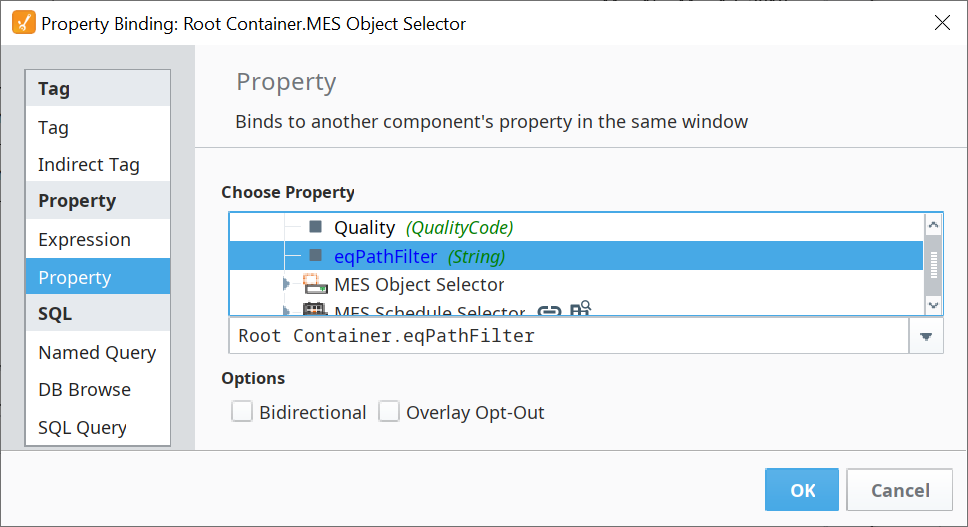
- (optional) On the MES Object Selector, bind the Excluded Equipment Path property to the eqPathFilter parameter on the root window (so only Line 1 and Line 2 appear in the drop-down list, instead of displaying the entire path).

Configure MES Schedule Selector
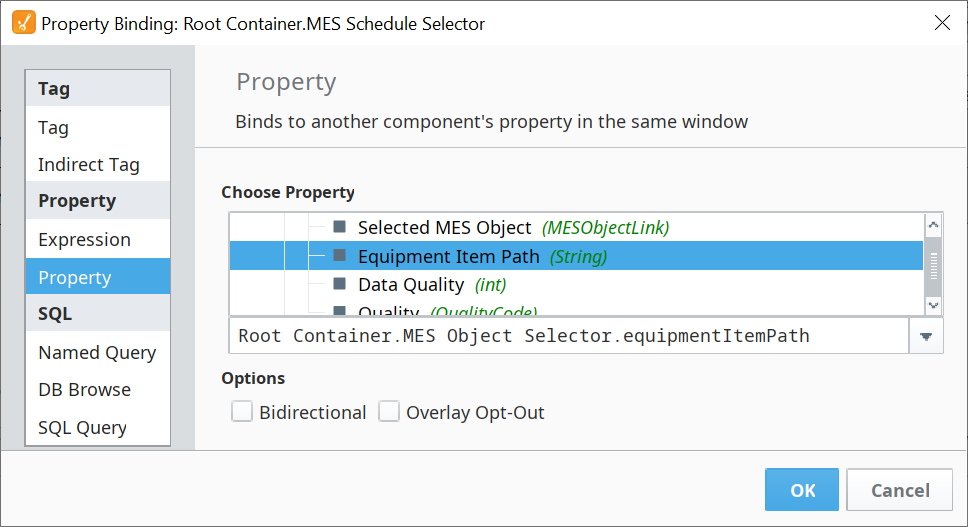
MES Schedule Selector must be bound to a MES Selector via Equipment Path and an actual Equipment (Line) selected so that the Schedule Selector Table Customizer has something to display or it displays as empty
Bind the Equipment Path property of the MES Schedule Selector to the Equipment Item Path property of the MES Object Selector.

The MES Schedule Selector component has an Equipment Path property instead of an Equipment Path Filter property. This means it requires an explicit path to one specific Line and cannot display items for any Line below the specified Area like the two other scheduling components on this screen can do. Therefore, we utilize an MES Object Selector to provide an explicit path to a Line.
- In the Table Customizer, hide the following columns:
OriginalBegin, OriginalEnd, UserScheduledbegin, UserScheduledEnd, OperationsRequestUUID, OperationsResponseUUID and WorkOrderUUID.