Sepasoft MES Module Suite
Lines in the Production Equipment Model
A Line within the MES Production Equipment Model offers a flexible representation of a manufacturing production-line. Configuration can be set up for a stand-alone machine represented as one Cell under a Line or a collection of machines represented as multiple Cells, and optionally Cell Groups, under a Line.
Modeling the Production Line
Modeling considerations:
- Type of Line (single machine, simple contiguous process, parallel processes, shared cells across lines, complex sub-lines, primary cells, cell groups within cell groups)
- Line Downtime Determination (When is the line considered to be down? All cells, any cells, particular cell)
- How production is scheduled (if parts of a line are scheduled separately from each other, then they may be considered two separate lines)
- Interface to cell (if a cell has no real-time accessible interface, its state and output may be combined with an adjacent cell)
- Reporting for the Line (What needs to be in the reports?)
Typically, the product flows from one cell or cell group to the next in sequence until the product, or sub assembly, being produced is complete. Understanding how production execution is managed helps in determining whether cells should be grouped into a line or be considered stand-alone equipment as lines themselves.
MES configuration considerations using Lines:
- OEE Downtime
If a production line of many cells is modeled simply as a single cell, then features provided by the OEE module such as downtime detection methods, cell cycle time, aggregation of machine states by cell, and visual aspects of the OEE components such as the OEE Time chart will all be diminished. Forcing management to schedule production runs on multiple lines that they did not do prior to the OEE implementation, as well as only allowing a single scheduled run on a a set of cells where traditionally multiple schedules existed are signs that the model may not be correct.
For details, see Line Settings for OEE below.
Also for training materials for OEE, see OEE Practical Tutorial
- SPC: to add Locations at the Line level
- Track & Trace
- Settings & Changeover
Line Settings
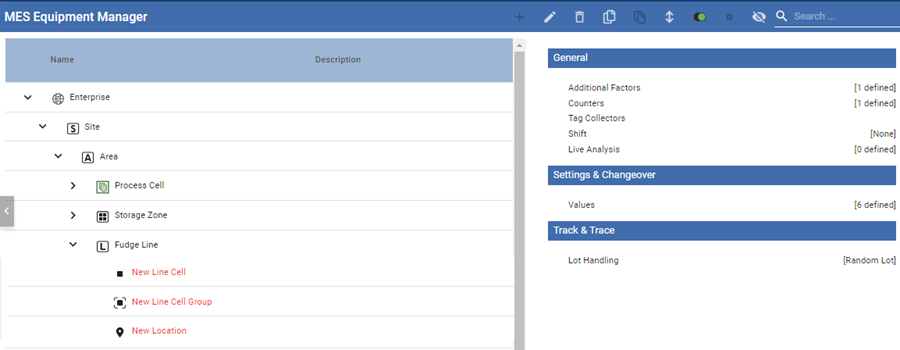
Lines are added and configured in MES Equipment Manager. Once added, select the Line and then click the Edit pencil icon at the top.
Name: The name that appears in the Production Model and is used in the equipment path.
Description: Optional text field.
Active: By default, the production item is disabled (items that are disabled are displayed in red text). It can be enabled by checking the Active setting and saving. Disabling stops the following modules from running on the line: Track & Trace, OEE Downtime, SPC, Settings & Changeover.
Multi-Operation Capable – When checked, one or more operations can run on the equipment simultaneously. When not checked, only one operation can run at a time. If not checked, attempting to run a second operation on the Line will throw an error.
General Line Settings
These settings can apply to more than one MES Module and are therefore organized under General. Specific MES Module configuration for Lines, Cells and Cell Groups is under its own heading below.
Additional Factors
Additional Factors are user-defined data points that are logged along with the production and downtime information. Once they are logged, they can be shown in charts, tables and reports.
For details, see Additional Factors
Counters
The MES Counters are used to associate Process Segments (Operations) with production counts. MES Counters record production counts 24/7, independent of scheduled production runs.
For details, see MES Counters.
Tag Collectors
Tag collectors record values when the equipment item is active in the production model defined in Equipment Manager. You can read and modify these values using MES Value Editor and scripting.
For details, see Tag Collector Types.
Shift
Shifts are defined at the Line level and enable the Scheduling Engine to accurately estimate how long a work order for a certain quantity of product code should take to complete on a given production line.
For details, see Shift Configuration.
Live Analysis
Live Analysis provides a flexible way of customizing your application to provide a set of real-time tag values that can be accessed from the Ignition Designer and used in your application to provide real-time production monitoring.
For details, see Live Analysis.
OEE Downtime Module
Line settings when configuration OEE Downtime Module.
Settings & Changeover Module
See Setpoint Values.
SPC Module
Setting Up Locations for sampling.
Track & Trace Module
Setting Lot Handling Mode in Track & Trace Module
Sepasoft MES Module Suite