Configure Run Control
- OEE:GUI: Configure MES Value Editor
- OEE:GUI: Starting and Stopping Production Runs
- OEE:GUI: Explore Equipment Raw Data Values
- OEE:GUI: Configure Live Analysis
- OEE:GUI: Provide Values into the Model to Drive the Dashboard
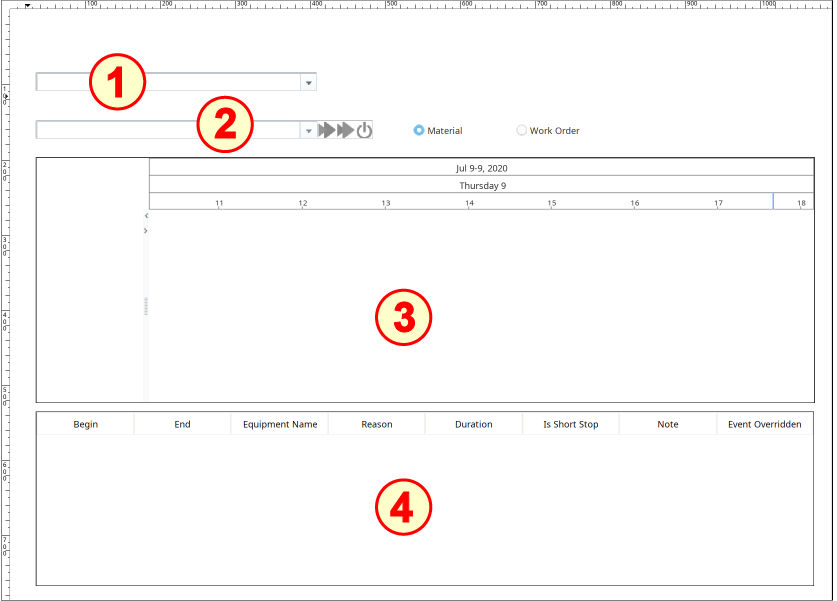
The Run Control set-up on the window OEE_01_GUI/02_Production Control:
- MES Object Selector
- OEE Run Director - Vision (and two Ignition Radio Buttons)
- OEE Time Chart - Vision
- OEE Downtime Table - Vision
Configure MES Object Selector
-
Drag an MES Object Selector component onto the window and place it in the upper-left corner, as shown above. Drag the size out to about four times its original width.
- In the MES Object Selector component properties, set the checkboxes for Include MES Line Objects and Show Equipment Path.
Configure OEE Run Director and Radio Buttons
-
Drag an OEE Run Director component onto the window and place it under the MES Object Selector. Position and resize as shown above.
-
Drag two Radio Buttons onto the window and position to the right of the OEE Run Director. Configure as follows:
- Rename the left button to rbn_Material and set the Text property to Material.
-
Rename the right button to rbn_WO and set the Text property to Work Order.
-
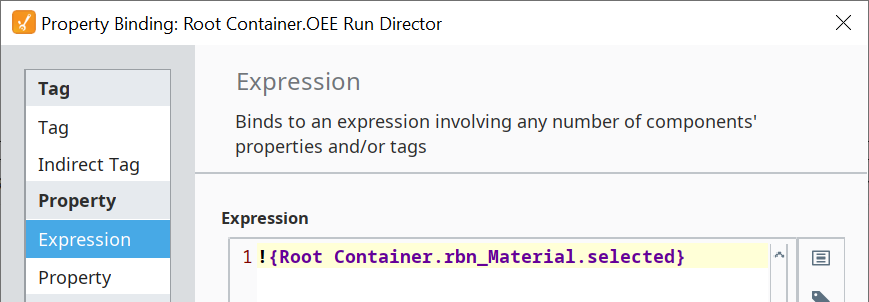
In the OEE Run Director, bind the Selection Mode property to the following expression:
Selection Mode expression
Python!{Root Container.rbn_Material.selected}
-
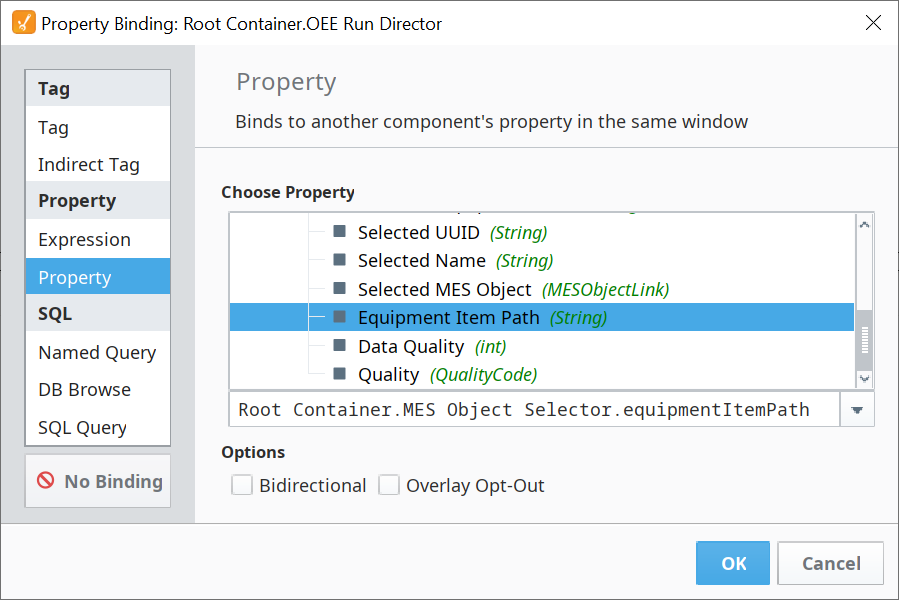
In the OEE Run Director, bind the Equipment Path property to the Equipment Item Path property of the MES Object Selector.

Configure OEE Time Chart
- Drag an OEE Time Chart component onto the window and place it under the MES Run Director. Position and resize as shown above.
-
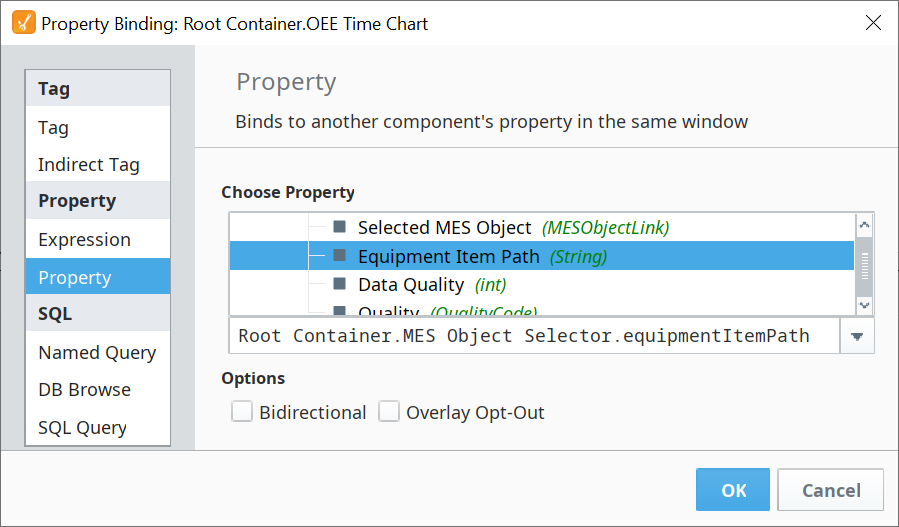
Bind the Line Path property to the Equipment Item Path property of the MES Object Selector.
-
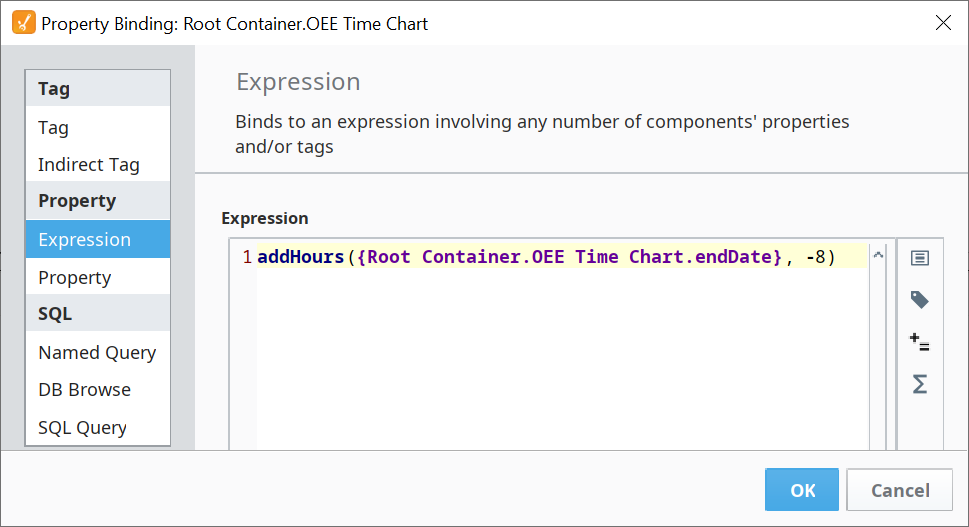
Bind the Start Date property to the expression:
Start Date expression
PythonaddHours({Root Container.OEE Time Chart.endDate}, -8)
-
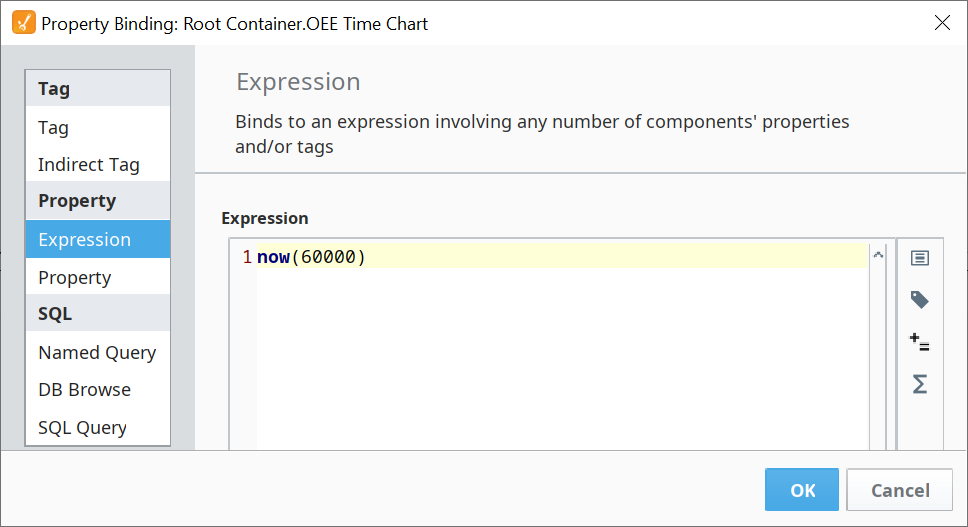
Bind the End Date property to the expression:
End Date expression
Pythonnow(60000)
- Set the checkboxes for Show Date Range Header, Show Equipment Mode and Show Equipment State.
Configure OEE Downtime Table
-
Drag an OEE Downtime Table component onto the window and place it under the OEE Time Chart. Position and resize as shown above.
-
In the Table Customizer (highlight the OEE Downtime Table and type Ctrl-U), only show the following columns (set the Hide checkbox for all columns except the following):
Begin, End, Equipment Name, Reason, Duration, Is Short Stop, Note and Event Overridden. -
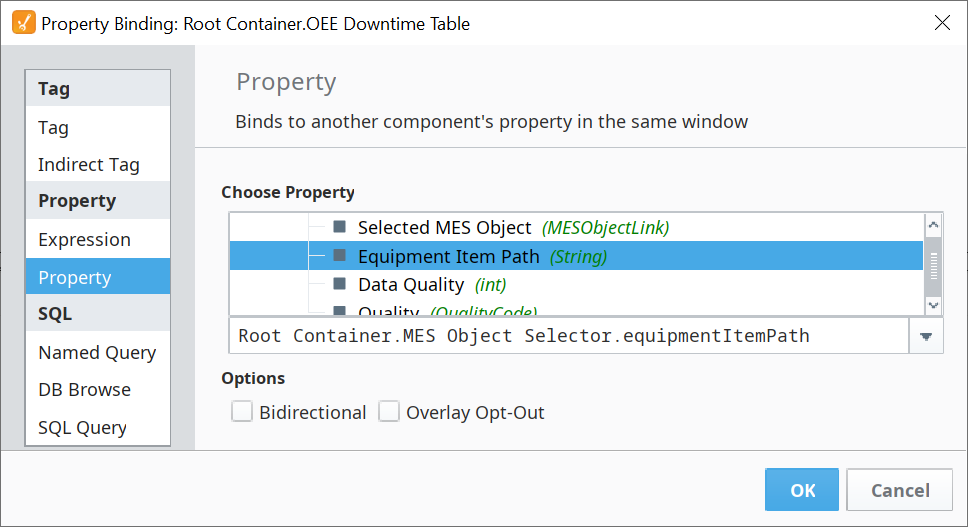
Bind the Equipment Path property to the Equipment Item Path property of the MES Object Selector.

Optional Counter Spinners
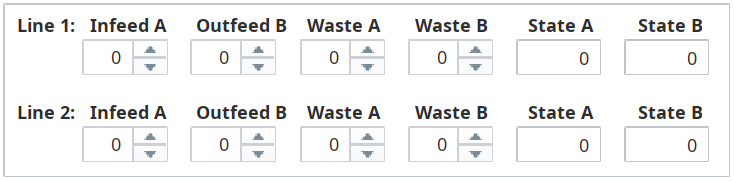
On the next page, you'll be simulating the Infeed, Outfeed and Waste counters incrementing, as well as State changes, as you perform simulated production runs. Binding the Memory Tags for these onto Ignition Spinner components and Numeric Text Field components makes it more convenient to simulate your runs. You can modify the Tags directly from the Tag Browser as well, if you prefer to skip this step.
- Drag the pre-configured Counters template from the Templates folder onto the upper-right area of the screen. You can use these spinners and fields for simulating your production runs easier.