Sepasoft MES Module Suite
Production Equipment Model
When the Production Module is installed, you can start building the Production Equipment Model in the MES Equipment Manager. This is where you define your manufacturing process and configure, control, and analyze your manufacturing activities.
The Production Equipment Model is the foundation, backbone, on which the MES functionality is built; For this reason, changes can cause errors in the equipment paths. Think through the structure by reviewing the module documentation, and keep in mind that you can set up Design Consultation to help in architecting.
Production Equipment Hierarchy
The Production Equipment Model is a hierarchy of Sites, Areas, Lines with Cell Groups, Cells, Process Cell(s) with Units, Locations, Storage Zones and Storage Units.
- In the Batch Procedure framework, a Process Cell represents a production line; A Unit represents a piece of equipment.
- In the modules: OEE, SPC, Settings and Changeover, and Track and Trace: Lines and Cells are used to represent machinery or equipment.
- In the Track and Trace framework, Storage Zones and Storage Units are typically used to define where to get or store material.
- In the SPC framework, a Location is where samples are taken.
Mobile equipment such as pallets, bins, dies used for pressing, etc. are not defined in the Production Model, but configured in the MES Object Editor as Supplemental Equipment.

|
Production Equipment Model Initialization Be aware that creating Gateway Scripts that are triggered before the Production Equipment Model is initialized (during a restart for example) could generate errors and allow situations where MES operations are requested before initialization is complete. A common example is Timers that execute Analysis. The error log states that the Equipment Path does not exist. Wrap scripts in isProductionModuleStarted to avoid errors during a restart. |
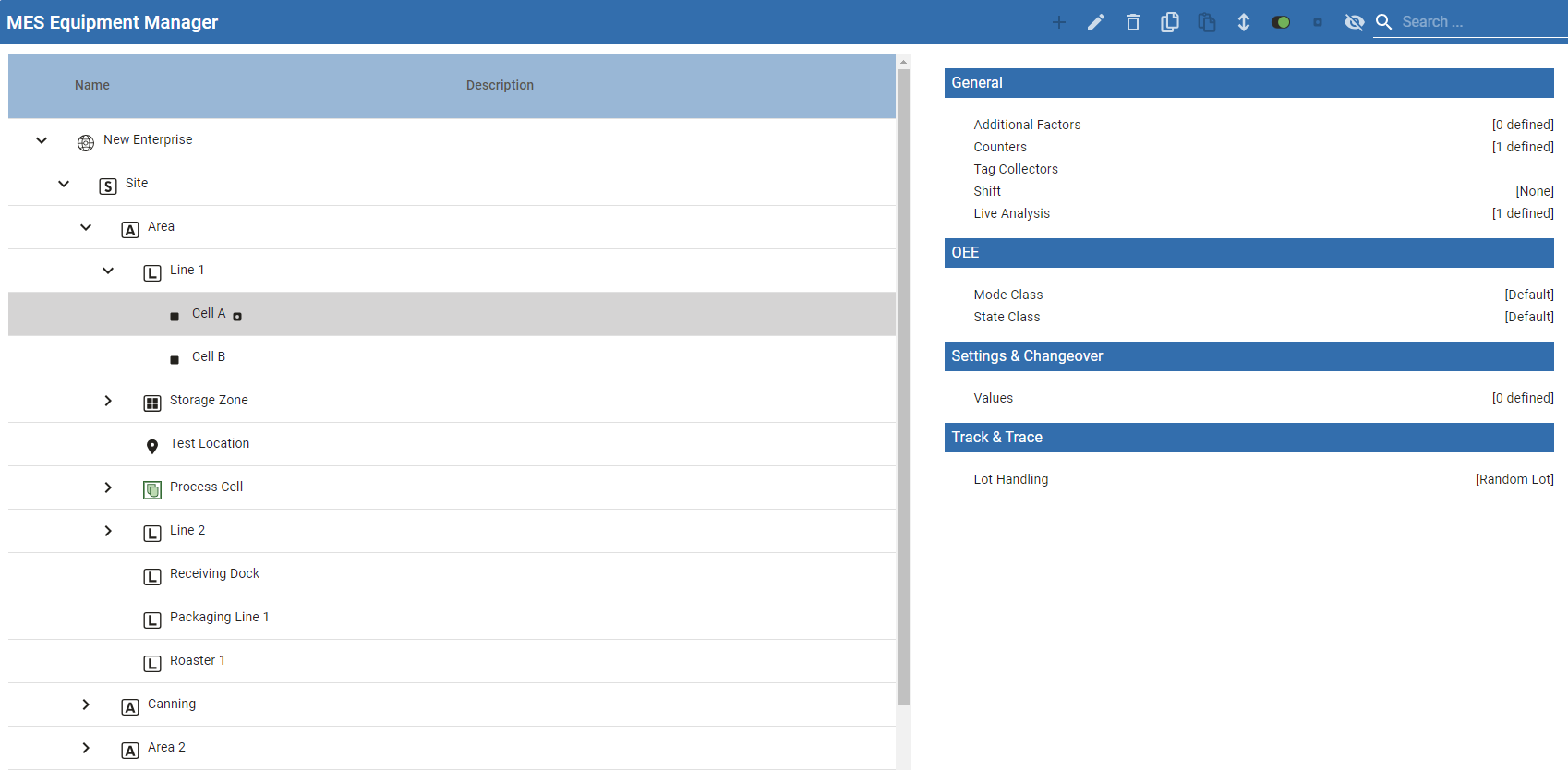
Production Items in the Production Equipment Model
Below are the different types of Production Items that can be added to the Production Model.
| Icon | Production Item | Description | Module(s) |
|---|---|---|---|
|
|
Enterprise | Highest level of a gateway Learn about an MES Enterprise Network. For configuration, see Enterprise Settings. |
All |

|
Site | A Site is a fixed geographical production location that is part of an Enterprise. Separating your Enterprise into multiple production sites allows for comparing OEE, downtime and production information between them. See Site Settings. |
All |

|
Area | An area is a physical or logical grouping of production lines. | All |
|
|
Process Cell |
Represents a production line of any type of manufacturing:
Accessed with a Batch Procedure license. For more information, see Batch Procedure Framework. |
Batch Procedure |
|
|
Unit |
Represents a piece of equipment and its control modules that are used in a major processing activity.
Each Unit usually performs one operation within production that could include multiple stages. A Unit may:
For more information, see Batch Procedure Framework. |
Batch Procedure |

|
Line |
A line represents a stand-alone machine or a collection of multiple cells and/or cell groups that work together to perform a sequence of process steps.
Typically, the product flows from one cell or cell group to the next in sequence until the product, or sub assembly, being produced is complete.
Understanding your specific production execution is key in determining whether cells should be grouped into a line or be considered stand-alone equipment as lines themselves.
See Line Settings. |
|

|
Location | Sample Definitions are assigned to Locations. This can be placed under an Area or Line. | SPC |
 
|
Cell Group | A Cell Group contains two or more cells. Typically, the activity at these cells occur at the same time within the sequence of the Line instead of one after another. This causes the cell group to act as a single sub-process or step within the production. |
|

|
Cell | The cell is a single machine, sub process or step required in the manufacture of a product. The product may be a hard product such as used in packaging, adding liquid or powder, etc. Packaging machines are a common example, but a cell applies to processes also. |
|

|
Storage Zone | A storage area such as a warehouse. Storage zones are located in areas. | Track and Trace |

|
Storage Unit | A storage unit located inside of a storage zone. For example, you may have a warehouse with bay 1 to 5. | Track and Trace |


Configuring the Production Module
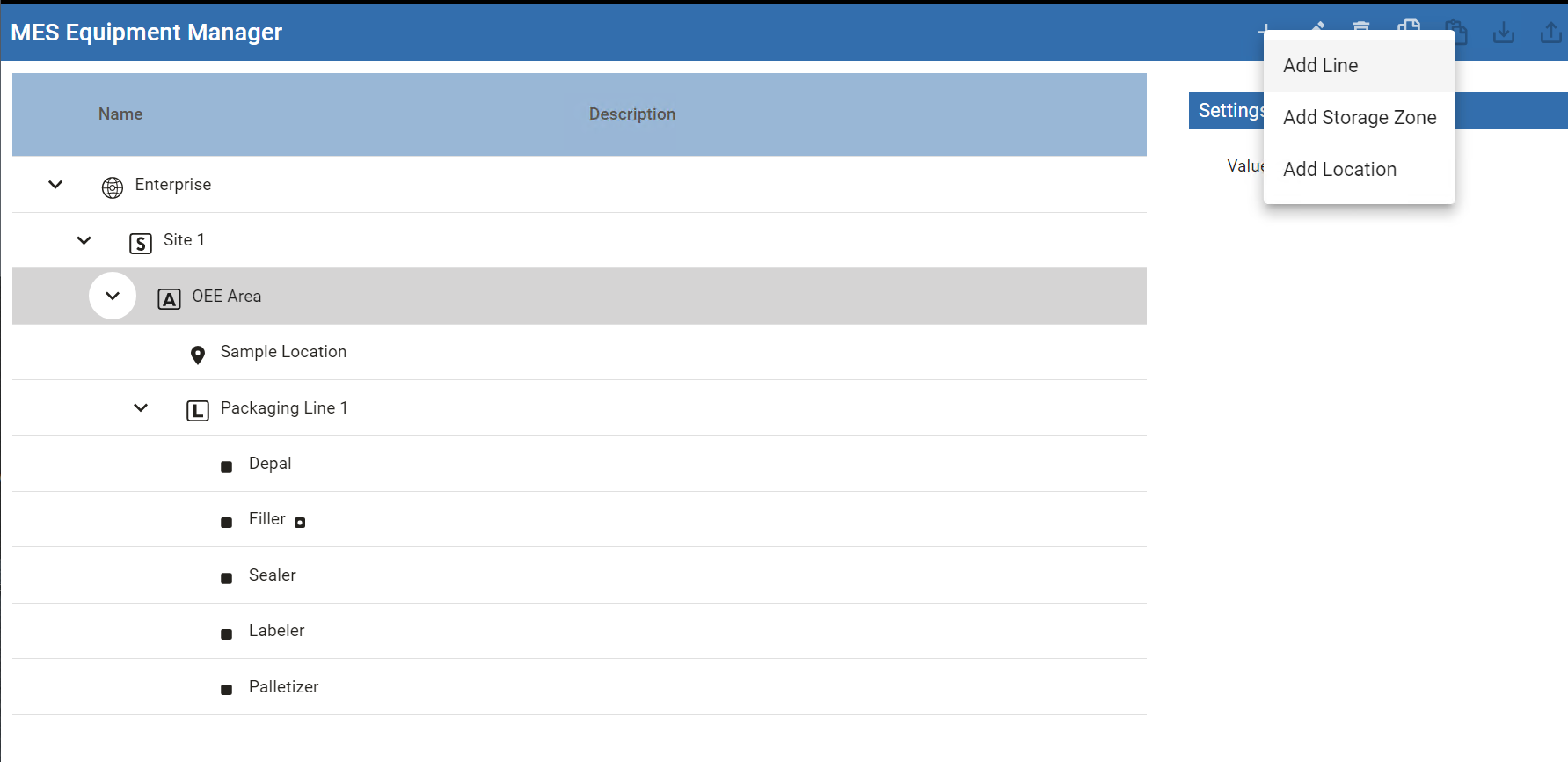
The Production Model is configured within the Ignition Designer and is accessed via an MES Equipment Manager placed on a window. From here, your enterprise, site(s), area(s), line(s) and line cell(s), line cell group(s), storage zone(s) and storage unit(s) can be added, renamed and deleted.
Two client options:
|
|
It is extremely important to understand production OPC values have an OPC item path that matches the layout of the Production Model and that renaming production items can cause Ignition tags associated with a production item to stop being updated. |
Database Disconnection

|
Prior to module start-up, the software checks to see if the connection to the selected MES database is valid. If not valid, the software waits until the connection becomes valid before beginning module startup. If the database connection becomes invalid during normal operation, the system handles the disconnection and re-connection events gracefully (without causing an error). |
Add a New Production Item
To add a new Production item, right-click on the parent item in the Production Model and select the appropriate Production item (only valid choices to be created under the selected parent item will be available in the list).
The Enterprise level (or highest level on the current server) must match the naming in the MES Enterprise Settings on the Ignition Gateway.
|
|
When you add a cell to a line that had already run in the past, you will either get a popup and/or an error in the Ignition Designer console that says: "Cannot start OEE run on the equipment (Enterprise\Site\Area\Line 2) because production settings for cell group or cell (New Pal) do not exist." To configure production settings for the new cell:
|
Characters Not Allowed in Names
These characters are reserved by the Sepasoft modules.
Production Equipment
. ? ! # % ^ * ~ [ ] { } + = ` \ @ & ( ) < >,
MES Person
. ? ! # % ^ * ~ [ ] { } + = ` \/ " $ | < >
Other MES Objects
. ? ! # % ^ * ~ [ ] { } + = ` \/ " $ | ,
Machine Recipe Name in Settings & Changeover Module
Follows the same convention as Other MES Objects
Exception: Full-stop period . is allowed as of 3.81.10 SP2
Batch Names in Batch Procedure Module
. ? ! # % ^ * ~ [ ] { } + = ` \/ " $ | ,
Rename a Production Item
To rename a production item, right-click on it and select Rename (or press F2), then enter the new name.
|
|
Please note that when you rename a Production item, it actually creates a new instance of a Production item and disables the old production item. This is important to note, as data captured against that production item will not be accessible to the newly-renamed Production item. The best practice is to spend the time to name all Production Items correctly at the beginning of the project. |

|
You will not be allowed to rename a production Line item in run-time in the MES Equipment Manager while an OEE Operation is in progress. |
Delete a Production Item
To remove an existing production item, right-click on the item and select the Delete menu item. A window will appear confirming that you permanently want to delete the production item.
|
|
Please note that any line(s), cell(s), cell group(s) and location(s) underneath the Production item will also be permanently removed. |
Copy a Production Item
- Right Click, select Copy on any production item to copy that production item.
- Right Click mouse button and select Paste to make a copy of that production item in the Production Model.
If you are copying a line, select the line before copying it. When you paste it, select the area in which to the create a copy of that line.
Production Item General Settings
The general settings are accessed by selecting the desired production item and selecting Settings in the General section.
| Setting | Description |
|---|---|
| Active |
By default, the production item is disabled (items that are disabled are displayed in red text). It can be enabled by checking the Active setting and saving the project. When disabled, this will stop the Track and Trace, OEE Downtime, SPC, Recipe and scheduling modules from using the area and any other production items that are underneath it. When enabled, the item turns to black text. |
| Description | This is an optional description and is just for your reference. |
Sepasoft MES Module Suite